Apply tags to resources in Managed Kubernetes Engine
The Tagging feature allows you to label Kubernetes clusters and worker groups with custom tags for classification, search, and more effective resource management.
- Smart classification: Easily organize clusters, virtual machines by environment (Production, Staging, Development), project, department, or any criteria that fits your management process.
- Quick search: Filter and find clusters, VMs easily based on their tags without having to remember complex names.
- Efficient management: Track costs, resource usage, and generate reports based on tagged VM groups.
- Flexible customization: Tags can be customized and applied for various purposes to meet specific business needs.
With the Tagging feature, managing virtual infrastructure becomes more organized, saves time, and improves operational efficiency.
Create a Tag
-
On the Unify Portal, select Tagging → Create tag.
-
Enter the tag information and click Create.
- Key (required): Enter a key to identify the tag.
- Value: Enter a value for the tag corresponding to the key.
- Color: Select a color for displaying the tag.
For more information about creating tags, please navigate Create new tags in Tagging
Assign tags to cluster
Users can assign tags when creating a cluster or add them later as needed. Each cluster can have up to 50 tags.
- Assign tags while creating new cluster
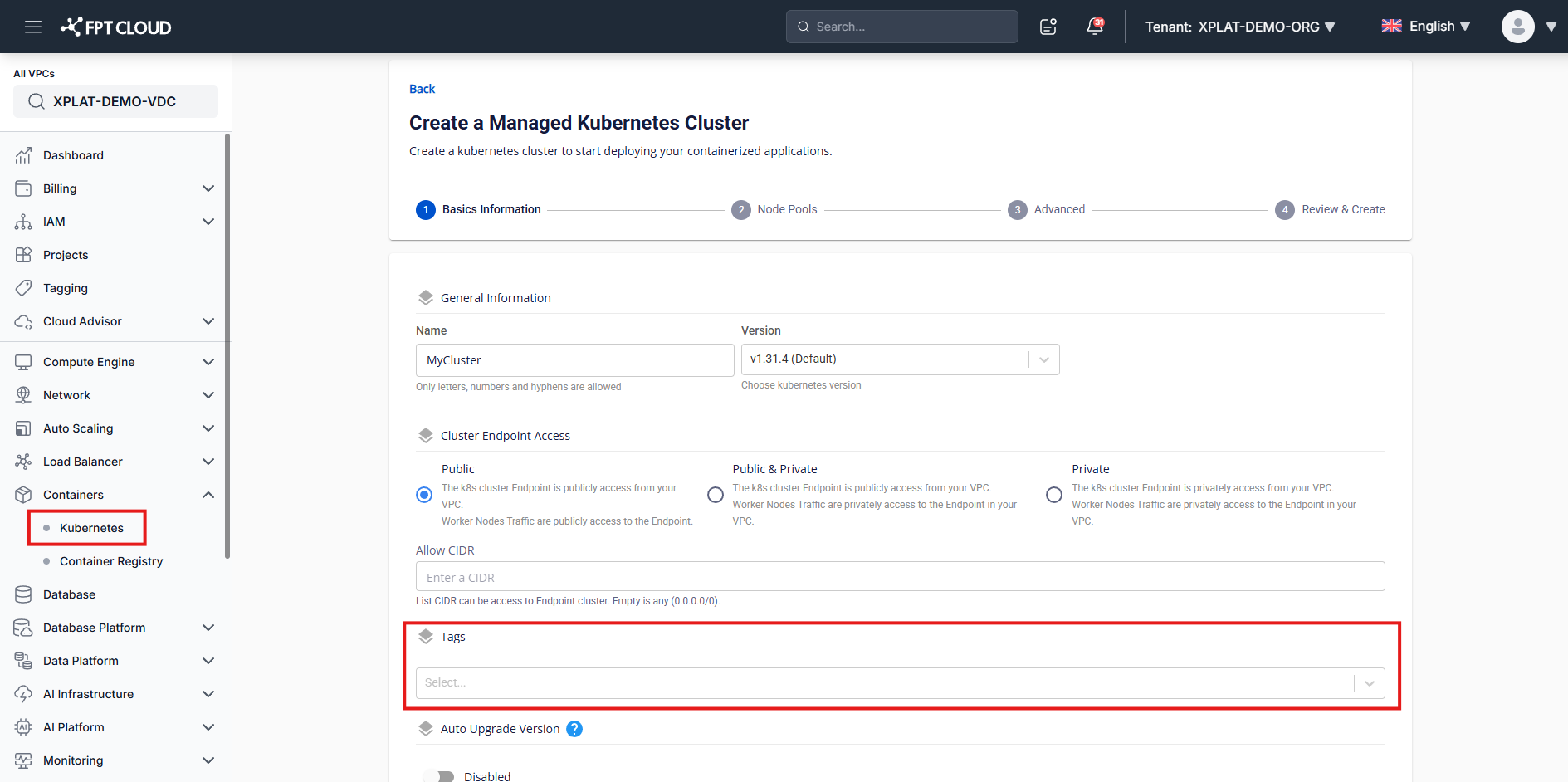
- Edit tags in cluster details
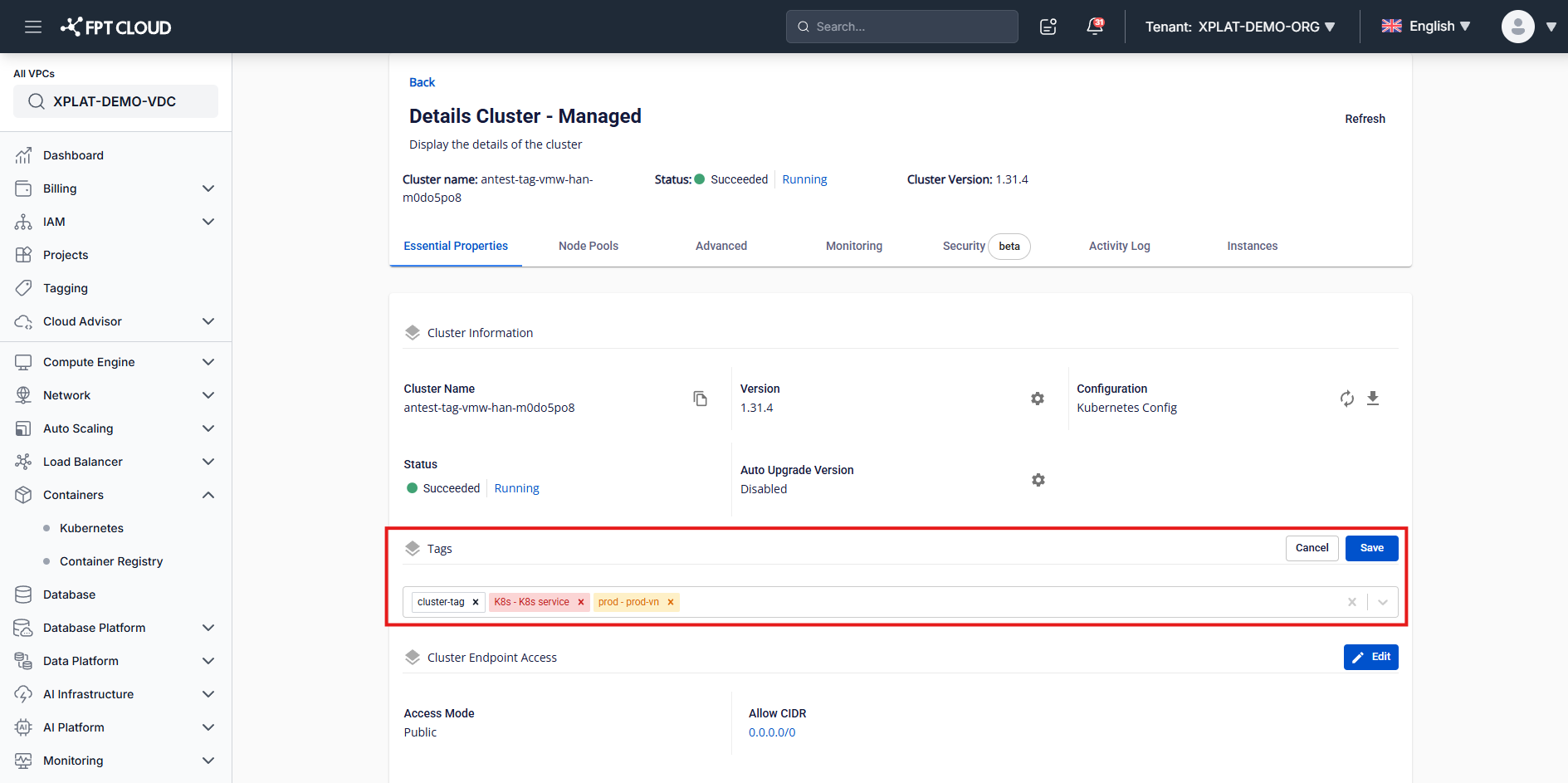
- Edit tag from cluster list, navigate option "Manage Tag"
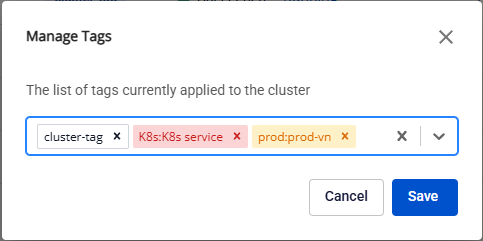
Assign tags to worker group
-
On the Unify Portal, select Kubernetes → Managed → Create a Kubernetes Engine to create a new cluster.
-
In the Nodes Pool section, select the tags you want to use for each worker group. Each worker group can have up to 50 tags, including all inherited tags from cluster
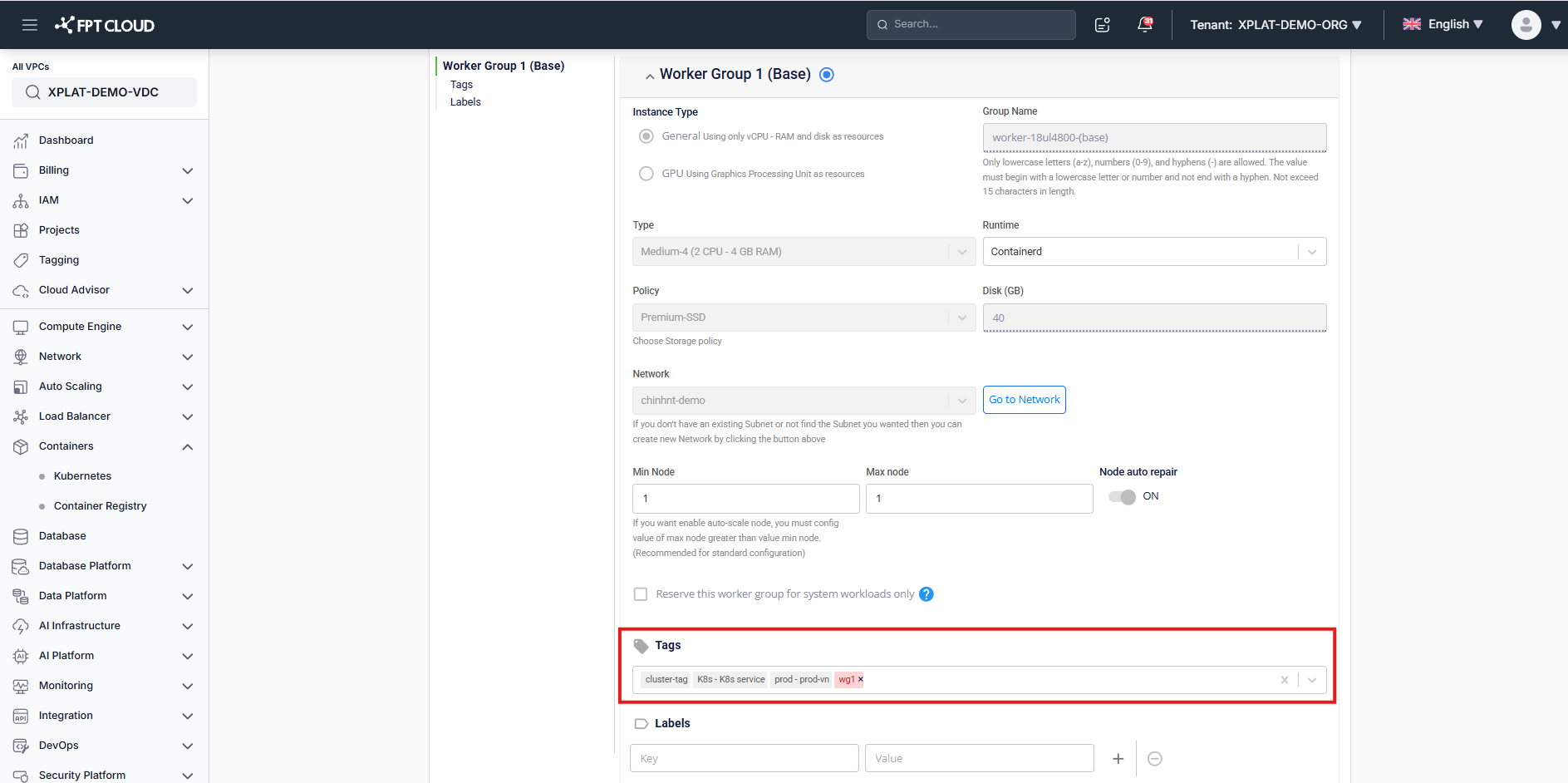
Note: All cluster tags will be applied automatically into worker groups. These inherited tags can not be removed from worker groups until removing from clusters.
Remove a Tag from a worker group
-
Select Node Pools > Edit Workers.
-
Click the remove icon to delete the tag from the worker group, then click Save.
Note: All cluster tags will be applied automatically into worker groups. These inherited tags can not be removed from worker groups until removing from clusters.
LoadBalancer tags inherited from the cluster
When you create a Kubernetes Service of type LoadBalancer in a cluster, the LoadBalancer FPT Cloud provisions for it automatically carries the same tags as the cluster — no manual tagging needed. If you change the cluster's tags later, the LoadBalancer's tags update automatically to match, and if you delete the Service, its inherited tags are removed automatically too.
Requires a cluster running Kubernetes v1.33 or later. Clusters on older versions don't get this behavior. It only applies to LoadBalancers FPT Cloud creates automatically for a LoadBalancer-type Service — a LoadBalancer you create yourself as a separate Terraform resource already supports tagging and isn't affected by this.
Adding extra tags to a specific LoadBalancer, beyond what it inherits from the cluster, currently has to be done from the LoadBalancer service's own interface — support for doing this directly here is planned for a future release. If the LoadBalancer gets recreated after an infrastructure incident, any extra tags you'd added to the old one don't carry over to the new one — you'll need to re-add them.
Further information on how to manage tags can be found here: Tagging