Edit labels and taints for a Worker Group
Labels and Taints let you control which Pods can be scheduled onto a Worker Group — use them to isolate system workloads from application workloads, or to target specific workloads to specific hardware.
-
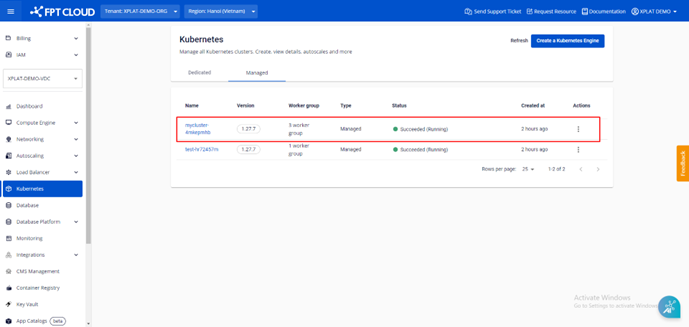
From the menu, select Kubernetes to open Kubernetes Management, then select the cluster you want to edit.
-
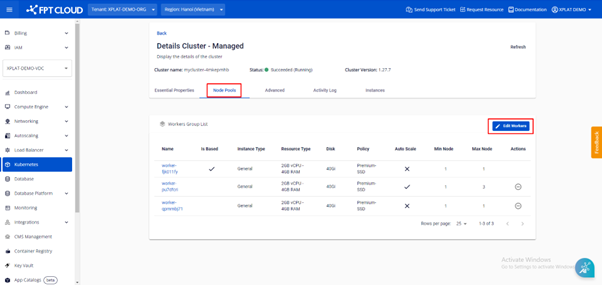
Select Node Pools → Edit Workers.
-
Enter the Labels and Taints you want to add to the Worker Group, then select Save.


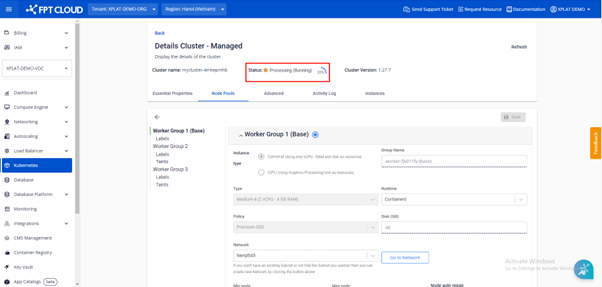
Editing Labels and Taints takes a few minutes. The cluster status shows Processing during this time — you can't make other changes to the cluster until the process completes.
Isolate system workloads from application workloads
To keep application workloads from affecting cluster operations, Reserve this worker group for system workloads only dedicates the base Worker Group to System Pods and blocks Application Pods from being scheduled onto it.
This feature only applies to clusters with 2 or more Worker Groups.
Enable Reserve this worker group for system workloads only in the base Worker Group configuration step when you create a new cluster. Once enabled, nodes in the base Worker Group get the taint CriticalAddonsOnly=true:NoSchedule — Application Pods won't be scheduled onto the base Worker Group unless they have a matching toleration.
If the cluster is already running and the base Worker Group already has Application Pods on it, enabling this feature doesn't affect those existing Pods. Only newly created Pods without a matching toleration are blocked from the base Worker Group.
If you delete every other Worker Group and only the base Worker Group remains, the system automatically disables this option until you add a new Worker Group.