Cluster autoscale
Cluster Autoscale automatically adds Worker Nodes to a Worker Group when the applications running on it can't get enough CPU or memory from the existing nodes — pending Pods get scheduled onto the newly added nodes. It also removes nodes that are under-utilized (default threshold: 50%). Worker Node count only ever scales within the min-max range you define in the FPT Cloud Portal.
Enable cluster autoscale
-
From the menu, select Kubernetes to open Kubernetes Management, then select the cluster.
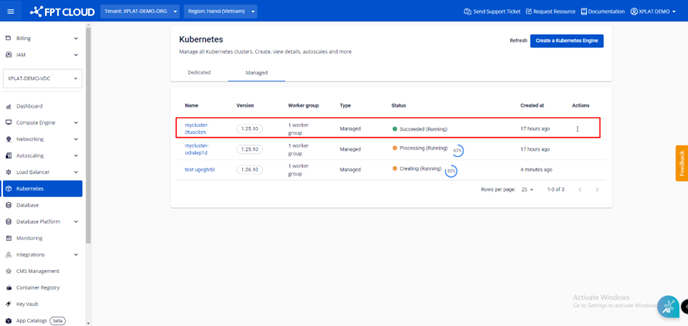
-
Select Node Pools → Edit Workers.
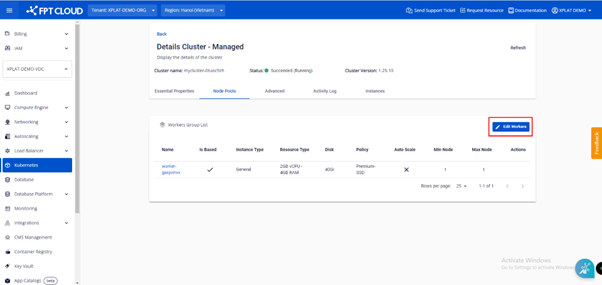
-
Set the worker min-max values to match your sizing needs.
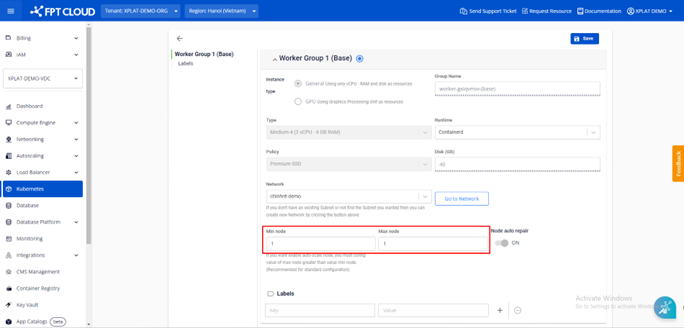
Cluster Autoscale turns on automatically when worker max is greater than worker min.
-
Review the information, then select Save to enable Cluster Autoscale.
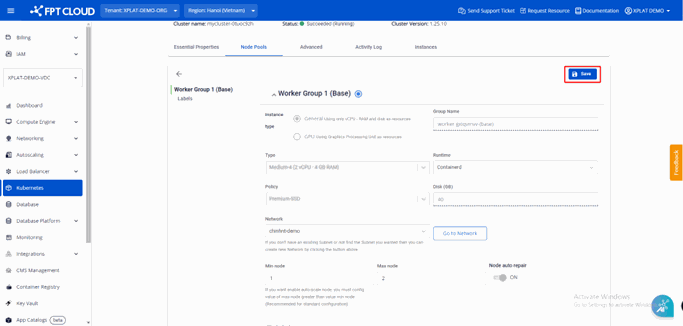
Disable cluster autoscale
-
From the menu, select Kubernetes to open Kubernetes Management, then select the cluster.
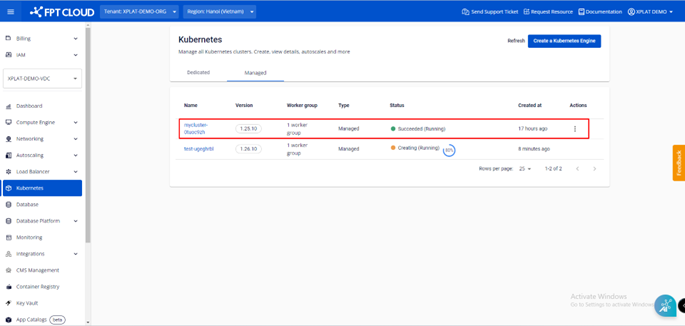
-
Select Node Pools → Edit Workers.
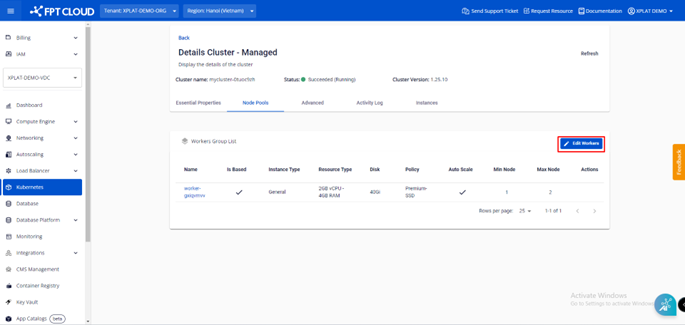
-
Set worker min equal to worker max.
Cluster Autoscale turns off automatically when worker min and worker max in a Worker Group are equal.
-
Review the information, then select Save.
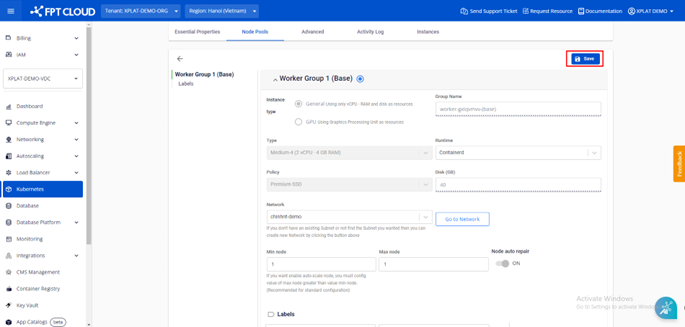
Change the cluster autoscale configuration
-
From the menu, select Kubernetes to open Kubernetes Management, then select the cluster.
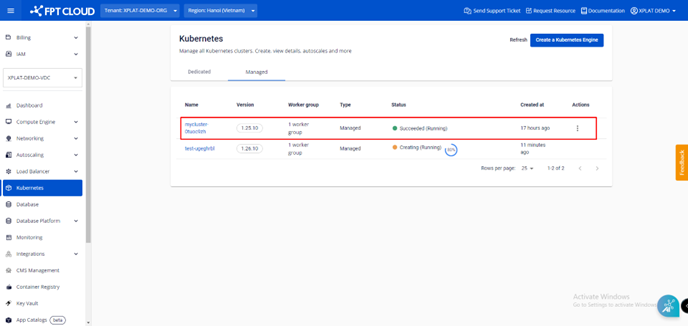
-
Select Node Pools → Edit Workers.
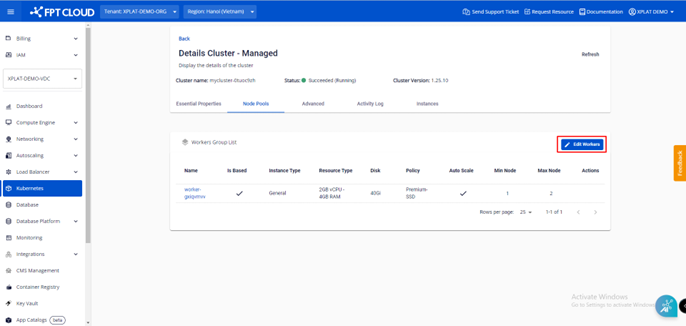
-
Adjust the worker count to match your needs.
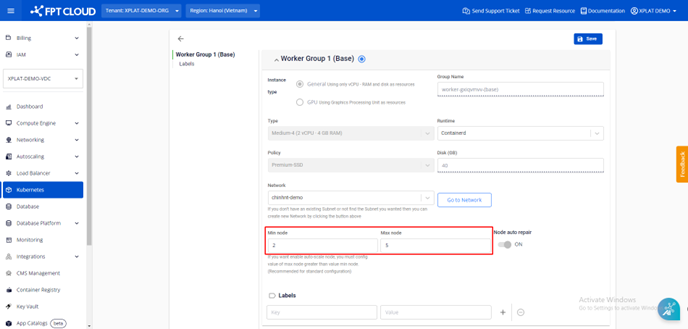
-
Review the information, then select Save.
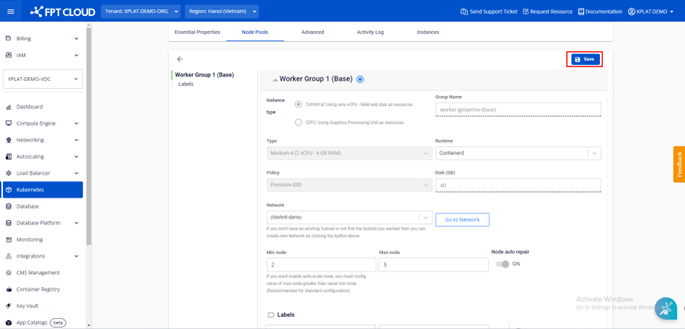
Cluster autoscale logs
Check autoscale activity logs under Monitoring → Cluster Autoscaler Logs.