Use the MFKE Linux OS Image for a Worker Group
Overview
MFKE Linux is an OS image for Managed FPT Kubernetes Engine Worker Nodes. The Kubernetes images it needs are already installed on the node, so when Cluster Autoscale adds a Worker Node under load, the new node doesn't have to pull these images on first boot and becomes ready to receive Pods faster.
After this page, you'll be able to:
- Create a new cluster with a Worker Group running MFKE Linux.
- Switch an existing cluster's Worker Group to MFKE Linux.
- Check that a new Worker Node is ready to receive Pods.
MFKE Linux is only supported on clusters running Kubernetes v1.33 or later.
Who this is for
| Role | Description |
|---|---|
| Managed FKE customer | Create the cluster and Worker Group, and enable Cluster Autoscale for their application. |
| Cluster operator / DevOps | Switch a Worker Group's OS image, monitor new nodes, and check that Pods get scheduled. |
Key capabilities
| Capability | Description |
|---|---|
| Choose MFKE Linux | The OS image field now also offers MFKE Linux, alongside Ubuntu 22.04 and Ubuntu 24.04. |
| Use it when creating or editing a cluster | Choose MFKE Linux while creating a new cluster, or switch to it on the Edit Workers screen of an existing cluster. |
| Faster-ready new nodes | The Kubernetes images it needs are already on the node, so a new node doesn't have to download them on boot. |
| Pairs with Cluster Autoscale | When Max node is greater than Min node, the system adds MFKE Linux Worker Nodes automatically under load, up to Max node. |
Step-by-step guide
Scenario 1: Create a new cluster with an MFKE Linux Worker Group
-
On the FPT Portal menu, select Containers → Kubernetes → Create a Kubernetes Engine.
-
Choose a Kubernetes version v1.33 or later, then fill in the Worker Group configuration (Type, Runtime, Policy, Disk, Network).
-
Set Min node and Max node. To enable Cluster Autoscale, set Max node greater than Min node — see Enable cluster autoscale.
-
At OS image, select MFKE Linux. At Version, select
2150.15.1.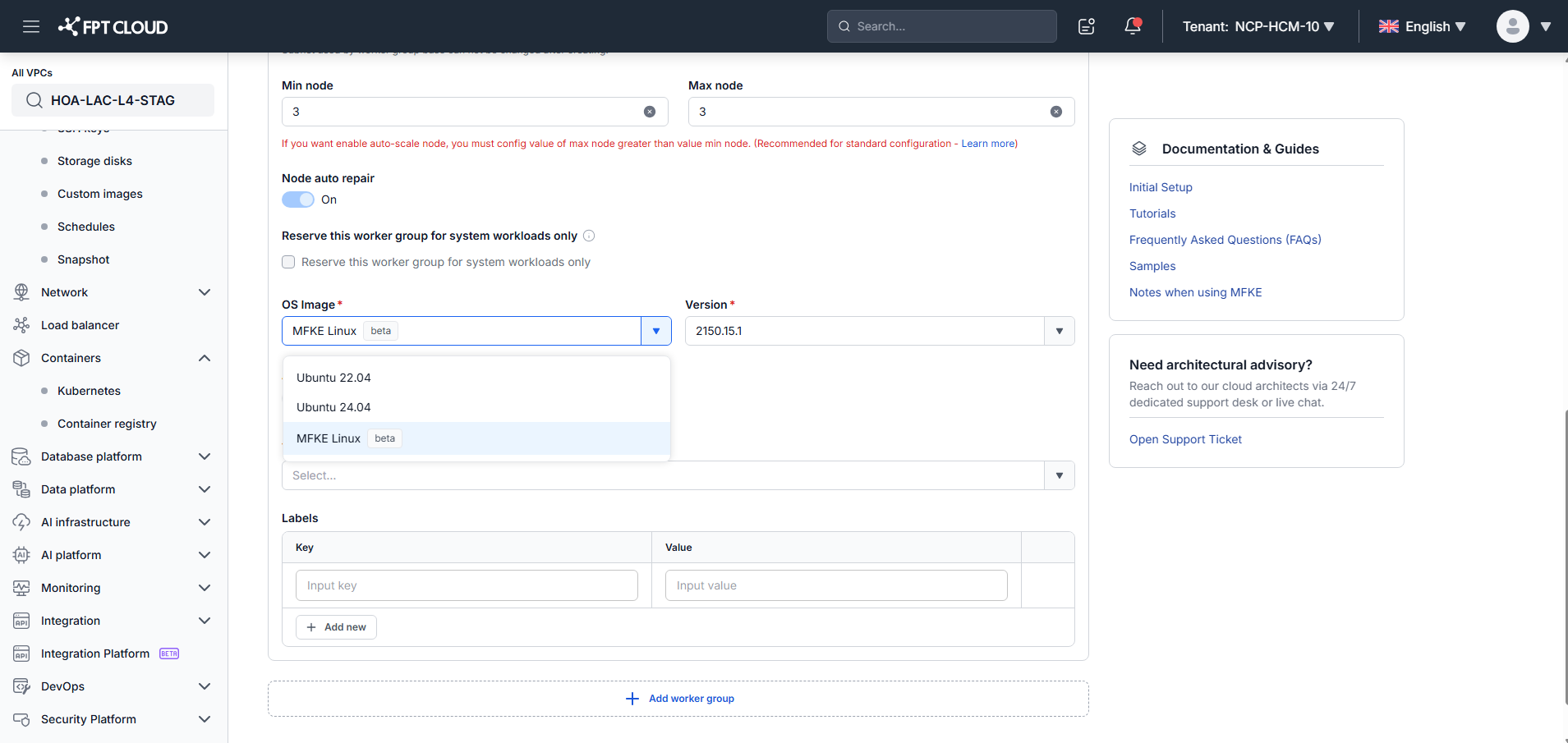
-
Review the configuration, then select Create a Kubernetes on the Review & Create step.
Result: the cluster is created with a Worker Group running MFKE Linux, at the Min node count. If Cluster Autoscale is enabled, the system adds Worker Nodes as load increases, up to Max node.
Scenario 2: Switch an existing cluster's Worker Group to MFKE Linux
-
From the menu, select Kubernetes to open Kubernetes Management, then select the cluster you want to change (it must run Kubernetes v1.33 or later).
-
Select Node Pools → Edit Workers.
noteOn the Edit Workers screen, Type, Policy, Disk (GB), and Network are grayed out and can't be edited.
-
At OS image, select MFKE Linux. At Version, select
2150.15.1.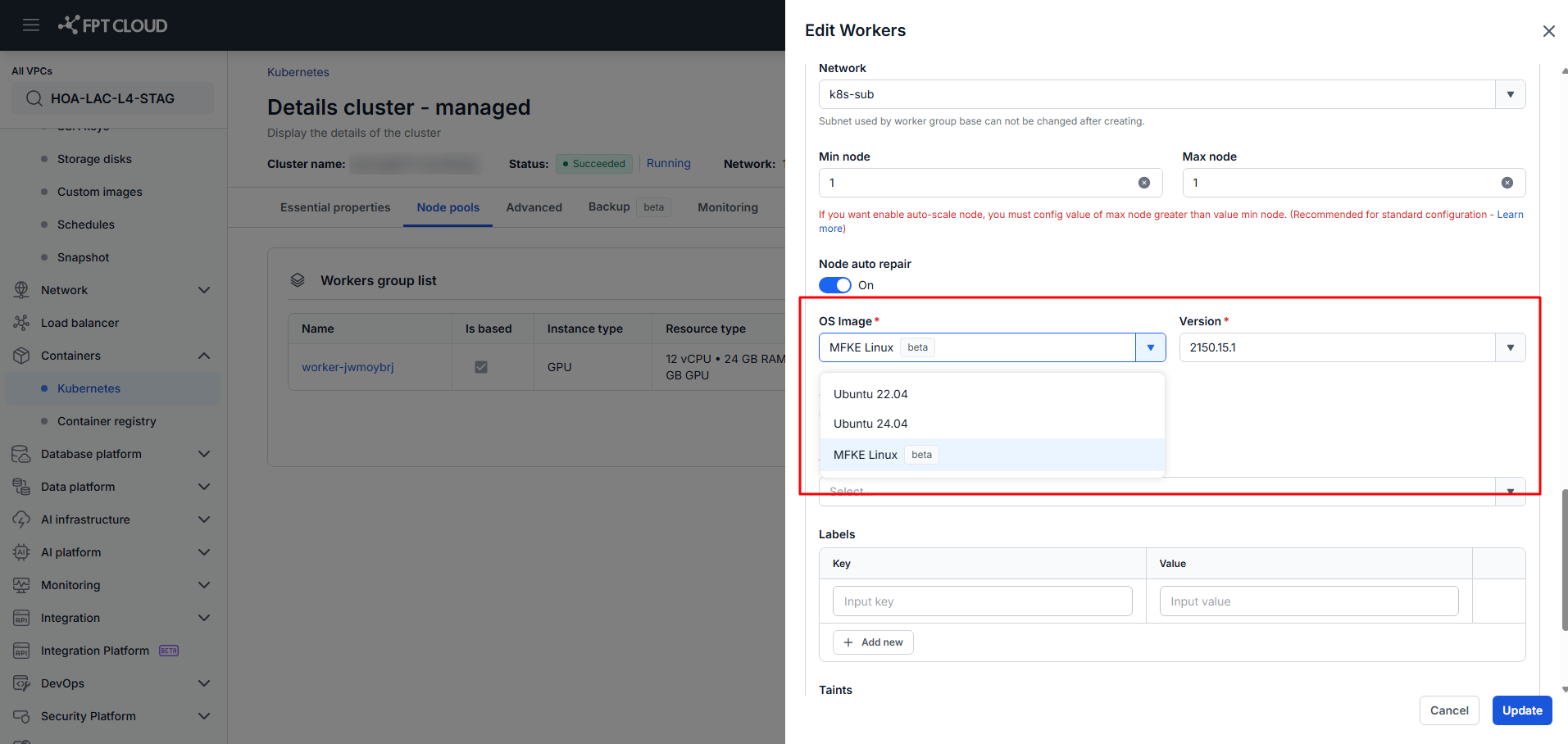
-
Review the configuration, then select Update.
Result: the Worker Group is updated to run MFKE Linux, Version 2150.15.1.
Check that a new node is ready
-
Select the cluster running MFKE Linux, then open its Node Pools tab to see the Worker Group's nodes — see Access cluster detail information. From the command line, run
kubectl get nodes. -
Wait for the new node to reach the Ready state.
-
Track autoscale progress at Monitoring → Cluster Autoscaler Logs.
Result: the new node is Ready, and Pods that were pending for lack of resources get scheduled on it.
Tips and recommendations
- Set Min node to cover your everyday baseline load, so the cluster doesn't wait on a new node for every traffic spike.
- Set Max node with headroom above your expected peak load — the system never adds nodes beyond Max node.
- Install your application inside containers or cluster configuration, not directly on an MFKE Linux node.
- When you need to update the OS, replace nodes with new ones running the newer image instead of patching in place.