Add a GPU Worker Group (RTX PRO 6000)
NVIDIA RTX PRO 6000 Blackwell is one of several GPU flavors available when you set a Worker Group's Instance Type to GPU, alongside NVIDIA Tesla A30, NVIDIA Tesla A100, FPT GPU L4 - 24G (beta), and NVIDIA H100 SXM5. This page covers what's different about configuring a GPU Worker Group — see Add a Worker Group for the base steps (open Node Pools, select Edit Workers, fill in the common fields) and Create a new Kubernetes cluster if you're choosing a GPU flavor while creating a cluster from scratch.
RTX PRO 6000 Blackwell requires a cluster running Kubernetes v1.33 or later. On an older cluster, it doesn't appear in the GPU Type list — see Upgrade the Kubernetes version.
RTX PRO 6000 Blackwell is only offered on an added Worker Group, not on the base Worker Group (Worker group 1) — the GPU Type list for the base group is limited to Tesla A30, Tesla A100, and FPT GPU L4.
Step 1: Review GPU Information in Basic information
The GPU Information section is on the Basic information step, available from the start — you don't need a GPU Worker Group configured first. It's off by default.
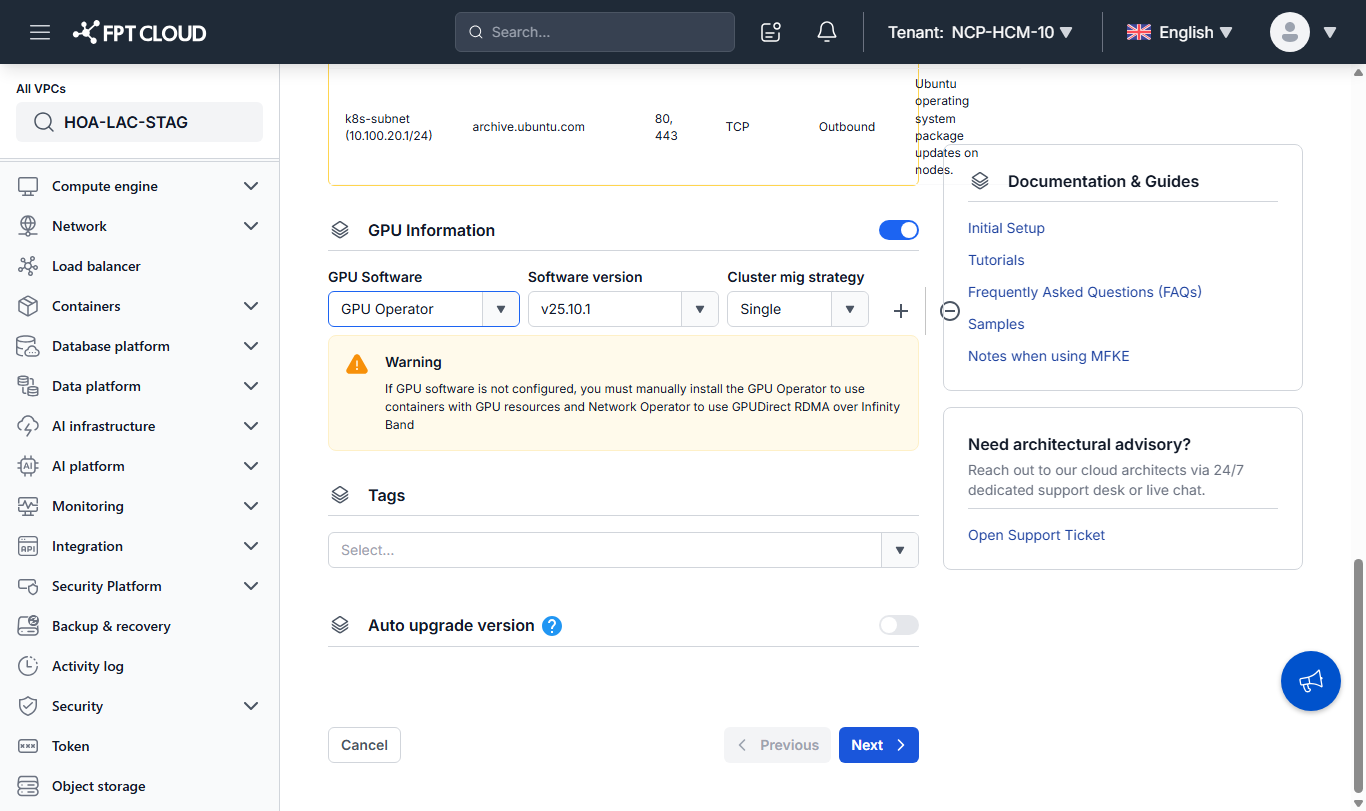
- If you plan to use Managed-install for a Worker Group's GPU driver (see Step 2), turn on GPU Information on the Basic information step.
- Select the GPU Software entries you need — GPU Operator, Network Operator, Slurm Operator, or vGPU Scheduler — each with its own Software version. Select + to add another entry. For GPU Operator, also set Cluster mig strategy (for example Single).
If GPU Information is off, containers can't request GPU resources until you install the GPU Operator yourself — and the Network Operator yourself for GPUDirect RDMA over InfiniBand.
Step 2: Configure the GPU Worker Group
Go to the Node pools step. On the Worker Group you're adding or editing:
- Set Instance type to GPU.
- Select the GPU Type — for example NVIDIA RTX PRO 6000 Blackwell.
- Select the GPU sharing type — how Pods share each physical GPU on the node.
- Select the GPU driver installation type:
- Pre-install (default) — the NVIDIA driver is already on the node image. Also pick Select a driver version. Works regardless of the GPU Information setting in Step 1.
- Managed-install — the GPU Operator installs the driver for you. Also pick Select a driver version.
- If GPU Information (Step 1) has GPU Operator selected, the form confirms "Active — the driver for this worker group is installed automatically."
- If not, the form warns "Not active yet — enable GPU Operator in GPU Software so the driver installs automatically" — go back to Step 1 and select GPU Operator.
- User-install — you install the driver yourself; GPU sharing type automatically changes to None. Follow GPU driver installation guide on Kubernetes to install it.
- Select the Type (flavor). Unlike a General Worker Group, this dropdown lists ready-made flavors that already bundle CPU, RAM, and GPU count for the selected GPU Type — for example
112C768G_4RTXPRO6000_384G(4 × RTX PRO 6000, 112 CPU, 768 GB RAM). You don't configure CPU/RAM separately from the GPU count.
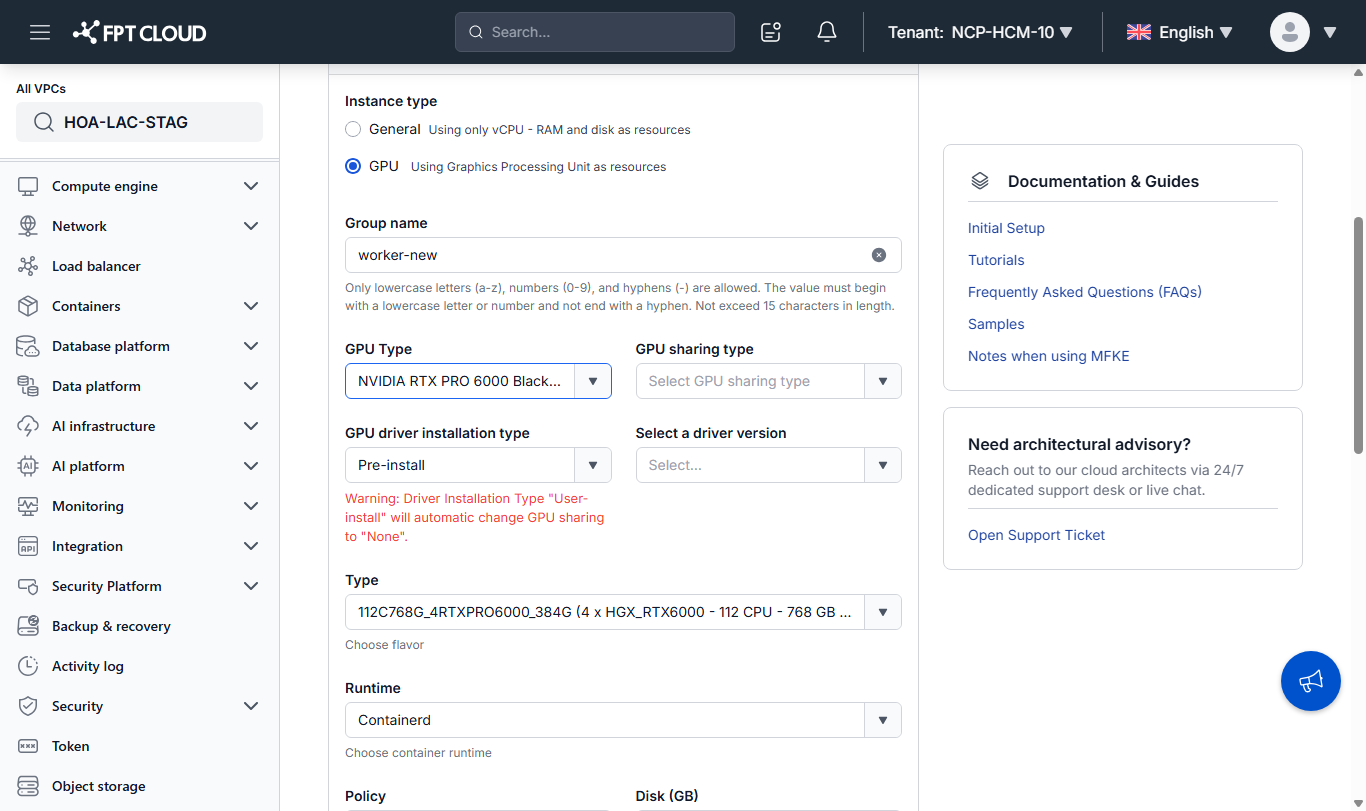
Choose the GPU Type and flavor carefully — changing a Worker Group's flavor isn't supported after the Worker Group is created. If you need a different GPU Type or flavor later, create a new Worker Group and migrate workloads to it.
Scaling a GPU Worker Group
Adjusting the number of worker nodes in an existing GPU Worker Group uses the same Min node / Max node fields as any other Worker Group, in Node Pools → Edit Workers — see Add a Worker Group. There's no separate scaling flow for GPU Worker Groups.
Common issues
| Issue | Cause / fix |
|---|---|
| RTX PRO 6000 Blackwell isn't in the GPU Type list | The cluster is running a Kubernetes version older than v1.33, or you're configuring the base Worker Group (Worker group 1) — add a second Worker Group instead, or upgrade the cluster. |
| Need a different GPU flavor on a running Worker Group | Not supported — see Change a Worker Group's flavor. |
| GPU sharing type unexpectedly reset to None | Expect this after switching GPU driver installation type to User-install — it always forces GPU sharing type to None. |
Tips
- Decide on GPU driver installation type before creating the Worker Group — switching to User-install later resets GPU sharing type, and you can't change the flavor afterward either way.
- If you plan to run GPU workloads across multiple Worker Groups, configure GPU Information once at the cluster level rather than relying on each team to install the GPU Operator manually.