2.14 Iceberg Sink Connector
Create a connector where Type is sink and Database is Iceberg
Pre-condition: CDC service status is healthy
Steps to create a connector:
Step 1: In the menu bar, select Data Platform > select Workspace Management > select Workspace name
Step 2: In the My services section, select CDC service
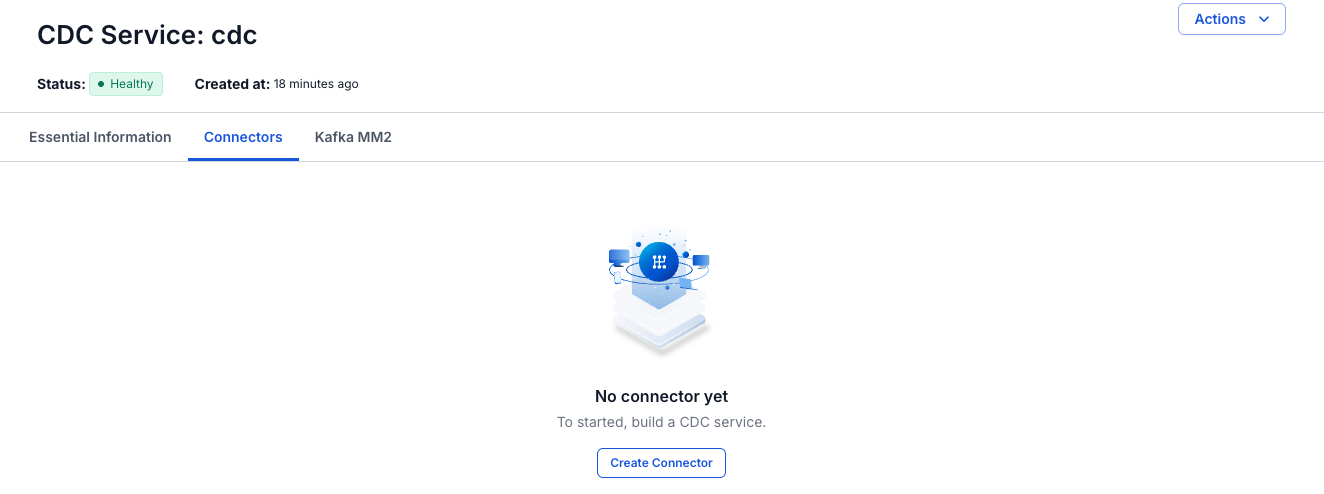
Step 3: On the CDC service detail screen > select the Connectors tab > click Create a connector
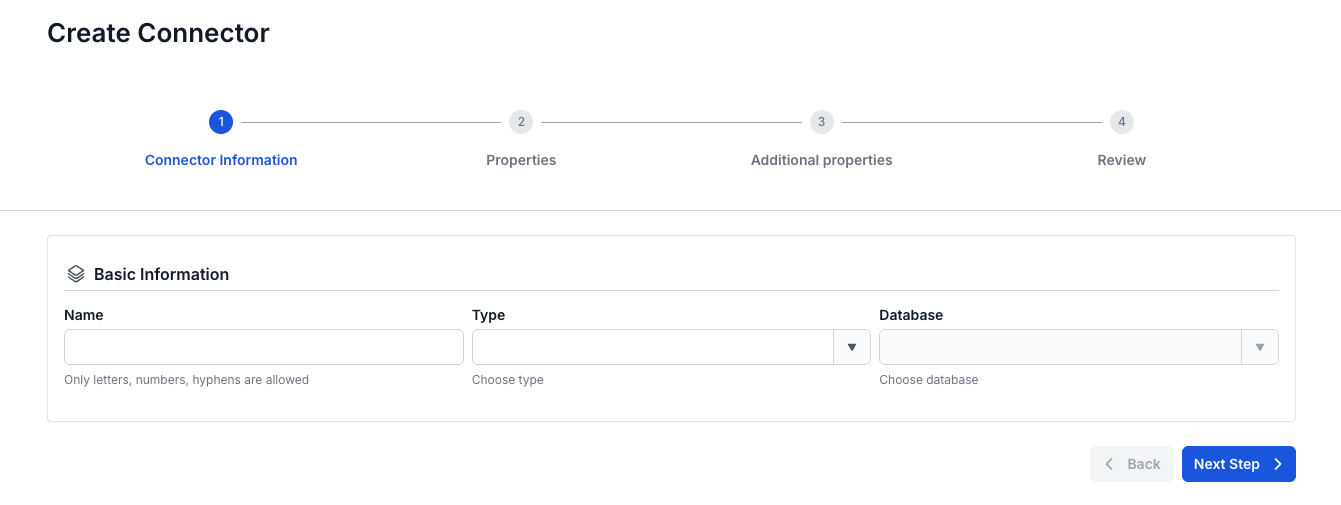
Step 4: Enter the information on the Connector Information screen:
- Name (required): connector name
Note: The connector name can contain lowercase letters a-z or digits 0-9. In particular, spaces are not allowed — you can replace spaces with "-".
- Type (required): select sink
- Database (required): select Iceberg
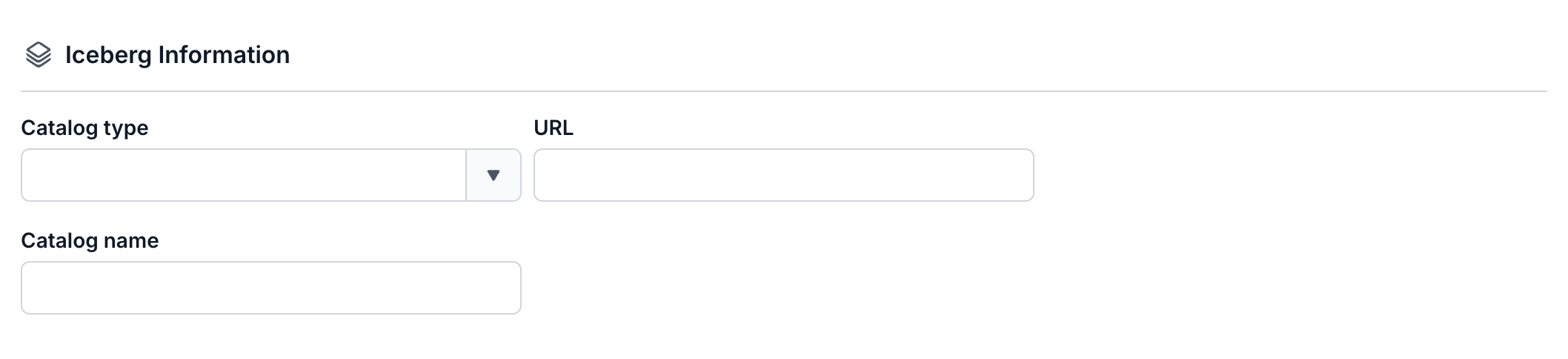
Step 5. Click Next to proceed to the Properties screen - Enter the following information:
- Catalog type (required): select the catalog type
- URL (required): enter the URL path
- Catalog Name (required): catalog name
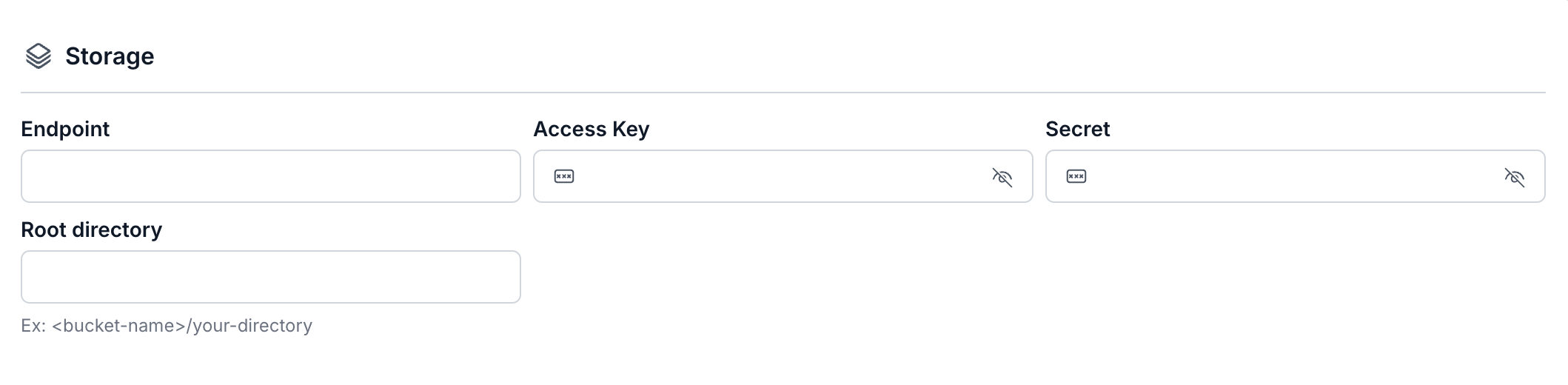
- Endpoint (required): endpoint address to S3
- Access key (required): access key
- Secret (required): password for connecting to the endpoint
- Root directory (required): root directory in S3
Click Test connection to verify the connection from the Workspace to the entered Database
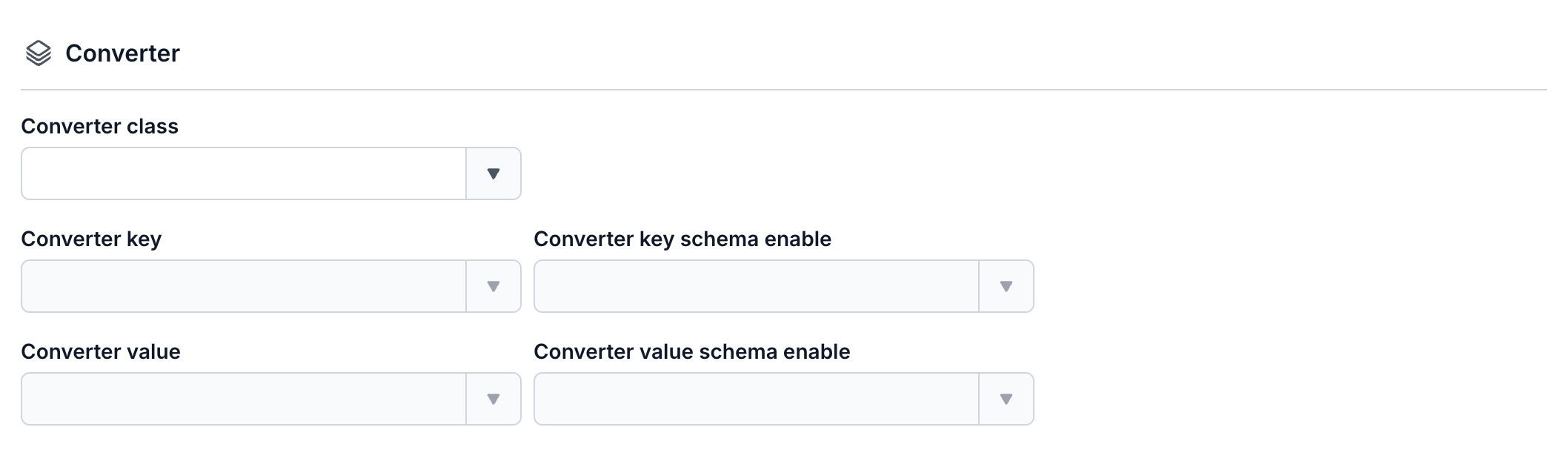
- Converter
- Converter key: select the key value for the converter
- Converter key schema enable: select whether or not to use a schema in the Converter key
- Converter value: select the value for the converter
- Converter value schema enable: select whether or not to use a schema in the Converter value
- Topics (required): select the data topics sent from the source connector

Step 6: click Next to proceed to the Additional Properties screen
Enter the following information:
- Number of tasks: the maximum number of tasks that can run in parallel
- Max poll record: the max poll record count

- Type: select the source DB Type

- Namespace: select the namespace
- File format: select the file format

- Topic 1: The list of topics the Connector will consume and sink data into the target database, separated by ","
- Table 1: The table name in the Database

- Mode: The Connector's behavior when a message cannot be processed
- None: The Connector will skip messages that cannot be sinked into Iceberg
- All: Failed messages will be sent to the specified topic

Step 7: Click Next to proceed to the Review screen
Step 8: Review the information, then click Create to finish creating the connector