Run an incremental snapshot
Run an incremental snapshot to copy the current data of your source tables into Kafka topics without blocking the tables, while the connector keeps streaming changes. Use it to load the initial data for a system, or to run the snapshot again after it completed or failed.
Prerequisites
- A MySQL, MariaDB, or PostgreSQL source connector created with Enable incremental snapshot selected. See Incremental snapshot.
- A database user with the CREATE TABLE and INSERT permissions.
- On PostgreSQL, a publication that includes the
public.cdc_signaltable. A publication created for all tables already does.
When you create the connector with Enable incremental snapshot, the CDC Service creates a signal table in the source database: public.cdc_signal on PostgreSQL, and cdc_signal in the captured database on MySQL and MariaDB. Execute, Pause, Resume, and Stop reach the connector through this table. On a connector created without the checkbox, the Snapshot menu is still shown, but Execute cannot start a snapshot.
Incremental snapshots are not available on SQL Server source connectors, even though the Connectors tab shows a Snapshot Status for them. Other connectors show no snapshot status. The Snapshot menu is greyed out for sink connectors and for MongoDB source connectors.
View the snapshot status
- Select Data platform → Workspace management, then select your workspace.
- On the Overview tab, under Services, select the CDC card.
- Select the Connectors tab.
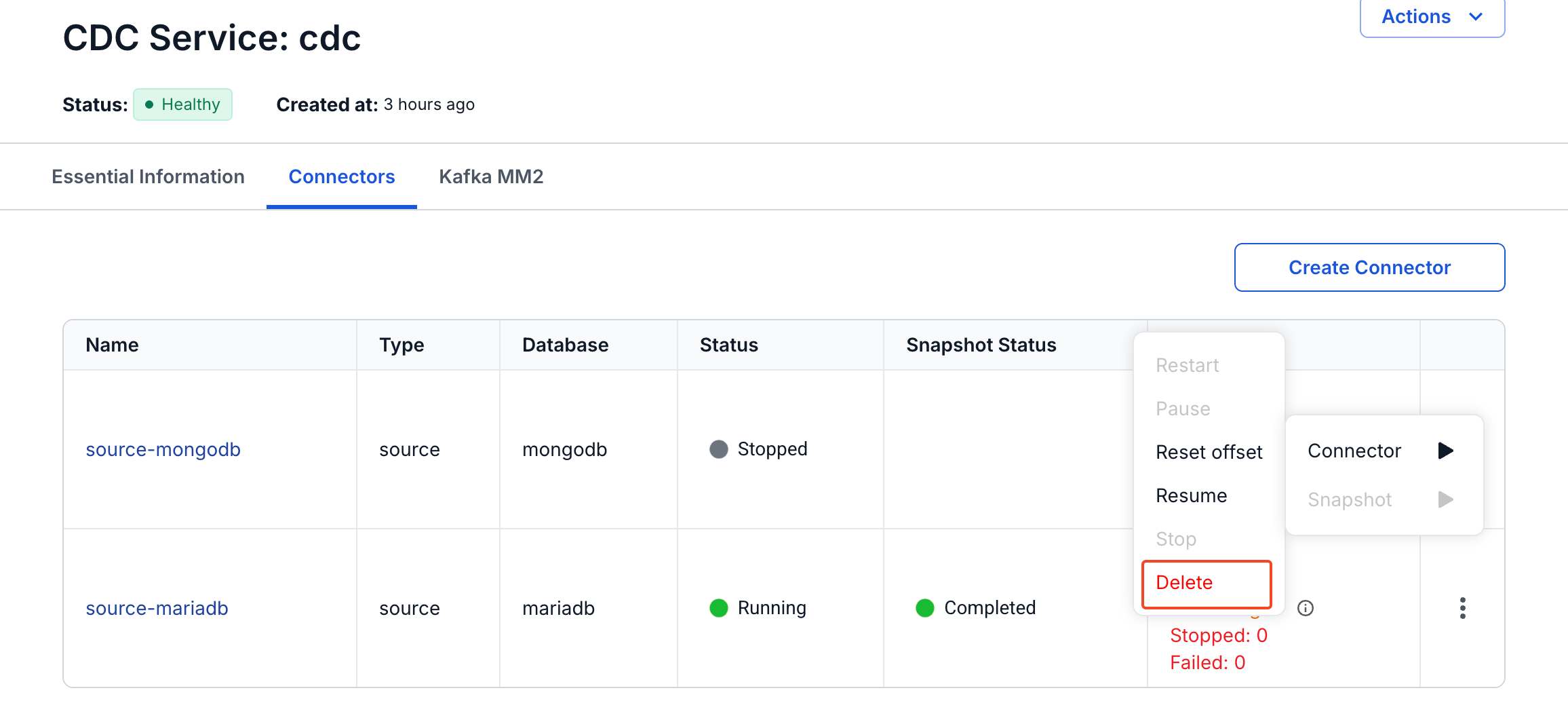
The Snapshot Status column shows the current status of the snapshot of each connector.
Snapshot statuses
| Status | Description |
|---|---|
| Not Started | No incremental snapshot has run yet. The snapshot that the connector's Mode setting runs when it starts does not change this status. |
| In Progress | The snapshot is running. Data is being written to the Kafka topics. |
| Paused | The snapshot is paused. You can resume it or stop it. |
| Completed | The snapshot finished and all data has been copied, or you stopped it. A stopped snapshot cannot be resumed. |
| Failed | The snapshot hit an error and could not finish, for example because of missing permissions or a database error. |
Actions for each status
| Status | Actions you can take |
|---|---|
| Not Started | Execute |
| In Progress | Pause, Stop |
| Paused | Resume, Stop |
| Completed | Execute |
| Failed | Execute |
The Snapshot menu greys out the actions that the current status does not allow. At Not Started, only Execute is enabled.
A snapshot of small tables can finish within seconds, before the list stops showing In Progress. Pause or Stop on a finished snapshot fails with an error such as "Cannot pause incremental snapshot that is not in-progress", and the dialog stays open until you select Cancel.
You find the Snapshot menu in two places: the more icon (⋮) in the row of the connector, and Actions on the connector details page.
Start a snapshot
Start a snapshot to copy all current data of the database into the Kafka topics.
- Select Data platform → Workspace management, then select your workspace.
- On the Overview tab, under Services, select the CDC card.
- Select the Connectors tab.
- In the row of the connector, select the more icon (⋮), then select Snapshot → Execute. In the Select tables panel, keep All support table selected, or clear it and select the tables to copy, then select Execute.
The Snapshot Status changes to In Progress, and the Kafka topics start receiving the snapshot data. The connector and its tasks keep working as usual.
Pause a snapshot
Pause a snapshot that is in progress, for example during peak hours to protect performance, or during maintenance.
- Select Data platform → Workspace management, then select your workspace.
- On the Overview tab, under Services, select the CDC card.
- Select the Connectors tab.
- In the row of the connector, select the more icon (⋮), then select Snapshot → Pause. In the Snapshot Pause dialog, select Pause.
The connector stops collecting snapshot data at once, and the Snapshot Status changes to Paused. The progress is saved, so you can resume later. The connector and its tasks keep working as usual.
Resume a snapshot
Resume a paused snapshot when the system is stable again.
- Select Data platform → Workspace management, then select your workspace.
- On the Overview tab, under Services, select the CDC card.
- Select the Connectors tab.
- In the row of the connector, select the more icon (⋮), then select Snapshot → Resume.
The Snapshot Status changes to In Progress. The Kafka topics receive data again from where the snapshot paused, until the snapshot finishes.
Stop a snapshot
Stop a snapshot that you no longer need, that shows an error, or that uses resources you need for something else.
- Select Data platform → Workspace management, then select your workspace.
- On the Overview tab, under Services, select the CDC card.
- Select the Connectors tab.
- In the row of the connector, select the more icon (⋮), then select Snapshot → Stop. In the Snapshot Stop dialog, select Stop.
The Kafka topics stop receiving snapshot data at once, and the Snapshot Status changes to Completed, the same status as a finished snapshot.
Stopping cancels the whole snapshot, and you cannot resume it. To copy the data again, start a new snapshot with Execute, which starts from the beginning.