4. Kafka MM2
Kafka MM2 (MirrorMaker 2) is a tool used to synchronize data between different Kafka clusters (multi-cluster replication)
1. Create Kafka MM2 source
Use case: creating a Kafka MM2 where Type is source
Pre-condition: CDC service status is healthy
Step 1: In the menu bar, select Data Platform > select Workspace Management > select Workspace name
Step 2: In the My services section, select CDC service
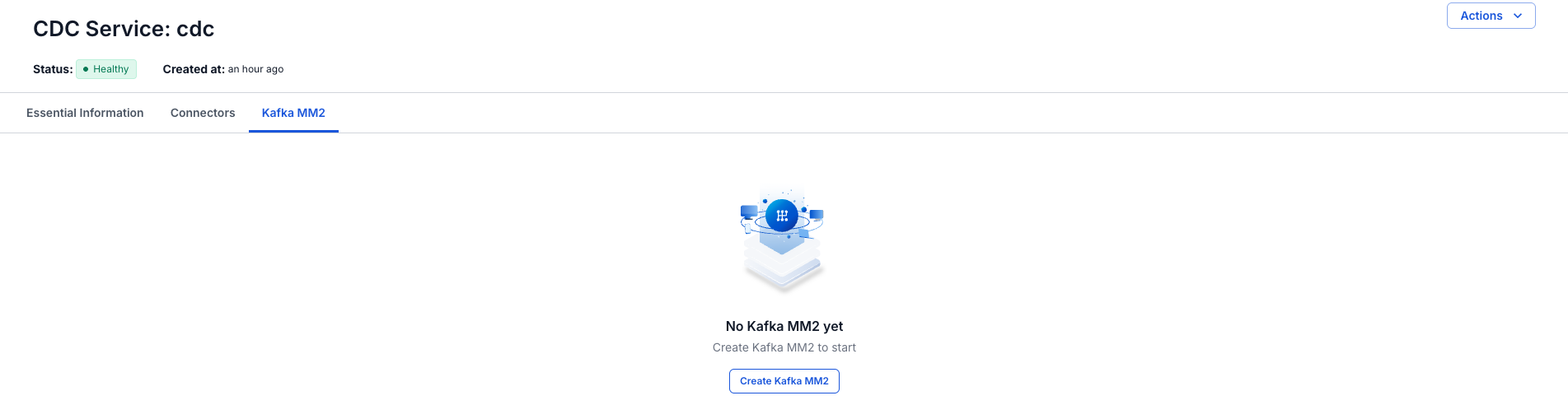
Step 3: On the CDC service detail screen > select the Kafka MM2 tab > click Create a Kafka MM2
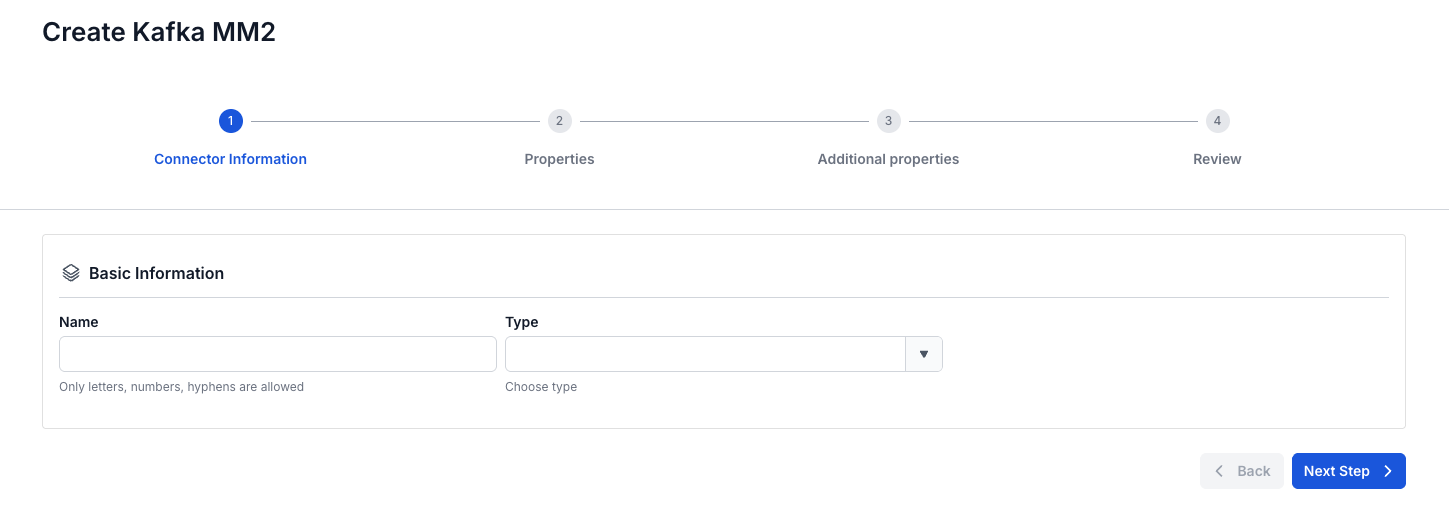
Step 4: Enter the information on the Connector Information screen:
- Name (required): connector name
Note: The connector name can contain lowercase letters a-z or digits 0-9. In particular, spaces are not allowed — you can replace spaces with "-".
- Type (required): select source
Step 5. Click Next to proceed to the Properties screen
Enter the following information:
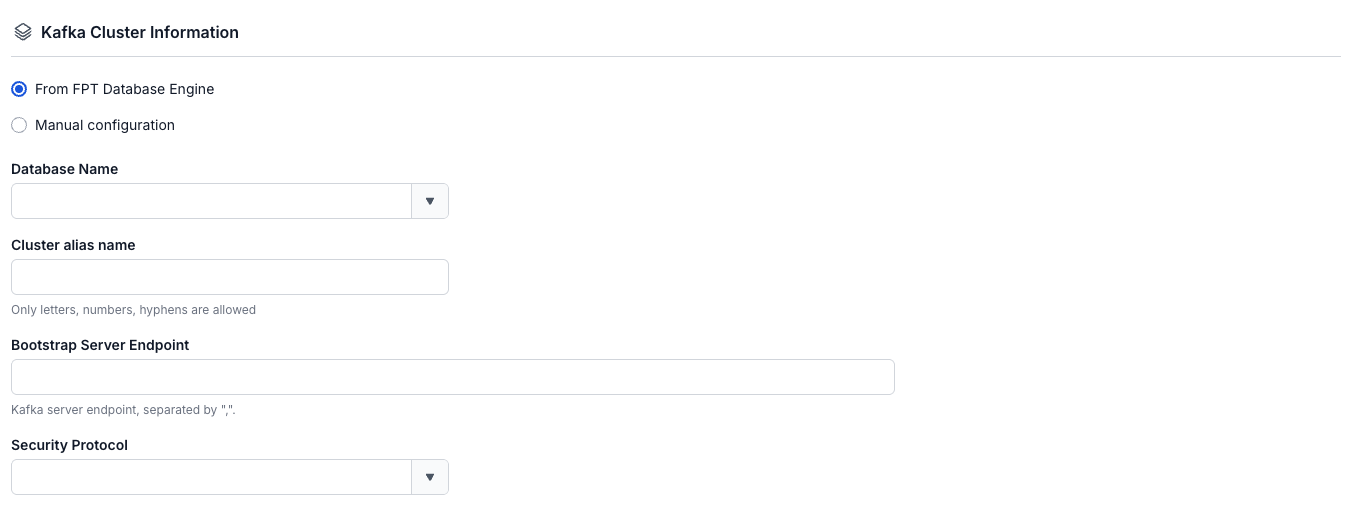
- Kafka cluster information
- Cluster alias name (required): enter the cluster's identifier name
- Bootstrap server endpoint (required): enter the Kafka connection address
- Security protocol (required): select the security protocol
- SASL Mechanism (optional): depends on the selected security protocol
- Username (required): login username
- Password (required): password
Click Test connection to verify the connection from the Workspace to the entered Cluster
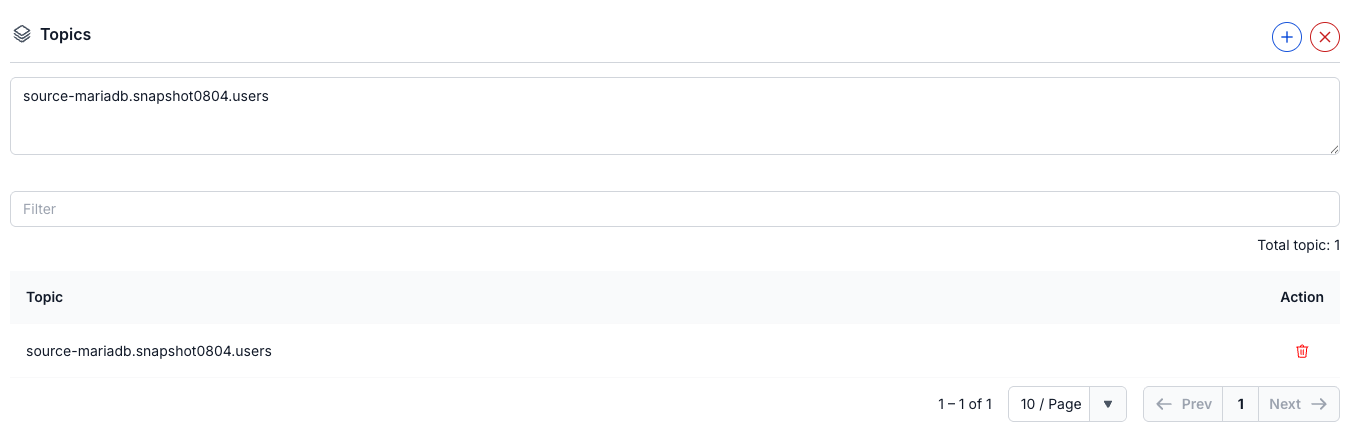
- Topics
- Topic (required): select the data topics from the above Kafka source
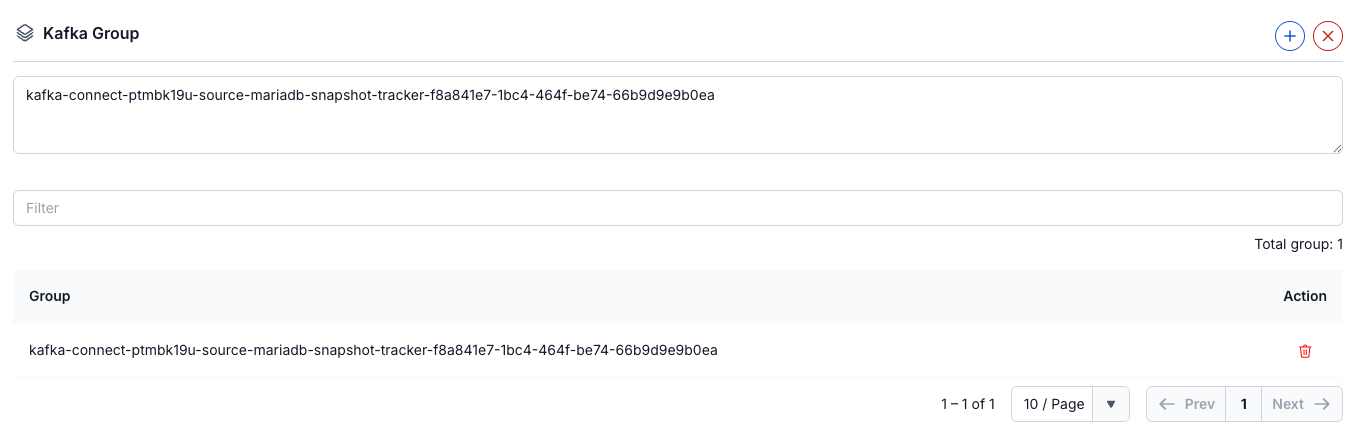
- Group
- Group (required): select the consumer groups that need replication
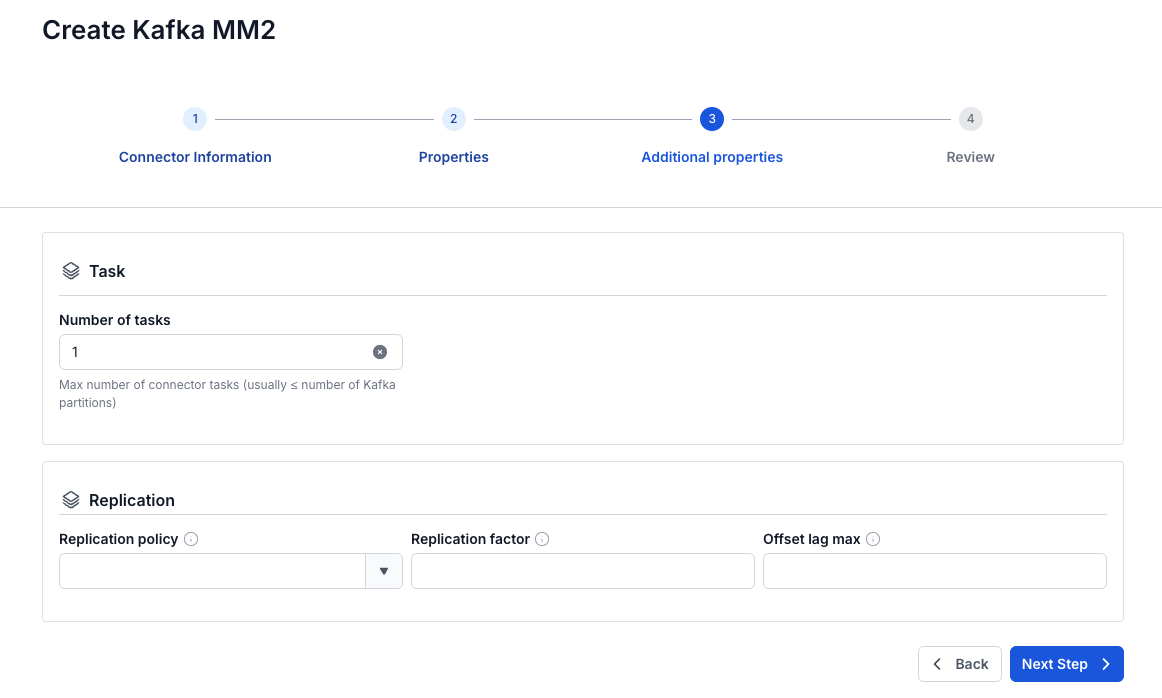
Step 6: click Next to proceed to the Additional Properties screen - Enter the following information:
- Number of tasks: the maximum number of tasks that can run in parallel
- Replication policy: choose whether to prepend a prefix to the topic or keep the topic name unchanged after replication
- Replication factor: the number of replicas for each topic after replication
- Offset lag max: the maximum offset lag between the source and target
Step 7: Click Next to proceed to the Review screen
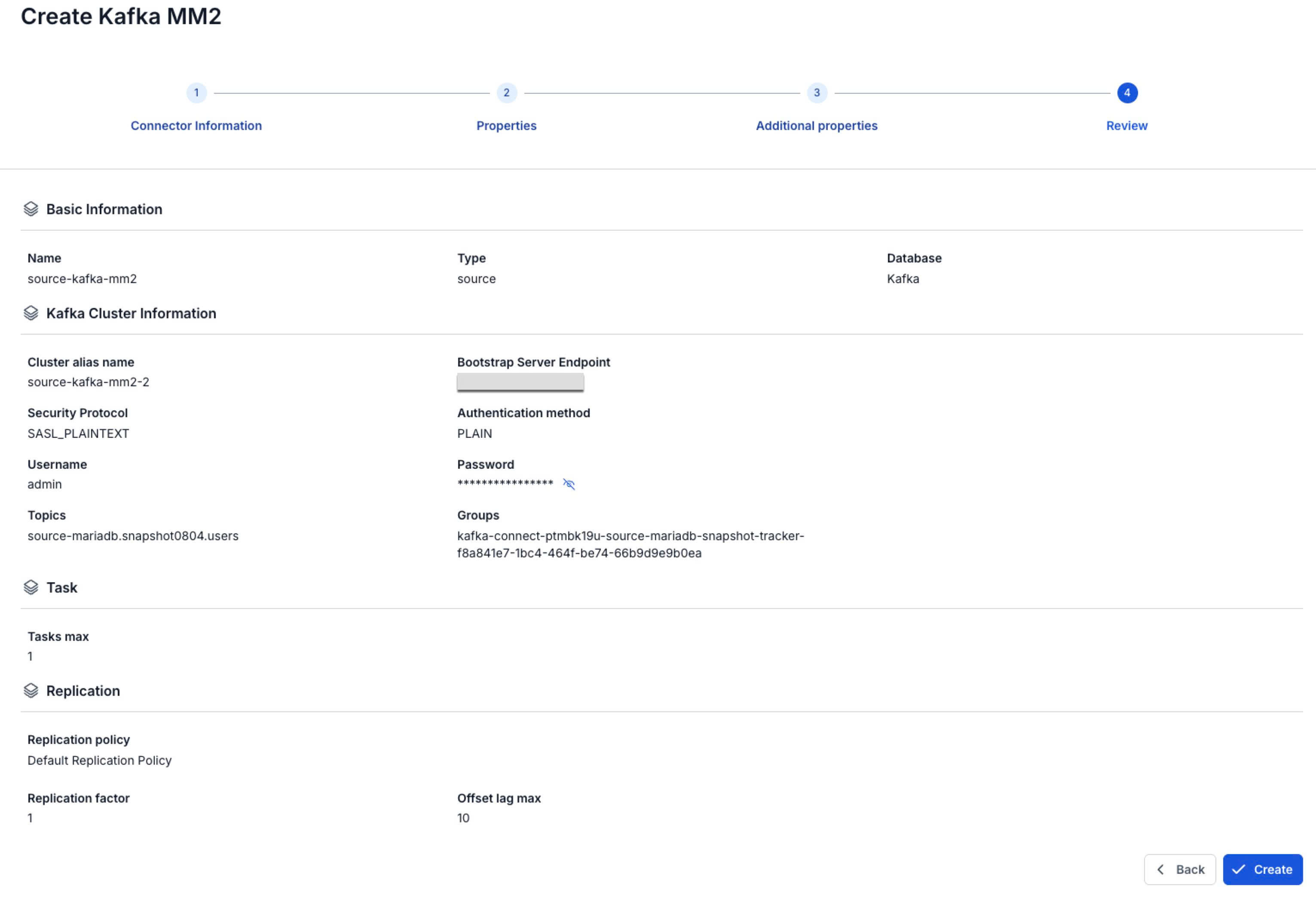
Step 8: Review the information, then click Create to finish creating the Kafka MM2 source
2. Edit Kafka MM2 source
To edit a Kafka MM2 source, follow these steps:
Step 1: In the menu bar, select Data Platform > select Workspace Management > select Workspace name
Step 2: In the My services section, select CDC service
Step 3: On the CDC service detail screen > select the Kafka MM2 source tab > select the Kafka MM2 name
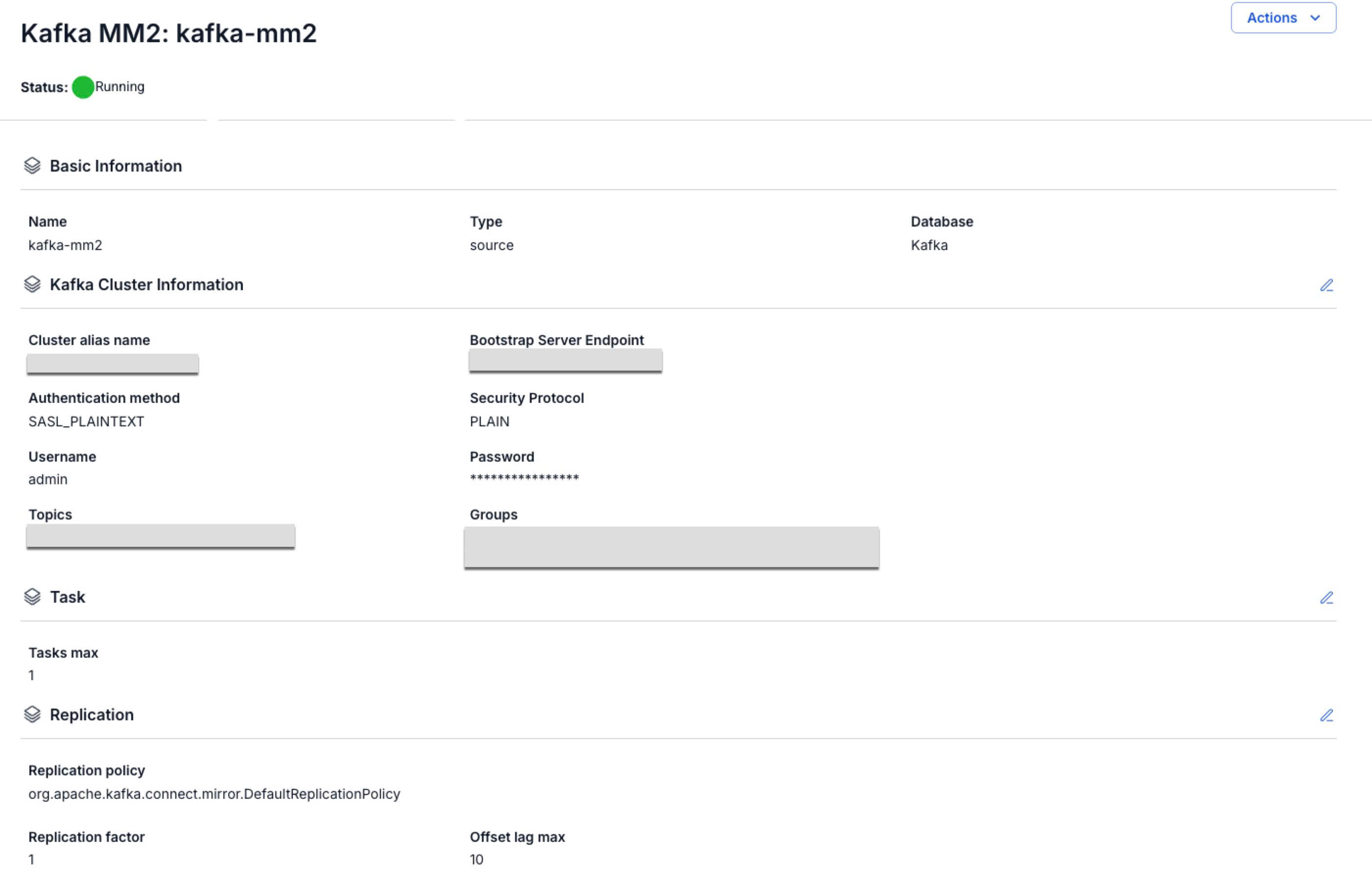
Step 4. Edit the Kafka MM2 source information
- Kafka Cluster Information
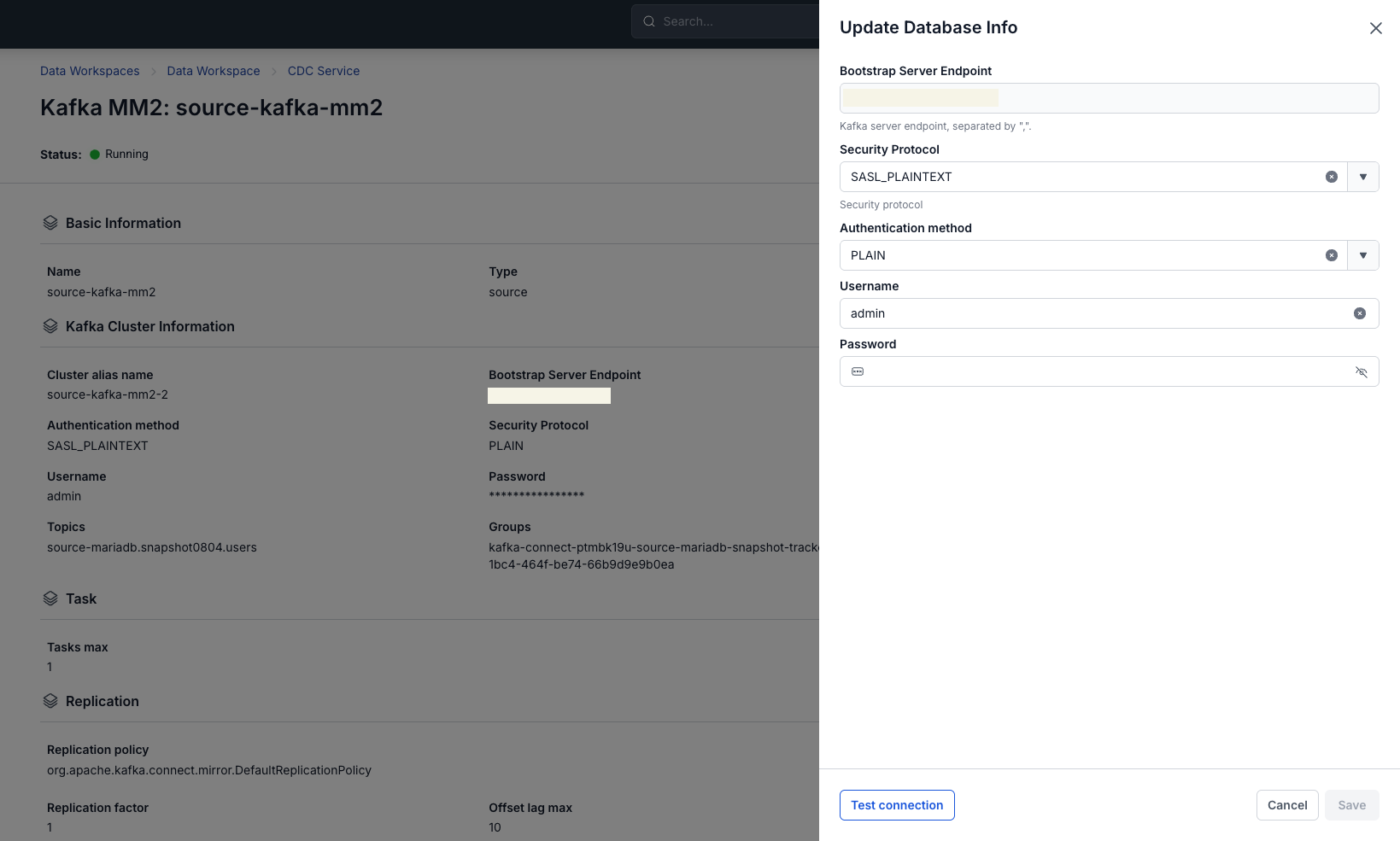
- On the Kafka MM2 detail screen, click the icon in the Kafka Cluster Information section.
- The Update Database Info popup appears, allowing you to modify:
- Security protocol (required): select the security protocol
- SASL Mechanism (optional): depends on the selected security protocol
- Username (required): login username
- Password (required): password
- Click Test connection to verify the connection.
- If OK → click Save to save.
- If you want to exit → click Cancel.
- Task
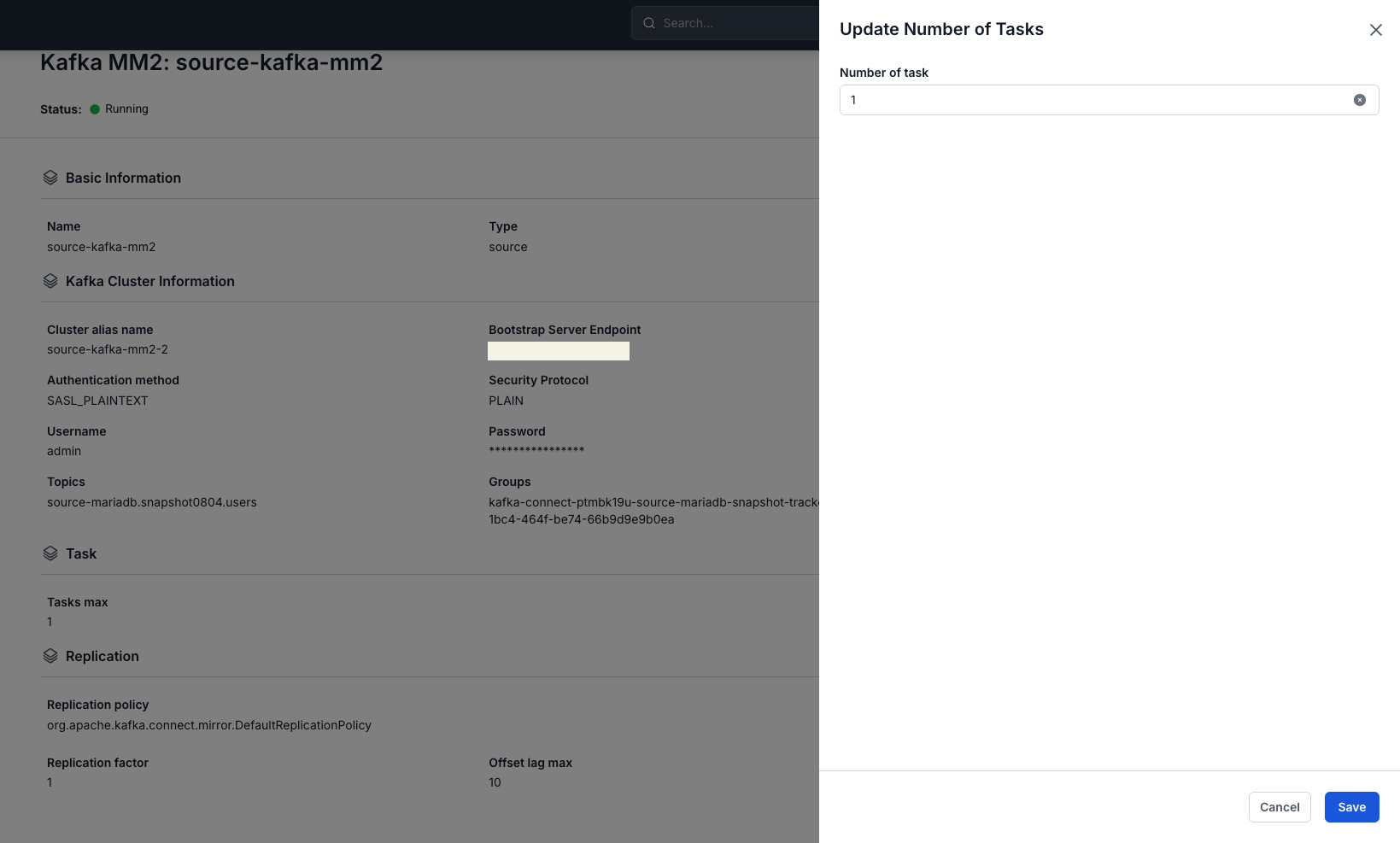
- On the Kafka MM2 detail screen, click the icon in the Task section.
- The Update Number of Tasks popup appears, allowing you to modify:
- Number of tasks: the maximum number of tasks that can run in parallel
- If OK → click Save to save.
- If you want to exit → click Cancel.
- Replication
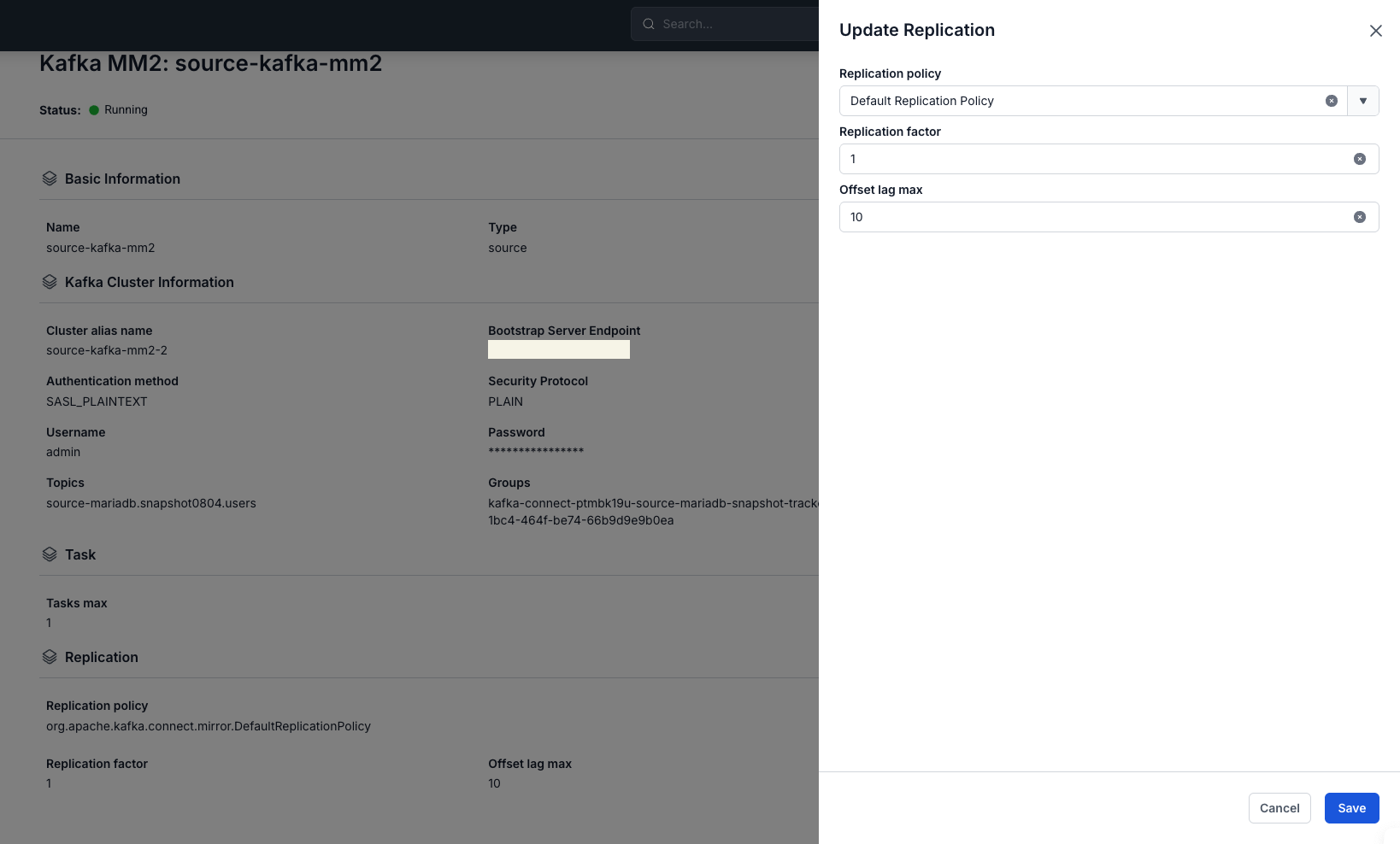
- On the Kafka MM2 detail screen, click the icon in the Replication section.
- The Update Replication popup appears, allowing you to modify:
- Replication policy: choose whether to prepend a prefix to the topic or keep the topic name unchanged after replication
- Replication factor: the number of replicas for each topic after replication
- Offset lag max: the maximum offset lag between the source and target
- If OK → click Save to save.
- If you want to exit → click Cancel.
3. Delete Kafka MM2 source
To delete a Kafka MM2 source, follow these steps:
Step 1: In the menu bar, select Data Platform > select Workspace Management > select Workspace name
Step 2: In the My services section, select CDC service
Step 3: On the CDC service detail screen > select the Kafka MM2 source tab > select the Kafka MM2 name > select Action > select Delete
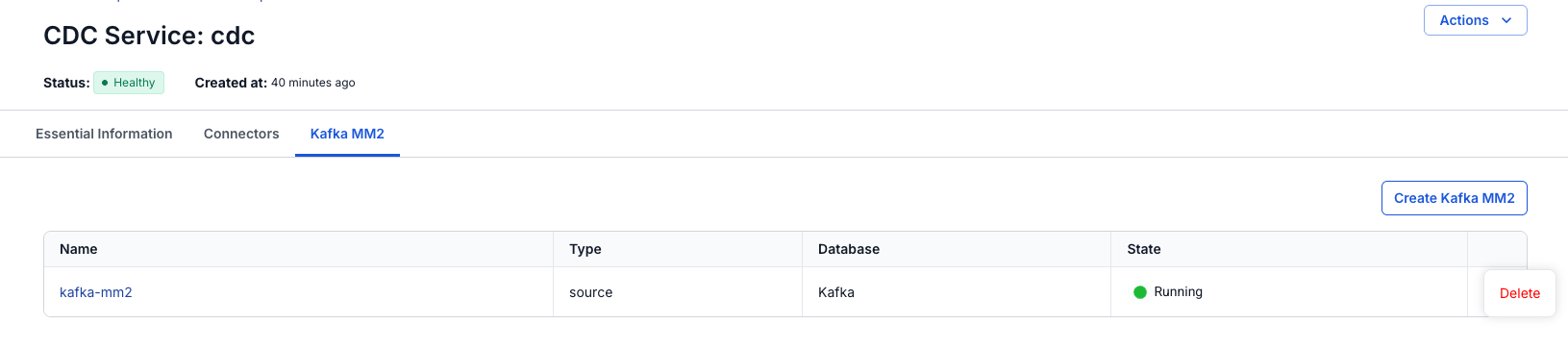
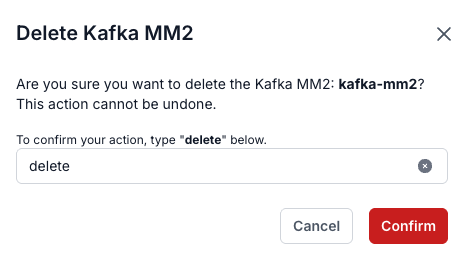
Step 4: The Delete Kafka MM2 dialog appears > enter Delete > click Confirm to delete the Kafka MM2 source, or select Cancel to cancel the operation.