Create a CDC Service
Create a CDC Service in your workspace to run the connectors that stream database changes through Kafka. The Setup CDC Service form has four screens: Connector Information, Node Configuration, Kafka Cluster Information, and Review.
Prerequisites
- A workspace whose Status is Connected. See Create a workspace.
- A Kafka cluster that the workspace can reach. Use a Kafka cluster from FPT Database Engine and the username and password of its Kafka user, or have the bootstrap server endpoints, security protocol, and credentials of another cluster ready.
Open the create form
- Select Data platform → Workspace management, then select your workspace.
- On the Overview tab, select Create.
- In the Create service dialog, select CDC, then select Create service.
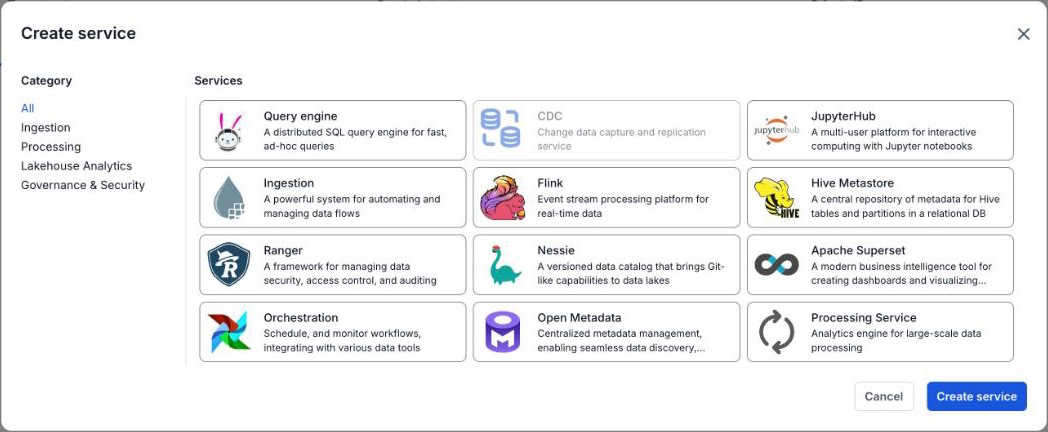
In a workspace with no services yet, the Overview tab shows Create first service instead. Select the CDC card there to open the form directly.
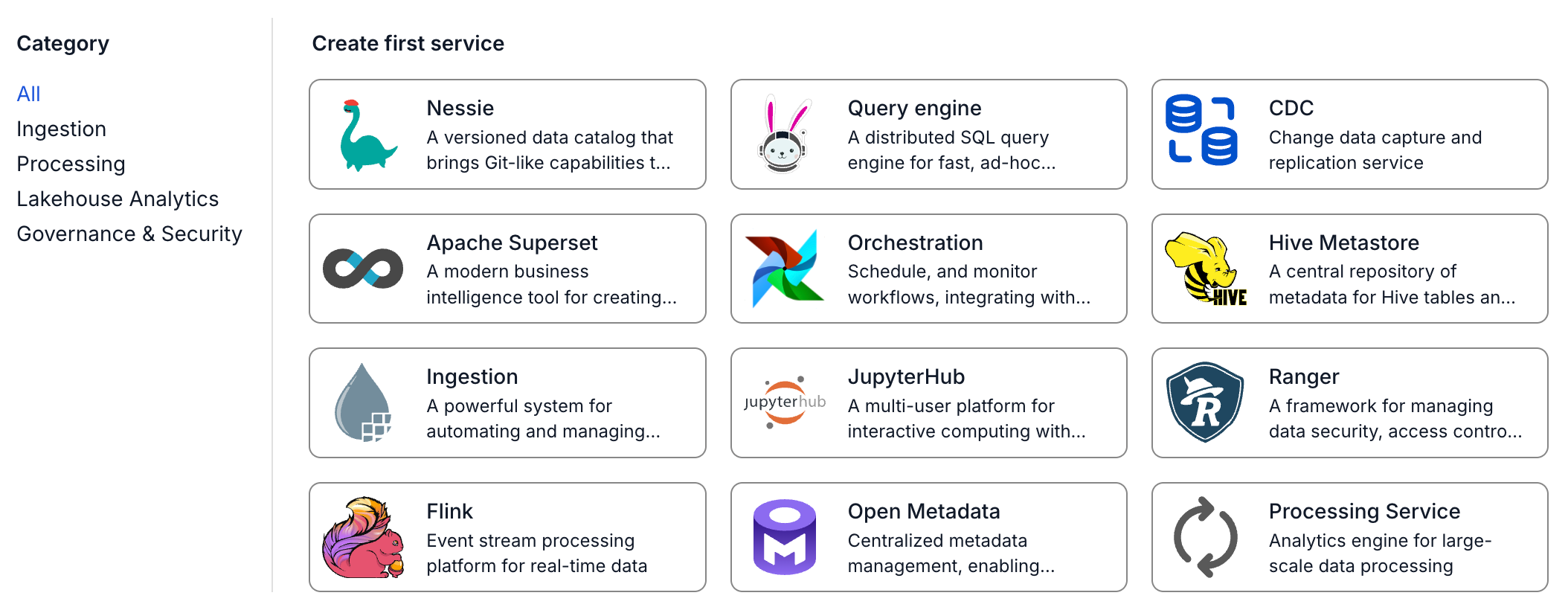
A workspace can have one CDC Service. When it already has one, the CDC card is greyed out.
Enter basic information
- On the Connector Information screen, enter a Name.
- Enter a Description (optional).
- Select a Version.
- Select Next Step.
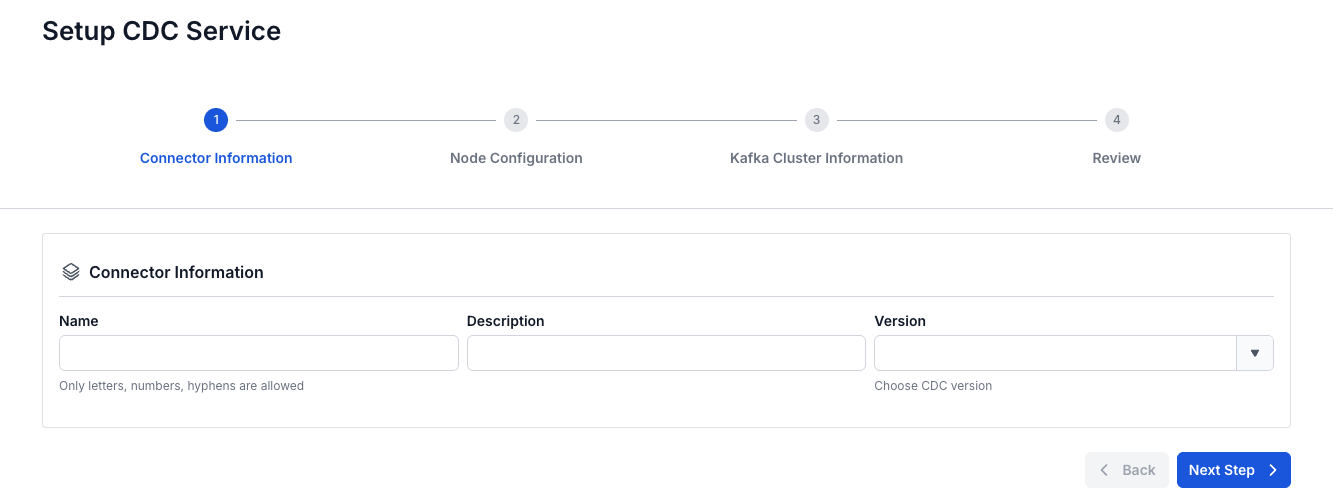
| Field | Description |
|---|---|
| Name | Required. 1 to 30 characters. Lowercase letters, numbers, and hyphens (-) only. Upper-case letters, _, ., and spaces are rejected. Must be unique within the VPC. |
| Description | Optional. A description of the service. |
| Version | Required. The CDC version to run. |
Configure nodes
- On the Node Configuration screen, select a Storage Policy.
- Select a Type.
- Enter the Number of nodes.
- Select Next Step.
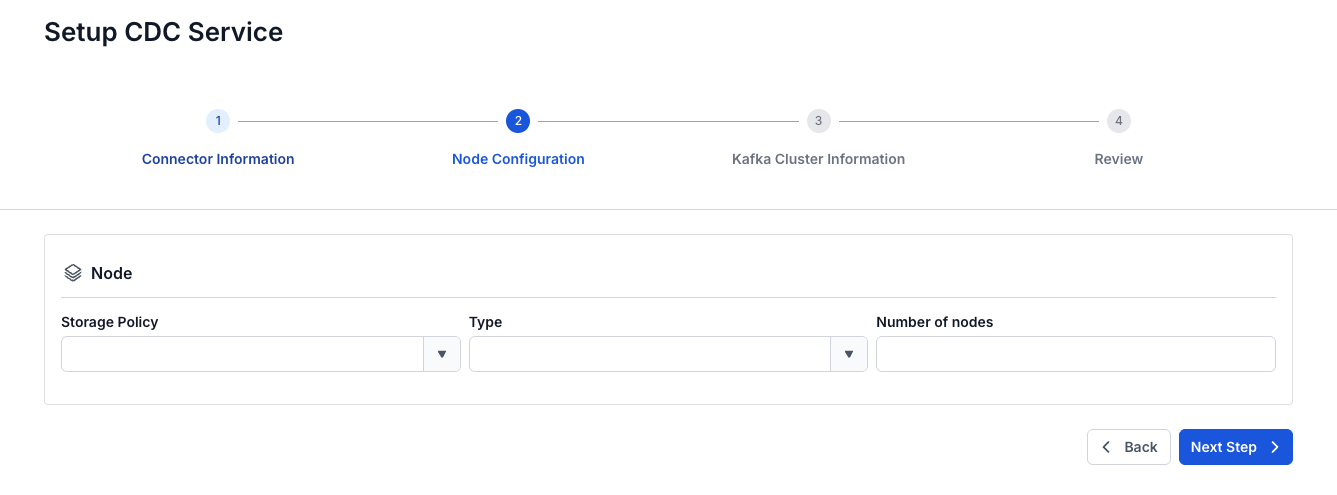
| Field | Description |
|---|---|
| Storage Policy | Required. The storage policy of the nodes. The list shows the storage policies of your VPC, for example Premium-SSD. Open the list and select a policy, even if the field already shows one. |
| Type | Required. The node size, for example Large-8 (4 CPU - 8 GB RAM). |
| Number of nodes | Required. From 2 to 10. |
The service runs on its own node group, ingestion, with the Type and Number of nodes you choose. It appears on the Resource tab of the workspace. While the nodes are added, the Worker Status of the workspace is Processing.
Connect a Kafka cluster
The connectors of the service write and read their topics in this Kafka cluster.
-
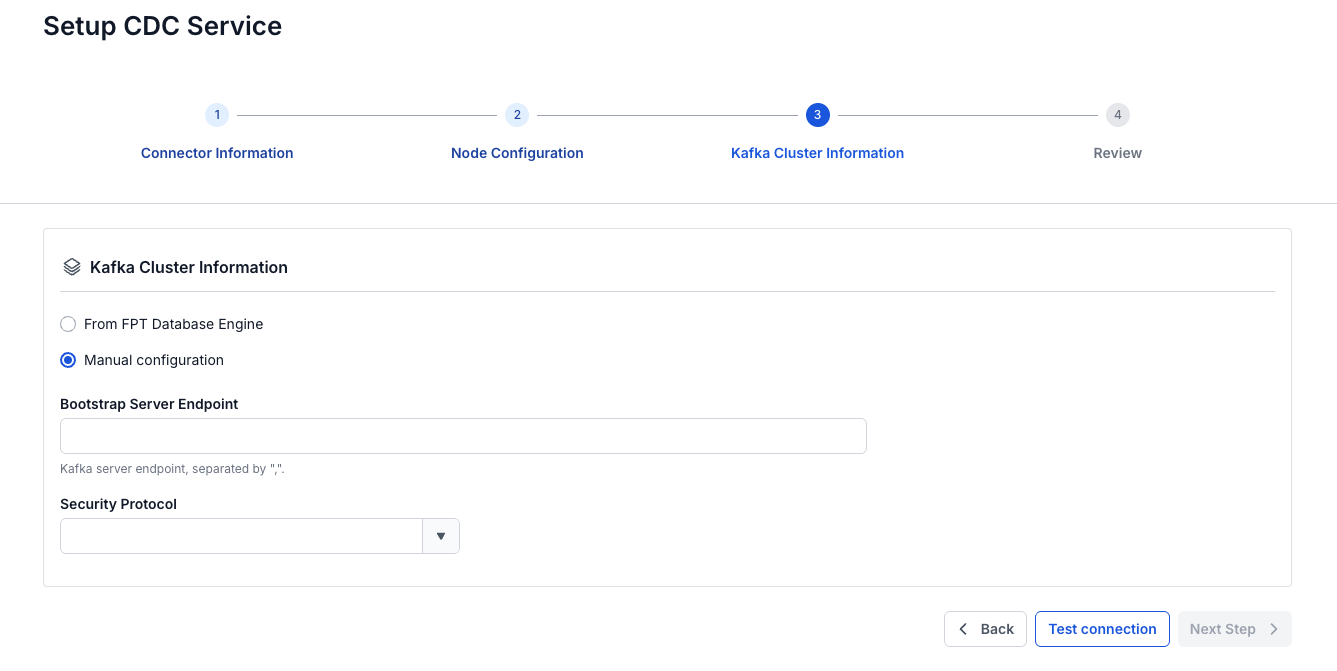
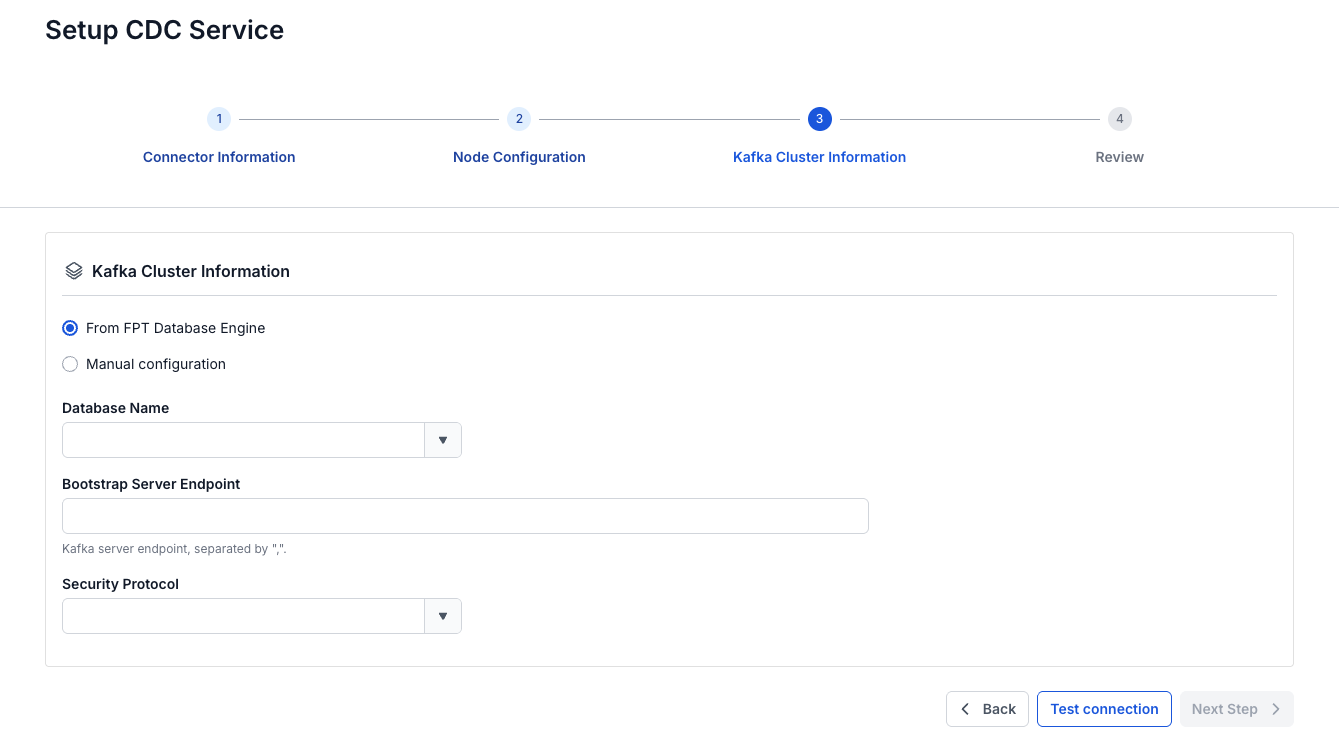
On the Kafka Cluster Information screen, keep From FPT Database Engine or select Manual configuration.
-
Select the Kafka cluster in Database Name if you kept From FPT Database Engine. The portal fills in Bootstrap Server Endpoint, Security Protocol, and Authentication method, but not Username and Password.
-
Enter the Bootstrap Server Endpoint.
-
Select the Security Protocol, then fill in the authentication fields it shows.
-
Select Test connection. After about 20 seconds, the message "Connect bootstrap server successfully" appears.
-
Select Next Step after the test succeeds. It stays disabled until then.
| Field | Description |
|---|---|
| From FPT Database Engine or Manual configuration | Required. From FPT Database Engine (the default) uses a Kafka cluster from FPT Database Engine. Manual configuration takes the connection details of another Kafka cluster. |
| Database Name | Required with From FPT Database Engine. The Kafka cluster to use. |
| Bootstrap Server Endpoint | Required. The Kafka server endpoints. Separate several endpoints with commas (,). |
| Security Protocol | Required. SASL_PLAINTEXT: authentication with a username and password. SASL_SSL: authentication with a username and password, and data encryption. PLAINTEXT: data is sent without encryption, not recommended. SSL: protects the data sent over the network. |
| Authentication method | With SASL_PLAINTEXT or SASL_SSL. The SASL mechanism: PLAIN, SCRAM-SHA-256, or SCRAM-SHA-512. |
| Username | Required with SASL_PLAINTEXT or SASL_SSL. The user that connects to Kafka. The details page shows it as SASL Username. |
| Password | Required with SASL_PLAINTEXT or SASL_SSL. The password of that user. |
PLAINTEXT sends data over the network without encryption and is not recommended. Use SASL_SSL or SSL when your cluster supports it.
Review and create
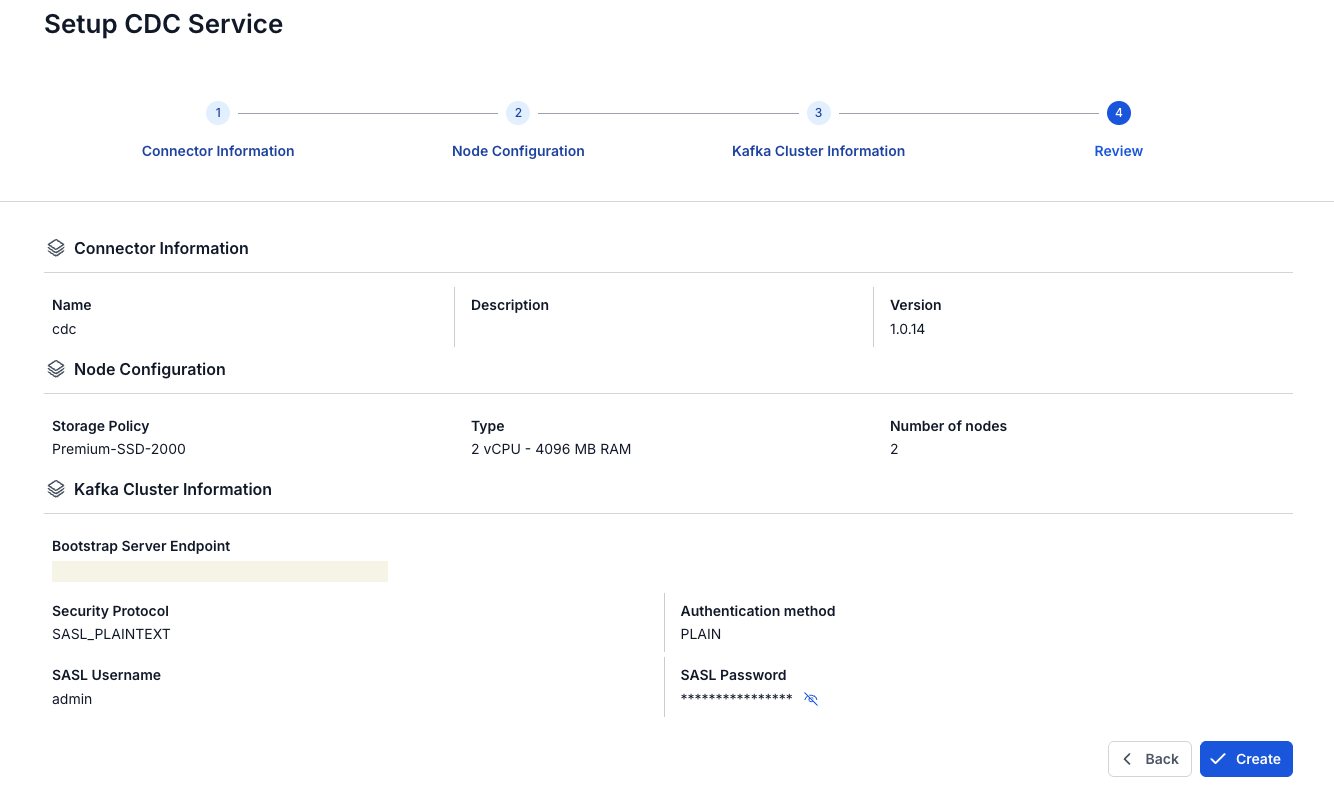
- Check the settings on the Review screen. It shows the Connector Information, Node Configuration, and Kafka Cluster Information you entered. Type appears in vCPU and MB, for example
4 vCPU - 8192 MB RAM, and the Kafka user as SASL Username and SASL Password. - Select Create. The portal returns to the Overview tab of the workspace, where the CDC card under Services shows Processing.
While the service starts, its Status is Processing. It can take 30 minutes or more to become Healthy, and you can then create connectors.