Common connector settings
Use this page to look up a setting that appears on many connector forms, such as the connection mode, the topics, or the error tolerance. Each connector page links here for these settings and describes its own fields in full.
Settings at a glance
| Setting | Screen | Connectors |
|---|---|---|
| Name | Connector Information | All connectors |
| Connection mode | Properties | Database connectors, the Kafka source connector, and Kafka MM2 |
| Topic prefix | Properties | Source connectors, except Kafka and S3 |
| Topics | Properties | Sink connectors |
| Incremental snapshot | Properties | MySQL, MariaDB, and PostgreSQL sources |
| Converter | Properties | Sink connectors |
| Snapshot mode | Additional properties | PostgreSQL, MySQL, MariaDB, SQL Server, Oracle, and MongoDB sources |
| Heartbeat | Additional properties | PostgreSQL, MySQL, MariaDB, and SQL Server sources |
| Tasks max | Additional properties | Sink connectors, the Kafka source connector, and Kafka MM2 |
| Map table | Additional properties | Sink connectors, except S3 and Redis |
| Error tolerance | Additional properties | Sink connectors except MongoDB, and the MongoDB and S3 sources |
| Timezone | Additional properties | PostgreSQL, MySQL, MariaDB, SQL Server, and S3 sinks |
The forms mark almost no field with *, so a field can be required without one. When a required field is empty, the form shows a message under it, such as "Name is required". Only Heartbeat interval (ms) on source connectors has a red *.
The Review screen at the end of the wizard does not show the connection mode, Database Name, Converter class, Timezone, or the Create new or Create new table switch.
Connector Information screen
Name
The first screen of the wizard, Connector Information, has one section, Basic Information. It asks for the Name, the Type (source or sink), and the Database of the connector. Database becomes available after you select a Type.
The Name accepts lowercase letters, numbers, and hyphens (-) only. Upper-case letters, underscores (_), dots (.), and spaces are rejected with the message "Name has invalid characters", although the hint under the field reads "Only letters, numbers, hyphens are allowed". An empty name gives "Name is required".
Properties screen
Connection mode
Most database connectors ask in the Database Information section how to reach the database. Manual configuration is selected by default.
- From FPT Database Engine: select an instance in Database Name. The portal fills in Host name and Port, which you can still change. Then complete the other fields.
- Manual configuration: enter the connection fields of any database that the workspace can reach. Port has no default value, so enter it yourself.
| Field | Description |
|---|---|
| Database Name | With From FPT Database Engine only. The list shows the FPT Database Engine instances of the matching engine in your tenant. Each entry shows only the instance name, and two instances can have the same name. |
| Host name | The host name or IP address of the database server. |
| Port | The port of the database server, for example 3306 for MySQL. |
| Database | For a source connector, the database to capture changes from. For a sink connector, the database to write the data to. |
| Username | The database user that the connector uses. Each source connector page lists the permissions this user needs. |
| Password | The password of that user. |
MongoDB connectors use a Connection URL, and the OpenSearch sink a Connection string, instead of a host and a port. With From FPT Database Engine, the portal fills this field and you cannot edit it. The Kafka source connector and Kafka MM2 use the same two options for the Kafka cluster they read from. Kafka MM2 selects From FPT Database Engine by default. On the Oracle source connector, From FPT Database Engine is greyed out, so use Manual configuration. Connectors that connect by URL or endpoint, such as Elasticsearch, Redis, Iceberg, and S3, do not offer this choice.
After you fill in the connection fields, select Test connection. The portal checks the connection from the workspace to the database you entered. When Enable incremental snapshot is selected, the test also checks the permissions that the snapshot needs. See Incremental snapshot.
Next Step stays disabled until Test connection succeeds with the message "Connect Successfully". If a required field is empty, the test does not run, and the form shows a message such as "Access Key is required" under that field. This applies to the Properties screen of every connector.
Topic prefix
A source connector writes the change events of each table to its own Kafka topic. In the Kafka topic section, the Topic prefix sets the first part of every topic name. The rest of the name depends on the source.
| Source connector | Topic name |
|---|---|
| PostgreSQL, Oracle | TOPIC_PREFIX.SCHEMA.TABLE |
| MySQL, MariaDB | TOPIC_PREFIX.DATABASE.TABLE |
| SQL Server | TOPIC_PREFIX.DATABASE.SCHEMA.TABLE |
| MongoDB | TOPIC_PREFIX.DATABASE.COLLECTION |
For example, with the prefix syncdata, the schema inventory, and the tables customer, order, and item, a PostgreSQL connector writes to syncdata.inventory.customer, syncdata.inventory.order, and syncdata.inventory.item.
The MySQL and MariaDB connectors also write a topic named with the prefix alone, for example syncdata. The topic lists of the sink connectors show this topic too.
The field is required. It accepts lowercase letters, numbers, hyphens (-), underscores (_), and dots (.). Upper-case letters, spaces, and characters such as ! give "Topic prefix has invalid characters". The Oracle source connector does not check the characters. Sink connectors select the topics to read by these names, so pick a prefix that tells you which source the data comes from, and use a different prefix for each source connector. If you change the prefix later, the connector writes new changes to topics with the new names, so update the sinks that read them. The S3 source connector asks instead for a Topic, the full name of the one topic it writes to.
Topics
A sink connector reads the Kafka topics that you choose on the Properties screen, in the Kafka topic section. Only topics that already exist are listed: a source connector creates the topic of a table when it first writes a record from it, so a source table with no rows yet has no topic. Depending on the connector, the section shows one of two controls.
- Topics select: a list of the topics that exist in the Kafka cluster of the CDC Service. Type part of a name to filter the list, then select the topics to read. Each selected topic shows as a tag with ×. The MySQL, MariaDB, SQL Server, and OpenSearch sinks use it, and so do both ClickHouse sinks and both Iceberg sinks.
- Topic table: a Selected topics list with a Total topic count and the columns Topic and Action. The PostgreSQL, MongoDB, Elasticsearch, S3, and Redis sinks use it. The Kafka source connector and Kafka MM2 use the same table for the topics of the other cluster. There, + stays disabled until Test connection succeeds.
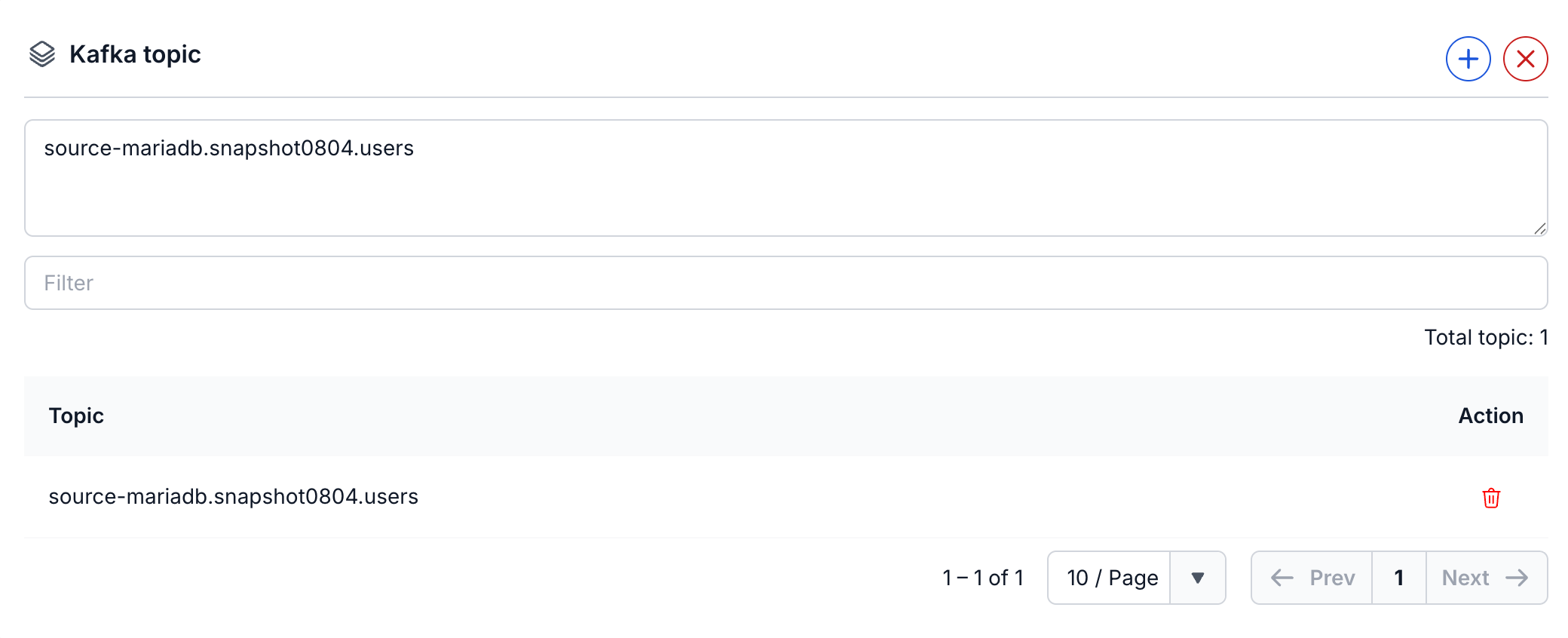
| Control in the topic table | What it does |
|---|---|
| + | Opens the Select topics panel. Filter the topics by name, select their checkboxes or Select All, then select Select. |
| × | Clears the whole topic list. |
| Delete icon in the Action column | Removes that topic from the list. |
The topic table holds at most 100 topics.
Incremental snapshot
Enable incremental snapshot is an optional checkbox in the Database Information section of the MySQL, MariaDB, and PostgreSQL source connectors. Select it to run snapshots later while the connector keeps streaming changes. Incremental snapshots are not available on the other source connectors, including SQL Server.
When you create the connector with the checkbox selected, the CDC Service creates a signal table in the source database: public.cdc_signal on PostgreSQL, and cdc_signal in the captured Database on MySQL and MariaDB. The Snapshot menu sends its commands to the connector through this table. The database user therefore needs the CREATE TABLE and INSERT permissions, and Test connection checks them when the checkbox is selected. If a permission is missing, the test fails with an error that gives the details. Grant the permission to the database user, then select Test connection again. When the test passes, the portal shows "Connect Successfully".
Select the checkbox when you create the connector. Without it there is no signal table, so Execute cannot start a snapshot, even though the Snapshot menu is still shown.
You start and control a snapshot with Execute, Pause, Resume, and Stop in the Snapshot menu of the connector, and follow it in the Snapshot Status column of the Connectors tab. See Run an incremental snapshot.
Converter
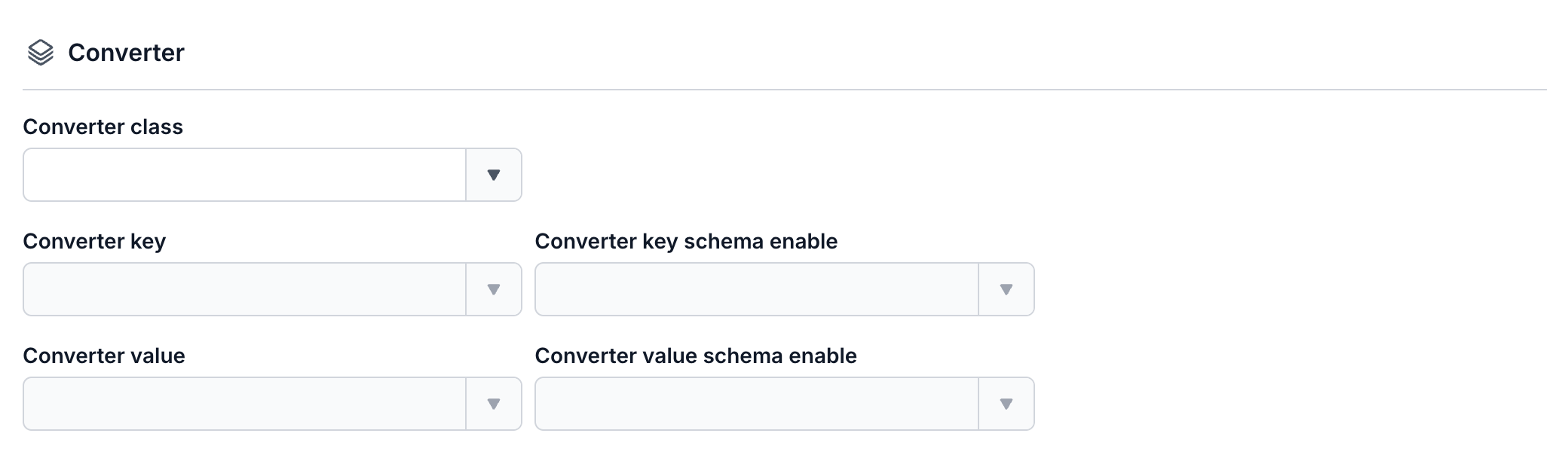
Sink connectors have a Converter section on the Properties screen for the keys and the values of the messages they read. Select Converter class first: the four other fields stay greyed out until you do. They then stay empty, so select a value in each one, even when its list has only one option.
| Field | Description |
|---|---|
| Converter class | The converter class of the sink. Each sink offers one class: JDBC for PostgreSQL, MySQL, MariaDB, and SQL Server, MongoDB for MongoDB, Clickhouse log for ClickHouse (Logs), Clickhouse replica for ClickHouse Replicate, Opensearch for OpenSearch, Elasticsearch for Elastic Search, S3 for S3, Iceberg replica for Iceberg, Iceberg log for Iceberg (logs), and Redis for Redis. |
| Converter key | The converter for the message keys. With JDBC, the only option is org.apache.kafka.connect.json.JsonConverter. |
| Converter key schema enable | Whether the message keys use a schema. With JDBC, the only option is true. |
| Converter value | The converter for the message values, for example org.apache.kafka.connect.json.JsonConverter. |
| Converter value schema enable | Whether the message values use a schema, for example true. |
If you go back and change the Database, select Converter class and the four converter fields again. The form can keep the class and the values you chose for the previous database, even values that the new lists do not offer.
Additional properties screen
Snapshot mode
A source connector can copy the data that already exists in the tables before it captures new changes. In the Snapshot section, Mode sets this behaviour. The field is required.
| Mode | What the connector does |
|---|---|
| initial | Snapshots all existing data in the tables, then keeps capturing the changes. |
| initial_only | Snapshots all existing data in the tables only. It does not capture later changes. |
| no_data | Skips the snapshot and captures only the changes made after the connector starts. |
MySQL and MariaDB purge old binlogs after a while, so their connectors use an initial consistent snapshot to make sure the data is complete before they read the binlog.
The MongoDB source connector shows Mode in its Snapshot section with other values.
| Mode | What the connector does |
|---|---|
| latest | Captures only the changes made after the connector starts. It does not copy the existing documents. |
| copy existing | Copies all existing documents while it captures the changes. If the collection changes during the copy, the connector produces two events for the same document: one copyingData event and one event for the operation (insert, update, or delete). |
To snapshot the data again after the connector has started, use an incremental snapshot. See Incremental snapshot.
Heartbeat
The PostgreSQL, MySQL, MariaDB, and SQL Server source connectors send heartbeat messages. A heartbeat keeps the connector active and updates its offset when the captured tables have no data changes. On PostgreSQL, it also lets the database release old WAL that the replication slot would otherwise keep. Set the interval in Heartbeat interval (ms), in the Heartbeat section. The field is required.
- Default:
0on the PostgreSQL, MySQL, MariaDB, and SQL Server connectors. - Range:
0to30000milliseconds. 0sends no heartbeat.1000sends one every second, and5000one every 5 seconds.
You cannot change the interval after you create the connector. The details page shows it in the Heartbeat section.
On PostgreSQL, the heartbeat uses the table public.cdc_heartbeat. Create this table in the source database before you create the connector. See Create a PostgreSQL source connector.
Tasks max
The Task section sets the maximum number of tasks that the connector runs in parallel. Depending on the connector, the field is called Tasks max, Number of tasks, or Number of task. The PostgreSQL sink shows Number of tasks in the form and Tasks max on the Review screen and the details page.
The connector can run several tasks at the same time when the topics have more than one partition. With more than one task, messages can be consumed out of order. To keep related messages in order, make sure they have the same message key, so that they go to the same partition.
For the Kafka source connector, the number of tasks is usually less than or equal to the number of partitions of the Kafka topic.
Map table
A sink connector maps each topic to a table, an index, or a collection in the target. Depending on the connector, the Map table section shows one row per topic or a table of all topics.
| Field | Description |
|---|---|
| Topic (Topic 1, Topic 2…) | The topic that holds the change data from the source connector. |
| Create new or Create new table | On: enter the name of a new table to create in the target. The name can contain letters, numbers, and underscores. Off: select an existing table. Create new is on by default, with the name filled in from the topic (PostgreSQL, MongoDB). Create new table is off by default, and the name is empty when you turn it on (MySQL, MariaDB, SQL Server, OpenSearch). An invalid name gives "Table has invalid characters", and an empty one "Table is required". The ClickHouse sinks have no switch and accept existing tables only. |
| Table (Table 1…) or Index | The table that receives the data of the topic. On the OpenSearch sink, Table 1 is the name of the target index, and on the Elasticsearch sink the column is called Index. On the MongoDB sink, the column is also called Index, but it holds the name of the target collection. The Review screen and the details page show it as Collection, and an empty Index gives "Table is required". |
| Filter | Searches the list by topic or table name. |
| Enable filter errors | PostgreSQL and MongoDB sinks only. Shows only the rows whose table name has an error. Errors shows how many rows have one. |
Error tolerance
In the Error Tolerance section, Mode sets what the connector does with a message that it cannot process. The field is required.
| Mode | What the connector does |
|---|---|
| None | The connector stops at the first message that fails, and its status changes to Failed. Fix the cause, then restart the connector. |
| All | Skips the messages that fail and keeps running. A sink connector also writes them to the topic you enter for failed records, in the Kafka cluster of the CDC Service. |
All covers the messages that the connector cannot read or convert. An error that the target returns while the connector writes, for example a constraint violation in a database, can still stop the connector.
On a sink connector, the Error Tolerance section shows a Topic field with All. Enter the topic for failed records there. The MongoDB source connector shows the same Topic field for its failed messages. The S3 source connector skips the failed records without writing them to a topic.
Timezone
The PostgreSQL, MySQL, MariaDB, and SQL Server sink connectors have a Database timezone section with a Timezone list. Select the timezone of the data in the source database: UTC or Asia/Ho_Chi_Minh. The list has no default. The S3 sink shows Timezone in its Source section, next to Database Type.