View connector details
Check all connectors of your CDC Service at a glance on the Connectors tab: what they connect to, whether they run, and how far their snapshots are. Open a connector to see its settings and, on some connectors, to change its topics or credentials.
Open the connector list
- Select Data platform → Workspace management, then select your workspace.
- On the Overview tab, under Services, select the CDC card.
- Select the Connectors tab.
A service with no connectors shows No connector yet and a Create Connector button.
| Column | Description |
|---|---|
| Name | The connector name. |
| Type | source or sink. |
| Database | The system that the connector connects to, for example postgresql or mariadb. |
| Status | The state of the connector, for example Running or Stopped. See Manage connector states. |
| Snapshot Status | The status of the incremental snapshot, for example Not Started or Completed. Shown for the MySQL, MariaDB, PostgreSQL, and SQL Server source connectors, but snapshots run only on MySQL, MariaDB, and PostgreSQL connectors created with Enable incremental snapshot. Other connectors show no snapshot status. It does not track the snapshot that Mode runs when the connector starts, so a new MySQL or MariaDB source shows Not Started even after that snapshot has copied the data. See Run an incremental snapshot. |
| Tasks | The number of tasks of the connector in each state: Running, Paused, Restarting, Stopped, and Failed. A new connector shows Running with every counter at 0 until its task starts, which can take up to about 2.5 minutes. |
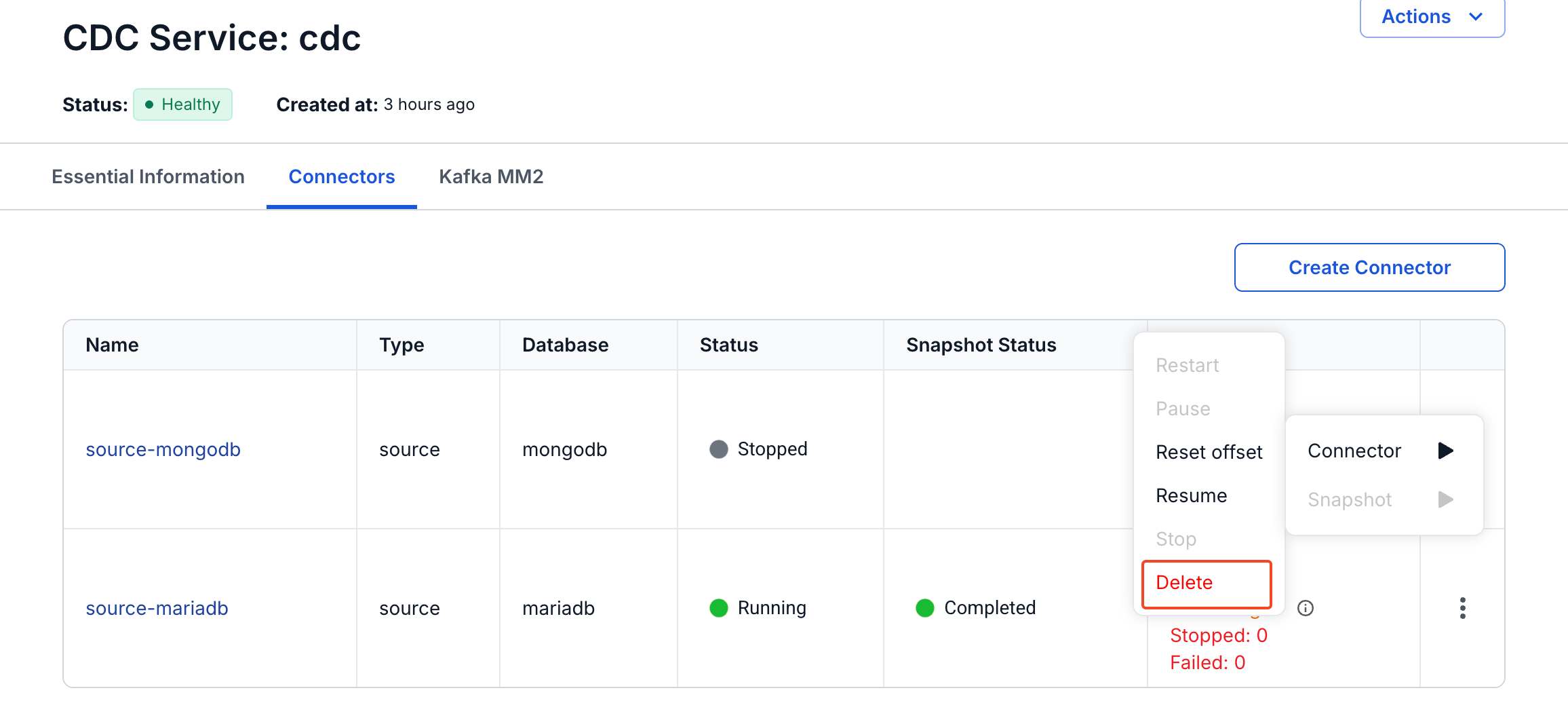
The more icon (⋮) at the end of each row opens two submenus:
- Connector ▶ holds Restart, Pause, Reset offset, Resume, Stop, and Delete. Only the actions that the current state allows are enabled.
- Snapshot ▶ holds the incremental snapshot actions Execute, Pause, Resume, and Stop. It is greyed out for sink connectors and for the MongoDB source connector.
Open the details of a connector
Select the name of a connector in the Name column. The details page has the title Connector: followed by the connector name, the Status of the connector, and an Actions menu. Actions has the same Connector ▶ and Snapshot ▶ submenus as the row menu.
The sections depend on the type and the database of the connector. For example, a PostgreSQL connector shows these sections:
| Type | Sections |
|---|---|
| Source | Basic Information (Name, Type, Database), Kafka topic, Database Information, Snapshot, Include, and Heartbeat |
| Sink | Basic Information, Database Information, Kafka topic (Topics and Topics map), Task, Converter, Database source, Schema, and Error Tolerance |
Edit a connector
Some sections of the details page have an edit icon that opens an update panel. Which sections have one depends on the connector, and some connectors have none, for example the MySQL source and sink. The table lists the panels of a PostgreSQL source and sink.
- Open the details of the connector, as described in Open the details of a connector.
- Select the edit icon of the section.
- In the panel, change the fields.
- Select Save.
| Section | Panel | Fields you can change |
|---|---|---|
| Kafka topic (source) | Update Kafka Topic | Topic prefix |
| Database Information (source) | Update Database Info | Username and Password. Select Test connection before Save, which stays disabled until the test succeeds. |
| Include (source) | Update include Tables | The tables to capture, picked by Schema and Table. |
| Kafka topic (sink) | Update Kafka Topics | The topics that the sink reads. |
You cannot change the host name, port, or database of a source connector after you create it. The Update Database Info panel shows them as read-only.