2.6 Oracle source connector
Create Oracle source connector
Use case: creating a connector where Type is source and Database is Oracle.
Pre-condition: CDC service status must be healthy.
The Oracle Source connector uses Oracle LogMiner to read redo logs and capture data changes (CDC). The connector supports 3 snapshot modes:
- initial: Snapshot all existing data, then continue capturing changes.
- initial_only: Only snapshot existing data, without capturing changes.
- no_data: No snapshot; only capture changes starting from when the connector is launched.
Configuring the Oracle Database (required before creating the connector)
1. Create an Oracle user for CDC:
CREATE USER cdc_user IDENTIFIED BY <PASSWORD>;
2. The Oracle source connector requires the following permissions:
GRANT CREATE SESSION TO cdc_user;
 GRANT SELECT ON V$DATABASE TO cdc_user;
 GRANT FLASHBACK ANY TABLE TO cdc_user;
 GRANT SELECT ANY TABLE TO cdc_user;
 GRANT SELECT_CATALOG_ROLE TO cdc_user;
 GRANT EXECUTE_CATALOG_ROLE TO cdc_user;
 GRANT SELECT ANY TRANSACTION TO cdc_user;
 GRANT LOGMINING TO cdc_user;
Or grant permissions on a specific schema:
GRANT SELECT ON <SCHEMA_NAME>.<TABLE_NAME> TO cdc_user;
3. Enable Archive Log Mode: Check whether Archive Log is already enabled:
SELECT LOG_MODE FROM V$DATABASE;
The result must be: ARCHIVELOG. If the result is NOARCHIVELOG, enable Archive Log Mode:
SHUTDOWN IMMEDIATE;
 STARTUP MOUNT;
 ALTER DATABASE ARCHIVELOG;
 ALTER DATABASE OPEN;
Verify again:
SELECT LOG_MODE FROM V$DATABASE;
4. Enable Supplemental Logging:
Oracle CDC requires Supplemental Logging to capture complete change information.
Enable Supplemental Logging at the database level:
ALTER DATABASE ADD SUPPLEMENTAL LOG DATA;
Enable Supplemental Logging for each table that requires CDC:
ALTER TABLE <SCHEMA_NAME>.<TABLE_NAME> ADD SUPPLEMENTAL LOG DATA (ALL) COLUMNS;
Check Supplemental Logging:
SELECT SUPPLEMENTAL_LOG_DATA_MIN, SUPPLEMENTAL_LOG_DATA_PK,
 SUPPLEMENTAL_LOG_DATA_UI, SUPPLEMENTAL_LOG_DATA_FK,
 SUPPLEMENTAL_LOG_DATA_ALL
 FROM V$DATABASE;
5. Check LogMiner permissions:
Verify the user has access to LogMiner:
SELECT * FROM DBA_ROLE_PRIVS WHERE GRANTEE = 'CDC_USER';
Test the LogMiner query:
SELECT * FROM V$LOGMNR_CONTENTS WHERE ROWNUM <= 10;
To create a connector, follow these steps:
Step 1: In the menu bar, select Data Platform > select Workspace Management > select Workspace name
Step 2. In the My services section, select CDC service
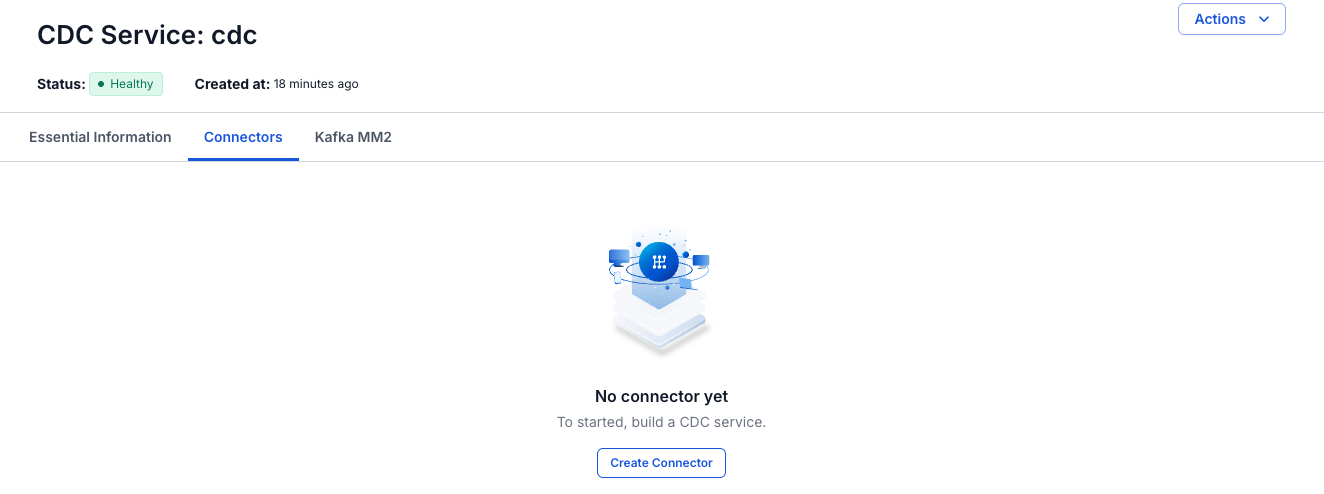
Step 3: On the CDC service detail screen > select the Connectors tab > click Create a connector
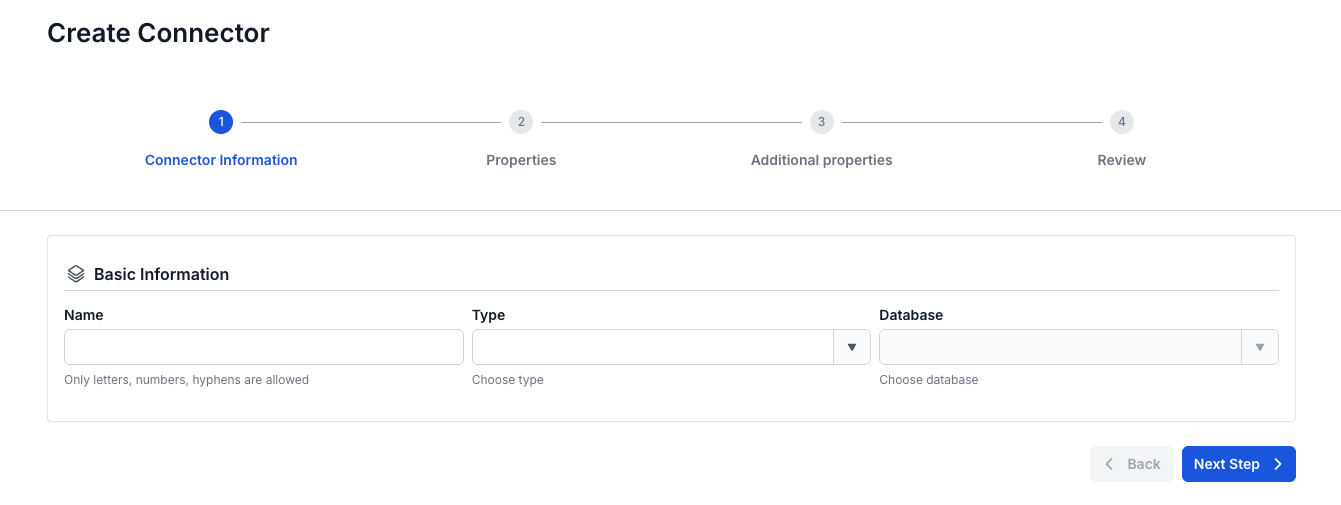
Step 4: Enter the information on the Connector Information screen:
- Name (required): connector name Note: The connector name can contain the characters a-z, A-Z, 0-9, and hyphens "-". In particular, special characters and spaces are not allowed.
- Type (required): select source
- Database (required): select Oracle
Step 5: Click Next to proceed to the Properties screen
Enter the Properties information:
If you select Manual configuration - fill in the following information: - Host name (required): Hostname or IP of the Oracle Database - Port (required): Oracle server port, default: '1521' - Container database name: Container database name (CDB) - applicable to Oracle 12c and above with Multitenant architecture - Pluggable database name (required): Pluggable database name (PDB) - the actual database containing the data - Username (required): Username with LogMiner privileges (e.g., cdc_user) - Password (required): The user's password
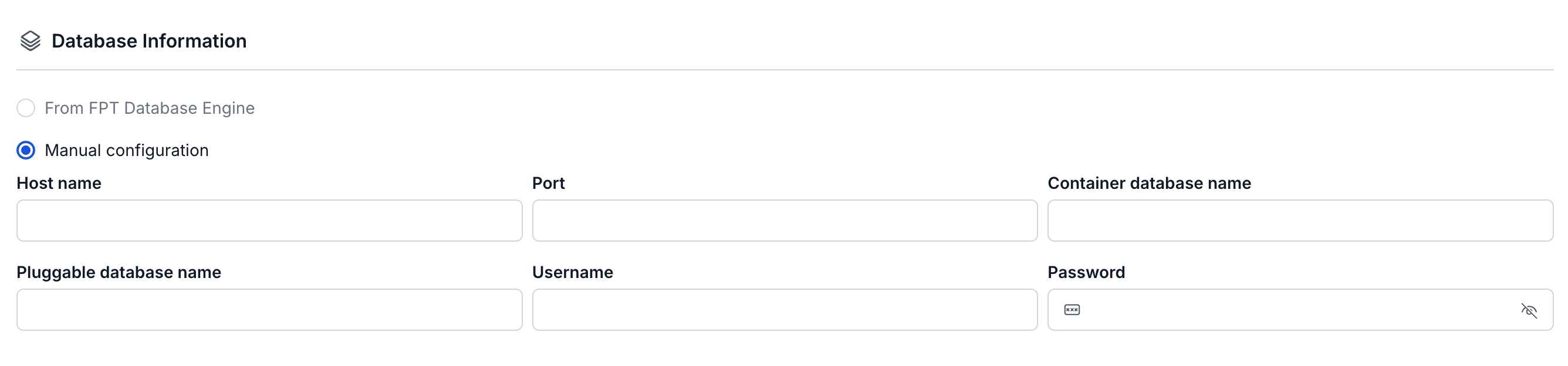
Note: After filling in all the information, you must click Test connection to verify the connection. You can only proceed to the next step once the connection test succeeds.
- Archive log (required): Select the Archive Log mode (must be ARCHIVELOG)

- Topic prefix (required): Prefix for Kafka topics. Topic format:
<topic_prefix>.<schema>.<table>

Step 6: Click Next to proceed to the Additional properties screen
Enter the Additional properties information:
-
Mode (required): Select the snapshot mode
- initial: The Connector will snapshot all existing data in the tables, then continue to capture data changes via LogMiner
- initial_only: The Connector will only snapshot all existing data in the tables, then stop (without listening for changes)
- no_data: The Connector will not snapshot existing data, and will only capture changes from the time it is launched
-
Schema: Select the database schema (multiple selections allowed)
-
Table: Select the tables that need CDC (multiple selections allowed)
-
Column: Select the columns that need CDC (default is all: .*)
Use the + button to add tables to the CDC list. Use the delete icon to remove tables from the list
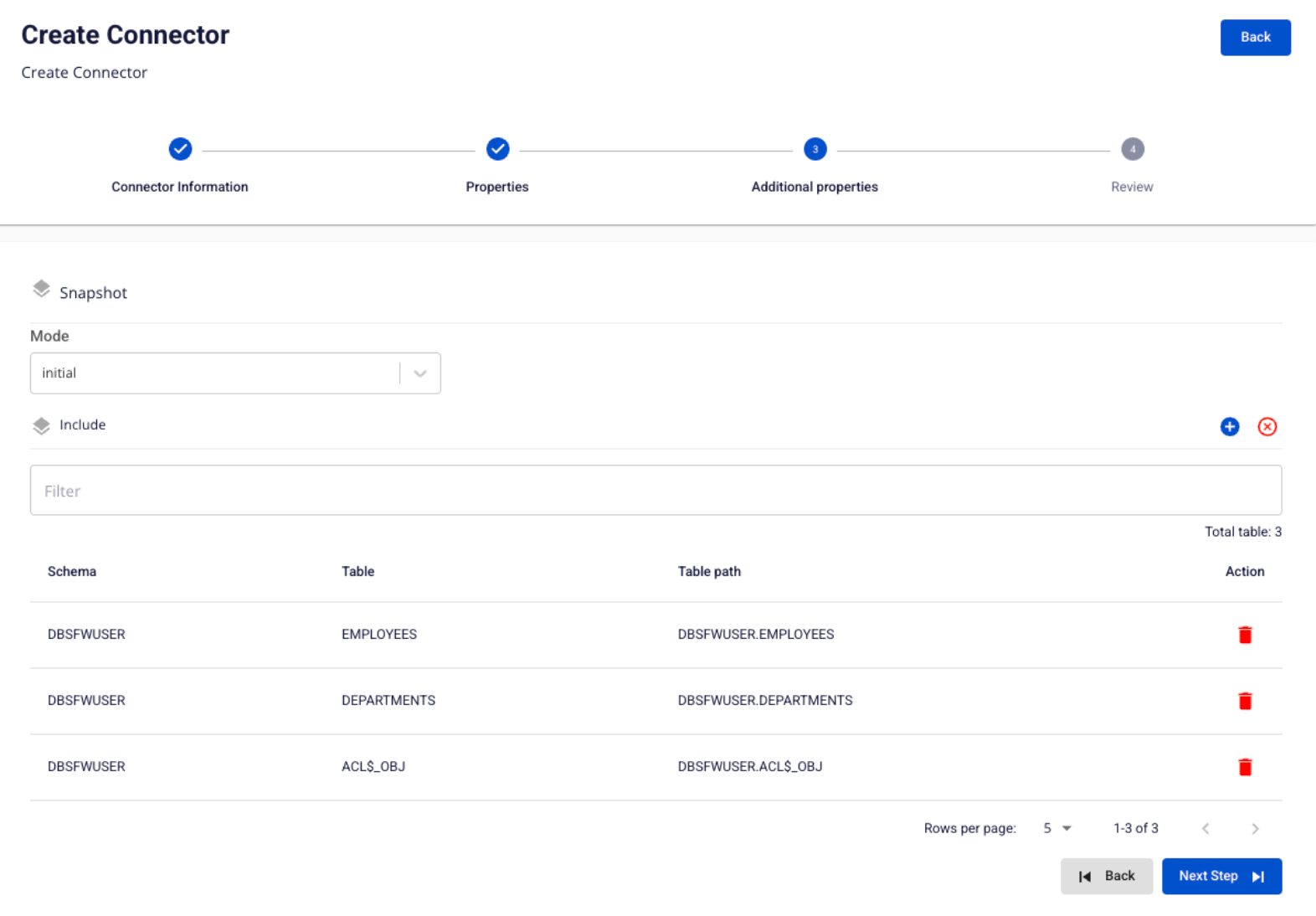
Step 7: Click Next to proceed to the Review screen.
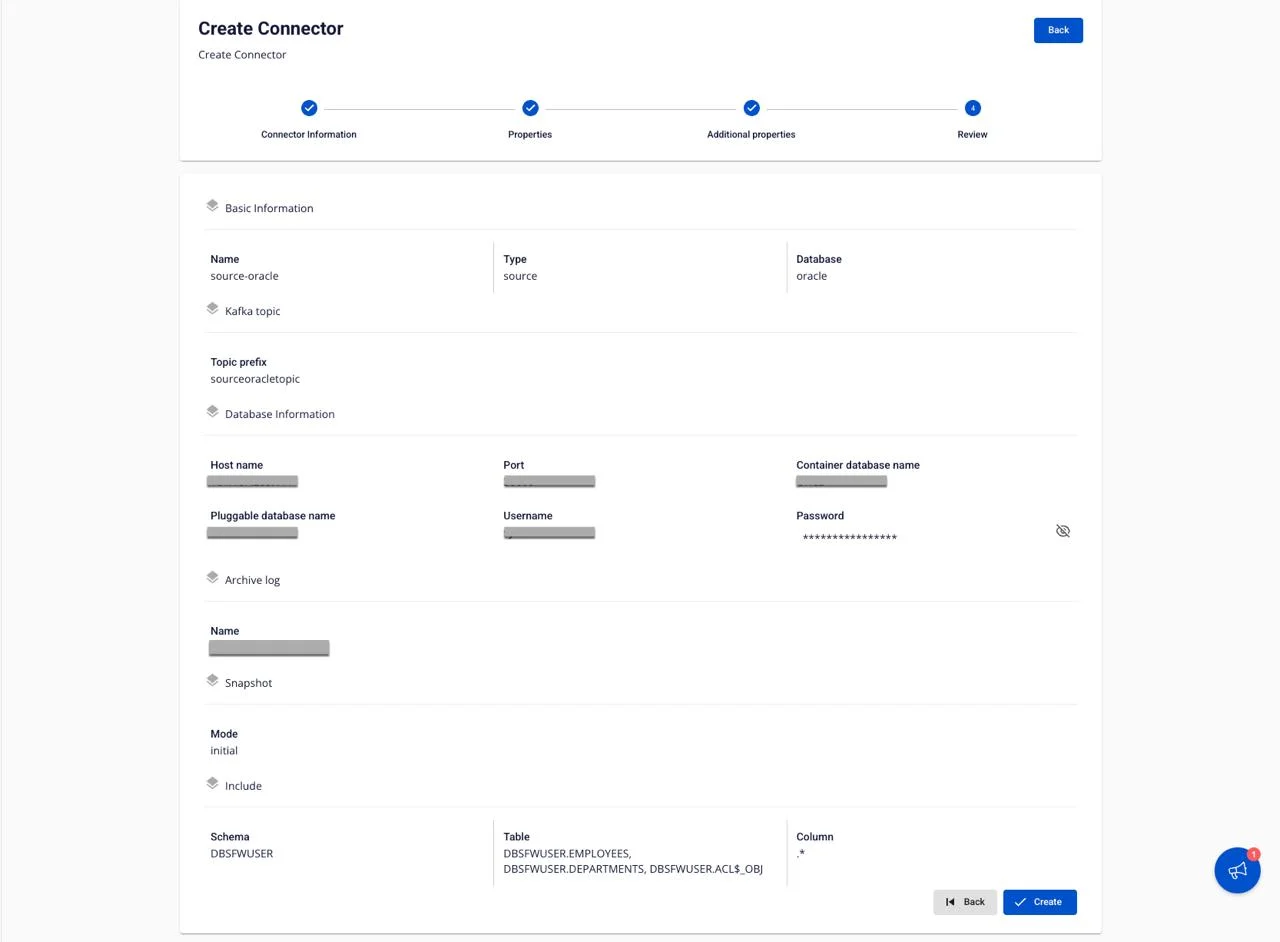
The Review screen displays all the configuration entered in the previous steps. Verify the following information:
- Basic Information: Name, Type, Database.
- Database Information: Host name, Port, Container database name, Pluggable database name, Username, Password.
- Archive log: Archive log mode.
- Kafka topic: Topic prefix.
- Snapshot: Mode.
- Include: Schema, Table, Column.
If you need to make changes, click Back to return to the previous step.
Step 8: Review the information, then click Create to finish creating the connector.