Create a MySQL sink connector
Use a MySQL sink connector to keep tables in a MySQL database up to date with the changes a source connector captures. The connector reads the Kafka topics you select and writes each topic to the table you map it to.
Prerequisites
- A CDC Service whose status is Healthy. See Create a CDC Service.
- Topics with change data, written by a source connector such as a MySQL source connector.
- A MySQL database that the workspace can reach, and a user with the privileges in Prepare the MySQL database.
Prepare the MySQL database
The connector inserts and updates rows by primary key, deletes the rows that are deleted in the source, and creates the tables and columns that are missing. Its user needs INSERT, UPDATE, and DELETE on the target tables, and CREATE and ALTER to create tables and add columns.
-
Connect to the target database as a user that can grant these privileges.
-
Run the statements below. Replace
YOUR_DATABASEwith the target database, andYOUR_USERwith the connector user.GRANT INSERT, UPDATE, DELETE, CREATE, ALTER ON YOUR_DATABASE.* TO 'YOUR_USER'@'%';FLUSH PRIVILEGES;
Create the connector
-
Select Data platform → Workspace management, then select your workspace.
-
On the Overview tab, under Services, select the CDC card.
-
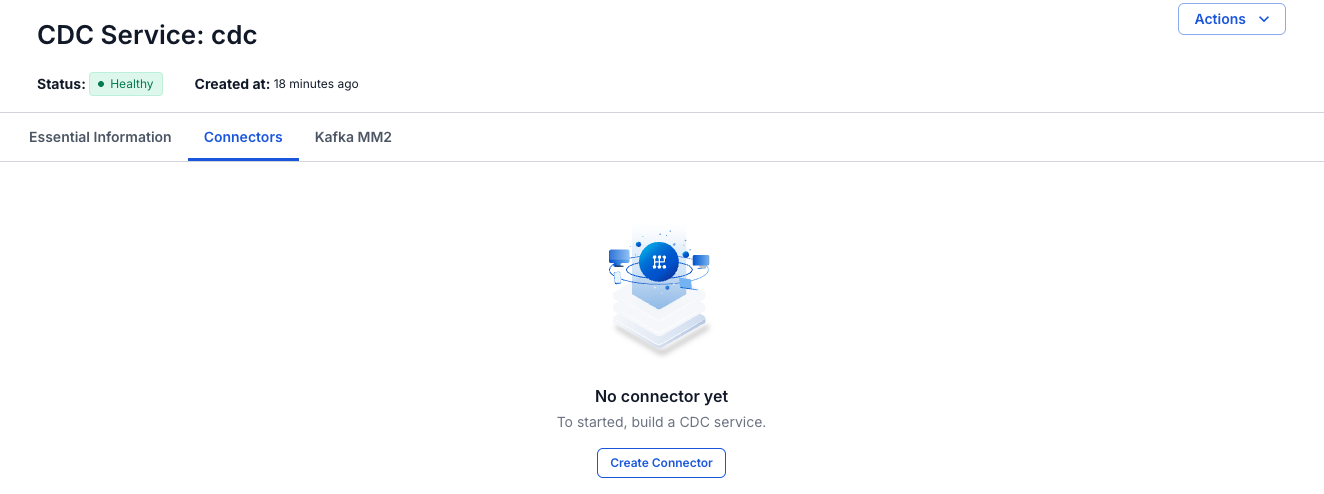
Select the Connectors tab, then select Create Connector.
-
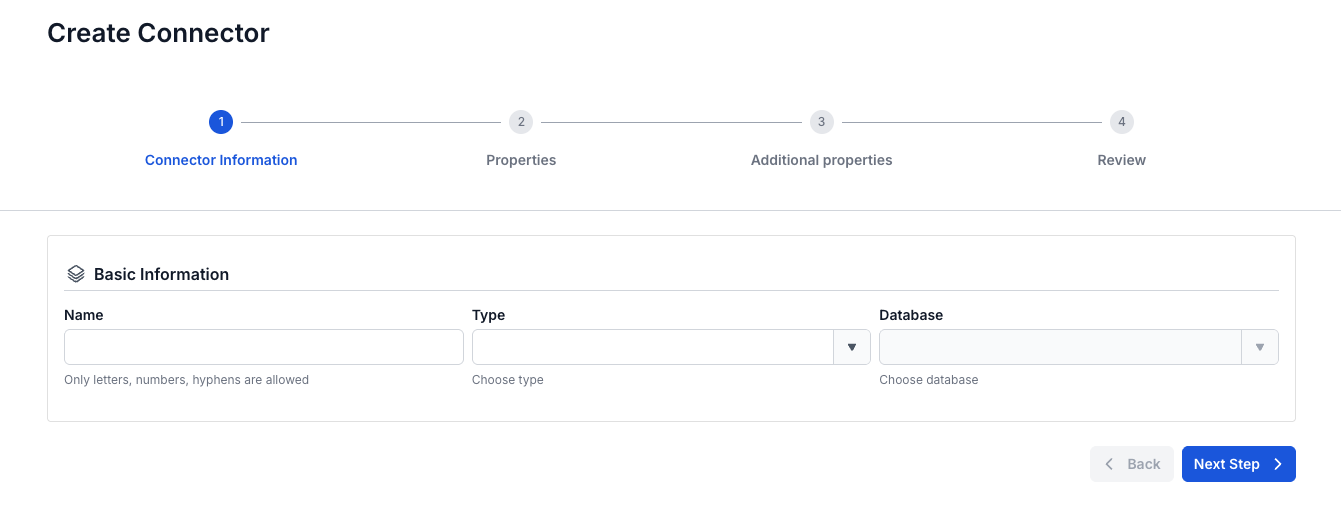
On the Connector Information screen, enter a Name, select sink in Type, and select MySQL in Database.
-
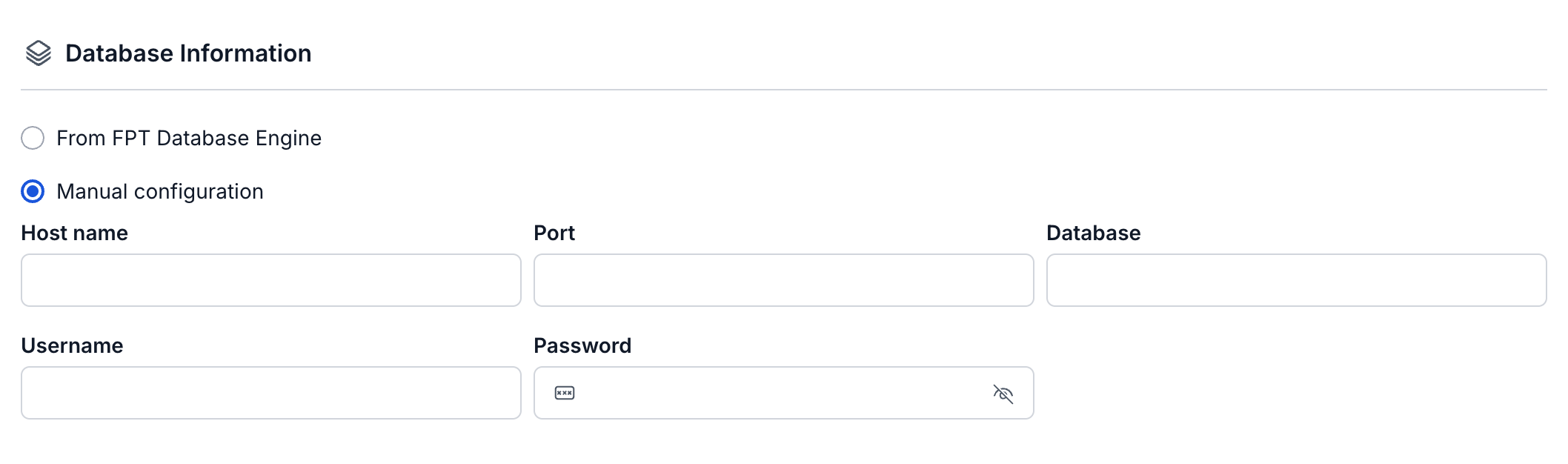
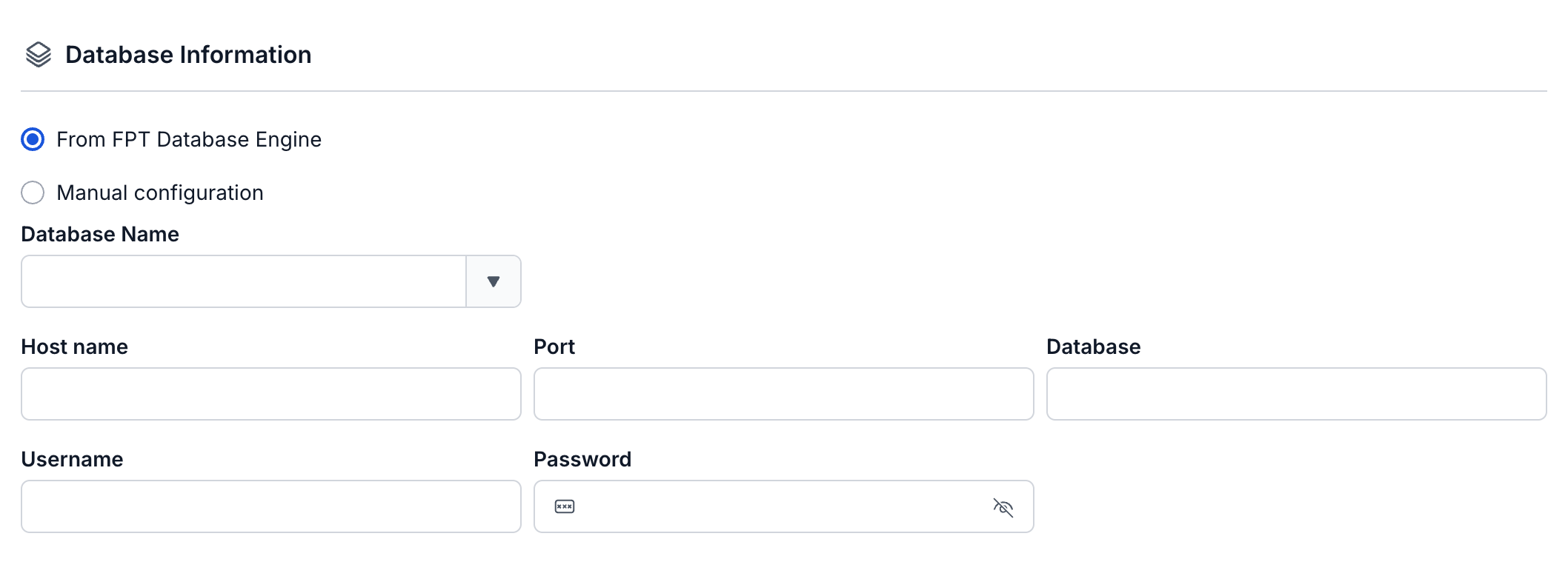
Select Next Step. On the Properties screen, enter the connection details, then select Test connection. Next Step becomes available after the test succeeds.
-
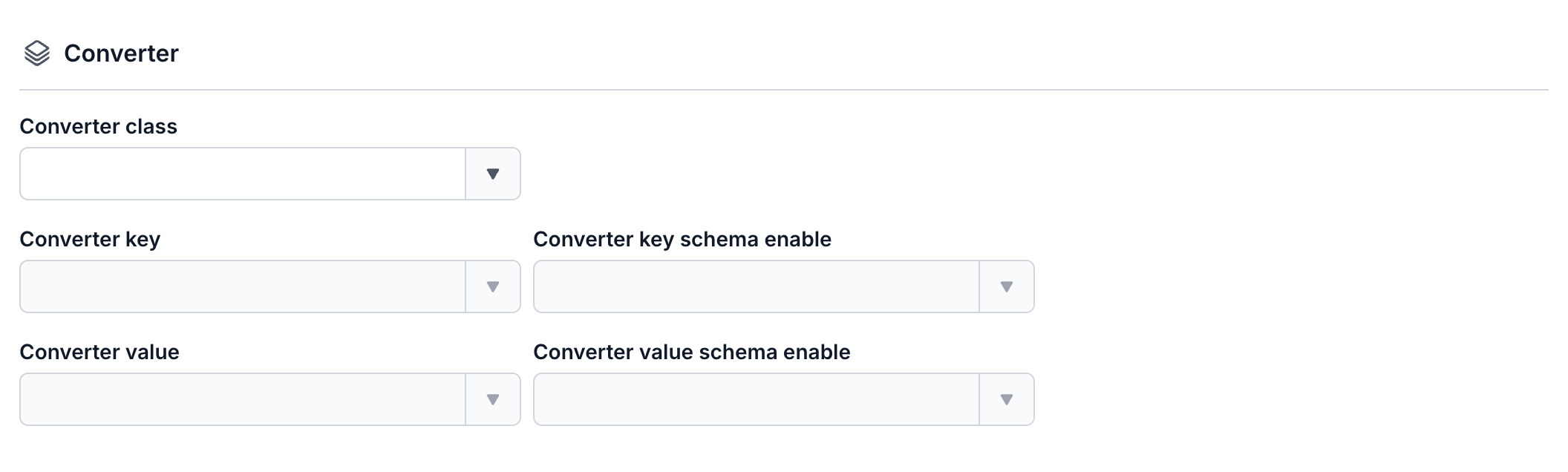
On the same screen, choose a Converter class and set the four converter fields, then select the topics to read in Topics.

-
Select Next Step. On the Additional properties screen, set the fields in the Database timezone, Database source, Task, Map table, and Error Tolerance sections.

-
Select Next Step and check the settings on the Review screen.
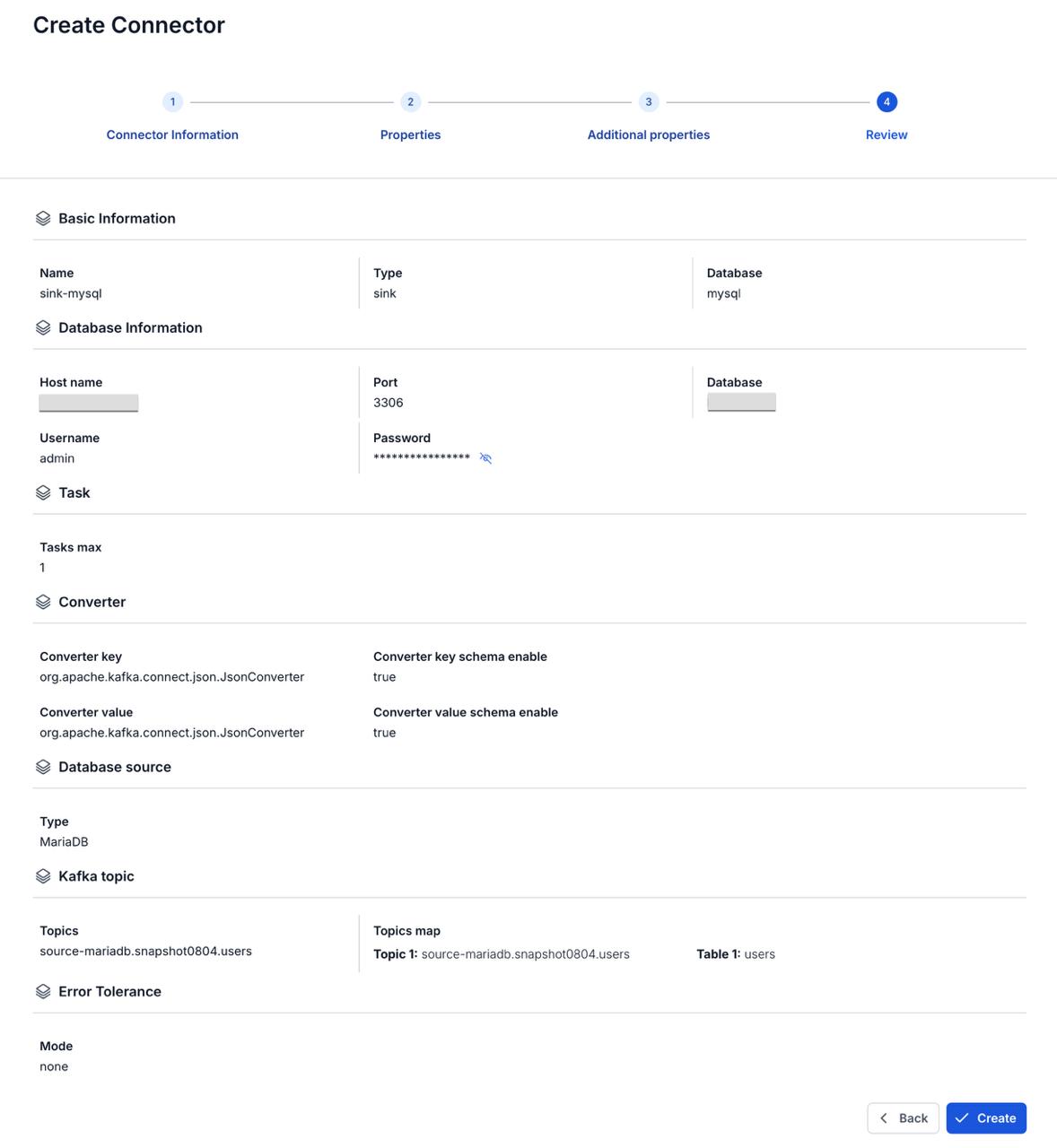
-
Select Create.
The portal returns to the Essential Information tab of the CDC Service. On the Connectors tab, the new connector shows the status Running, with every Tasks counter at 0 until its task starts, which can take up to about 2.5 minutes.
Connector settings
Connector information
| Field | Required | Description |
|---|---|---|
| Name | Yes | The connector name. Use lowercase letters, digits, and hyphens (-) only. Upper-case letters, _, ., and spaces are rejected with "Name has invalid characters". |
| Type | Yes | Select sink. |
| Database | Yes | Select MySQL. |
Properties
In the Database Information section, choose From FPT Database Engine or Manual configuration. Manual configuration is selected by default. With From FPT Database Engine, select your instance in Database Name to fill in Host name and Port. See Connection mode.
| Field | Required | Description |
|---|---|---|
| Database Name | Yes | Shown with From FPT Database Engine only. The MySQL instance in FPT Database Engine. Enter the database to write to in Database. |
| Host name | Yes | The host name or IP address of the MySQL server. |
| Port | Yes | The port of the MySQL server, for example 3306. The field has no default value in Manual configuration. |
| Database | Yes | The database that the connector writes to. |
| Username | Yes | The user that the connector connects as. It needs the privileges in Prepare the MySQL database. |
| Password | Yes | The password of that user. |
| Converter class | Yes | The converter class for this connector. The portal offers JDBC. The four converter fields stay greyed out until you choose a class. See Converter. |
| Converter key, Converter key schema enable, Converter value, Converter value schema enable | Yes | How the connector reads the keys and values of the messages, and whether they carry a schema. With JDBC, the key and value converters offer only org.apache.kafka.connect.json.JsonConverter, and the schema enable fields offer only true. |
| Topics (under Kafka topic) | Yes | The topics to read. Select them from the list, which shows the topics in the Kafka cluster of your CDC Service. See Topics. |
Additional properties
| Field | Required | Description |
|---|---|---|
| Timezone | No | The timezone of the data in the source database: UTC or Asia/Ho_Chi_Minh. The field has no default. See Timezone. |
| Type (under Database source) | Yes | The type of the source database that the topics come from: None, PostgreSQL, MySQL, MariaDB, or SQLServer. The field has no default. |
| Tasks max | Yes | How many tasks process the topics in parallel. Default 1. See Tasks max. |
| Topic 1, Create new table, Table 1 (under Map table) | Yes | The table that receives the records of each topic. Create new table is off by default, and Table 1 lists the existing tables of the target database. Turn on Create new table to type a new table name instead, which takes letters, numbers, and underscores (_) only. Table 1 is then empty. See Map table. |
| Mode (under Error Tolerance) | Yes | What the connector does with a message that it cannot read or convert. None stops the connector with status Failed. All skips the message and sends it to the topic you enter for failed records. The field has no default. See Error tolerance. |