Create a MariaDB source connector
Stream every row change in your MariaDB databases to Kafka topics, where sink connectors can deliver it to other systems. The connector reads the MariaDB binary log (binlog), and can start with a consistent snapshot of existing data because MariaDB purges old binlog files.
Prerequisites
- A CDC Service whose status is Healthy. See Create a CDC Service.
- A supported MariaDB topology:
- Standalone, with the binlog enabled.
- Primary and replica. The connector reads the binlog of one server and sees only the changes on that server.
- High availability.
- The database prepared for CDC as described in Prepare the MariaDB database.
Prepare the MariaDB database
On a MariaDB database from FPT Cloud, the binlog is already set up. Run steps 1 to 3 and skip steps 4 to 6. MariaDB needs no GTID setup, because its GTIDs are always on.
-
Create the user that the connector connects as.
CREATE USER 'YOUR_USER'@'%' IDENTIFIED BY 'YOUR_PASSWORD'; -
Grant the user
SELECTon the databases to capture, and the global privilegesRELOAD,SHOW DATABASES,REPLICATION SLAVE, andREPLICATION CLIENT.GRANT SELECT, RELOAD, SHOW DATABASES, REPLICATION SLAVE, REPLICATION CLIENT ON *.* TO 'YOUR_USER'@'%';FLUSH PRIVILEGES;To limit
SELECTto one database, run instead:GRANT SHOW DATABASES, RELOAD, REPLICATION SLAVE, REPLICATION CLIENT ON *.* TO 'YOUR_USER'@'%';GRANT SELECT ON YOUR_DATABASE.* TO 'YOUR_USER'@'%';FLUSH PRIVILEGES; -
Grant the user
INSERTandCREATEon the captured database if you plan to select Enable incremental snapshot. Creating the connector then creates the signal tablecdc_signalin that database, and snapshots run through it.GRANT INSERT, CREATE ON YOUR_DATABASE.* TO 'YOUR_USER'@'%';FLUSH PRIVILEGES; -
Check whether the binlog is on.
SHOW GLOBAL VARIABLES LIKE 'log_bin'; -
Add these lines to the MariaDB configuration file if
log_binisOFF. Setserver-idto the result ofSHOW VARIABLES LIKE 'server_id';.server-id = YOUR_SERVER_IDlog_bin = MariaDB-binbinlog_format = ROWbinlog_row_image = FULLbinlog_expire_logs_seconds = 864000If the binlog is already on and you only need to change its format, you can run these statements on the running server instead.
SETcannot turn onlog_bin, and the new values last only until the next restart unless you also add them to the configuration file.SET @@global.binlog_format = 'ROW';SET @@global.binlog_row_image = 'FULL';SET @@global.binlog_expire_logs_seconds = 864000; -
Restart MariaDB so that the changes to the configuration file take effect. Skip this step if you did not change the configuration file.
warningRestarting MariaDB interrupts the applications that use it. Plan the restart for a maintenance window.
Create the connector
-
Select Data platform → Workspace management, then select your workspace.
-
On the Overview tab, under Services, select the CDC card.
-
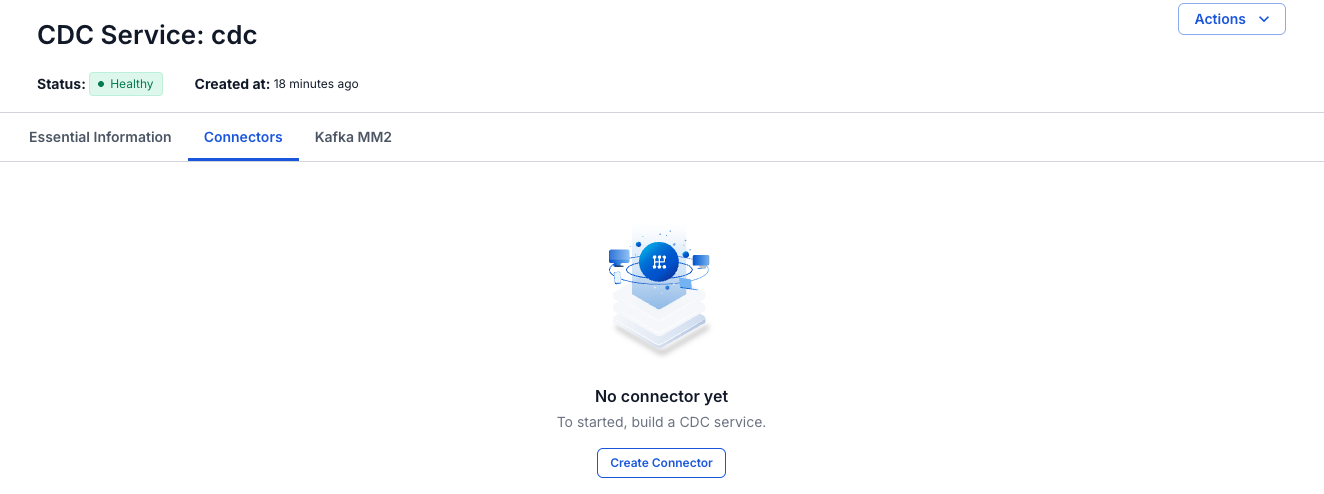
Select the Connectors tab, then select Create Connector.
-
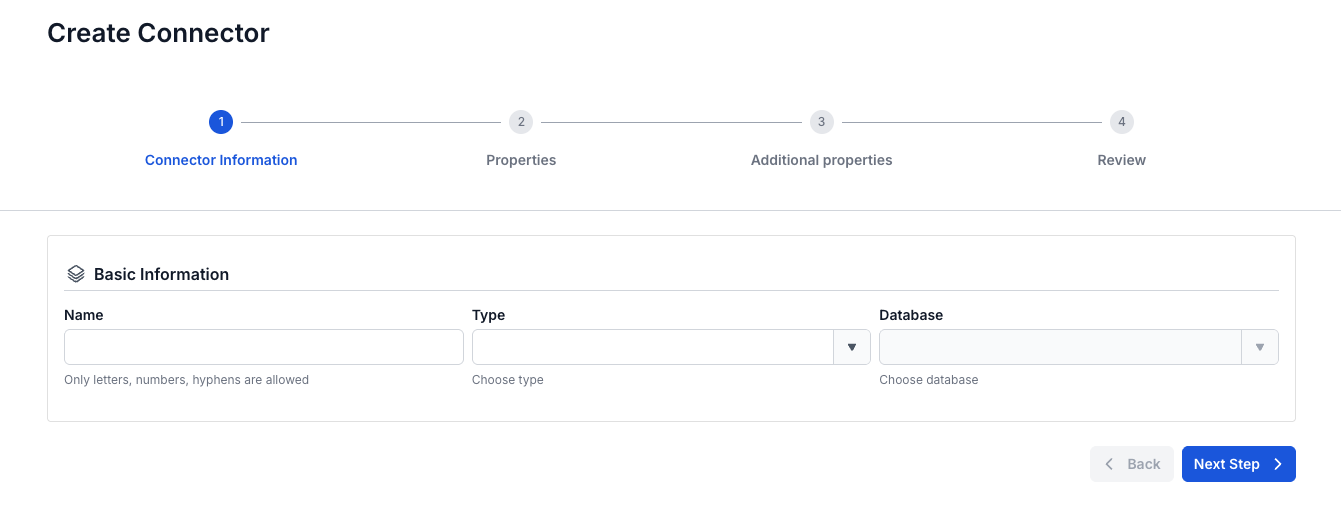
On the Connector Information screen, enter a Name, select source in Type, and select MariaDB in Database.
-
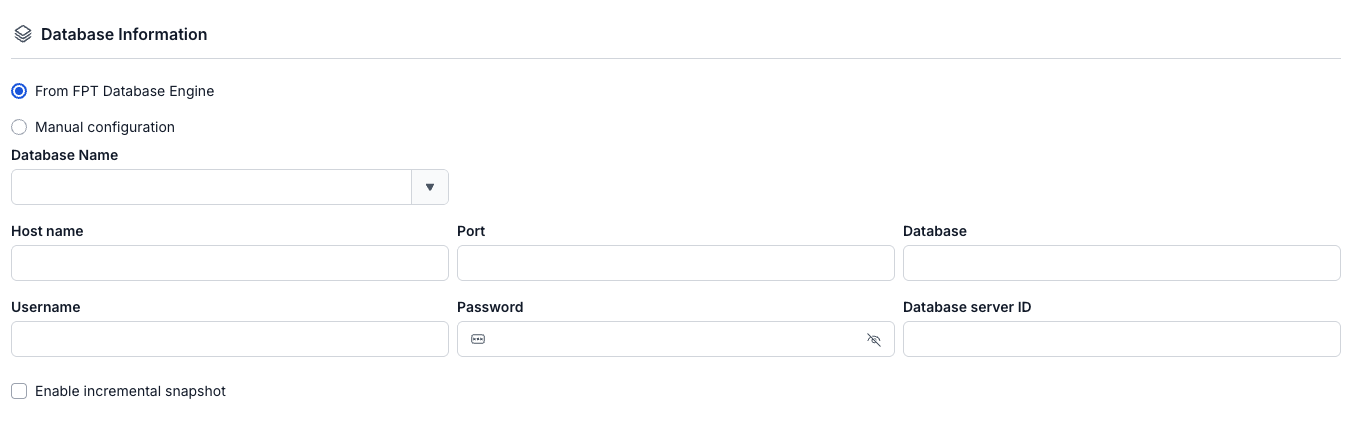
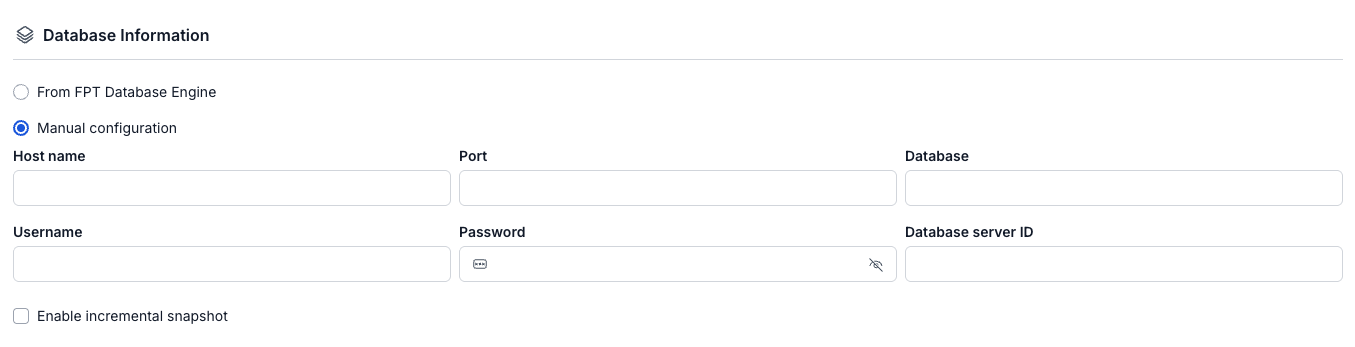
Select Next Step. On the Properties screen, enter the connection details, the Database server ID, and the Topic prefix, then select Test connection. Next Step becomes available after the test succeeds with the message "Connect Successfully".

-
Select Next Step. On the Additional properties screen, select the snapshot Mode, the tables and columns to capture, and the Heartbeat interval (ms).



-
Select Next Step and check the settings on the Review screen.
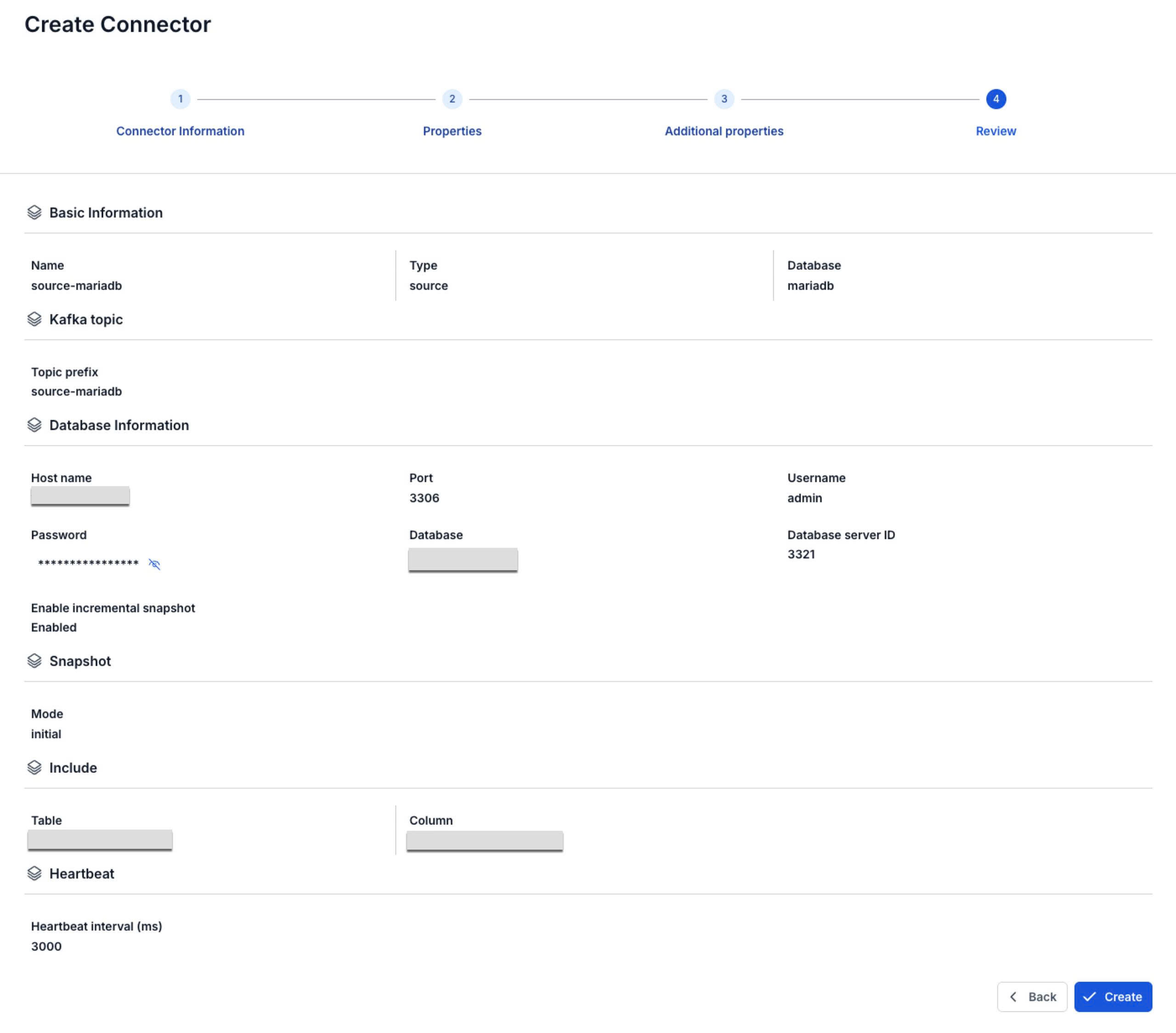
-
Select Create.
The portal shows "Create Successfully" and opens the Essential Information tab of the CDC Service. On the Connectors tab, the new connector shows Running, with every Tasks counter at
0until its task starts, after about 2 minutes. Snapshot Status stays Not Started, because it tracks incremental snapshots only.
Connector settings
Connector information
| Field | Required | Description |
|---|---|---|
| Name | Yes | The connector name, in lowercase letters, digits, and hyphens (-). Uppercase letters, _, ., and spaces give the error "Name has invalid characters". |
| Type | Yes | Select source. |
| Database | Yes | Select MariaDB. |
Properties
| Field | Required | Description |
|---|---|---|
| From FPT Database Engine / Manual configuration | Yes | Select a MariaDB instance from FPT Database Engine, or enter the connection details yourself. Manual configuration is selected by default. See Connection mode. |
| Database Name | With From FPT Database Engine | The MariaDB instance in FPT Database Engine. The list shows instance names only. Selecting one fills in Host name and Port (3306), which you can still edit. Database, Username, Password, and Database server ID stay empty. |
| Host name | Yes | Host name or IP address of the MariaDB server. |
| Port | Yes | The MariaDB server port, for example 3306. The field has no default in Manual configuration. |
| Database | Yes | The database to capture changes from. |
| Username | Yes | The user you created in step 1. |
| Password | Yes | The user's password. |
| Database server ID | Yes | A number that the connector uses as its own ID when it reads the binlog as a replication client. It must be unique among the replicas and other replication clients of the MariaDB server, and must differ from the server's own server_id. The field has no default. Enter a number from 1000 to 9999. Both connection modes ask for it. |
| Enable incremental snapshot | No | Lets you run incremental snapshots on this connector. Creating the connector then also creates the signal table cdc_signal in the Database you entered, and Test connection checks the CREATE TABLE and INSERT permissions. Without this option there is no signal table, so Snapshot → Execute cannot run, although the menu still shows it. See Incremental snapshot. |
| Topic prefix | Yes | Prefix of the Kafka topics the connector writes to. See Topic prefix. |
Additional properties
| Field | Required | Description |
|---|---|---|
| Mode | Yes | What the connector does with existing rows. The field has no default, so select one. initial snapshots them, then captures changes. initial_only snapshots them without capturing changes. no_data captures new changes only. See Snapshot mode. |
| Table (Optional) | No | The tables to capture, from the database on the Properties screen. You can select several. |
| Column (Optional) | No | The columns to capture from the selected table. The field appears after you select a table, and its label shows the table name, for example Column (Optional) - (users). Leave it empty to capture all columns. |
| Heartbeat interval (ms) | Yes | Time between heartbeat messages, from 0 to 30000. Default 0, which sends no heartbeat. See Heartbeat. |