Create a MongoDB source connector
Stream every change in your MongoDB collections to Kafka topics, where sink connectors can deliver it to other systems. The connector listens to change streams and can also copy the documents that already exist.
Prerequisites
- A CDC Service whose status is Healthy. See Create a CDC Service.
- The connection URL of your MongoDB replica set or sharded cluster. A standalone server works after you turn it into a replica set.
- The database prepared for CDC as described in Prepare the MongoDB database.
Prepare the MongoDB database
The connector reads change streams, which MongoDB offers only on a replica set or a sharded cluster. On a standalone server, run steps 1 to 4 to turn it into a single-node replica set, which also turns on the oplog. Otherwise, start at step 5.
-
Set a replica set name in the
mongodconfiguration file.replication:replSetName: YOUR_REPLICA_SETIf access control is on, the replica set also needs internal authentication, for example a key file set in
security.keyFile. -
Restart
mongodso that it starts with the replica set name.warningRestarting
mongodinterrupts the applications that use the server. Plan the restart for a maintenance window. -
Connect to the server with
mongoshand initiate the replica set. Run this only once.rs.initiate() -
Check that the member is in the
PRIMARYstate.rs.status() -
Create a user that can run
findandchangeStreamon the database to capture. The built-inreadrole covers both.db.createUser({user: "YOUR_USER",pwd: "YOUR_PASSWORD",roles: [{ role: "read", db: "YOUR_DATABASE" }]})To capture every database, which the connector does when you select All database in Database, use the
readAnyDatabaserole instead:db.createUser({user: "YOUR_USER",pwd: "YOUR_PASSWORD",roles: [{ role: "readAnyDatabase", db: "admin" }]})
Create the connector
-
Select Data platform → Workspace management, then select your workspace.
-
On the Overview tab, under Services, select the CDC card.
-
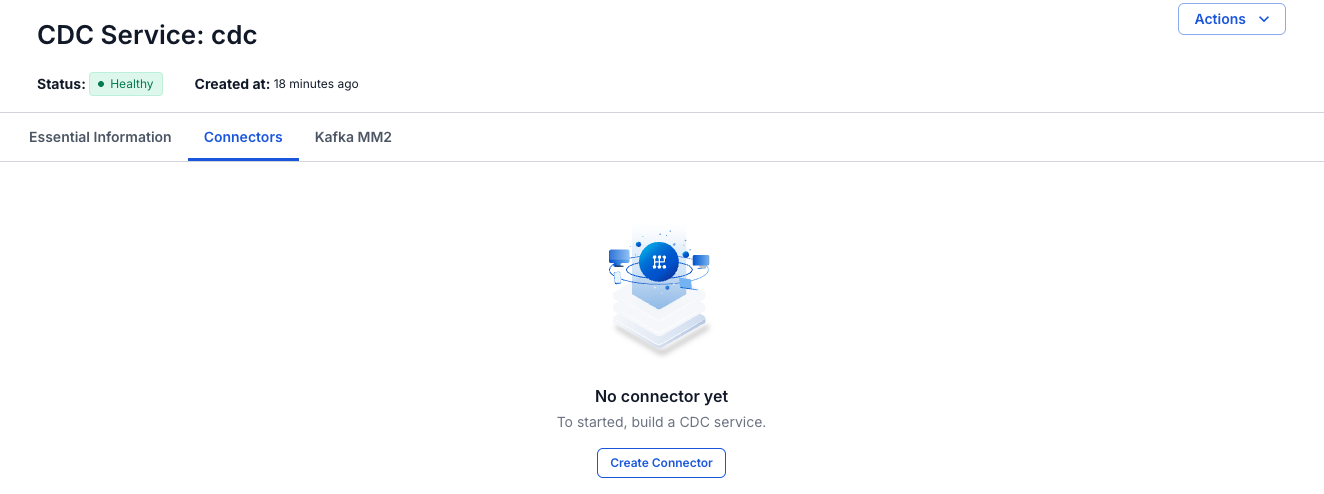
Select the Connectors tab, then select Create Connector.
-
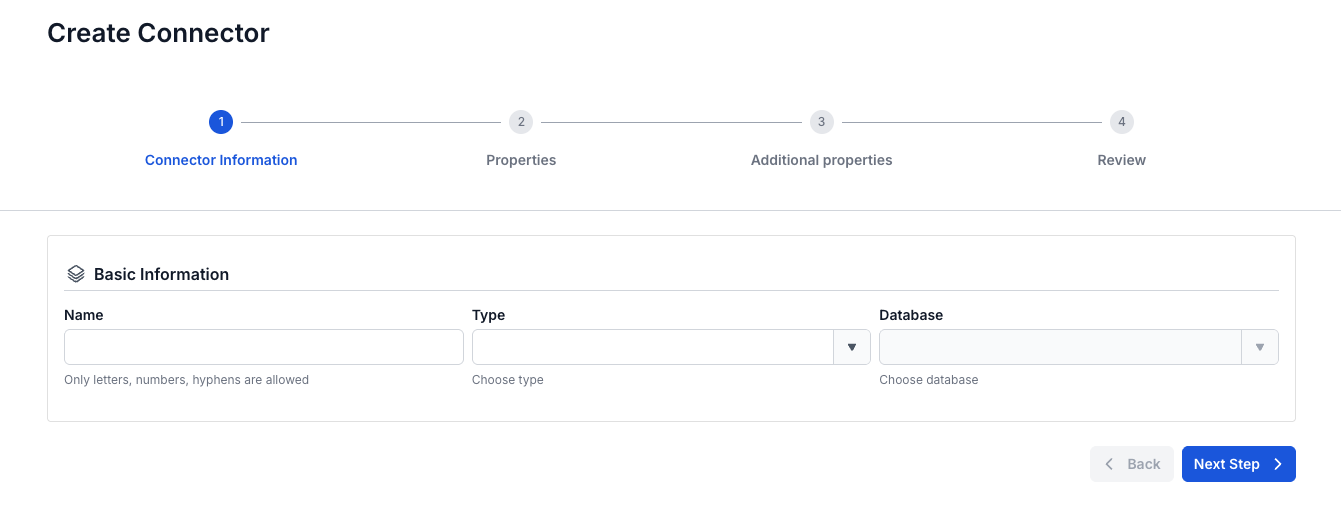
On the Connector Information screen, enter a Name, select source in Type, and select MongoDB in Database.
-
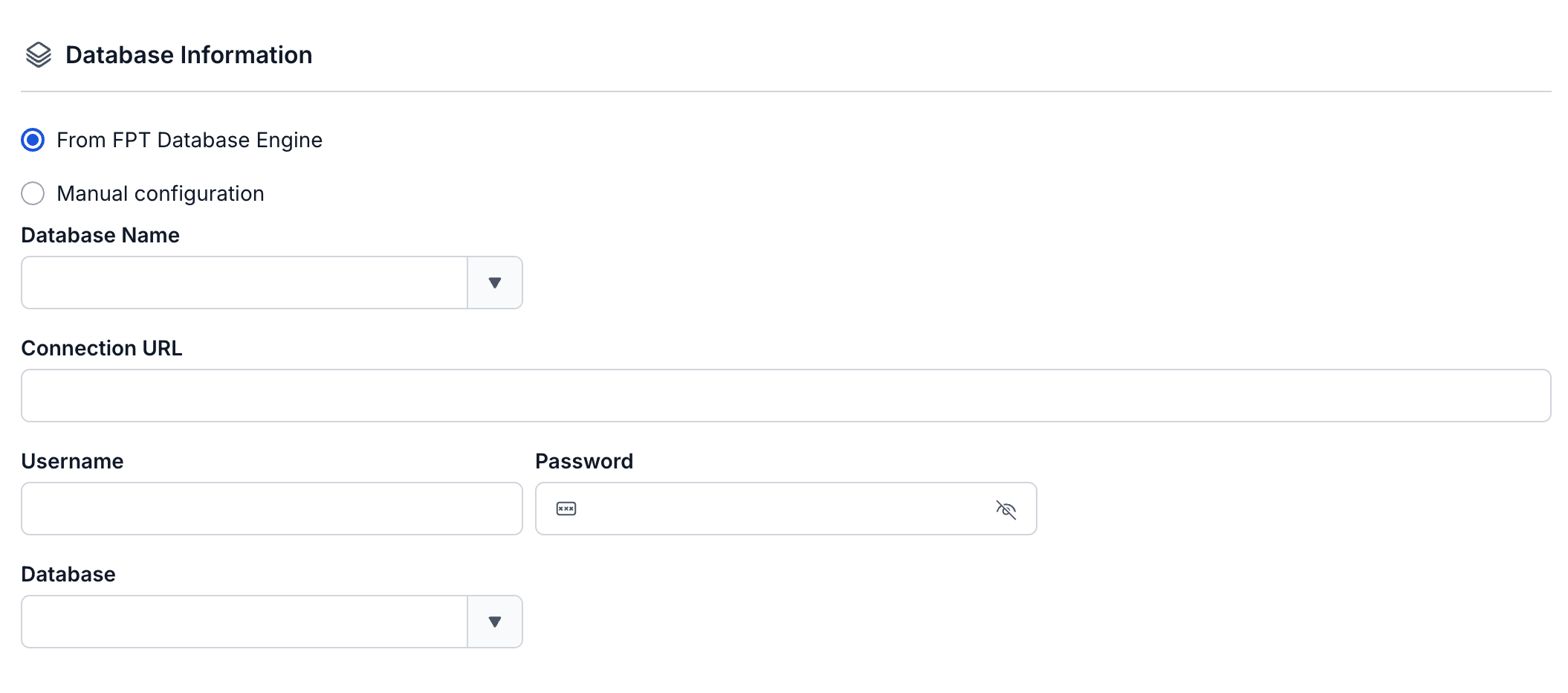
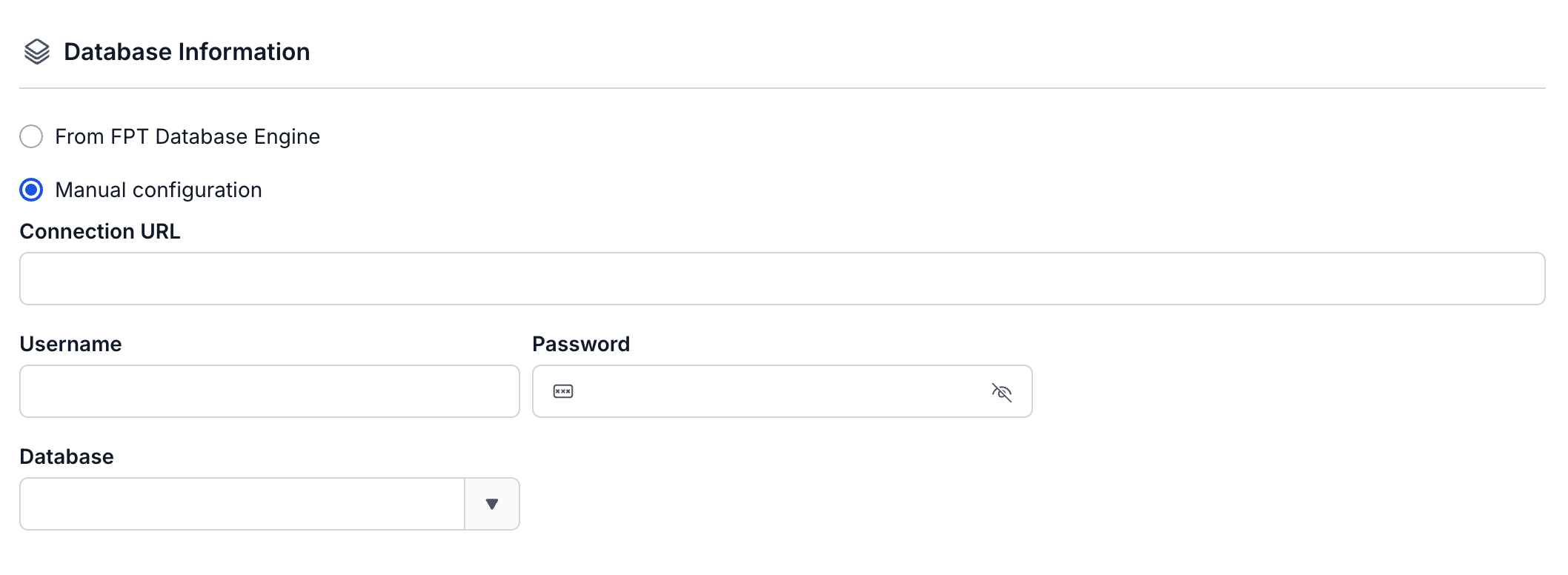
Select Next Step. On the Properties screen, enter the connection details and the Topic prefix, select Test connection, then select the Database to capture. Next Step becomes available after the test succeeds with the message "Connect Successfully".

-
Select Next Step. On the Additional properties screen, select the snapshot Mode, the Collections to capture, and the error tolerance Mode.



-
Select Next Step and check the settings on the Review screen.
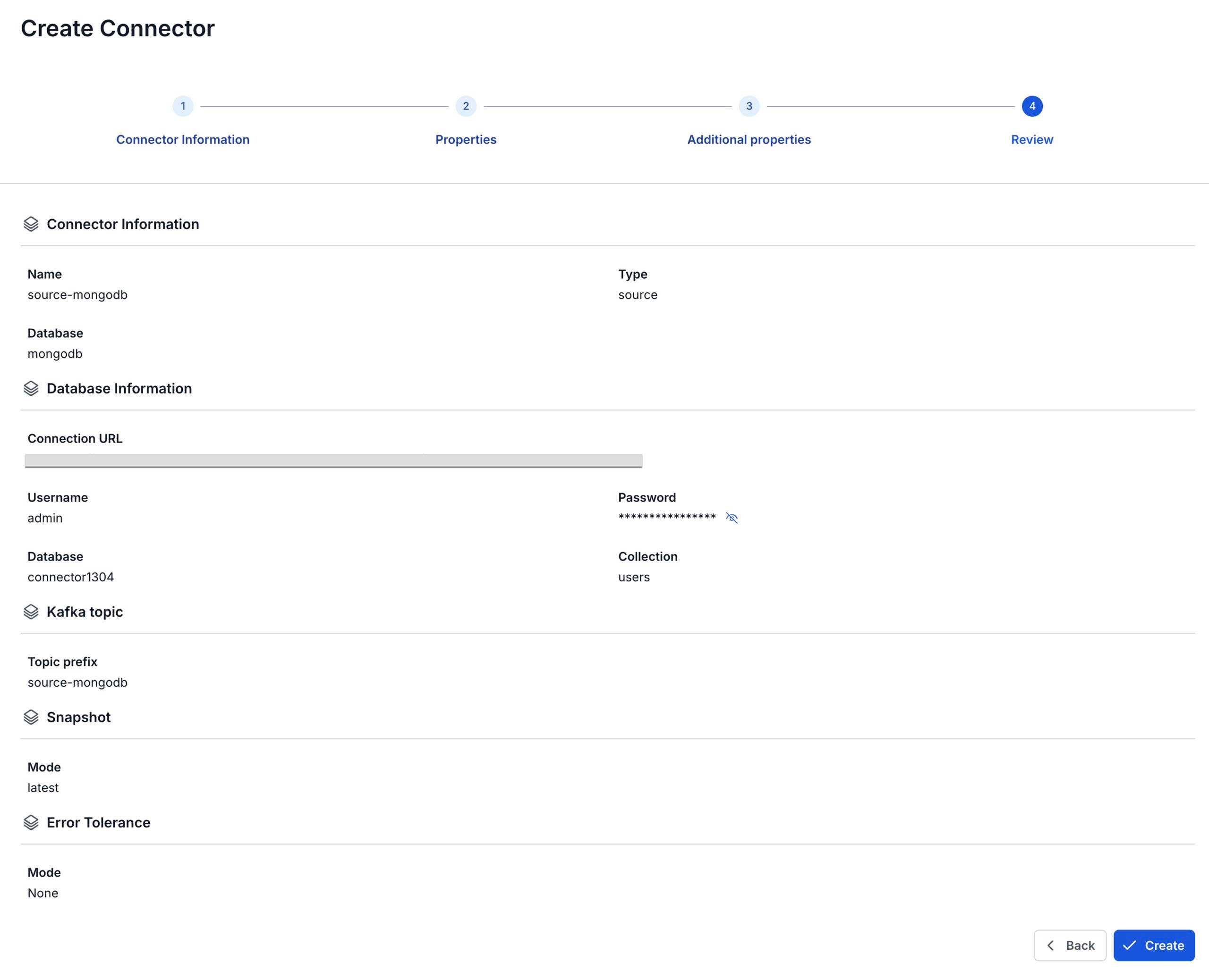
The Review screen lists the collections as Collection in Database Information. It does not show the connection mode or Database Name.
-
Select Create.
The portal shows "Create Successfully" and opens the Essential Information tab of the CDC Service. On the Connectors tab, the new connector shows Running, with every Tasks counter at
0until its task starts, within about 2 minutes. Snapshot Status stays empty for MongoDB source connectors.
Connector settings
Connector information
| Field | Required | Description |
|---|---|---|
| Name | Yes | The connector name, in lowercase letters, digits, and hyphens (-). Uppercase letters, _, ., and spaces give the error "Name has invalid characters". |
| Type | Yes | Select source. |
| Database | Yes | Select MongoDB. |
Properties
| Field | Required | Description |
|---|---|---|
| From FPT Database Engine / Manual configuration | Yes | Select a MongoDB instance from FPT Database Engine, or enter the connection details yourself. Manual configuration is selected by default. See Connection mode. |
| Database Name | With From FPT Database Engine | The MongoDB instance in FPT Database Engine. Selecting one fills in Connection URL. Username, Password, and Database stay empty. |
| Connection URL | Yes | The MongoDB connection URI. With From FPT Database Engine, the portal fills it in and you cannot edit it. |
| Username | Yes | The user you created in step 5. |
| Password | Yes | The user's password. |
| Database | No | The database the connector listens to. The list stays empty until Test connection succeeds. Select All database, the first option, to listen to all databases. You cannot type a name that the list does not show. |
| Topic prefix | Yes | Prefix of the Kafka topics the connector writes to. Each collection gets the topic TOPIC_PREFIX.DATABASE.COLLECTION. See Topic prefix. |
Additional properties
| Field | Required | Description |
|---|---|---|
| Mode (Snapshot) | Yes | What the connector does after it starts. The field has no default, so select one. latest captures new changes only. copy existing copies the existing documents while it captures changes. A document that changes during the copy produces two events, copyingData and the change itself (insert, update, or delete). See Snapshot mode. |
| Collections | No | The collections of the selected Database that the connector listens to. Leave it empty to listen to all collections. The list applies only when Database is set. |
| Mode (Error Tolerance) | Yes | What the connector does when a message fails. The field has no default, so select one. None stops the connector with the status Failed. All skips the failed messages and sends them to the Kafka topic you enter in Topic, a required field that appears when you select All. See Error tolerance. |