Create an Oracle source connector
Stream every row change in your Oracle tables to Kafka topics, where sink connectors can deliver it to other systems. The connector reads the redo logs with Oracle LogMiner.
Prerequisites
- A CDC Service whose status is Healthy. See Create a CDC Service.
- The host, port, and database names of your Oracle database. The Oracle connector connects with Manual configuration only.
- The database prepared for CDC as described in Prepare the Oracle database.
Prepare the Oracle database
Run these statements as a user with the SYSDBA privilege. Run steps 1 to 5 in the root container (CDB$ROOT), and steps 6 to 9 in the pluggable database (PDB) that the connector connects to.
-
Check the log mode. The result must be
ARCHIVELOG.SELECT LOG_MODE FROM V$DATABASE; -
Turn on archive log mode if the result is
NOARCHIVELOG.warningThese commands shut down the database, and applications cannot use it until
ALTER DATABASE OPENcompletes. Run them in a maintenance window.SHUTDOWN IMMEDIATE;STARTUP MOUNT;ALTER DATABASE ARCHIVELOG;ALTER DATABASE OPEN;SELECT LOG_MODE FROM V$DATABASE; -
Turn on supplemental logging for the database, so that the redo logs hold the full change information.
ALTER DATABASE ADD SUPPLEMENTAL LOG DATA; -
Check supplemental logging.
SUPPLEMENTAL_LOG_DATA_MINmust beYES.SELECT SUPPLEMENTAL_LOG_DATA_MIN, SUPPLEMENTAL_LOG_DATA_PK,SUPPLEMENTAL_LOG_DATA_UI, SUPPLEMENTAL_LOG_DATA_FK,SUPPLEMENTAL_LOG_DATA_ALLFROM V$DATABASE; -
Find the archive log destination that the connector reads archived redo logs from. Note the
DEST_NAMEof a destination whoseTYPEisLOCAL. You select it in Name under Archive log when you create the connector.SELECT DEST_NAME, STATUS, TYPE FROM V$ARCHIVE_DEST_STATUS WHERE STATUS = 'VALID'; -
Switch to the pluggable database that holds the tables to capture.
ALTER SESSION SET CONTAINER = YOUR_PDB; -
Create a local user for the connector. A local user exists only in this pluggable database.
CREATE USER YOUR_USER IDENTIFIED BY YOUR_PASSWORD; -
Grant the user the privileges that the connector needs.
GRANT CREATE SESSION TO YOUR_USER;GRANT SELECT ANY TABLE TO YOUR_USER;GRANT FLASHBACK ANY TABLE TO YOUR_USER;GRANT SELECT_CATALOG_ROLE TO YOUR_USER;GRANT EXECUTE_CATALOG_ROLE TO YOUR_USER;GRANT LOGMINING TO YOUR_USER;GRANT SELECT ON V_$LOGMNR_CONTENTS TO YOUR_USER;Test connection checks the system privileges and roles in this block, and accepts
SELECT ANY DICTIONARYin place ofSELECT_CATALOG_ROLE. Grants on single tables cannot replaceSELECT ANY TABLEorFLASHBACK ANY TABLE. -
Turn on supplemental logging for each table to capture, still in the pluggable database.
ALTER TABLE YOUR_SCHEMA.YOUR_TABLE ADD SUPPLEMENTAL LOG DATA (ALL) COLUMNS;
Create the connector
-
Select Data platform → Workspace management, then select your workspace.
-
On the Overview tab, under Services, select the CDC card.
-
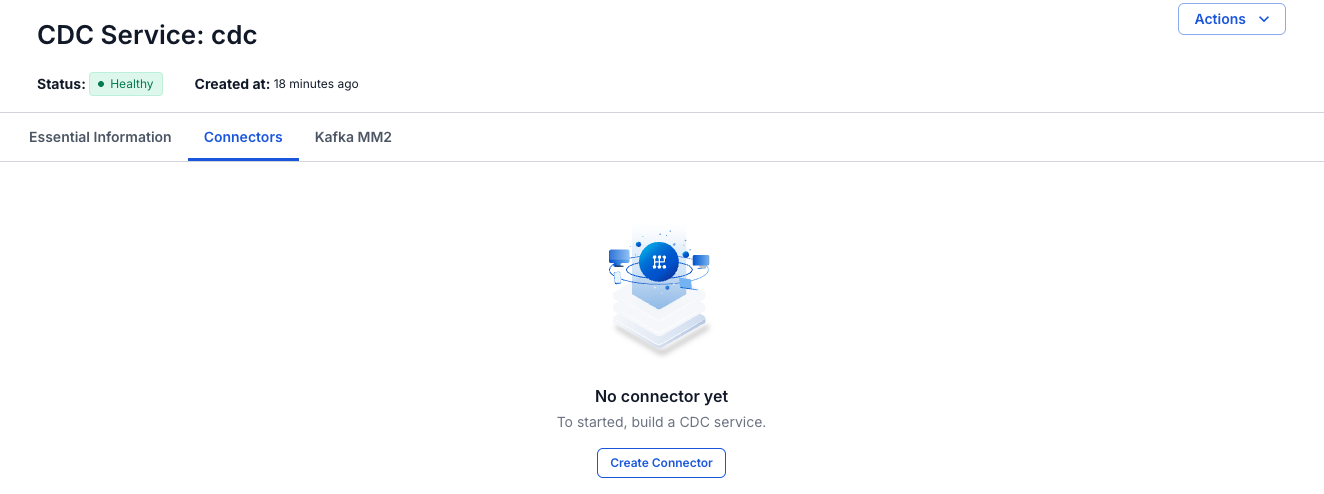
Select the Connectors tab, then select Create Connector.
-
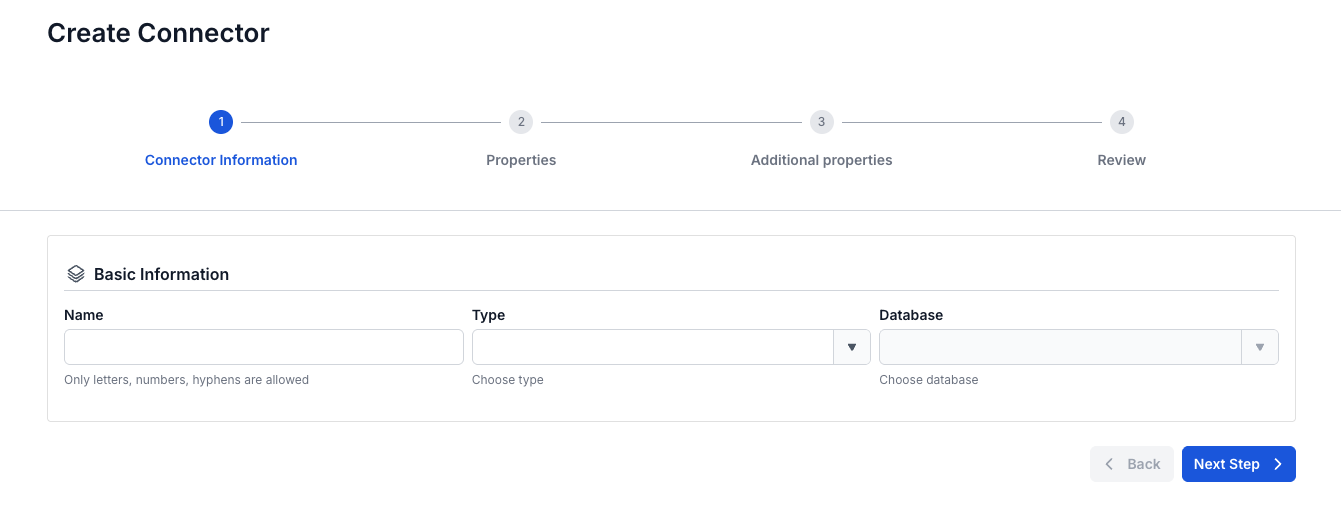
On the Connector Information screen, enter a Name, select source in Type, and select Oracle in Database.
-
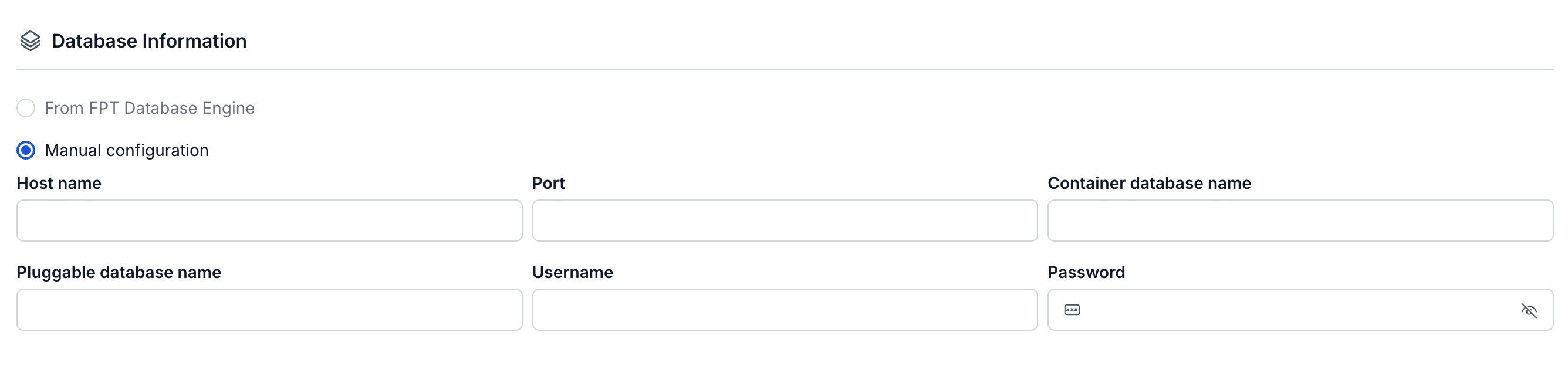
Select Next Step. On the Properties screen, enter the connection details and the Topic prefix, select Test connection, then select the archive log destination in Name. Next Step becomes available after the test succeeds.
If a field is empty, Test connection marks it with a message such as "Username is required" and does not test the connection.


-
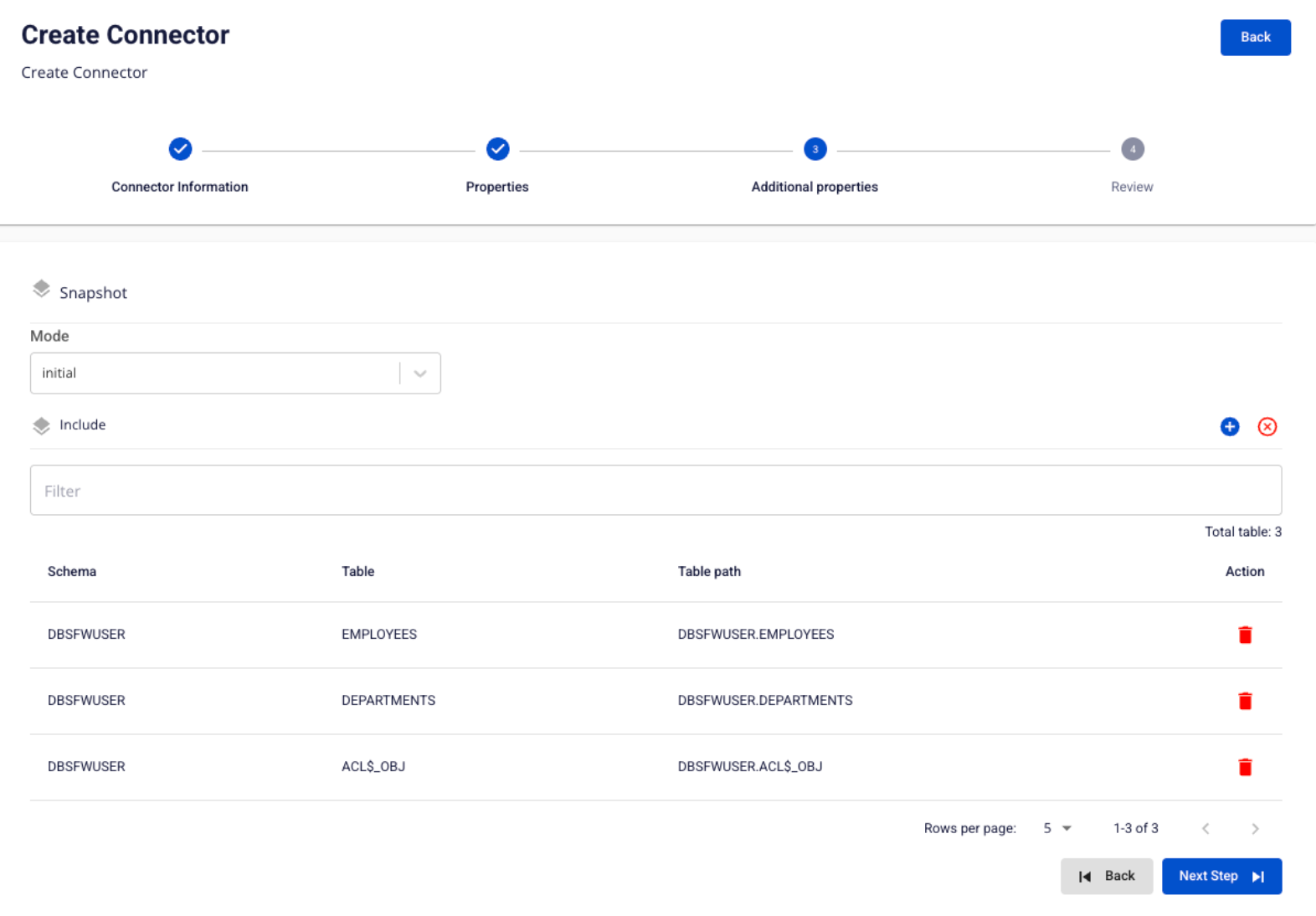
Select Next Step. On the Additional properties screen, select the snapshot Mode and add the tables to capture.
-
Select Next Step and check the settings on the Review screen.
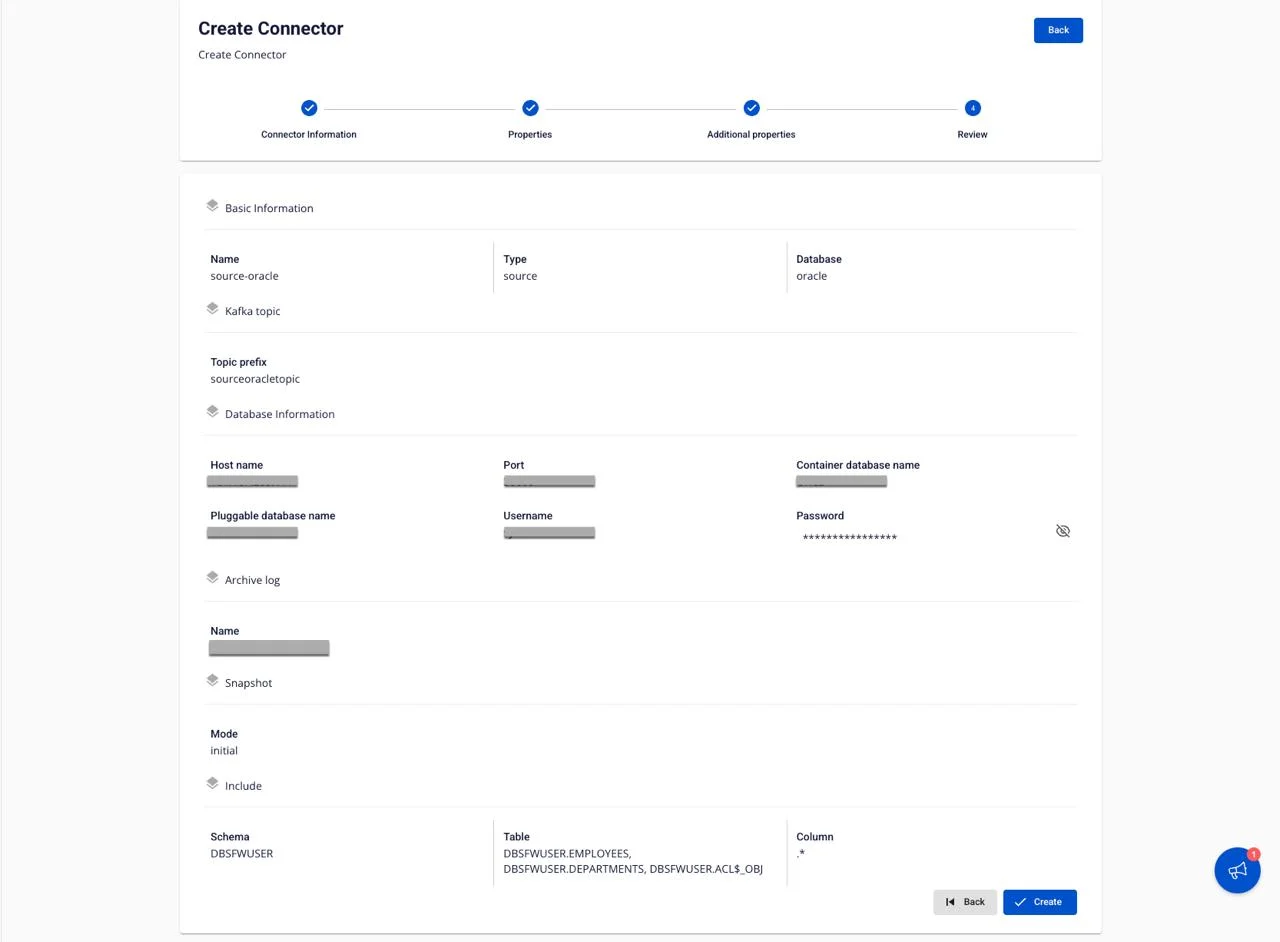
To change a setting, select Back to return to the previous screen.
-
Select Create.
The portal shows "Create Successfully" and opens the Essential Information tab of the CDC Service. On the Connectors tab, the new connector shows Running, with every Tasks counter at
0until its task starts, for up to about 2.5 minutes.
Connector settings
Connector information
| Field | Required | Description |
|---|---|---|
| Name | Yes | The connector name, in lowercase letters, digits, and hyphens (-). Uppercase letters, _, ., and spaces give the error "Name has invalid characters". |
| Type | Yes | Select source. |
| Database | Yes | Select Oracle. |
Properties
| Field | Required | Description |
|---|---|---|
| Manual configuration | Yes | Enter the connection details yourself. From FPT Database Engine is greyed out for Oracle. See Connection mode. |
| Host name | Yes | Host name or IP address of the Oracle database. |
| Port | Yes | The Oracle server port, for example 1521. The field has no default. |
| Container database name | Yes | The name of the container database (CDB) that the connector connects to. Applies to Oracle 12c and later with the multitenant architecture. |
| Pluggable database name | Yes | The pluggable database (PDB) that holds the data to capture. |
| Username | Yes | The local user you created in step 7. |
| Password | Yes | The user's password. |
| Name (Archive log) | Yes | The archive log destination that the connector reads archived redo logs from, such as LOG_ARCHIVE_DEST_1. Select the destination you found in step 5. The list shows no options until Test connection succeeds. |
| Topic prefix | Yes | Prefix of the Kafka topics the connector writes to. Each table gets the topic TOPIC_PREFIX.SCHEMA.TABLE. See Topic prefix. |
The Oracle form has no Enable incremental snapshot checkbox.
Additional properties
| Field | Required | Description |
|---|---|---|
| Mode | Yes | What the connector does with existing rows. The field has no default, so select one. initial snapshots them, then captures changes through LogMiner. initial_only snapshots them, then stops without capturing changes. no_data captures only the changes made after the connector starts. See Snapshot mode. |
| Include | No | The tables to capture. Select +, then choose the Schema, the Table, and the Column. You can select several schemas and tables. Column is .*, all columns, by default. Use Filter to search the list and the delete icon to remove a table. If you add no table, the connector captures all tables. |