Create an S3 source connector
Load the records of files in a bucket into a Kafka topic, so that sink connectors and pipelines can use them like any other stream. The connector reads, scans, and ingests files such as CSV, TSV, Avro, or XML from Amazon S3 or S3-compatible storage like FPT Object Storage or MinIO.
Prerequisites
- A CDC Service whose status is Healthy. See Create a CDC Service.
- The endpoint URL, bucket name, and path of the source files, and an access key and secret key that can read them.
Create the connector
-
Select Data platform → Workspace management, then select your workspace.
-
On the Overview tab, under Services, select the CDC card.
-
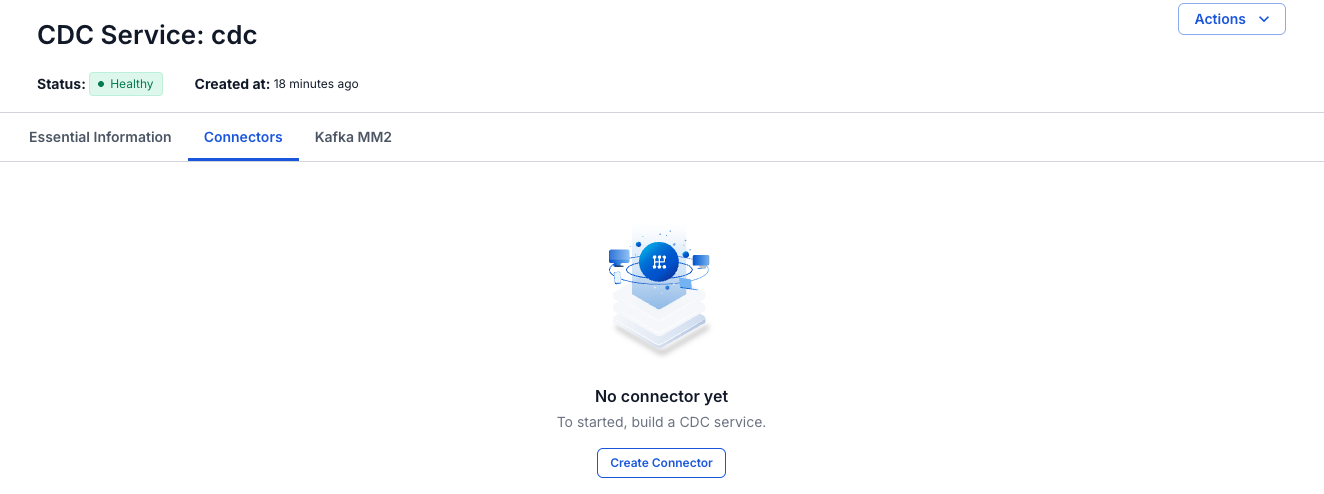
Select the Connectors tab, then select Create Connector.
-
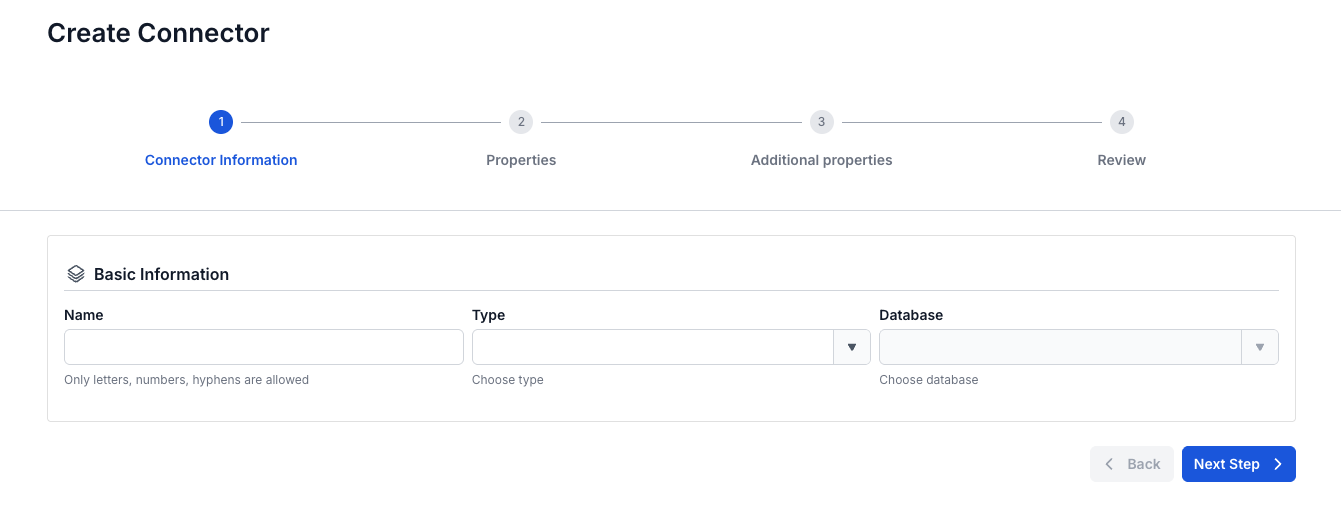
On the Connector Information screen, enter a Name, select source in Type, and select S3 in Database.
-
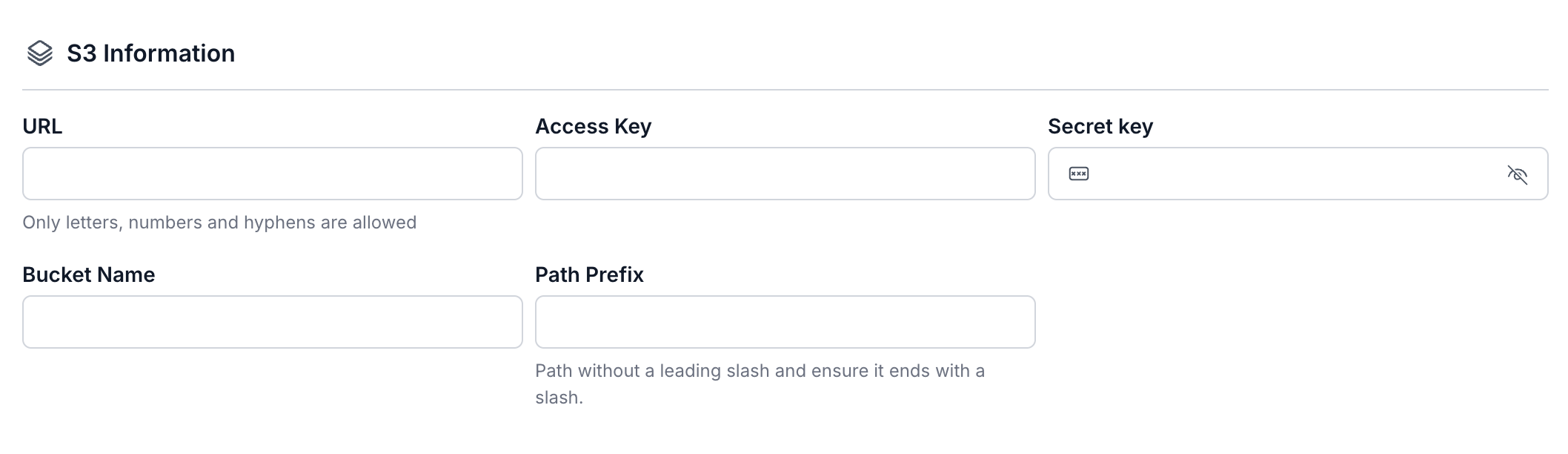
Select Next Step. On the Properties screen, enter the S3 details and the Topic, then select Test connection. Next Step becomes available after the test succeeds.
If a field is empty, Test connection marks it with a message such as "Access Key is required" and does not test the connection.

-
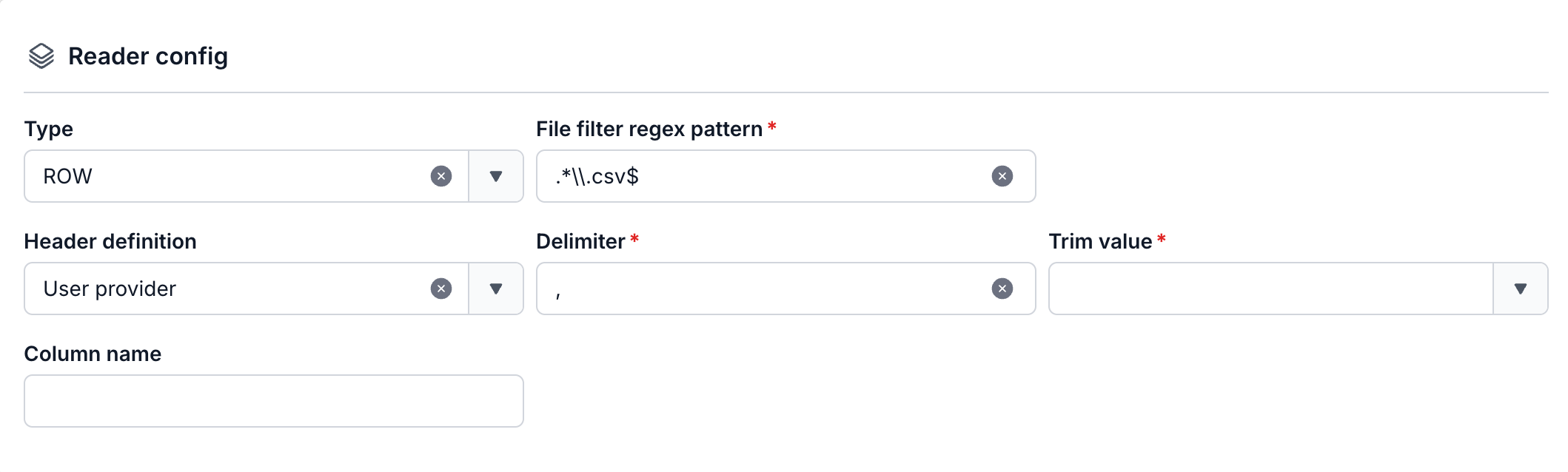
Select Next Step. On the Additional properties screen, set how the connector reads the files and the error tolerance Mode.

-
Select Next Step and check the settings on the Review screen.
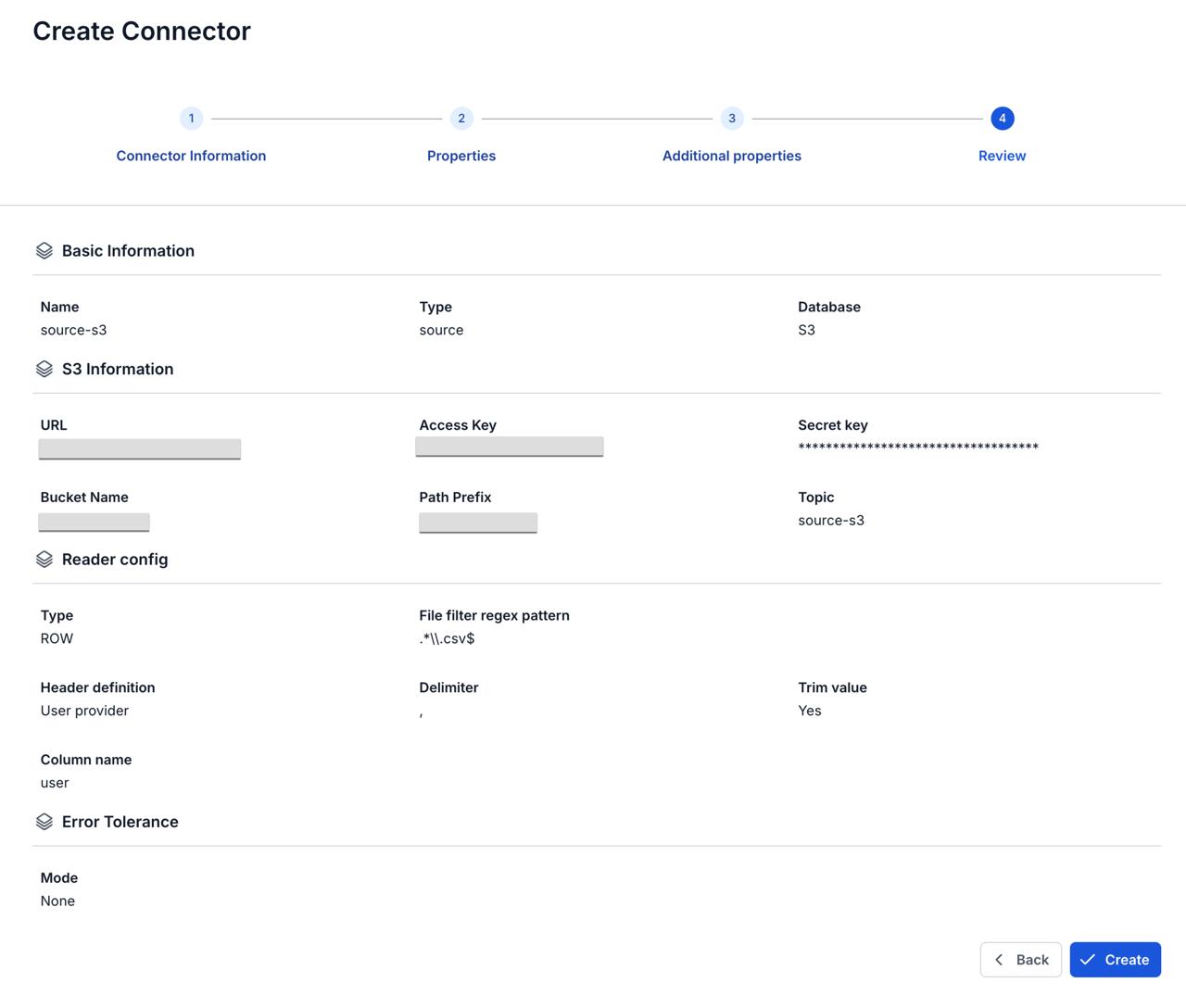
-
Select Create.
The portal shows "Create Successfully" and opens the Essential Information tab of the CDC Service. On the Connectors tab, the new connector shows Running, with every Tasks counter at
0until its task starts, for up to about 2.5 minutes.
Connector settings
Connector information
| Field | Required | Description |
|---|---|---|
| Name | Yes | The connector name, in lowercase letters, digits, and hyphens (-). Uppercase letters, _, ., and spaces give the error "Name has invalid characters". |
| Type | Yes | Select source. |
| Database | Yes | Select S3. |
Properties
| Field | Required | Description |
|---|---|---|
| URL | Yes | The endpoint URL of the S3 storage, for example https://YOUR_ENDPOINT. The hint "Only letters, numbers and hyphens are allowed" under the field does not apply to this field. |
| Access Key | Yes | The access key. |
| Secret key | Yes | The secret key that goes with the access key. |
| Bucket Name | Yes | The bucket that holds the source files. |
| Path Prefix | Yes | The folder that holds the source files. Write it without a leading slash and end it with a slash, for example data/orders/. Otherwise the field shows the error "Path Prefix has invalid characters". |
| Topic | Yes | The full name of the Kafka topic that the connector writes all file records to. It is not a prefix. |
Test connection checks that the connector can reach the bucket with the details you entered.
Additional properties
| Field | Required | Description |
|---|---|---|
| Type | Yes | The file format to read, for example ROW (CSV, TSV), XML, or Avro. |
| File filter regex pattern | Yes | A regular expression that the whole file name must match. Type a single backslash before the dot: .*\.csv$ accepts only files that end in .csv. A pattern that covers only part of the name, such as \.csv$, matches no file. |
| Header definition | Yes | Where the column names come from. From file takes them from the first line of the file. Autogenerated names them column1, column2, and so on. User provider uses the names you enter in Column name (the label means "user provided"). |
| Delimiter | Yes | The character between columns. Default ,. You can change it, for example to a tab or a semicolon. |
| Trim value | Yes | Yes removes spaces at the start and end of each column value. No keeps them. |
| Column name | With User provider | The columns of the file. Enter each column as NAME:TYPE, for example id:STRING, then select + to add it as a tag. Every column needs a type. Shown only when Header definition is User provider. |
| Mode (Error Tolerance) | Yes | What the connector does when a record fails. None stops the connector with the status Failed. All skips the records that fail and keeps running. The field has no default. See Error tolerance. |