Create a SQL Server source connector
Stream every row change in your SQL Server tables to Kafka topics, where sink connectors can deliver it to other systems. The connector builds on the change data capture (CDC) feature of SQL Server.
Prerequisites
- A CDC Service whose status is Healthy. See Create a CDC Service.
- SQL Server 2016 or later, Standard or Enterprise edition.
- To prepare the database, a login with the
sysadminrole and thedb_ownerrole on the database to capture. - The database prepared for CDC as described in Prepare the SQL Server database.
Prepare the SQL Server database
-
Turn on SQL Server Agent. See Configure SQL Server Agent and Install SQL Server Agent on Linux. For a SQL Server database on FPT Cloud, contact FPT Cloud Support.
-
Create a login and a database user for the connector, and grant the user CONNECT and SELECT on the database.
CREATE LOGIN YOUR_USER WITH PASSWORD = 'YOUR_PASSWORD';GOUSE YOUR_DATABASE;GOCREATE USER YOUR_USER FOR LOGIN YOUR_USER;GRANT CONNECT, SELECT ON DATABASE::YOUR_DATABASE TO YOUR_USER;GOTest connection checks these two permissions. Without them, it fails with "User "YOUR_USER" does not have required permission(s): CONNECT, SELECT on database."
-
Create a role for CDC and add the user to it. This step is optional. The connector can also run with
sysadminordb_owner, but a dedicated role keeps its access narrower.USE YOUR_DATABASE;GOCREATE ROLE YOUR_ROLE;ALTER ROLE YOUR_ROLE ADD MEMBER YOUR_USER;GO -
Turn on CDC for the database.
USE YOUR_DATABASE;GOEXEC sys.sp_cdc_enable_db;GO -
Turn on CDC for each table to capture. Replace
dboif the table is in another schema.USE YOUR_DATABASE;GOEXEC sys.sp_cdc_enable_table@source_schema = N'dbo',@source_name = N'YOUR_TABLE',@role_name = N'YOUR_ROLE',@supports_net_changes = 0;GOIf you skipped step 3 and the connector uses
sysadminordb_owner, set@role_name = NULL. -
Sign in as the connector user and check the CDC configuration.
USE YOUR_DATABASE;GOEXEC sys.sp_cdc_help_change_data_capture;GO
Create the connector
-
Select Data platform → Workspace management, then select your workspace.
-
On the Overview tab, under Services, select the CDC card.
-
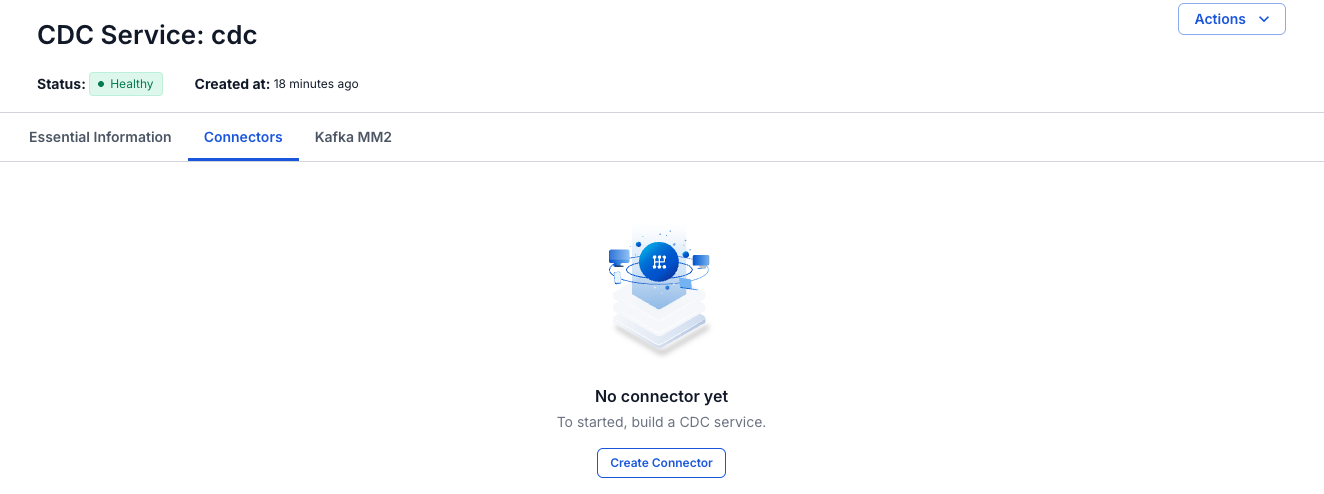
Select the Connectors tab, then select Create Connector.
-
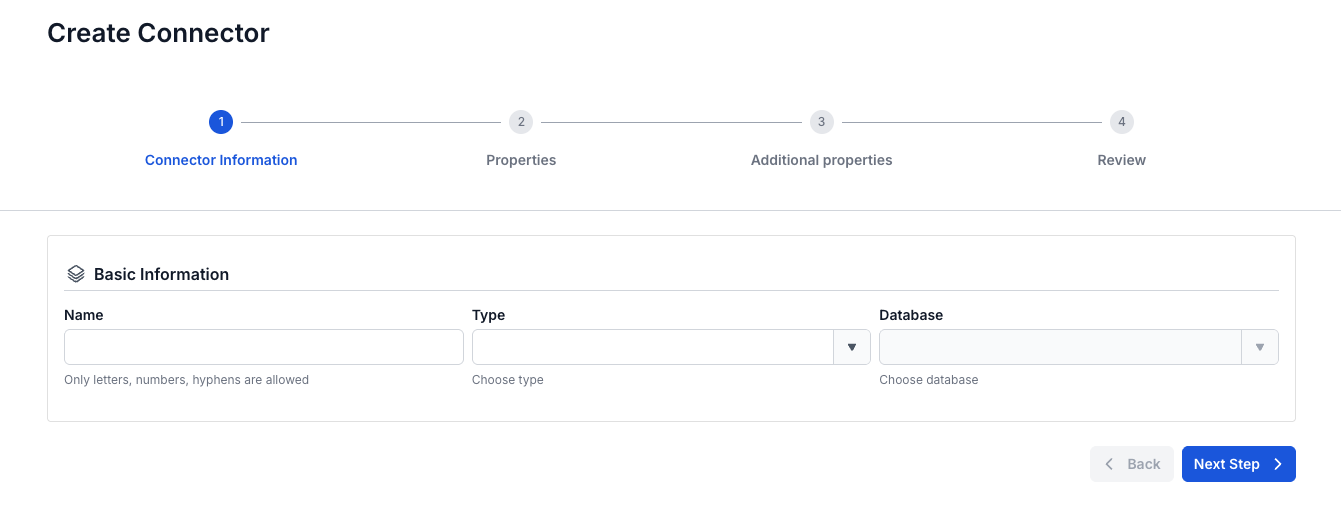
On the Connector Information screen, enter a Name, select source in Type, and select SQL server in Database.
-
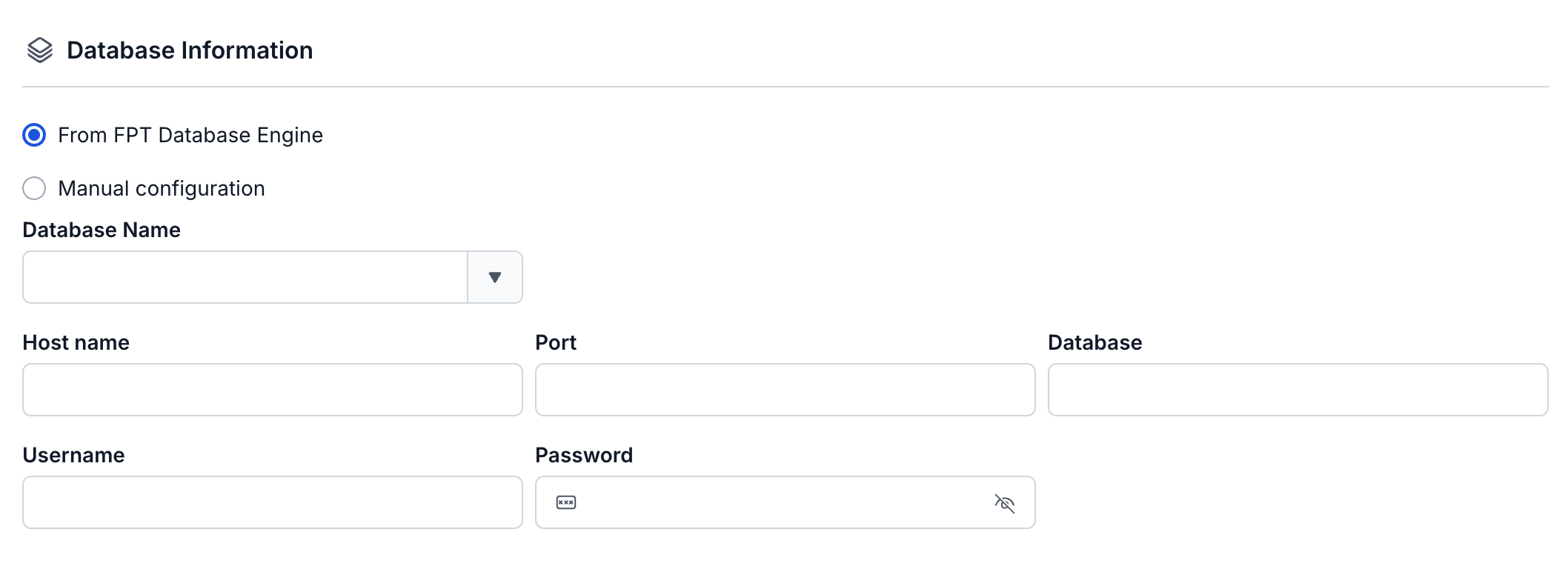
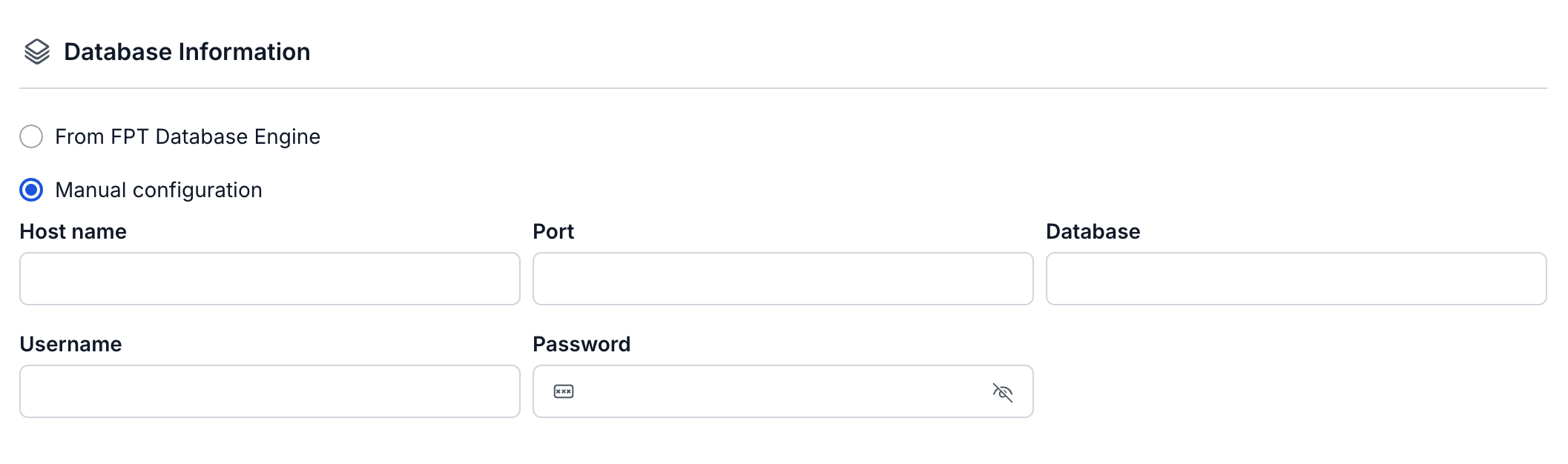
Select Next Step. On the Properties screen, enter the connection details and the Topic prefix, then select Test connection. Next Step becomes available after the test succeeds.

-
Select Next Step. On the Additional properties screen, select the snapshot Mode, the schemas, tables, and columns to capture, and the Heartbeat interval (ms).



-
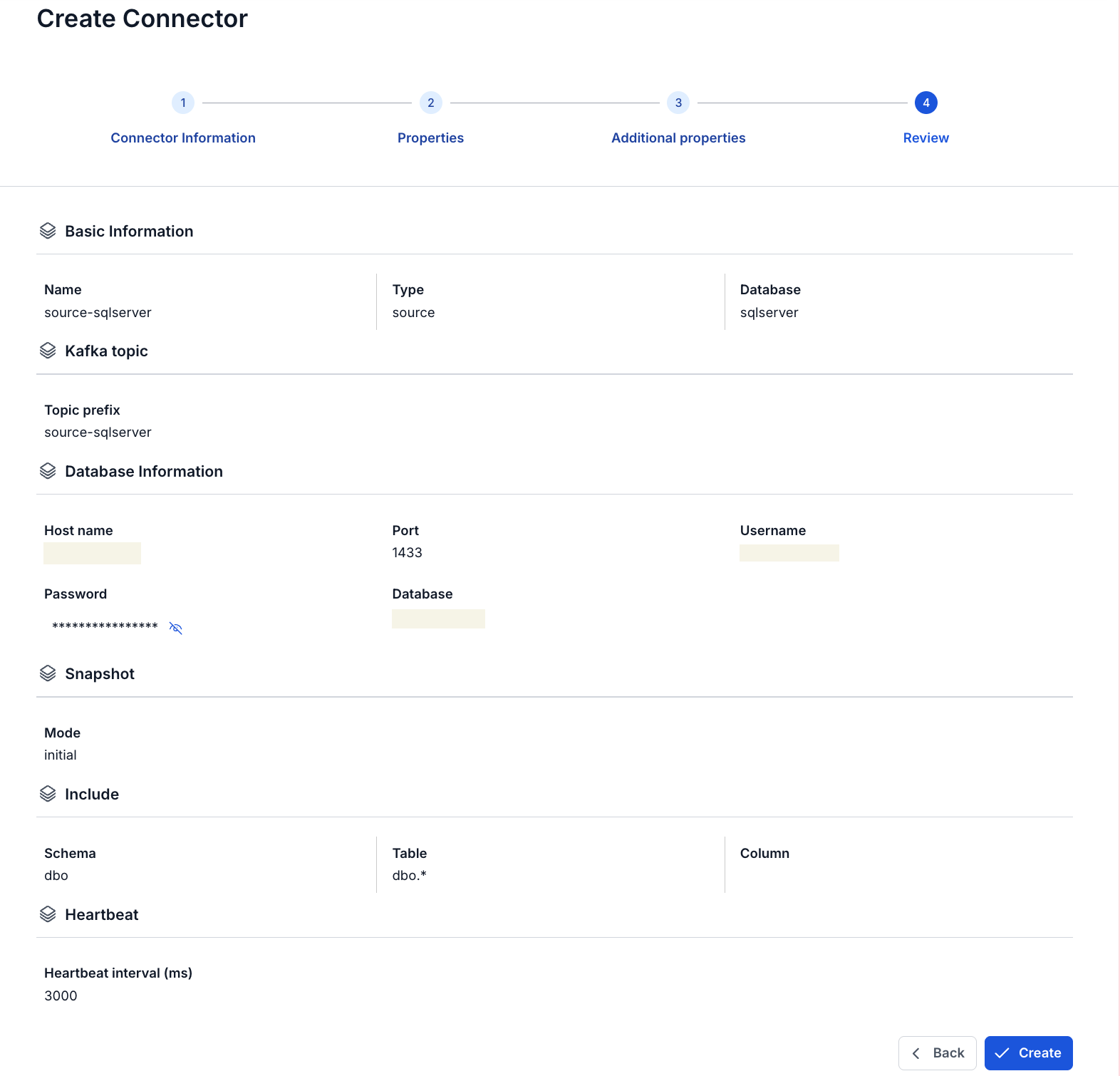
Select Next Step and check the settings on the Review screen.
-
Select Create.
The portal shows "Create Successfully" and opens the Essential Information tab of the CDC Service. On the Connectors tab, the new connector shows Running, with every Tasks counter at
0until its task starts, for up to about 2.5 minutes.
Connector settings
Connector information
| Field | Required | Description |
|---|---|---|
| Name | Yes | The connector name, in lowercase letters, digits, and hyphens (-). Uppercase letters, _, ., and spaces give the error "Name has invalid characters". |
| Type | Yes | Select source. |
| Database | Yes | Select SQL server. |
Properties
| Field | Required | Description |
|---|---|---|
| From FPT Database Engine / Manual configuration | Yes | Select a SQL Server instance from FPT Database Engine, or enter the connection details yourself. Manual configuration is selected by default. See Connection mode. |
| Database Name | With From FPT Database Engine | The SQL Server instance in FPT Database Engine. The list shows instance names only. Selecting one fills in Host name and Port (1433), which you can still edit. Database, Username, and Password stay empty. |
| Host name | Yes | Host name or IP address of the SQL Server instance. |
| Port | Yes | The SQL Server port, for example 1433. The field has no default in Manual configuration. |
| Database | Yes | The database to capture changes from. |
| Username | Yes | The user you created in step 2. |
| Password | Yes | The user's password. |
| Topic prefix | Yes | Prefix of the Kafka topics the connector writes to. See Topic prefix. |
The SQL Server form has no Enable incremental snapshot checkbox and no Database server ID field.
SQL Server source connectors do not support incremental snapshots, although the Connectors tab shows a Snapshot Status for them.
Additional properties
| Field | Required | Description |
|---|---|---|
| Mode | Yes | What the connector does with existing rows. The field has no default, so select one. initial snapshots them, then captures changes. initial_only snapshots them without capturing changes. no_data captures new changes only. See Snapshot mode. |
| Schema (Optional) | No | The schemas that hold the tables to capture. You can select several. |
| Table (Optional) | No | The tables to capture in the selected schema. The label shows the schema, for example Table (Optional) - (dbo). |
| Column (Optional) | No | The columns to capture from the selected table. The label shows the table, for example Column (Optional) - (Users). |
| Heartbeat interval (ms) | Yes | Time between heartbeat messages, from 0 to 30000. Default 0, which sends no heartbeat. See Heartbeat. |