View Ingestion Service details
Use the service details page to find the URL and sign-in details of the Ingestion Service and to check the settings of the service.
Open the service details
- Select Data platform → Workspace management, then select your workspace.
- On the Overview tab, under Services, select Ingestion.
The details page opens with the title Ingestion Service, the Status and Created at of the service, and two tabs: Essential Information and Advanced. The Actions menu holds Delete. See Delete an Ingestion Service.
While the service is still being installed, selecting its card shows a message that the service is installing, and the details page does not open.
Essential Information tab
The Essential Information tab shows how to open the service and the settings of the service in three sections.
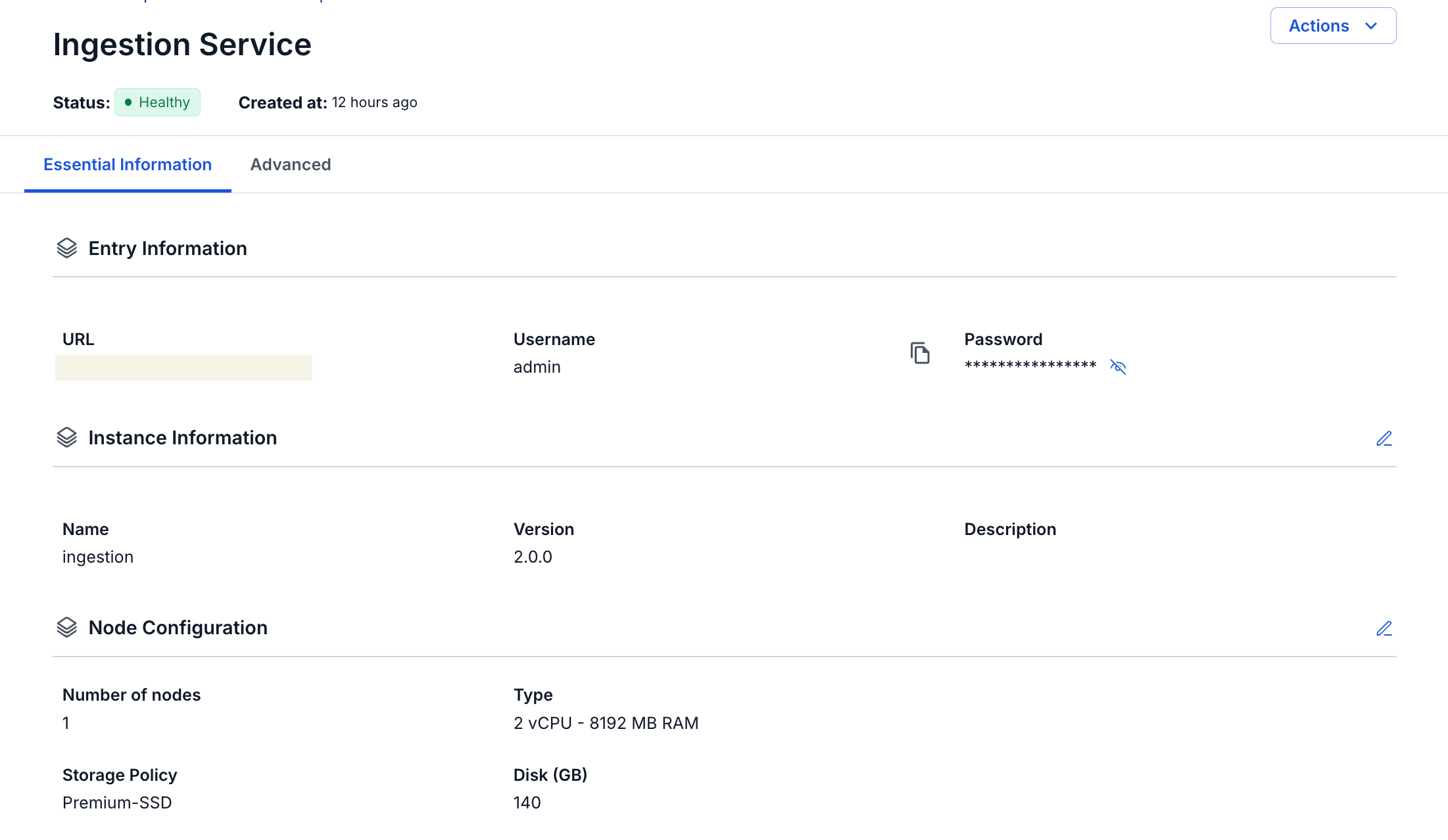
| Section | Fields |
|---|---|
| Entry Information | The URL, Username, for example admin, and Password of the service. Select the eye icon to show the password. |
| Instance Information | Name, Version, and Description of the service. |
| Node Configuration | Number of nodes, Type, for example 2 vCPU - 8192 MB RAM, Storage Policy, and Disk (GB) of the nodes. |
Open the URL to go to the web interface of the service. Without single sign-on (SSO), sign in with the Username and Password.
Instance Information and Node Configuration each have an edit icon. See Edit an Ingestion Service.
Advanced tab
The Advanced tab shows the sign-in and custom domain settings of the service. It has no edit icons.
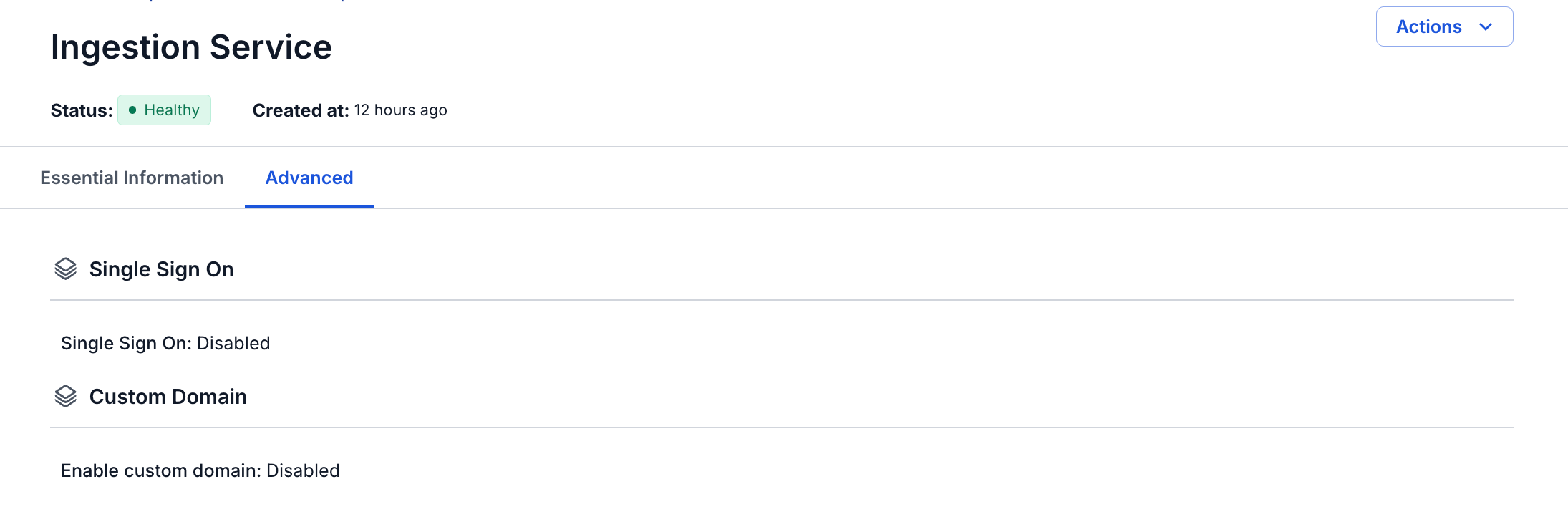
| Section | Fields |
|---|---|
| Single Sign On | Single Sign On, which shows whether the service uses single sign-on (SSO). |
| Custom Domain | Enable custom domain, which shows whether the service uses a custom domain. |