Add Users
Guide to accessing JupyterHub and creating the first account
(Applies when JupyterHub is created with Basic authentication)
-
Open a browser and navigate to the JupyterHub URL provided.
-
On the screen that appears, click the Create User button (create a new account).
-
Enter a username (Username) and password (Password).
Note: The first account created must have admin as its username, so it can serve as the system administrator account.
-
Confirm the information and complete account creation.
-
Log in with the admin account you just created to perform administrative functions.
Adding users to the system
- After logging into JupyterHub, a user with the Admin role selects the Admin menu, then clicks Add Users to add new users to the system
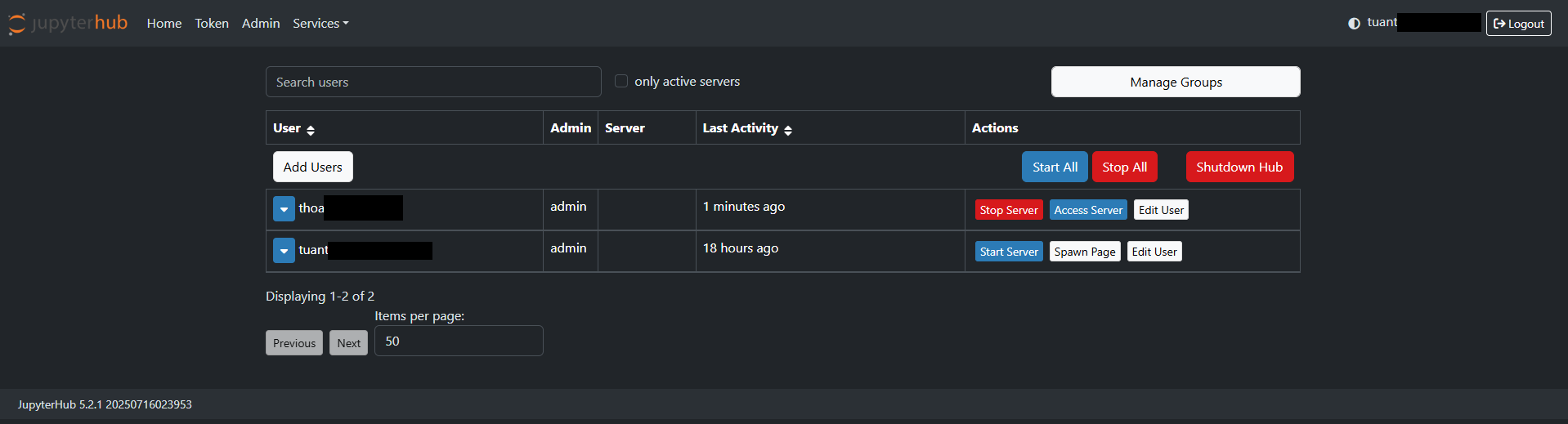
-
In the Add Users interface, enter the usernames (the system supports adding multiple users at once by entering one username per line)
-
Check Admin to assign the Admin role to the user. If left unchecked, the user is assigned the User role by default
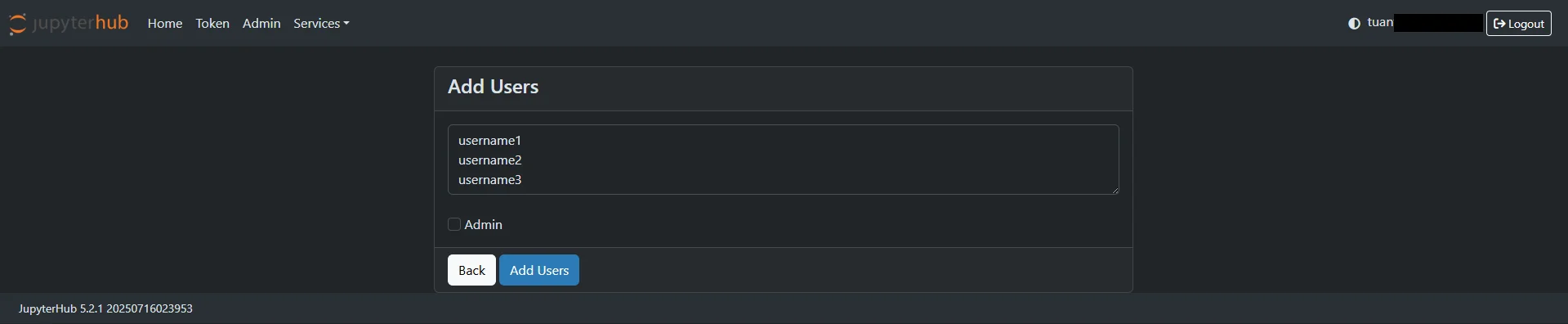
When JupyterHub is created with Basic authentication — user self-registration — Admin grants access
In some cases, users click Create User themselves to create an account first.
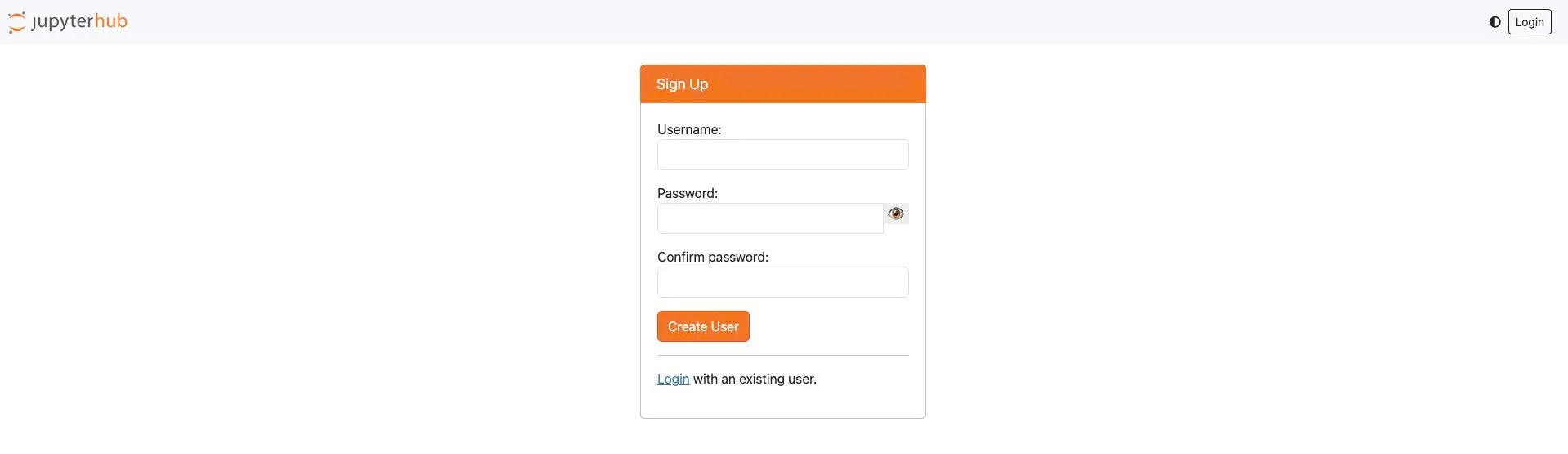
In that case, the account is created but does not yet have access to JupyterHub until the admin approves it.
To grant access, the admin does the following:
-
Log in with the admin account.
-
Go to the path: /hub/authorize
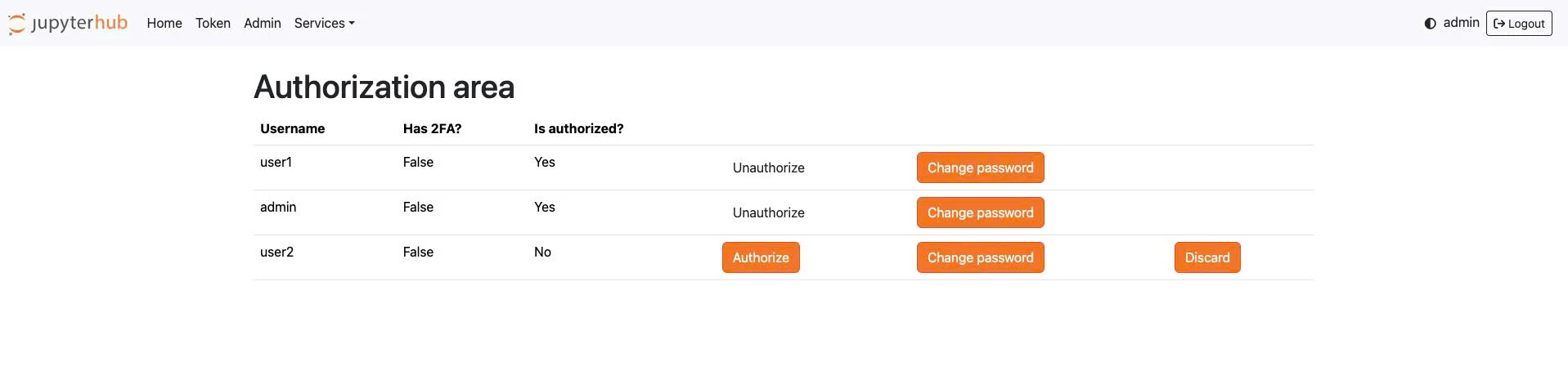
- This page displays the list of all created users, along with management actions:
- Authorize
- Allows the user to access JupyterHub.
- If not yet Authorized, the user will not be able to log in to the interface.
- Unauthorize
- Revokes access previously granted.
- The user still exists in the system but can no longer log in.
- Change password
- Allows the admin to reset a user's password.
- Used when a user forgets their password or needs a reset on request.
- Discard
- Removes the user from the management list.
- After being Discarded, the user must create their account again, or be re-added by the admin, if they want to keep using the system.