Resume a Lakehouse setup that needs connection information
When a Lakehouse shows Connection information required, its setup waits for you. Update the S3 connection or confirm your session, and setup continues from the stage where it paused.
Prerequisites
- The Lakehouse status is Connection information required.
- To update the S3 connection, the current details of your bucket: endpoint, bucket name, access key, and secret key.
Find out which case applies
The banner on the details page of the Lakehouse tells you what the setup needs:
| Banner | Why it appears | What to do |
|---|---|---|
| Connection information required, with the message "Please provide S3 connection details to continue lakehouse setup." | The portal cannot connect to your S3 bucket with the details you entered when you created the Lakehouse. | Update the S3 connection. |
| Action required, with the message "To keep this setup secure, please refresh your session and retry. We'll continue from the current progress without changing your configuration." | The portal needs you to refresh your session for security before setup continues. | Confirm your session. |
If you no longer want this Lakehouse, select Terminate setup instead. See Terminate a Lakehouse setup.
Update the S3 connection
-
Select Data platform → Lakehouse.
-
Select the Lakehouse whose status is Connection information required.

-
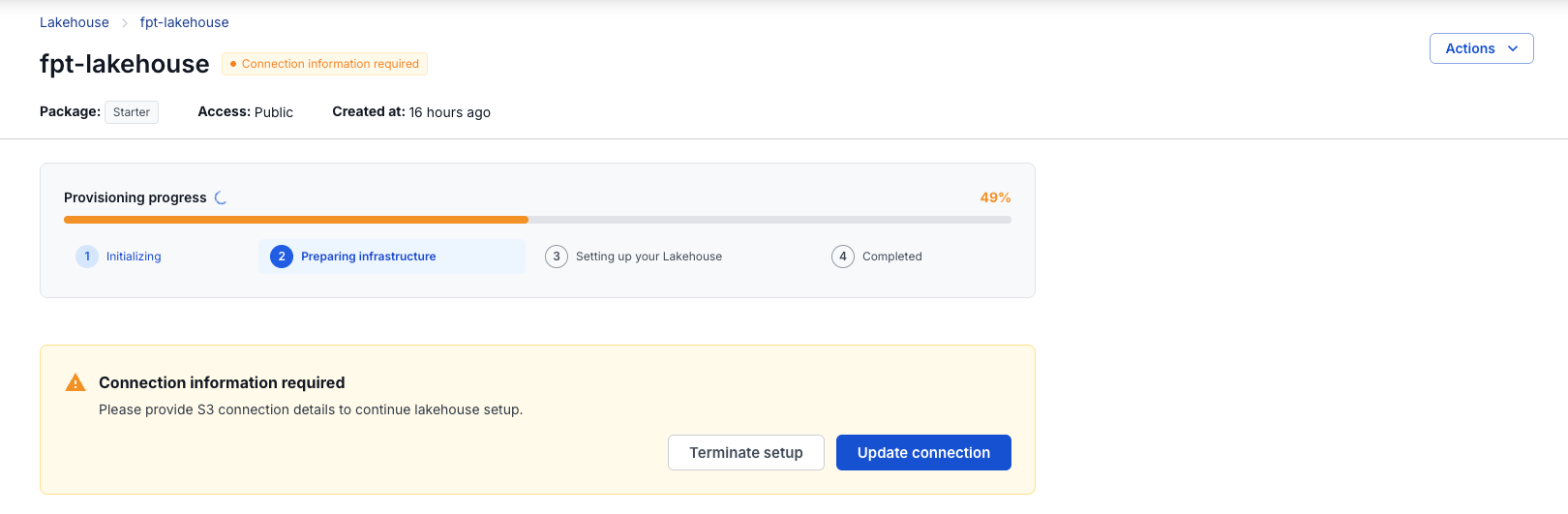
On the Connection information required banner, select Update connection.
-
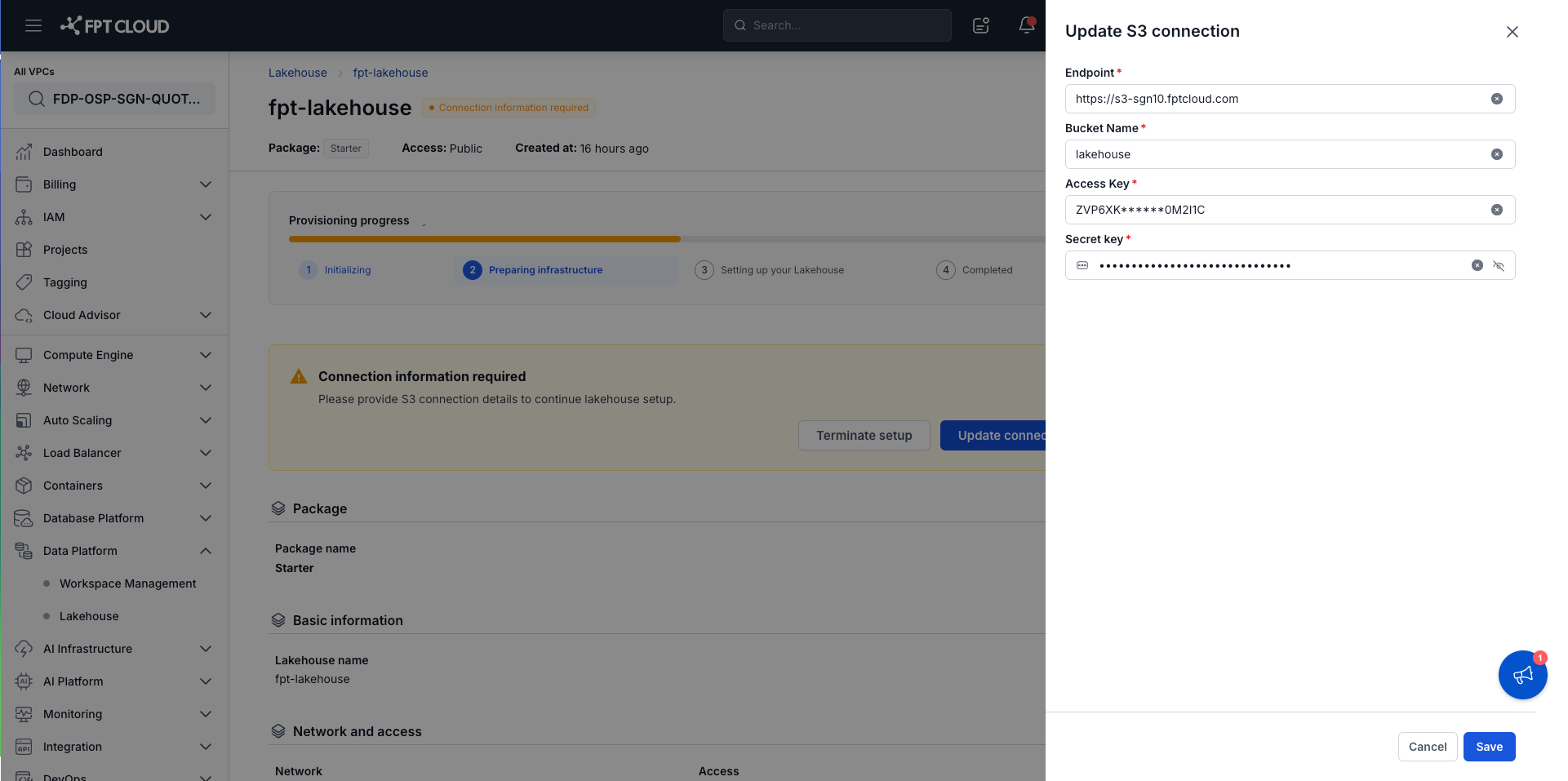
In the Update S3 connection panel, correct Endpoint, Bucket Name, or Access Key if the value has changed.
-
Enter the Secret key.
-
Select Save.
| Field | Description |
|---|---|
| Endpoint | Required. Filled in with the current value. Change it if the endpoint address is no longer correct. |
| Bucket Name | Required. Filled in with the current value. Change it if the bucket name is no longer correct. |
| Access Key | Required. Filled in with the current value. Change it if the access key is no longer valid. If you leave it unchanged, the current access key stays in use. |
| Secret key | Required. Always empty when the panel opens, because the portal does not keep the old value. Enter it every time you update the connection. |
The portal tests the S3 connection with the new details. When the connection works, setup continues from the stage where it paused.
Confirm your session
- Select Data platform → Lakehouse.
- Select the Lakehouse whose status is Connection information required.
- On the Action required banner, select Confirm.
The portal refreshes your session and setup continues from the stage where it paused. Your configuration stays the same, so you do not enter anything again.