View Lakehouse details and status
Open a Lakehouse to follow its setup, check that it works, and copy the URLs that people and tools use to reach it.
Open a Lakehouse
-
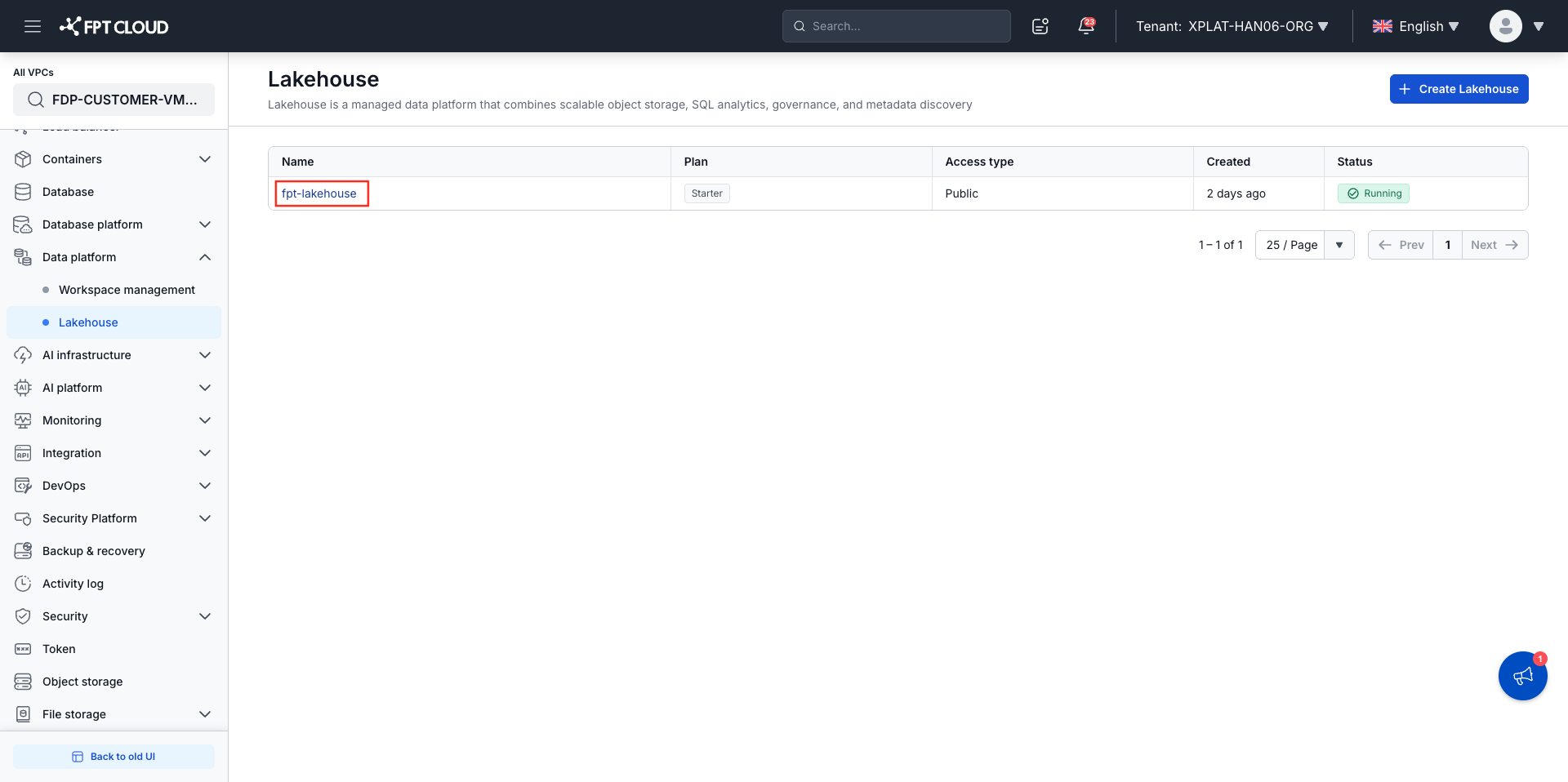
Select Data platform → Lakehouse. The Lakehouse list opens.
-
Select the name of the Lakehouse.
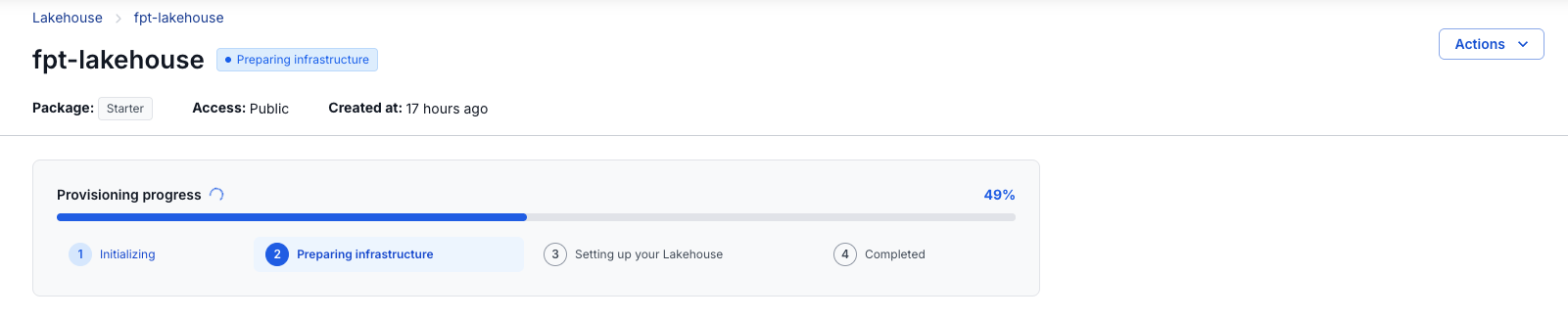
The details page opens. Its header shows the name and status of the Lakehouse, its Package, Access, and Created at, and an Actions menu. During setup, including when setup couldn't be completed, the Actions menu contains Terminate setup. When the Lakehouse is Completed or Running, it contains Delete.
Lakehouse list columns
| Column | Description |
|---|---|
| Name | The Lakehouse name. Select it to open the details page. |
| Plan | The package: Starter, Standard, or Advanced. |
| Access type | Private or Public. |
| Created | How long ago the Lakehouse was created, for example "2 hours ago". |
| Status | The current status. During setup, it also shows the progress as a percentage. |
Follow the setup progress
While the Lakehouse is being set up, the Provisioning progress card on the details page shows the percentage complete and the four setup stages: Initializing, Preparing infrastructure, Setting up your Lakehouse, and Completed. The current stage is highlighted.
Check the status
During setup
| Status | Meaning |
|---|---|
| Initializing | The portal has received the create request and is initializing the Lakehouse. |
| Preparing infrastructure | The infrastructure is being prepared. |
| Connection information required | You need to update the S3 connection or confirm your session. See Resume a Lakehouse setup that needs connection information. |
| Setting up your Lakehouse | The service is being configured. Setup is almost done. |
| Setup couldn't be completed | Setup hit an error it cannot recover from. Contact Support, or terminate the setup. |
While running
| Status | Meaning |
|---|---|
| Completed | The Lakehouse is delivered and ready to use. No health check has run yet. It changes to Running after the first health check. |
| Running | The Lakehouse works normally. |
| Some features are unavailable | The Lakehouse runs, but some features have problems. |
| Service unavailable | You cannot reach the Lakehouse for the moment. |
| Status unavailable | A health check ran but could not determine the current status. |
During termination or deletion
| Status | Meaning |
|---|---|
| Terminating setup | Setup is stopping and the resources created for it are being reclaimed. |
| Termination incomplete | Some resources were not cleaned up. The Ops team handles it. You do not need to do anything. |
| Setup terminated | Setup stopped and all related resources were cleaned up. This status shows for a short time, and then the Lakehouse leaves the list. |
| Deleting | The Lakehouse and its related resources are being deleted. |
When deletion finishes, the Lakehouse no longer appears in the list.
Find the URLs and settings
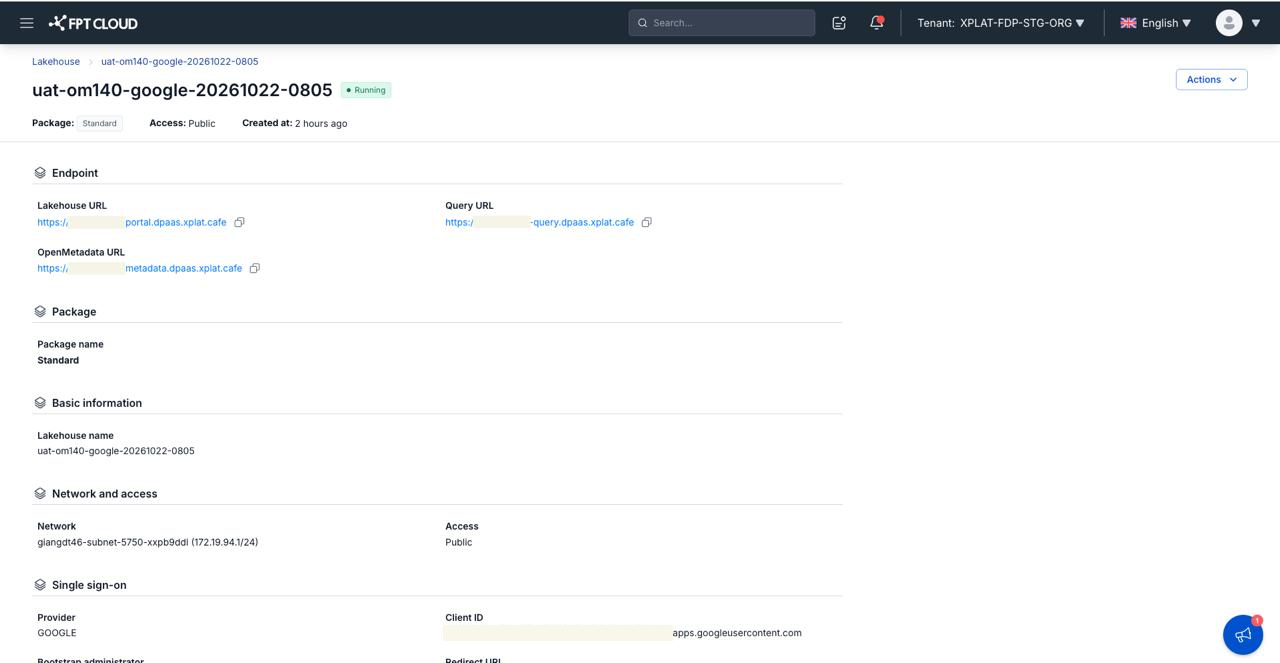
After the Lakehouse reaches Completed, the details page shows its endpoints and the settings you chose when you created it.
Endpoint
| Field | Description |
|---|---|
| Lakehouse URL | Opens the Lakehouse Portal. Select the link to open it, or the copy icon to copy it. With Private access, the URL works only from a network connected to your VPC. |
| Query URL | The address that external query tools and BI tools, such as JDBC or ODBC clients, use to connect to the Lakehouse. Select the copy icon to copy it. |
| OpenMetadata URL | Opens the metadata catalog of the Lakehouse, where you browse and describe your data assets. Select the copy icon to copy it. Shown only for the Standard and Advanced packages. |
Settings
| Section | Field | Description |
|---|---|---|
| Package | Package name | Starter, Standard, or Advanced. |
| Basic information | Lakehouse name | The display name of the Lakehouse. |
| Network and access | Network | The subnet of the Lakehouse. |
| Network and access | Access | Private or Public. |
| Single sign-on | Provider | FPT.ID or Google. |
| Single sign-on | Bootstrap administrator | The email of the first administrator of the Lakehouse. |
| Single sign-on | Client ID | Shown only when the provider is Google. |
| Single sign-on | Redirect URI | Shown only when the provider is Google. Select the copy icon to copy it. |
| S3 storage | Endpoint | The endpoint you entered. You can check it here at any time. |
| S3 storage | Bucket name | The bucket you entered. |
| S3 storage | Access Key | The access key you entered. |
| S3 storage | Secret key | Always masked, so you cannot view the current value. You can replace it only through Update connection while the status is Connection information required. |
The Client Secret of a Google Lakehouse is always masked for security.