Browse the catalog tree
The catalog tree shows every catalog, schema, table, and view you have access to. Use it to see what data exists before you write a query.
Prerequisites
- You are logged in to the Lakehouse Portal.
- Your role includes
data_explorer:browse. Your Admin assigns roles in Access management.
Expand the tree
- Select Data Explorer in the navigation menu.
- Select a catalog to expand it and see its schemas.
- Select a schema to see its tables and views.
The tree loads one level at a time. Schemas load when you expand a catalog, and tables and views load when you expand a schema. A small spinner shows inside a node while its content loads. Select an expanded node again to collapse it.
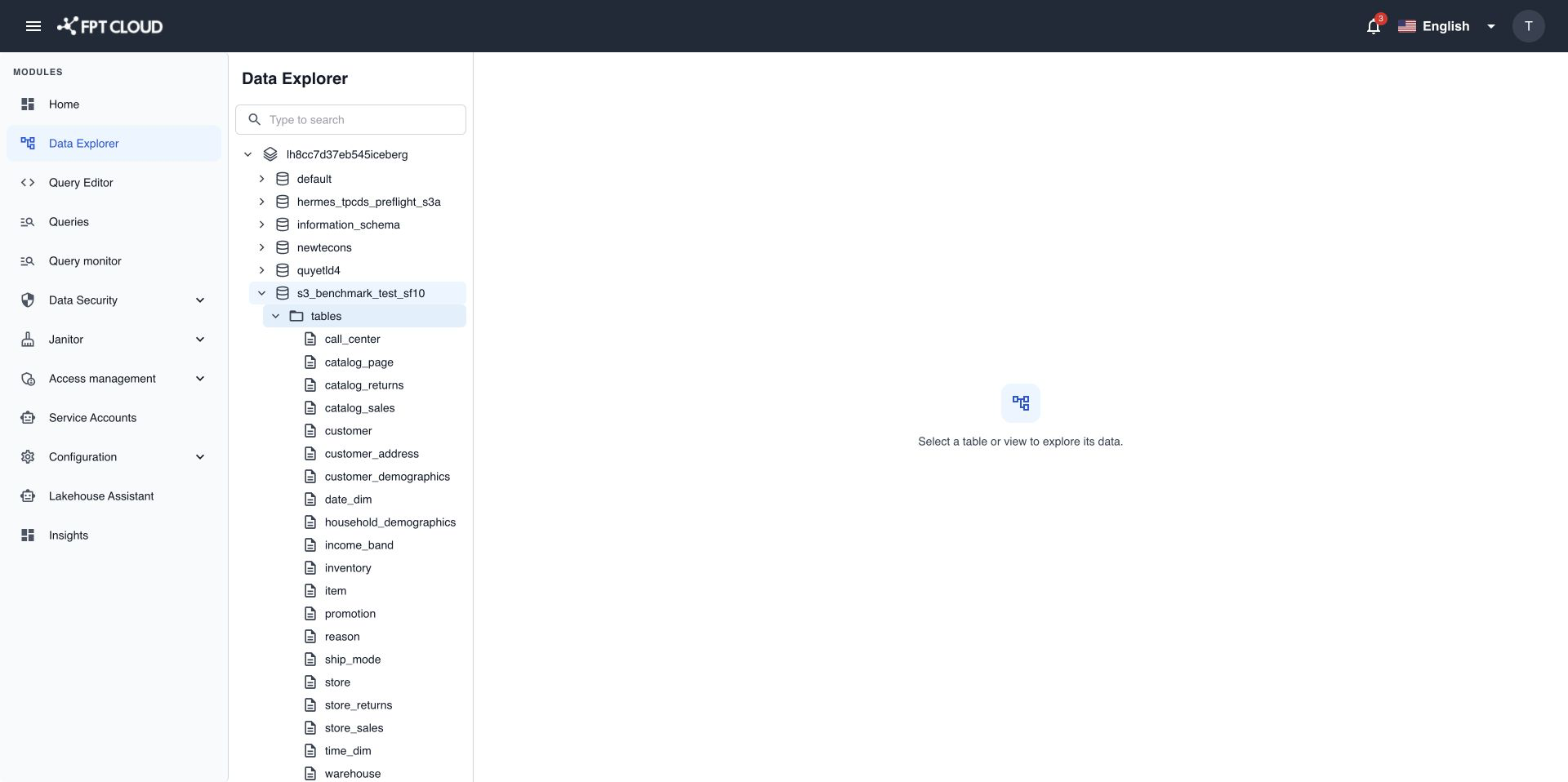
Open a table or view
- Select a table or view in the tree.
The node is highlighted and the details open on the right. The page URL changes to the object path, for example /explorer/analytics/sales/orders. You can bookmark it or share it with a colleague who has the same access.
To go back to a parent, select the catalog or schema name in the breadcrumb above the object name.
See objects added after you opened the tree
The tree keeps what it has loaded during your session. If someone adds a table after you expanded its schema, it does not appear yet. Reload the browser page to refresh the tree with the latest list.
When a node does not load
| What you see | What it means | What to do |
|---|---|---|
| ⚠️ icon on a catalog with the tooltip Unable to load catalog. Check your permissions. | You have no access to this catalog. | Ask your Admin for access in Data Security. |
| Retry inside a schema or table node | The list failed to load. | Select Retry. |
| Banner Data source is currently unavailable. Please try again later. | The Lakehouse query service is temporarily not responding. | Wait a few minutes and reload the page. If it stays, contact your Admin. |