Explore your first table
In this tutorial you find a table in Data Explorer, check its columns and data, and open a query on it. It takes about five minutes and changes nothing in your Lakehouse.
Prerequisites
- You can log in to the Lakehouse Portal. See Lakehouse Quick Start.
- Your role includes
data_explorer:browseanddata_explorer:preview. Your Admin assigns roles in Access management. - You have access to the
tpcdscatalog. This tutorial uses the sample tabletpcds.sf1.store_sales. Every Lakehouse includes it, but your Admin must grant you access in Data Security first.
What you'll build
By the end you will have a table open in Data Explorer and a SELECT query on that table ready in Query Editor.
Open Data Explorer
- Log in to the Lakehouse Portal.
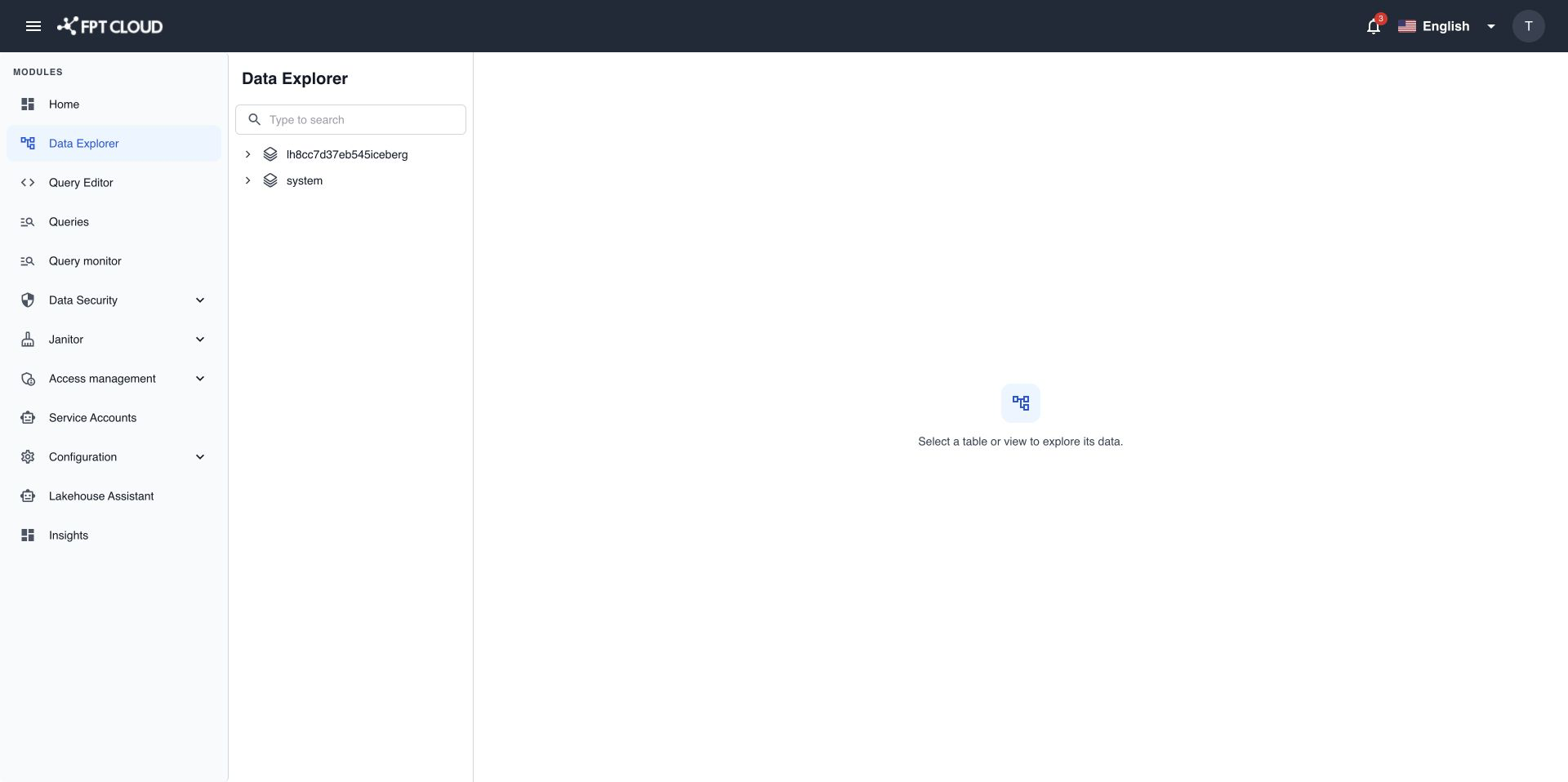
- Select Data Explorer in the navigation menu.
The catalog tree appears on the left and lists every catalog you have access to.
Find the table
- Select the tpcds catalog to expand it.
- Select the sf1 schema.
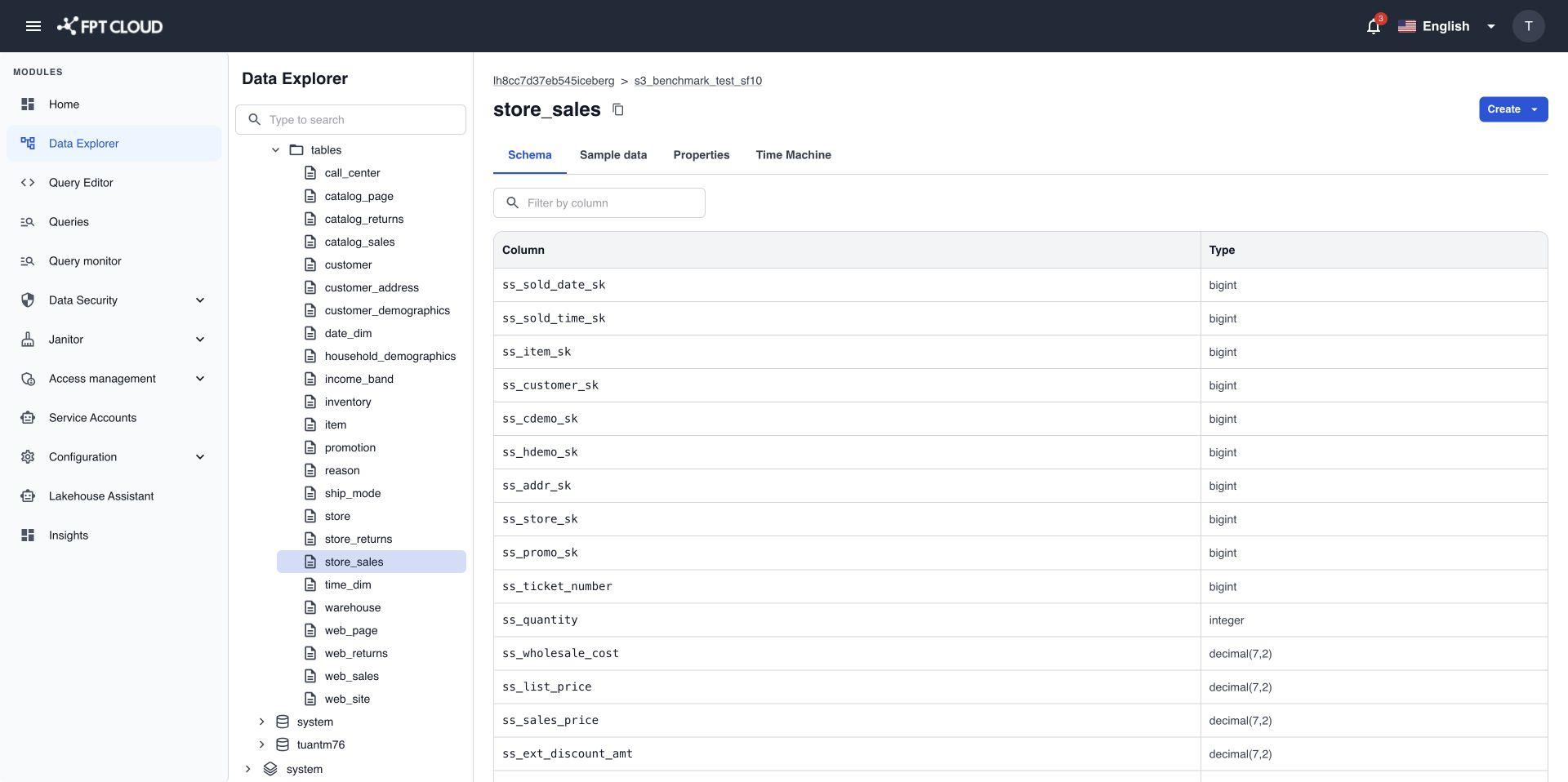
- Select store_sales.
The table details open on the right, with the breadcrumb tpcds > sf1 above the table name.
Check the columns
The Schema tab opens first. It lists each Column and its Type.
- Type
customerin Filter by column.
Only the columns whose names contain customer stay in the list. Clear the filter to see all columns again.
Look at sample rows
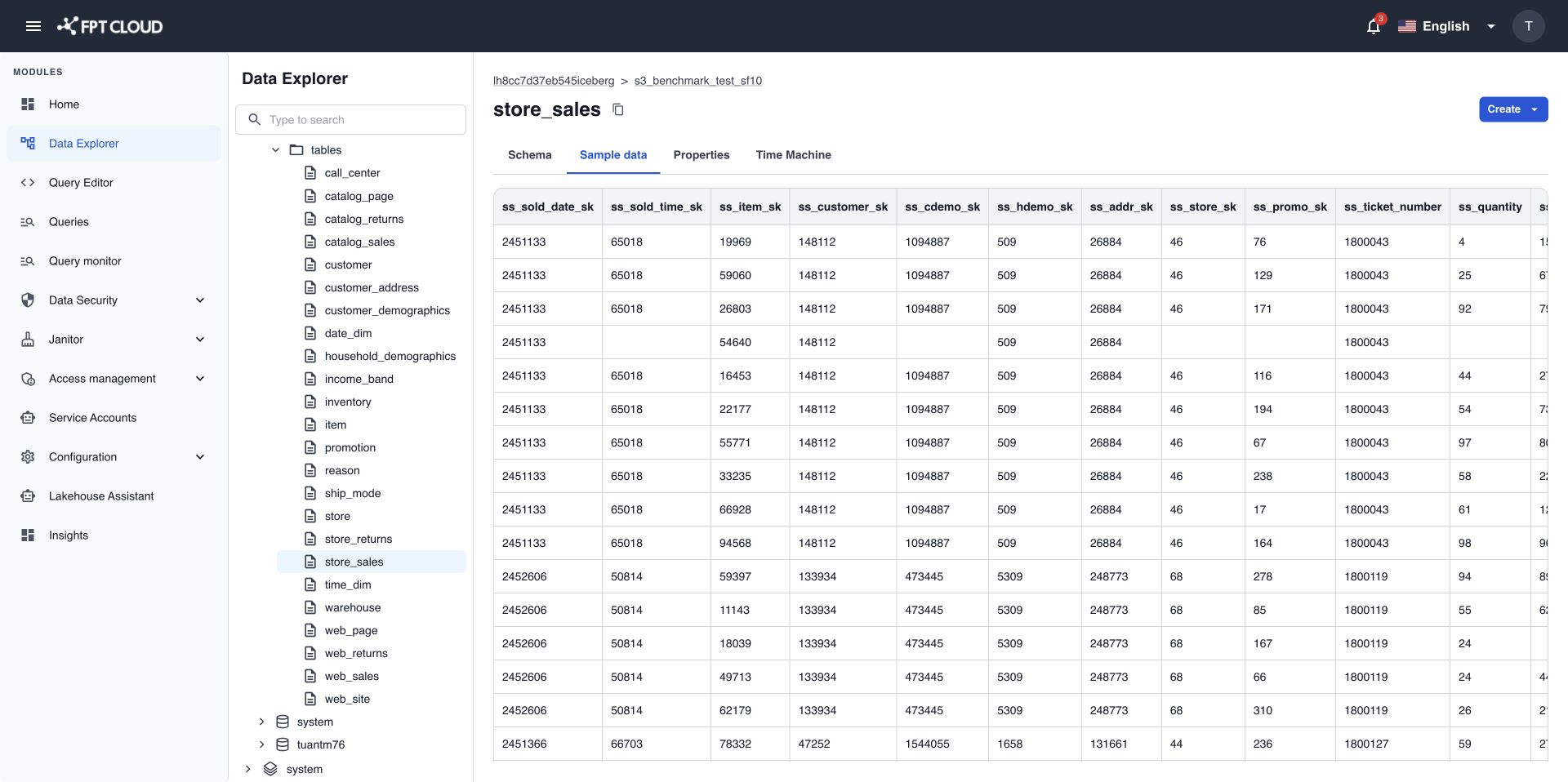
- Select the Sample data tab.
Data Explorer loads up to 100 rows. Scroll right to see more columns.
Open a query on the table
- Select Create at the top right of the table details.
- Select Query.
Query Editor opens with this query ready to run.
SELECT * FROM tpcds.sf1.store_sales LIMIT 100
Summary
You found a table through the catalog tree, filtered its columns, checked sample rows, and opened a query without typing a table name.
Next steps
- View table schema, sample data, and properties to read the Properties tab.
- Search catalogs, schemas, and tables when the tree gets large.