Mask columns with a masking policy
A masking policy hides the values of a sensitive column from the people you choose, while they keep querying the rest of the table. The data stored in the table does not change.
Prerequisites
- Your role includes
governance:masking_policies:write. Theportal_adminandpolicy_managerroles have it. See Portal roles and permissions. - The people in the policy already have
SELECTon the table through an access policy.
Create a masking policy
- In the left sidebar, select Data Security → Security policies, then open the Masking tab.
- Select Create policy.
- Enter a Policy name and, optionally, a Description.
- Add the people who must not see the real values in User, Group, or Service Account. Add at least one.
- Select the Catalog, Schema, Table, and Column. A policy covers one column.
- Select a Masking option.
- Keep Active selected.
- Select Create.
Permission is always SELECT and cannot be changed. To mask several columns, create one policy for each column.
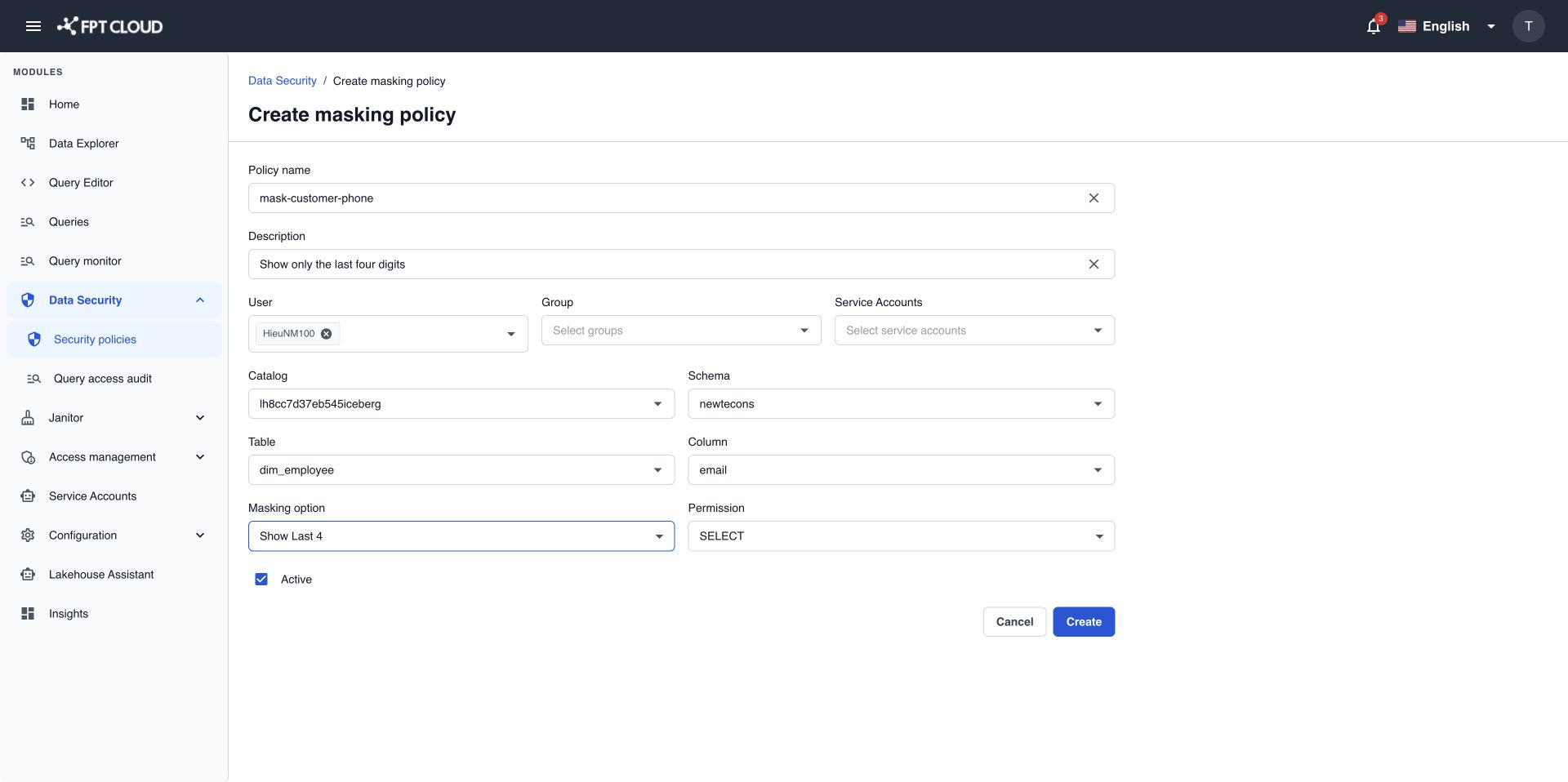
About 1 minute later, the people in the policy see the masked values in Query Editor, in sample data in Data Explorer, and in connected tools.
Masking options
| Masking option | What people see | Use it for |
|---|---|---|
Hash | A hash of the value. The same value always gives the same hash. | Columns people still need to join or count on, such as customer IDs. |
Mask | The value with its characters replaced. | Text people must not read at all. |
Null | An empty value (NULL). | Columns people do not need. |
Show Last 4 | Only the last 4 characters. Text columns only. | Phone numbers, card numbers, account numbers. |
Good to know
- Masking is for people who may query the table but not see one column. To hide the whole table, leave the people out of the access policy instead.
- If several masking policies apply to the same person and column, you cannot choose which one wins. Use one masking policy per column and group.
If an action fails
| Message | What it means | What to do |
|---|---|---|
The selected masking type is not valid for this column. | The option does not fit the column type, for example Show Last 4 on a number column. | Choose another option, such as Hash or Null. |
The change could not be applied. No permission was updated. | Nothing was saved. Your entries are kept. | Select Create again. If it keeps failing, contact support. |