Grant data access with an access policy
An access policy lets people query data in the Lakehouse. Until someone is in at least one access policy, they see no catalogs in Data Explorer and every query fails.
Prerequisites
- Your role includes
governance:permissions:grant. Theportal_adminandpolicy_managerroles have it. See Portal roles and permissions. - The users and groups already exist in Access management, and the service accounts already exist in Service Accounts. Only active service accounts can be selected.
Create an access policy
- In the left sidebar, select Data Security → Security policies.
- Open the Access tab, then select Create policy.
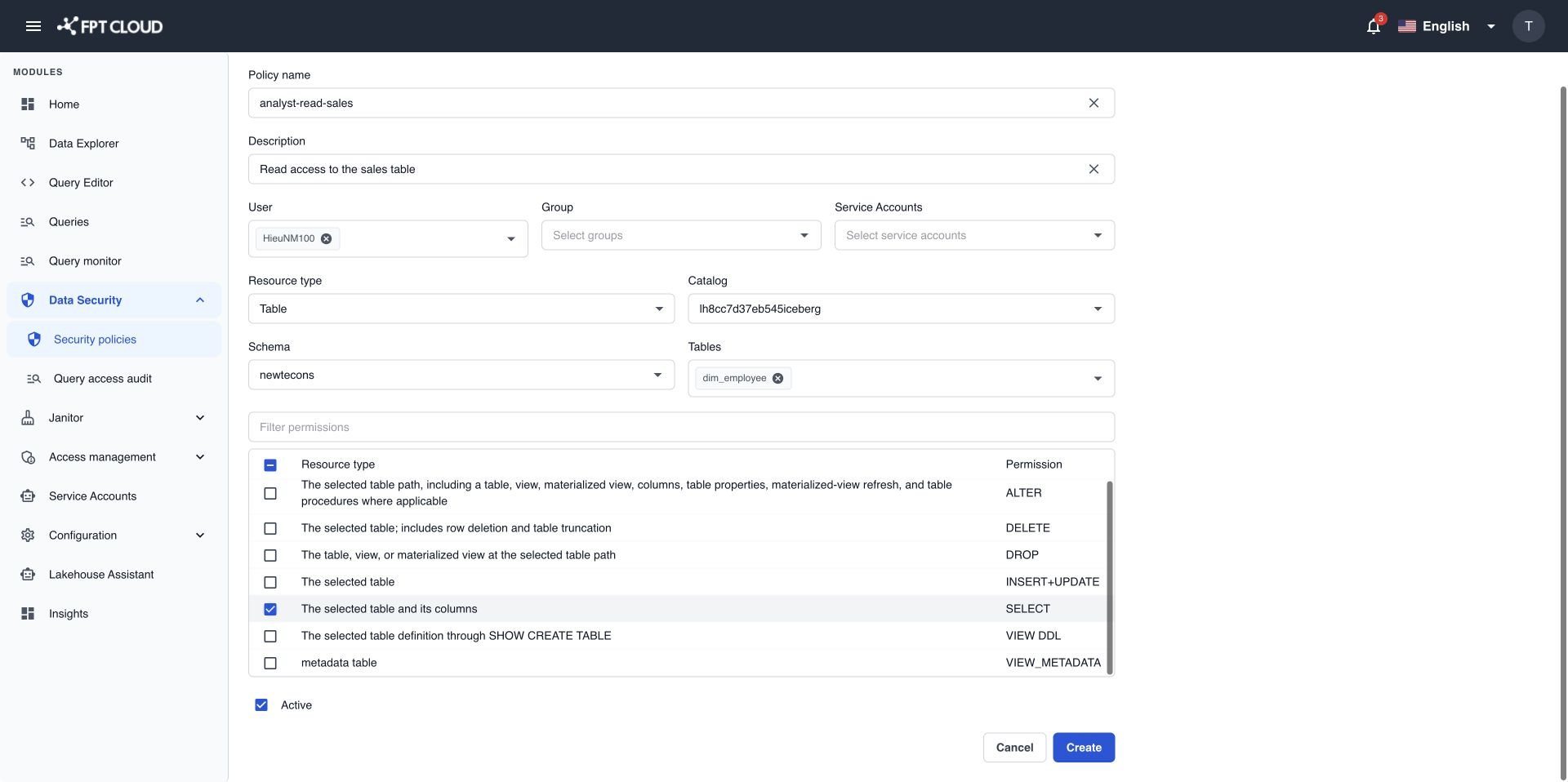
- Enter a Policy Name and, optionally, a Description that says who the policy is for.
- Add the people the policy applies to in Users, Groups, or Service Accounts. Add at least one.
- In Resource type, select Catalog, Schema, Table, or Function.
- Select the resource. Type a few letters in each field to search.
- Catalog: select the Catalog.
- Schema: select the Catalog and the Schema.
- Table: select the Catalog, the Schema, and one or more Tables.
- Function: select the Catalog and the Schema. The policy covers every function in that schema.
- In the permissions table, select the permissions to grant. Nothing is selected by default.
- Keep Active selected so the policy applies right away.
- Select Create.
The policy appears in the Access list with the status Active. It applies to new queries in about 1 minute.
DELETE or ALL on a catalog or schema lets people delete rows in every table inside it. It does not delete the catalog or schema. Grant it only to people who load or clean data.
For what each permission allows, see Access policy permissions.
Choose the right scope
| You want to | Resource type | Permissions |
|---|---|---|
| Let analysts read every table in one schema. | schema | SELECT |
| Let one person read one table only. | table | SELECT |
| Let data engineers load and change tables in a catalog. | catalog | SELECT, INSERT + UPDATE, ALTER |
| Let a team create and drop tables in its own schema. | schema | CREATE, DROP on schema, SELECT, INSERT + UPDATE |
| Let people run the functions in a schema. | function | EXECUTE |
Start with the smallest scope and the fewest permissions. You can add more later.
Check that it works
Ask a person in the policy to wait about 1 minute and then open Data Explorer. The catalog appears in their tree. With access to one table, they see only that table under its catalog and schema.
Find a policy
- Type in Search by policy name ... to find a policy by name.
- Use All user, All group, or All service account to show only the policies of one user, group, or service account.
The Access list shows the policy name, its permissions, groups, users, service accounts, and status. When a cell has more items than fit, it shows +N.
If an action fails
| Message | What it means | What to do |
|---|---|---|
This permission already exists. | Another policy already grants this permission on this resource to the same people. | Edit the existing policy instead. |
The selected data object does not exist or is not accessible. | The catalog, schema, or table was removed or renamed. | Select the resource again. |
The selected user, group, or service account does not exist. | Someone you added was removed in Access management. | Remove them from the policy, then select Create again. |
The change could not be applied. No permission was updated. | Nothing was saved. Your entries are kept. | Select Create again. If it keeps failing, contact support. |
Governance service is temporarily unavailable. | You can view policies but not change them. | Wait a few minutes, then try again. |
You do not have permission to manage governance settings. | Your role does not include governance:permissions:grant. | Ask your Admin for the policy_manager role. |
Your session has expired. Please sign in again. | You were signed out. | Sign in again. Unsaved entries are lost. |