Edit, deactivate, or delete a policy
Edit a policy to give or take away access, pause it while you check something, or delete it when nobody needs it. The steps are the same on the Access, Masking, and Row level filter tabs.
Prerequisites
- Your role includes the permissions for the type of policy you change:
governance:permissions:grant,governance:permissions:revoke, andgovernance:permissions:deletefor access policies,governance:row_policies:writefor row level filter policies, orgovernance:masking_policies:writefor masking policies. Theportal_adminandpolicy_managerroles have all of them.
Edit a policy
- In the left sidebar, select Data Security → Security policies, then open the tab of the policy.
- Select the policy name. The edit form opens.
- Change the people, the resource, or the settings.
- In an access policy, select or clear permissions in the table. Type in Filter permissions to find one.
- Select Save.
To revoke one permission, clear it and select Save. To revoke access for one person, remove them from Users, Groups, or Service Accounts and select Save. The change applies to new queries in about 1 minute.
Save stays disabled until the policy has at least one person and one permission. To take away all access, delete the policy.
Deactivate or reactivate a policy
Deactivate a policy to stop it without losing its settings.
- Open the policy.
- Clear Active.
- Select Save.
The policy stays in the list with the status Inactive. To reactivate it, select Active and select Save.
An inactive access policy grants nothing. An inactive row level filter or masking policy stops hiding data, so the people in it see every row or the real column values again.
Delete a policy
- Open the policy.
- Select Delete policy.
- In Delete policy, type
delete. - Select Delete.
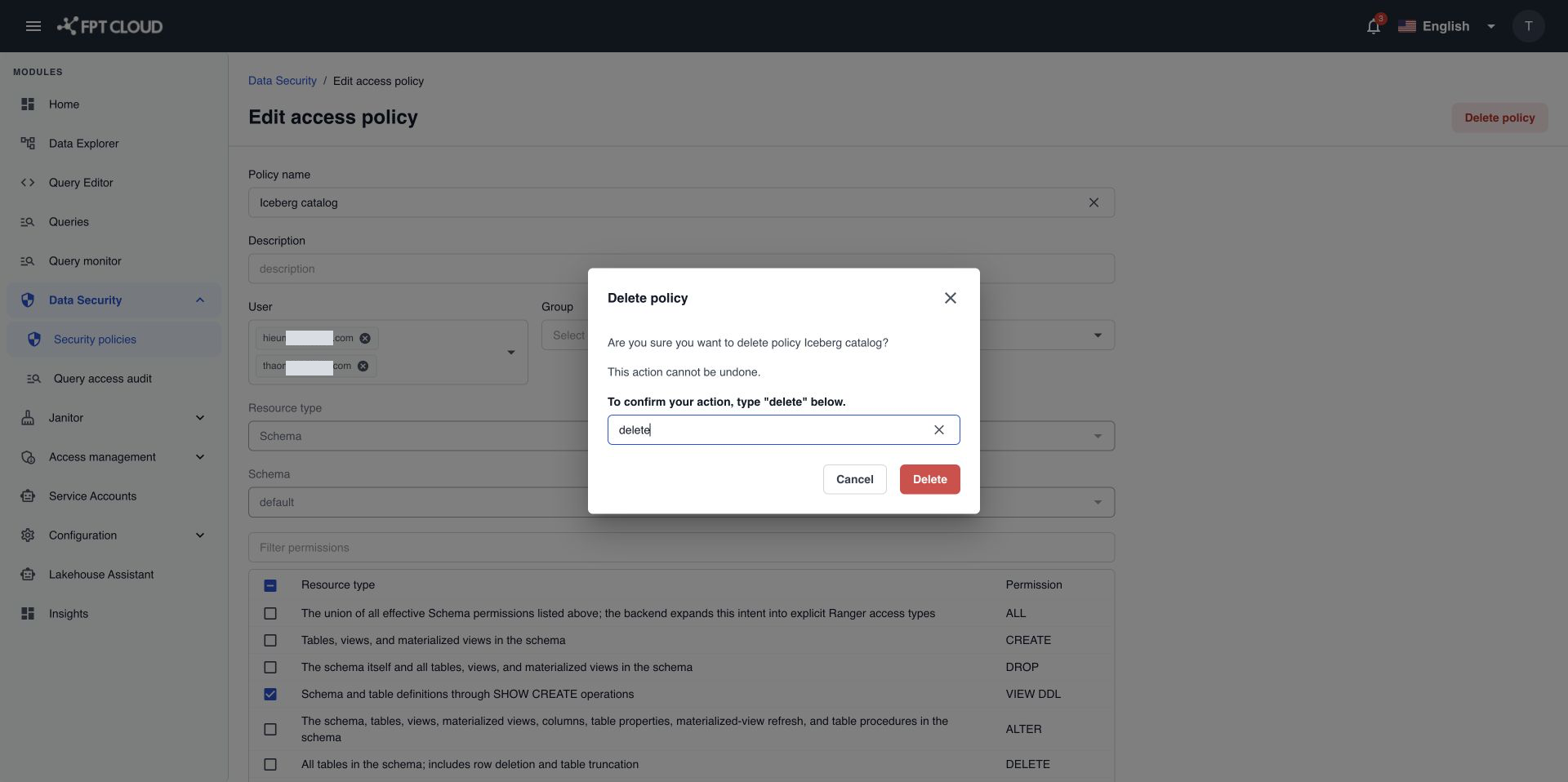
The policy disappears from the list. Deleting cannot be undone.
People in a deleted policy can still read the data for about 1 minute. To cut access off for a sensitive table, delete the policy and check the query access audit afterward.
Some policies are created by the system and cannot be deleted.
If an action fails
| Message | What it means | What to do |
|---|---|---|
The change could not be applied. No permission was updated. | Nothing was saved. Your changes are kept in the form. | Select Save again. If it keeps failing, contact support. |
Governance service is temporarily unavailable. | You can view policies but not change them. | Wait a few minutes, then try again. |
You do not have permission to manage governance settings. | Your role cannot change policies. | Ask your Admin for the policy_manager role. |