Review query access decisions
The query access audit shows, for each query, which catalogs, schemas, tables, and columns were checked and whether access was allowed or denied. Use it when someone reports a permission error, or to confirm that a revoked user can no longer read a table.
Prerequisites
- Your role includes one of these permissions.
query_audit:read_allshows the queries of all users.query_audit:read_selfshows only your own queries.
- The
portal_adminrole hasquery_audit:read_all. No system role hasquery_audit:read_self. To grant it, an Admin adds it to a custom role.
Search access decisions
- In the left sidebar, select Data Security → Query access audit.
- Set a date range, from and to. Both are required, and the range can be up to 31 days.
- Narrow the results if you need to.
- Result: Allowed or Denied.
- User.
- Resource type, catalog, schema, or table.
- Free text, for example part of the SQL.
- Choose a view, grouped or raw.
The newest queries are at the top, 20 per page. You can show up to 100 per page.
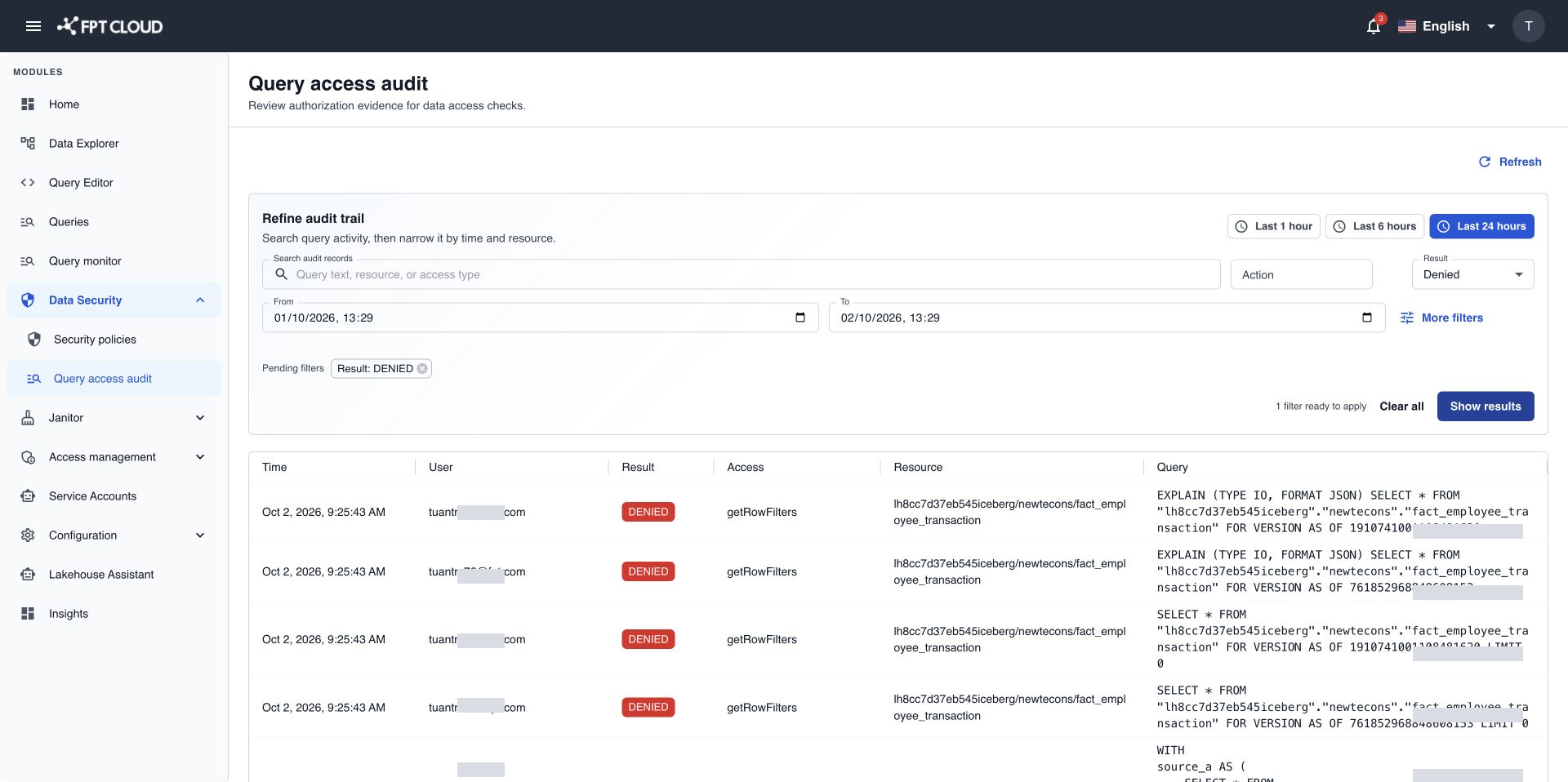
Read the grouped view
The grouped view shows one row per query. Each row has the result, the person, the time, the query text, how many checks the query caused, the resources checked, and the policies involved.
- One query often causes many checks, one for each catalog, schema, table, or column it touches.
- A query is Denied if any of its checks was denied. It is Allowed only if every check was allowed.
Select a row to see its checks in detail.
Read the raw view
The raw view shows one row per check. Each row shows the type of access, the resource path, the action, the client IP address, and the tool used. Use it to find exactly which table or column blocked a query.
Read the policy column
- The policy column shows the name, type (Access, Row filter, Masking, or System), and status of the Data Security policy that matched.
Portal policy not availablemeans the check matched no policy you can see in Data Security. The decision in the row is still correct.- An empty policy column does not mean the access was allowed. Always read the result.
Some rows are linked to a query run in the portal on a best-effort basis, by person, SQL, and time. Treat those links as likely, not certain, unless they match on the query ID.
Good to know
- Query text may be cut short, and passwords or keys in it are hidden.
- Data comes straight from the access records of your Lakehouse. How far back you can search depends on how long those records are kept.
- If the access records cannot be reached, you see an error, not an empty list. Try again later. An empty list always means no query matched your filters.
Fix a denied query
- Filter Result to Denied and the person to the one who reported the error.
- Open the query and find the denied check in the raw view.
- Note the resource and the action, for example
SELECTonanalytics.sales.orders. - Grant that permission in an access policy, or confirm that the denial is intended.