Manage roles and assign them to users
A role is a set of portal permissions, and each user gets their access from the roles you assign. Use the built-in roles for common jobs, or create a custom role when a job needs a different set of permissions.
Prerequisites
- Your role includes the role permissions:
rbac:roles:readto see roles,rbac:roles:writeandpermissions:readto change them, andusers:roles:assignwithusers:roles:revoketo assign and remove roles. Theportal_adminrole has all of them.
How roles work
- System roles come with the portal. You can view them but not edit or delete them. See Portal roles and permissions.
- Custom roles are roles you create. You can edit and delete them.
- A user gets roles directly, or through a group they belong to. See Manage groups.
- A user with several roles gets every permission from all of them combined.
- Roles control which pages and actions a user sees in the portal. Which catalogs, schemas, and tables the user can read is set in Data Security.
View roles
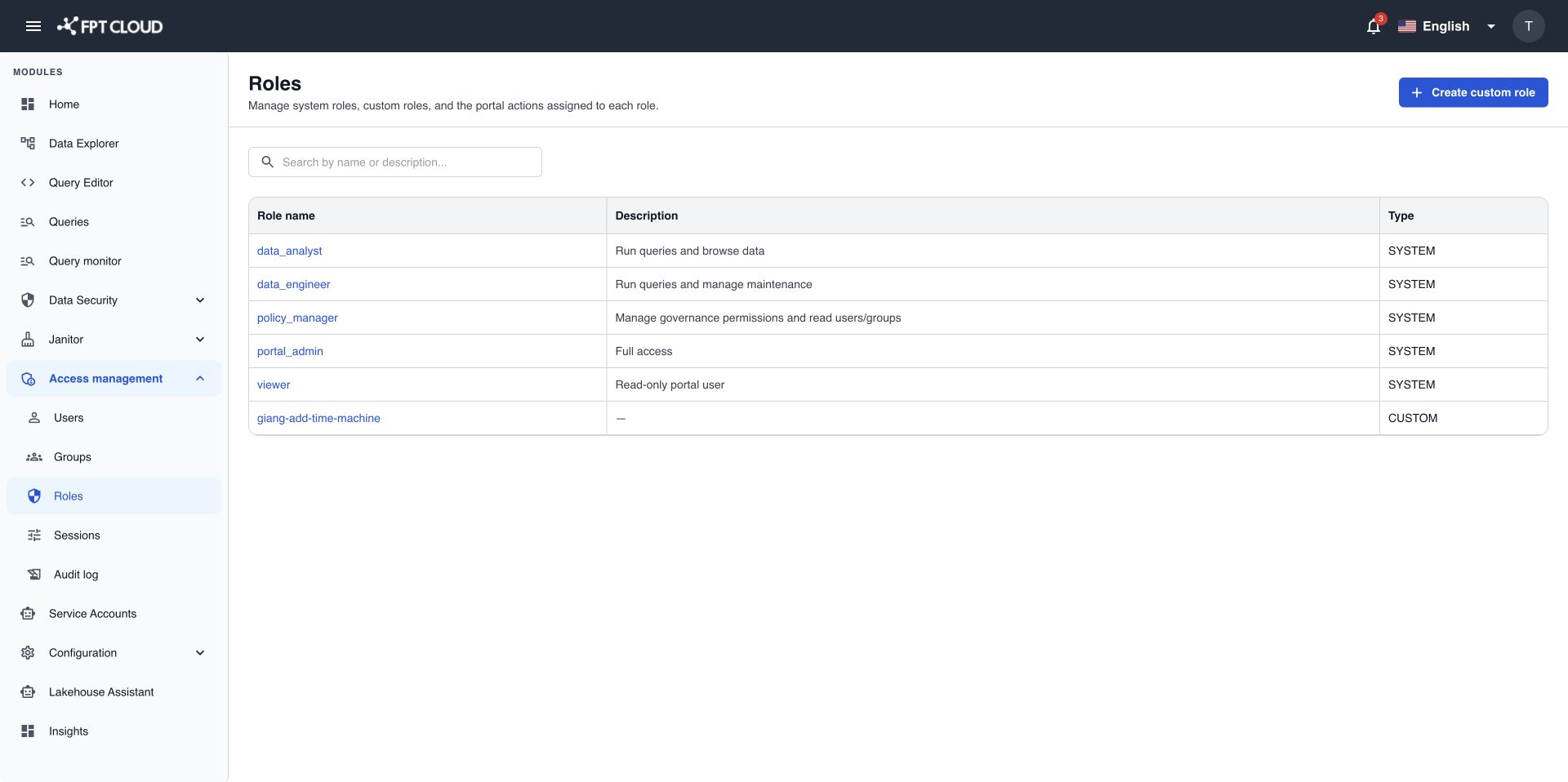
- Select Access management → Roles.
- Select a role name to see its permissions.
The Type column shows SYSTEM or CUSTOM.
Create a custom role
- Select Create custom role.
- Enter a Name of 2 to 50 characters. Use only lowercase letters, numbers,
-, and_, for examplebi_analyst. - Enter a Description of up to 255 characters (optional).
- Select Add permission.
- In Add permissions, filter by name, select the permissions the role needs, then select Add.
- Check the list of permissions. Clear a checkbox to remove a permission.
- Select Add role.
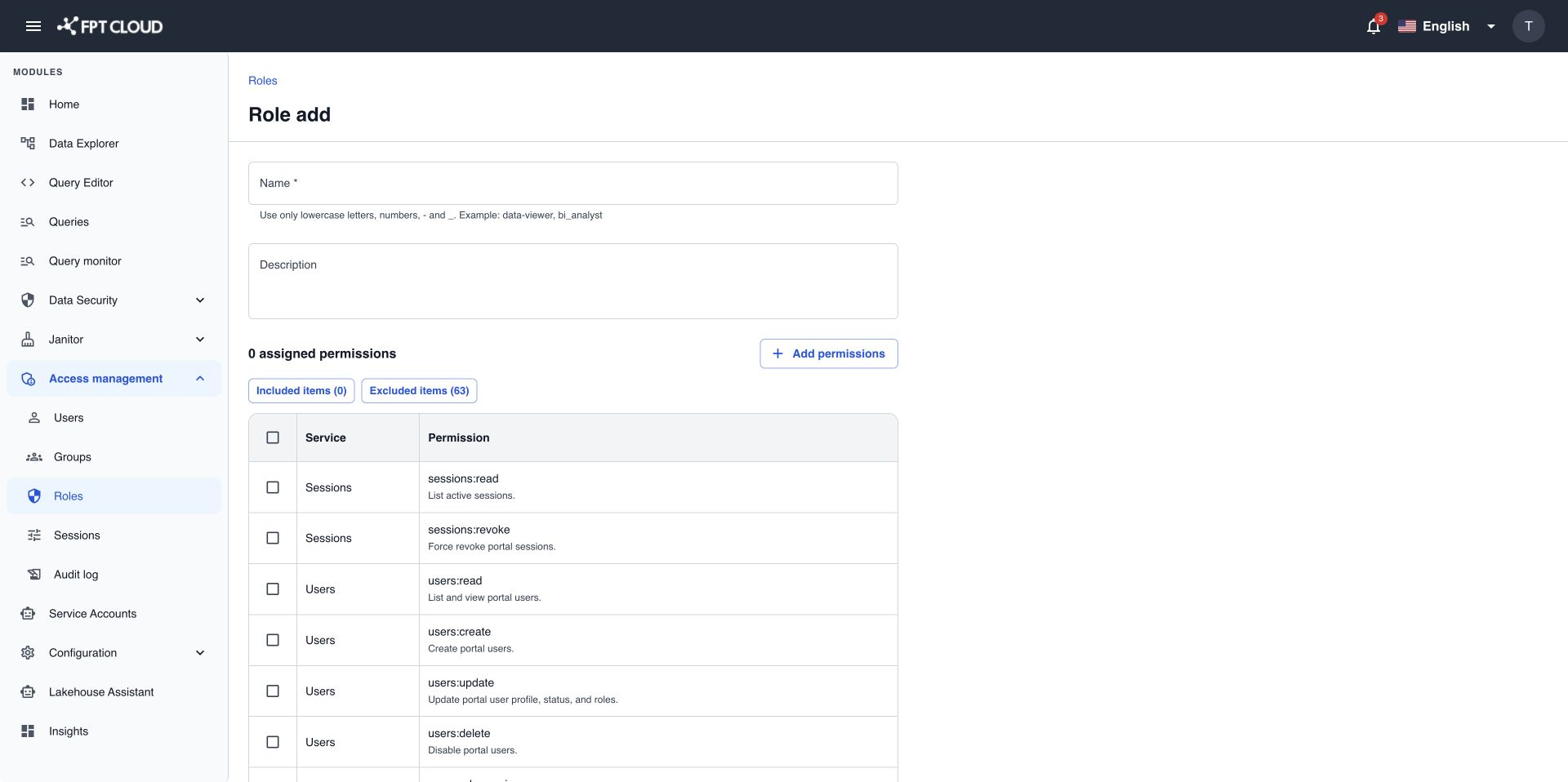
To check your choices, select Included items to show only the permissions in the role, or Excluded items to show only those not in it. Select the same button again to show all permissions.
There is no "all permissions" option. Select each permission the role needs, so anyone can read exactly what the role allows.
Edit a custom role
- In the Roles list, select the custom role.
- Change the name, description, or permissions.
- Select Save.
The change applies to every user who has this role.
Delete a custom role
- In the Roles list, select the custom role to open the role details.
- Select Delete.
- In Delete Role, select Delete.
You cannot undo this. If the role is still assigned, you see Cannot delete a role that is currently assigned to users or groups. Please revoke the role from all users first. Remove the role from those users and groups, then try again.
Assign roles to a user
- Select Access management → Users, then select the user.
- In Roles, select the roles to add. To remove a role, select ✕ on its tag.
- Select Save.
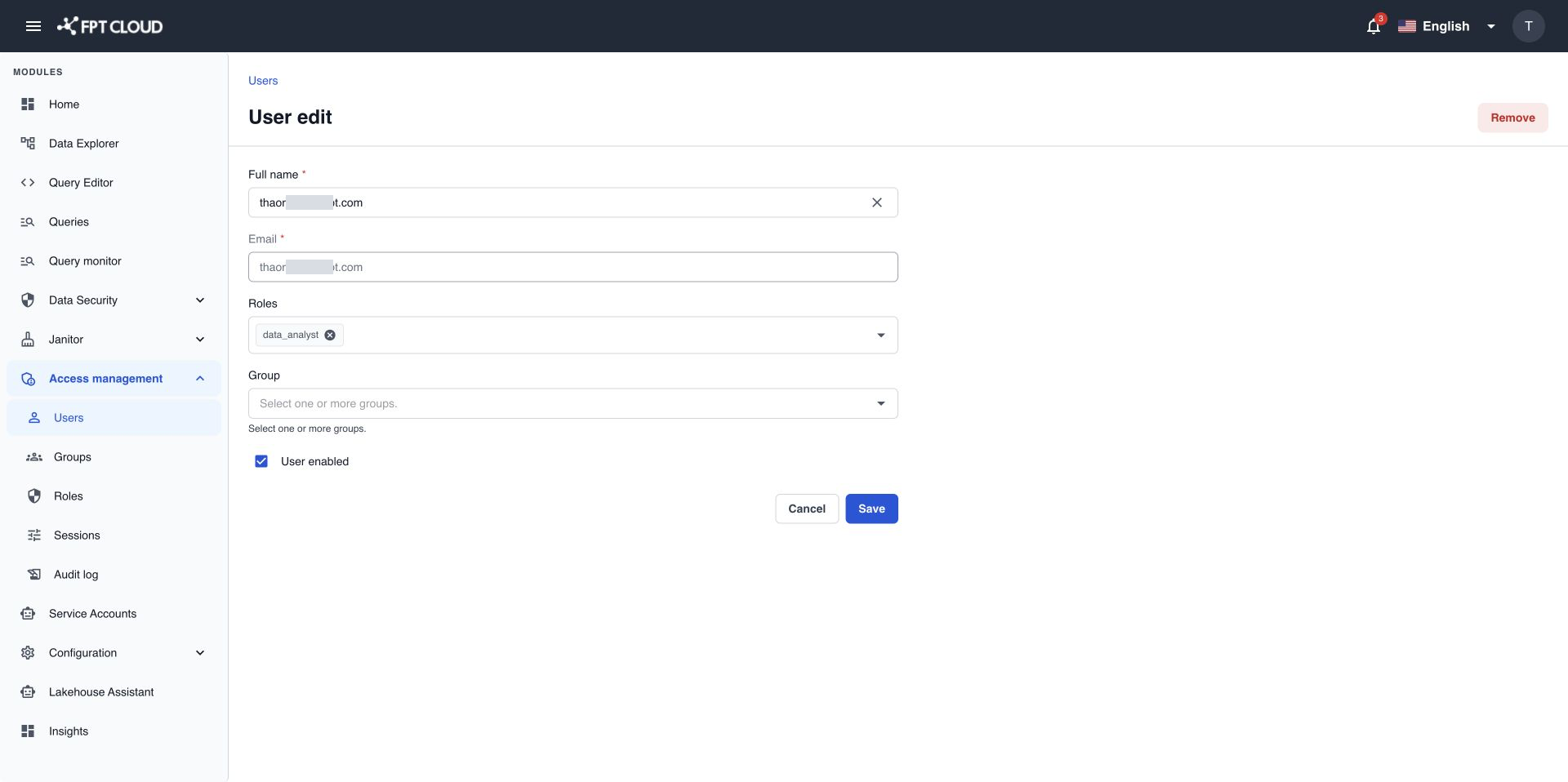
If you remove every role, the user can still sign in but cannot open any page that needs a permission.
The portal protects you from locking yourself out:
- You cannot remove all roles from your own account.
- At least one active user must keep the permissions to manage users and roles.
If an action fails
| Message | What it means | What to do |
|---|---|---|
A role with this name already exists. | Another role uses this name. | Choose another name. |
Cannot delete a role that is currently assigned to users or groups. Please revoke the role from all users first. | The role is still in use. | Remove the role from every user and group, then delete it. |
System roles cannot be deleted. | You tried to delete a built-in role. | Create a custom role instead. |
You cannot remove all roles from your own account. | You cleared every role on your own account. | Keep at least one role. |
At least one administrator must retain user and role management permissions. | The change would leave no one who can manage users and roles. | First assign portal_admin (or a role with user and role management permissions) to another active user. |
Unable to apply permissions. Please try again later. | The change could not be applied. Nothing was saved. | Wait a moment, then try again. |
Next steps
- Portal roles and permissions for the full list of permissions.