Manage sessions
A session is one sign-in to the portal from one browser. Revoke a session to sign a user out right away, for example when a laptop is lost.
Prerequisites
- Your role includes
sessions:readto see sessions andsessions:revoketo revoke them. Theportal_adminrole has both.
View sessions
- Select Access management → Sessions.
- To narrow the list, search by name or email, or pick a Start date and End date for the sign-in time.
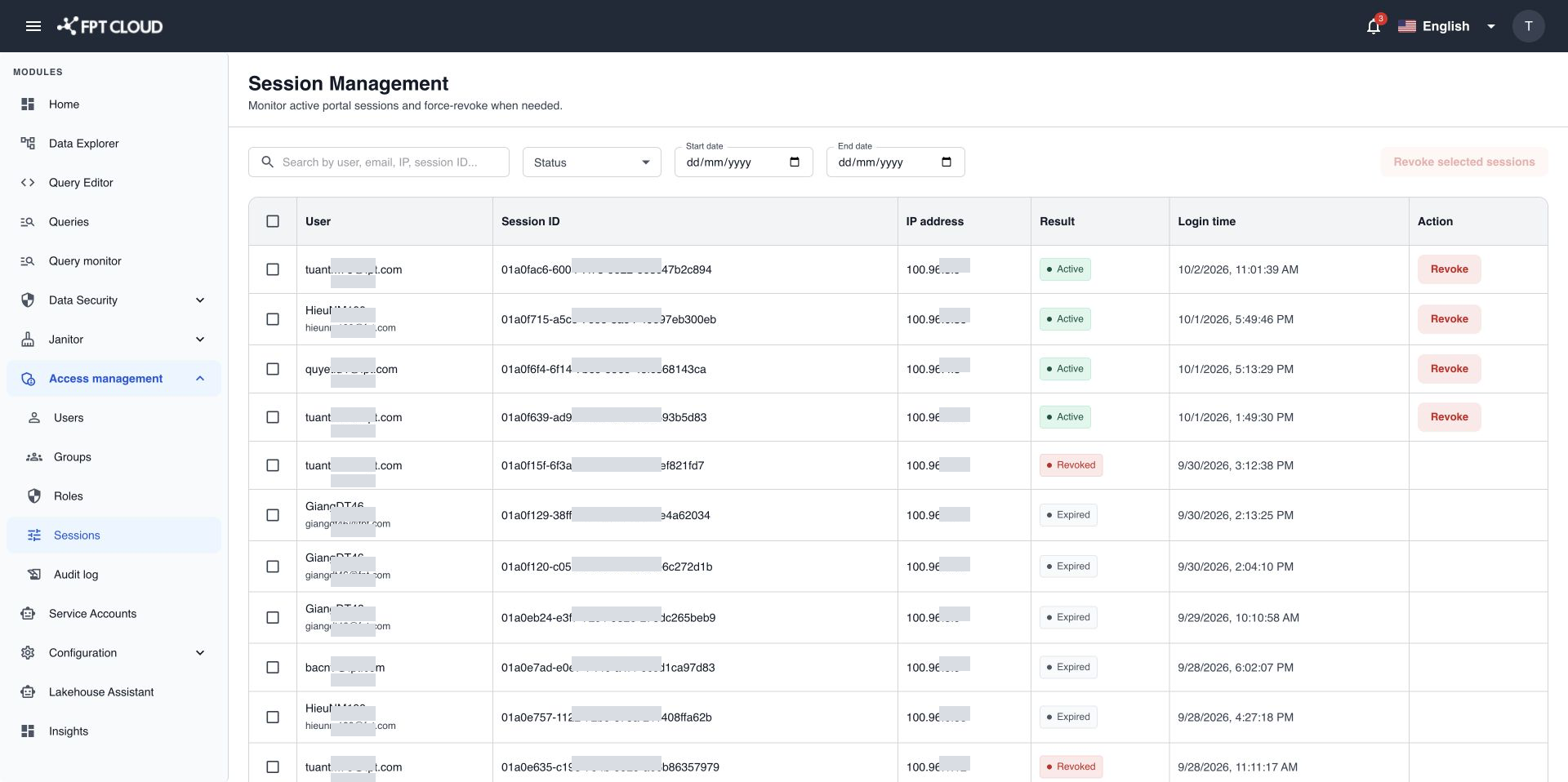
Each row shows the user's email, the session ID, the IP address, and the sign-in time. Hover over a session ID to see the full ID.
Revoke one session
- Find the session. Only active sessions have a Revoke button.
- Select Revoke in its row.
- In Revoke sessions, select Revoke.
Revoke several sessions
- Select the checkbox of each session to revoke.
- Select Revoke selected sessions.
- Check the number of sessions in the dialog, then select Revoke.
The user is signed out of those sessions at once and must sign in again. The revoked sessions disappear from the list.
note
Revoking a session does not stop the user from signing in again. To block a user, deactivate the account. See Manage users.