Manage users
Add the people who work with your Lakehouse, give them roles, and remove access when they leave. People who sign in for the first time get an account automatically, so you mostly create users ahead of time or edit existing ones.
Prerequisites
- Your role includes the user permissions:
users:readto see users,users:create,users:update, andusers:deleteto change them. Theportal_adminrole has all of them.
Find a user
- Select Access management → Users.
- Type a name or email in the search box.
- To show only some accounts, choose Active or Inactive in the status filter.
The list shows the name, email, roles, status, and last sign-in of each user, 10 users per page. If a user has more than two roles, the list shows +N. Hover over it to see all roles.
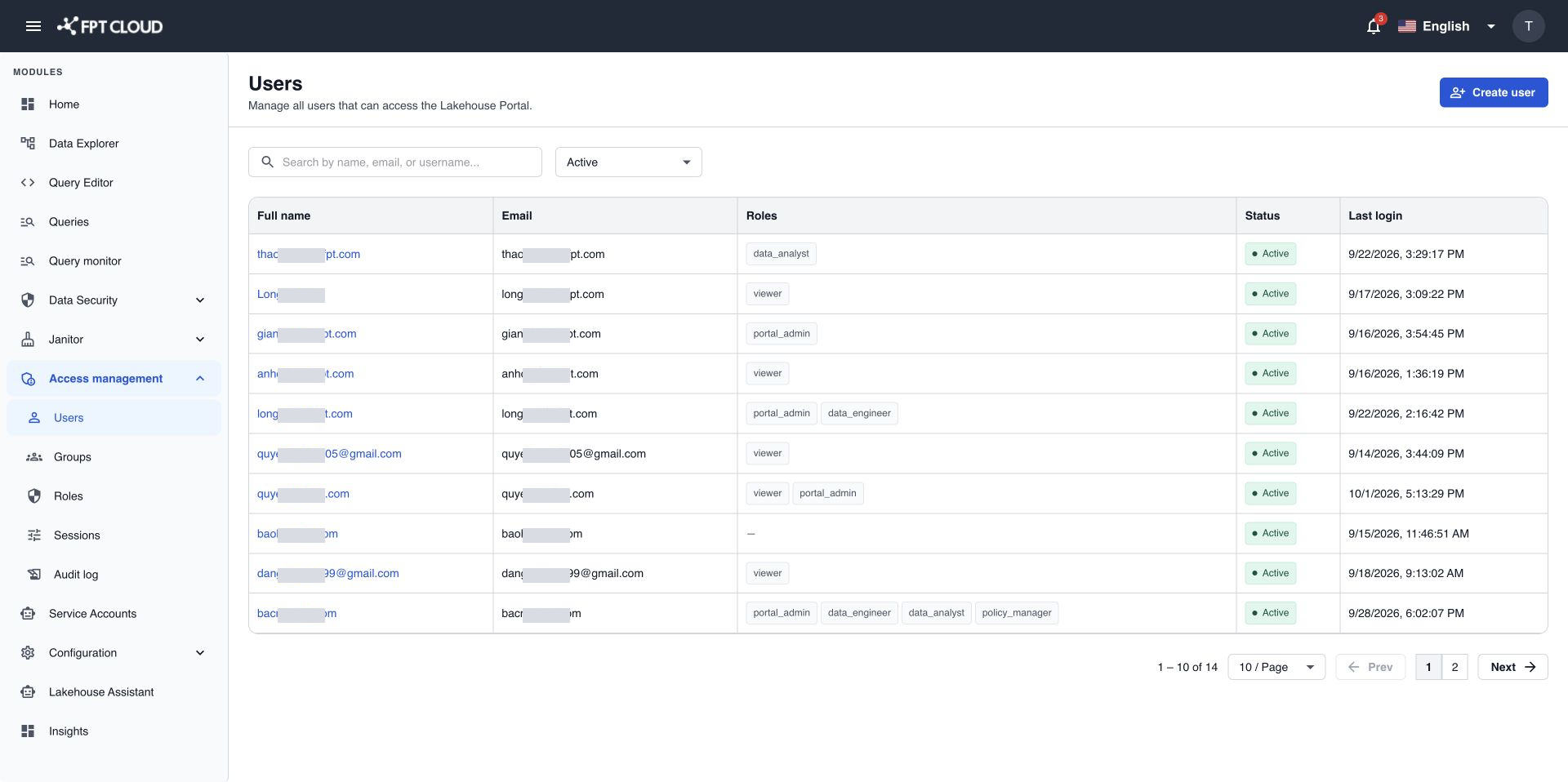
Create a user
- Select Create user.
- Enter the Email and Name of the person.
- Select one or more roles in Roles (optional).
- Select the groups the user belongs to in Group (optional).
- Keep User enabled selected so the user can sign in right away.
- Select Create user.
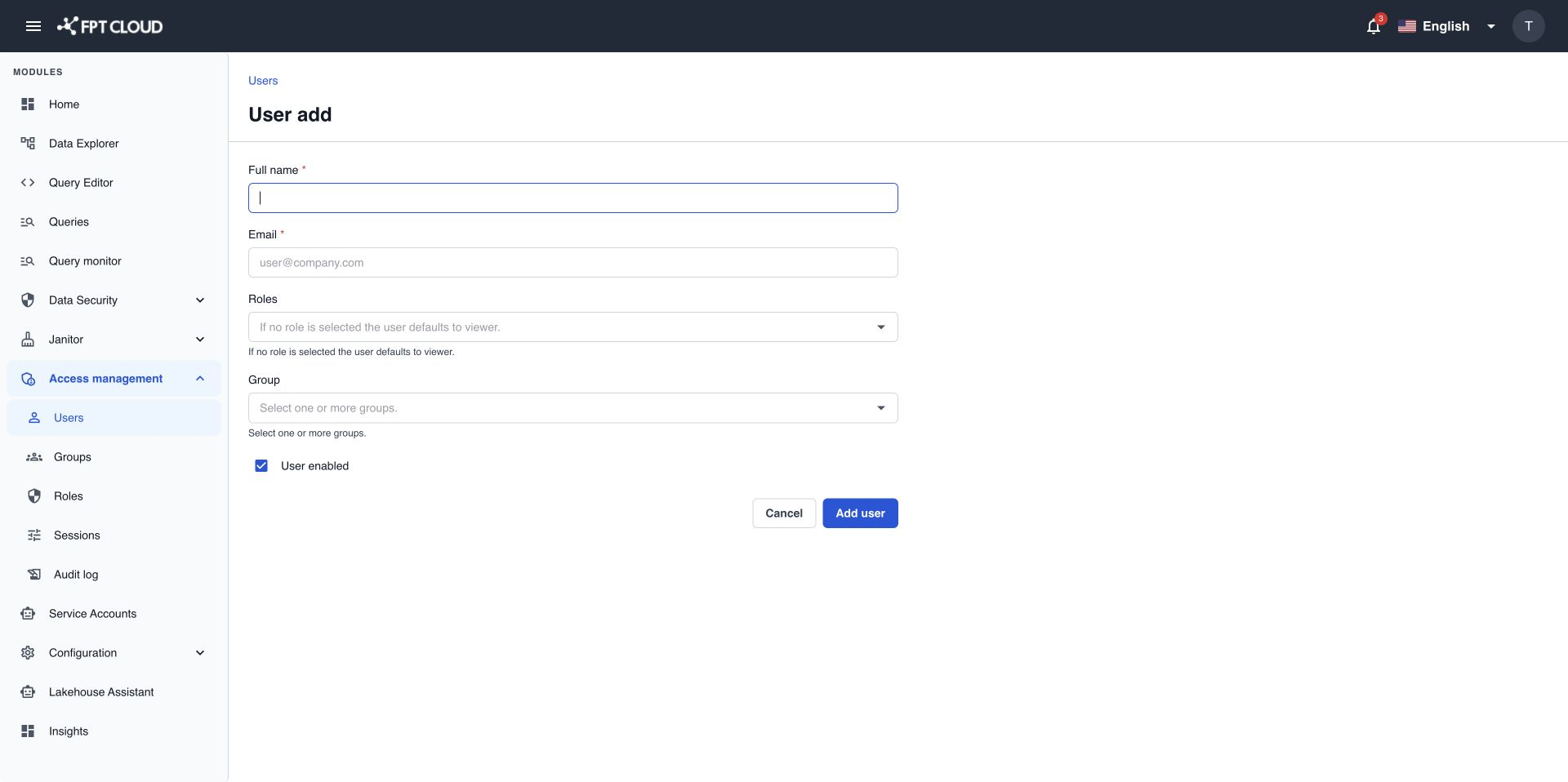
You see User created successfully. The person signs in with the FPT ID or Google account that uses this email.
| Field | Rules |
|---|---|
| Required. A valid email address, up to 255 characters. Cannot be changed later. | |
| Name | Required. 2 to 100 characters. |
If you select no role, the user gets the viewer role, which has no permissions. The user can sign in but cannot open any page until you assign a real role.
Edit a user
- In the Users list, select the user.
- Change Name, Roles, Group, or User enabled.
- Select Save.
Role changes apply right away. A user who is signed in now reloads the page to see them.
To change roles in detail, see Manage roles and assign them to users.
Deactivate or enable a user
Deactivate an account to block a person without deleting it, for example during a long leave.
- Open the user.
- Clear User enabled, then select Save.
- In the confirmation dialog, select Deactivate.
The user is signed out of all sessions at once. At the next sign-in, they see Your account has been disabled. Please contact your administrator.
To enable the account again, select User enabled and save.
Remove a user
- In the Users list, select the user to open the user details.
- Select Remove.
- In Remove user, type
delete. - Select Remove.
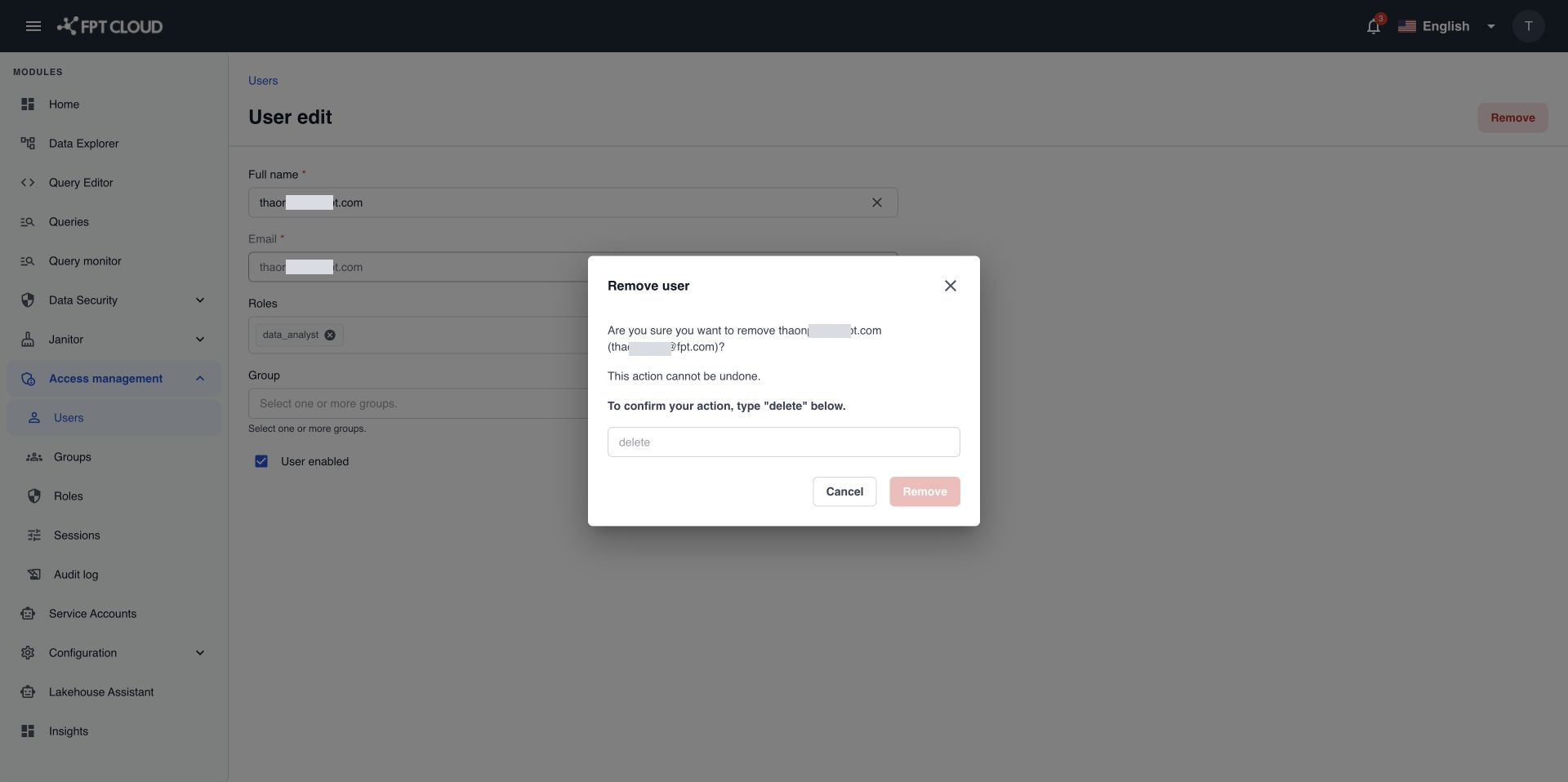
You see User removed successfully. You cannot undo this, and you cannot remove your own account.
Removing a user does not block the person. If they sign in again with the same FPT ID or Google account, the portal creates a new account with no role. To block someone, deactivate the account instead.
If an action fails
| Message | What it means | What to do |
|---|---|---|
A user with this email address already exists. | Another account uses this email. | Search for the email and edit that user. |
Administrators cannot delete their own account. | You tried to remove yourself. | Ask another Admin to do it. |
You cannot remove all roles from your own account. | You cleared every role on your own account. | Keep at least one role on your account. |
At least one administrator must retain user and role management permissions. | The change would leave no one who can manage users and roles. | First assign portal_admin (or a role with user and role management permissions) to another active user. |
Unable to apply permissions. Please try again later. | The change could not be applied. Nothing was saved. | Wait a moment, then try again. |
You do not have permission to perform this action. | Your role does not include this action. | Ask an Admin for the needed permission. |
Next steps
- Manage groups.
- Manage sessions to sign a user out right away.