Create and manage maintenance jobs
A maintenance job tells Janitor which table to maintain, when, and with which options. You create one job for a table, or one job for each table in a schema at once.
Prerequisites
- Your role includes
maintenance:manage. - You can see the catalog, schema, and table in Data Explorer.
Find your jobs
- Select Janitor → Maintenance Jobs in the sidebar.
- Search by catalog, schema, or table name, or filter with All catalogs and All status.
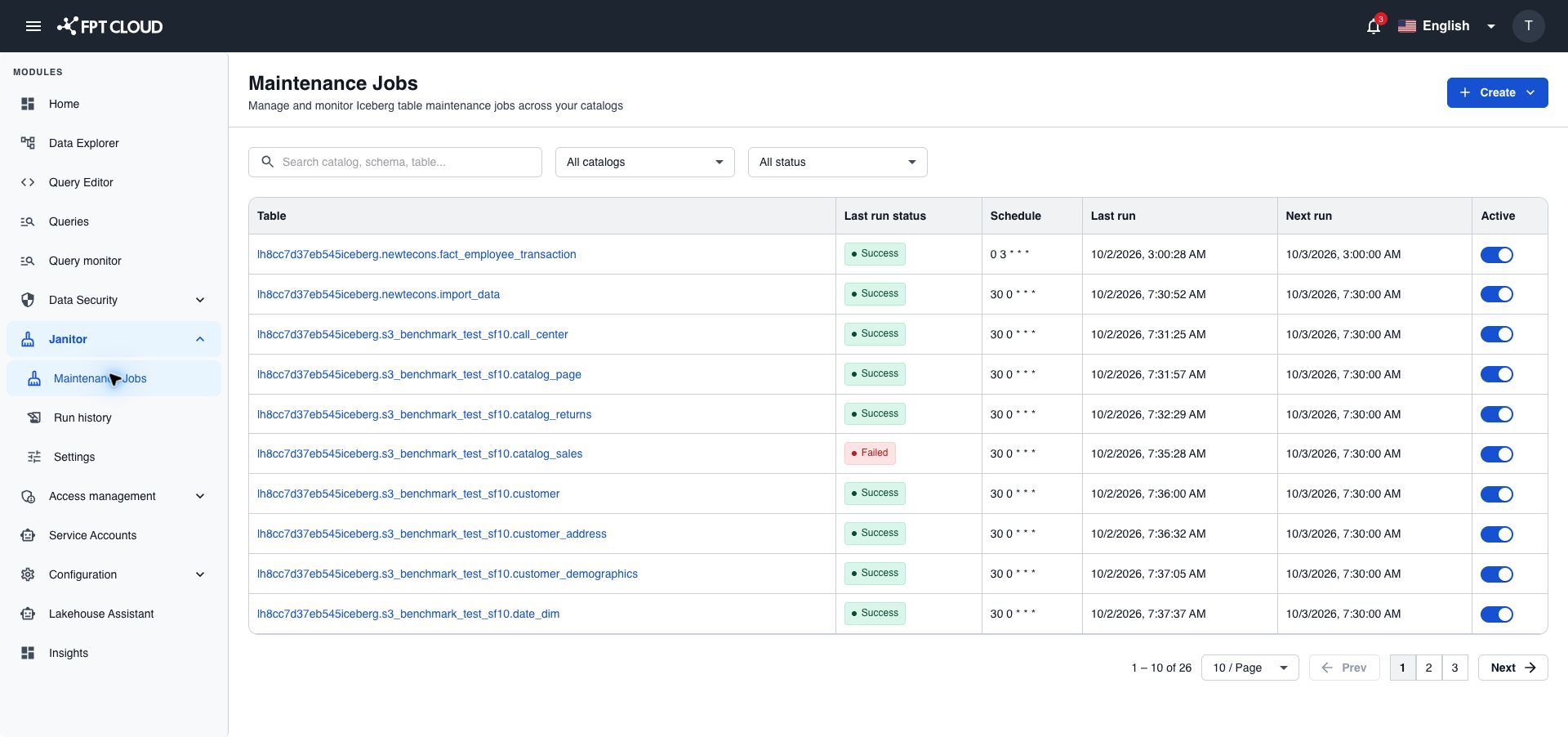
The list shows for each job:
| Column | Meaning |
|---|---|
| Table | The table. Select it to open the job. |
| Last run status | Success, Partial, or Failed. |
| Schedule | When the job runs. |
| Last run | How long ago the job last ran, for example 1h ago. |
| Next run | When the next run starts, for example 1d from now. |
| Active | Deactivates or reactivates the job. |
Create a job for one table
- Select Create → Create job on the Maintenance Jobs page.
- Select the Catalog, Schema, and Table.
- In Schedule, select Day, Week, or Month. For a week, select the weekday. For a month, select the day. Then select the time.
- In Maintenance option, select the options to run. The defaults from Settings are already selected.
- Select the retention in days for EXPIRE SNAPSHOTS and ORPHAN CLEANUP.
- Select Create.
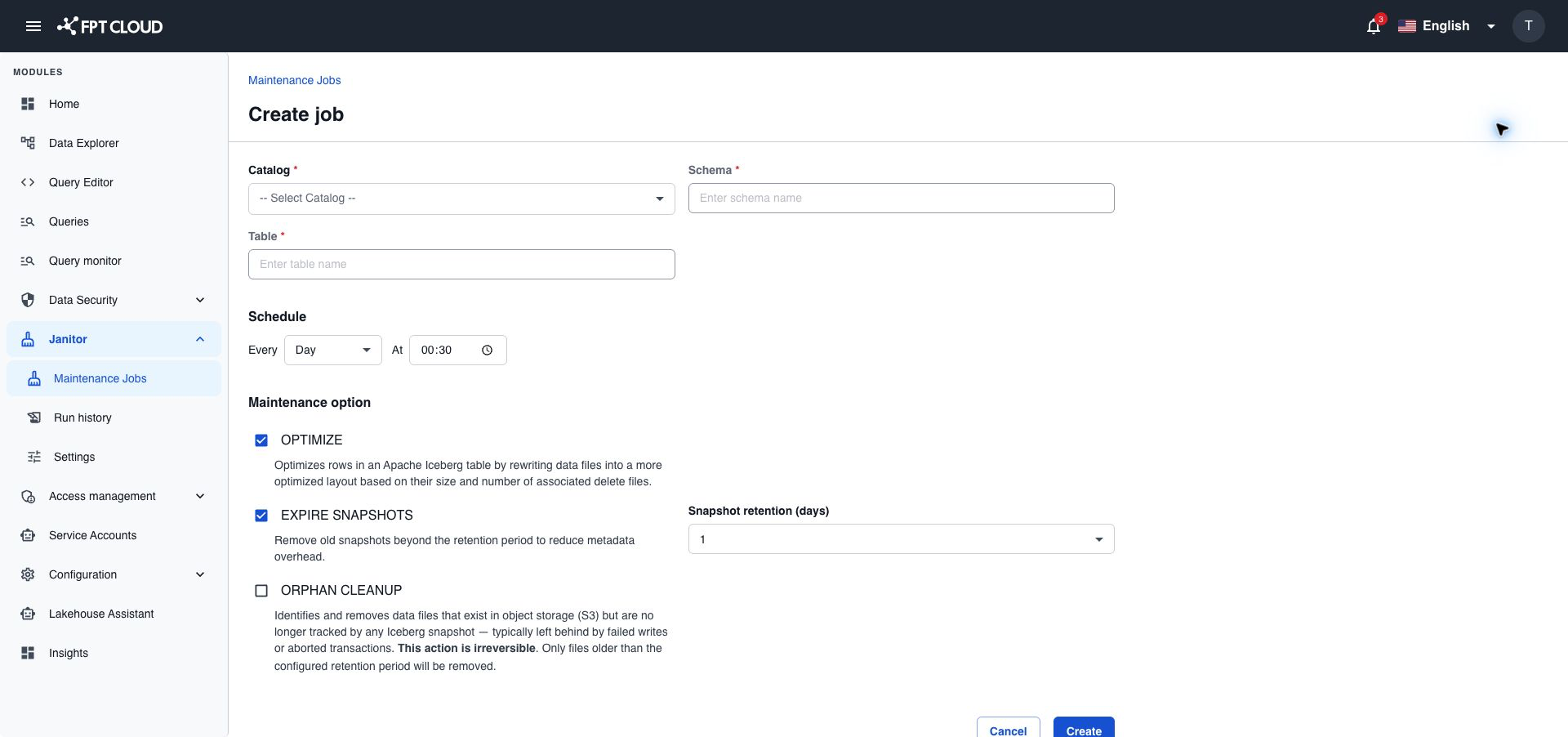
If a maintenance window is set, the schedule must fall inside it. See Maintenance window.
Create jobs for a whole schema
Bulk create jobs creates one job for each table in a schema, with the same schedule and options.
- Select Create → Bulk create jobs on the Maintenance Jobs page.
- Select the Catalog and Schema.
- Optional: in Exclude table patterns, enter a pattern for tables to skip, then press Enter. Add as many patterns as you need.
- Set the Schedule and the Maintenance option, the same as for one job.
- Select Create.
Patterns are regular expressions and ignore upper and lower case. A table is skipped if its name matches any pattern.
| Pattern | Skips |
|---|---|
^dim_.* | Every table whose name starts with dim_, for example dim_customer |
^tmp_.* | Every table whose name starts with tmp_, for example tmp_load |
^archive_\d{4}$ | archive_ followed by four digits, for example archive_2024 |
You can run Bulk create jobs again on the same schema, for example after new tables were added:
- A table that already has a job keeps its job. Its schedule and options do not change.
- A table that now matches a pattern keeps its old job. To stop it, deactivate or delete the job.
Change the schedule or options of a job
- Select the table in the list. The job opens on the Overview tab.
- Select the edit icon next to Schedule to change when it runs. Set the new schedule, then select Save.
- Select the edit icon in Maintenance options to change what it runs. Change the options or the retention, then select Save.
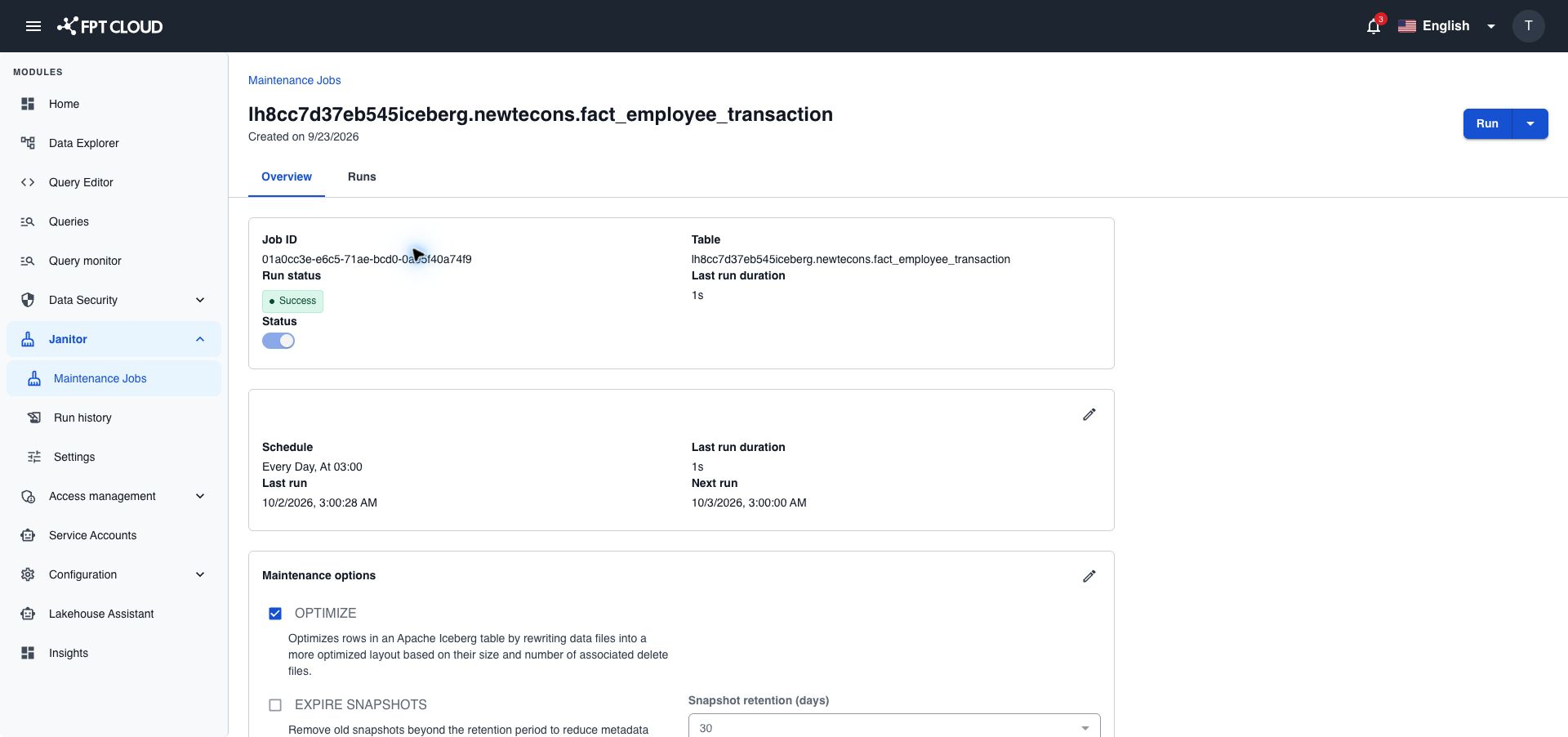
Your changes apply to this job only. The defaults on the Settings page stay the same.
Deactivate or reactivate a job
A deactivated job keeps its settings and history, but has no next run.
- To deactivate it, switch off Active in the list, or open the job, open the dropdown next to Run, then select Deactivate.
- To reactivate it, switch on Active in the list, or Status on the Overview tab. Janitor sets the next run from the schedule.
Delete a job
- Open the job.
- Open the dropdown next to Run, then select Delete job.
- Type
delete, then select Delete.
Deleting a job cannot be undone. It does not change the table or its data.
If something goes wrong
| Situation | What it means | What to do |
|---|---|---|
| The schedule is outside the maintenance window | The next run of the schedule falls outside the window set in Settings. | Pick a time inside the window, or ask your administrator to change the window. |
| A table is missing from Table | The table is not in the Lakehouse table format, or you cannot see it. | Check the table in Data Explorer and your data access in Data Security. |
| Retention is less than 7 days | Retention must be at least 7 days. | Pick 7 days or more. |
| A table has no job after Bulk create jobs | Its name matches one of your patterns. | Check the patterns, or create the job with Create job. |