View run history and stop a run
Every scheduled or manual run is saved in the run history, with the result of each step. Use it to check that maintenance works, and to find out why a run failed.
Prerequisites
- To view runs: your role includes
maintenance:read. - To stop a run: your role includes
maintenance:manage.
Find a run
You can find runs in two places:
- All runs: select Janitor → Run history in the sidebar. Search by catalog, schema, or table name, or filter with All statuses and All triggers.
- Runs of one job: open the job on the Maintenance Jobs page, then select the Runs tab.
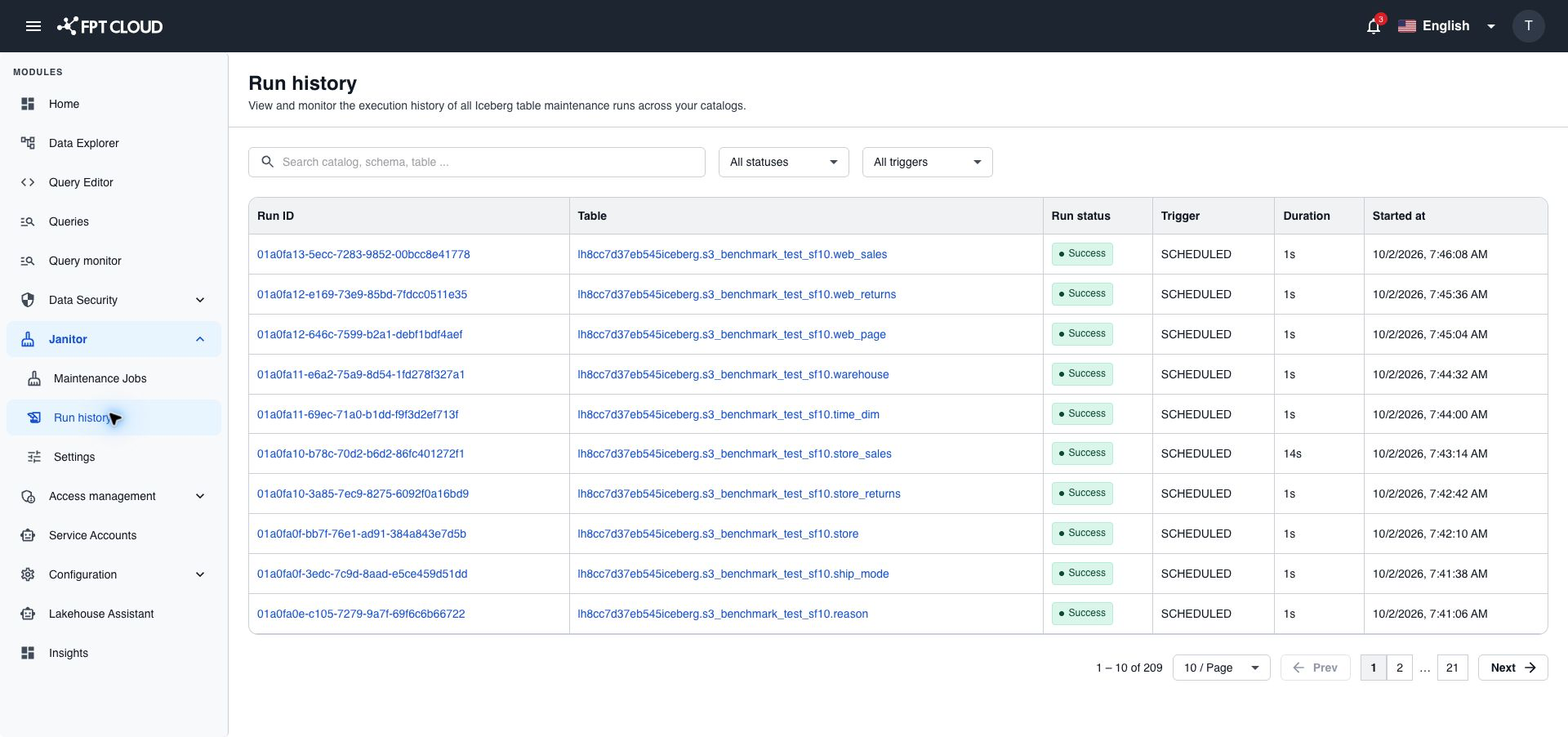
| Column | Meaning |
|---|---|
| Run ID | The run. Select it to open the details. |
| Table | The table of the job. Shown in Run history only. |
| Run status | The result of the run. |
| Trigger | SCHEDULED for a run started by the schedule, MANUAL for a run started with Run. |
| Duration | How long the run took. |
| Started at | When the run started. |
Read the status of a run
| Status | Meaning |
|---|---|
Queued | The run is waiting to start. |
Running | The run is working now. |
Success | All steps succeeded. |
Partial | Some steps succeeded and some failed. The steps that succeeded keep their result. |
Failed | The run failed before any maintenance step succeeded. |
Cancelled | Someone stopped the run, reset the job, or paused all maintenance in emergency mode. |
Check the steps of a run
- Select the Run ID. The run details open.
- Check the step table. Each row shows the Stage, the Step, its Status, Duration, and Start time.
- Select a step name to open its details.
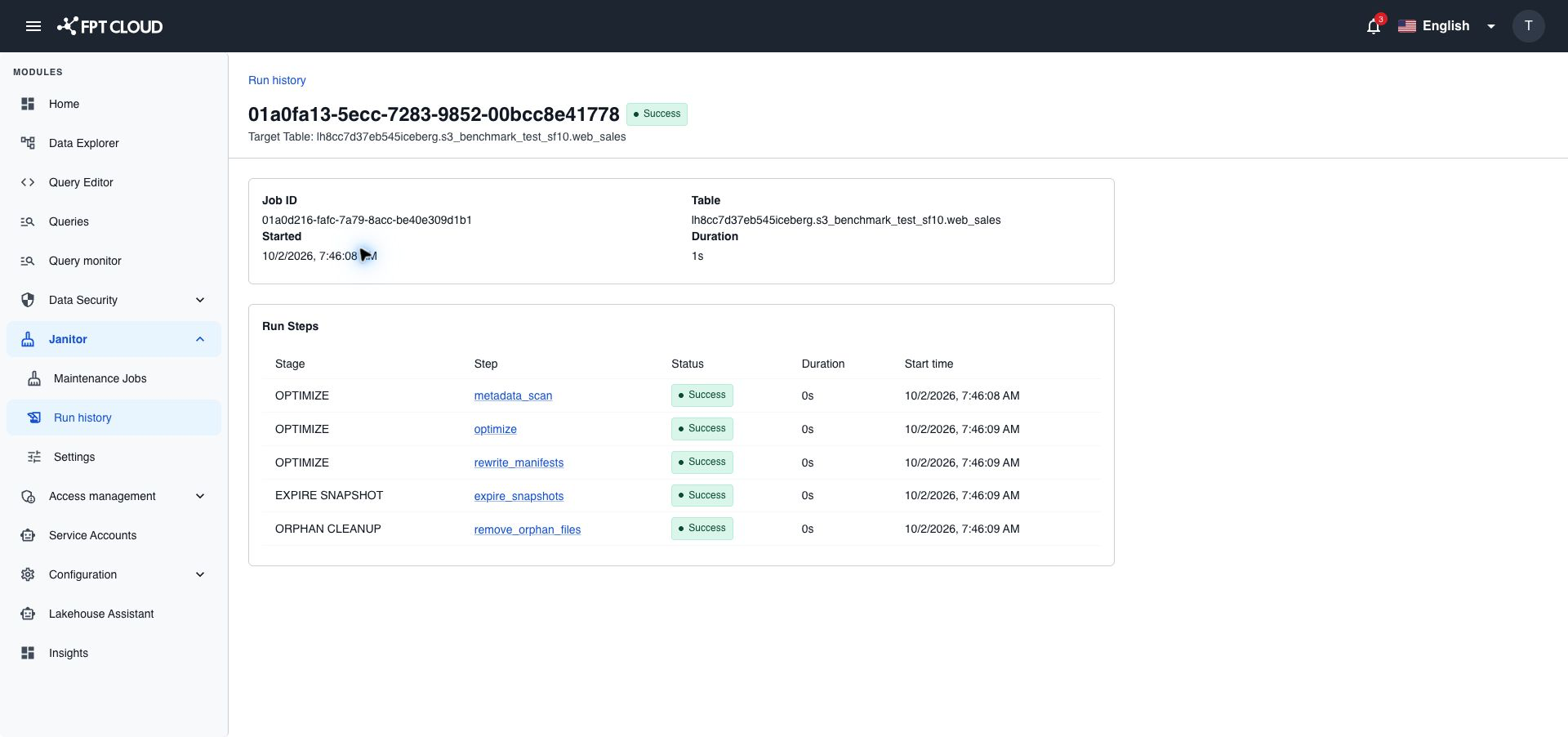
A step is Success, Failed, Cancelled, or Skipped. A Skipped step did not start, for example because the run was stopped before it.
The step details show:
| Field | Meaning |
|---|---|
| Stage | The maintenance option the step belongs to, for example OPTIMIZE. |
| Status | The result of the step. |
| Started, Ended, Duration | When the step ran and how long it took. |
| Query ID | The ID of the query that ran the step, if there was one. |
| SQL | The statement Janitor ran. Select the copy button to copy it. |
| Logs | Messages from the step, including the error if it failed. Select the copy button to copy them. |
To find out why a run failed, open the first step with Failed and read Logs.
Stop a run
You can stop a run that is Running or Queued.
- Open the run details.
- Select Stop run. The button shows only while the run is not finished.
After you stop a run:
- The step that was working becomes
Cancelled. The steps after it becomeSkipped. - The run becomes
Cancelled, with the messageCancelled by operator. - Steps that already succeeded keep their result.
- The job can run again.
If something goes wrong
| Situation | What it means | What to do |
|---|---|---|
Run is not cancellable | The run already finished. | No action needed. |
| Stop run does not show | The run is Success, Partial, Failed, or Cancelled. | No action needed. |
A run shows Running for a long time and nothing changes | The job may be stuck. | Use Reset state on the job. See Unblock a stuck job with Reset state. |