Use auto-complete, formatting, and search
Auto-complete fills in keywords and object names for you, so you type less and avoid wrong table names. Formatting and search help you read and change long SQL.
Prerequisites
- You have a query tab open in Query Editor. See Write and run a SQL query.
Complete keywords
- Type the first letters of a keyword, for example
SEL. - Press
TaborEnterto acceptSELECT.
Use the arrow keys to move through the list. Press Esc to close it.
Complete table names
- Type
FROMorJOINfollowed by a space. - Select a table from the list.
The list shows tables in the catalog.schema.table form. It only shows tables you have access to.
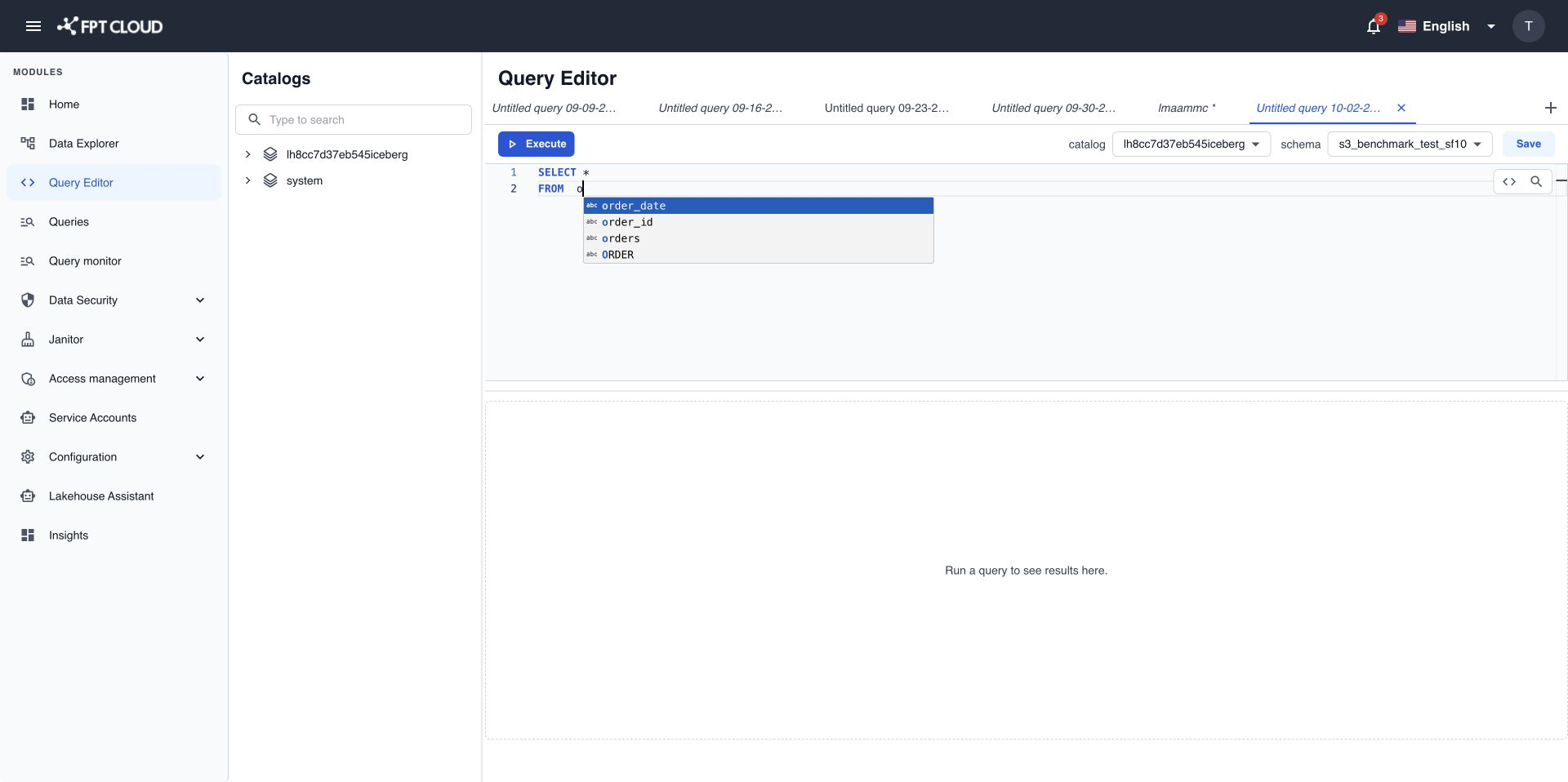
Complete column names
- Type a table name or table alias followed by a dot, for example
orders.. - Select a column from the list.
The list shows each column name and, when available, its data type. If Query Editor cannot match the alias to a table, it shows no suggestions, and you can keep typing.
If you see Autocomplete is unavailable., you can still type SQL and run it. Suggestions come back when the service recovers.
Format SQL
- Select the SQL you want to format.
- Right-click the selection.
- Select Format SQL.
You can also press Ctrl+Shift+F instead of steps 2 and 3. Query Editor rewrites the SQL with consistent line breaks and indentation. If the SQL cannot be read, the text stays the same and you see Unable to format SQL.
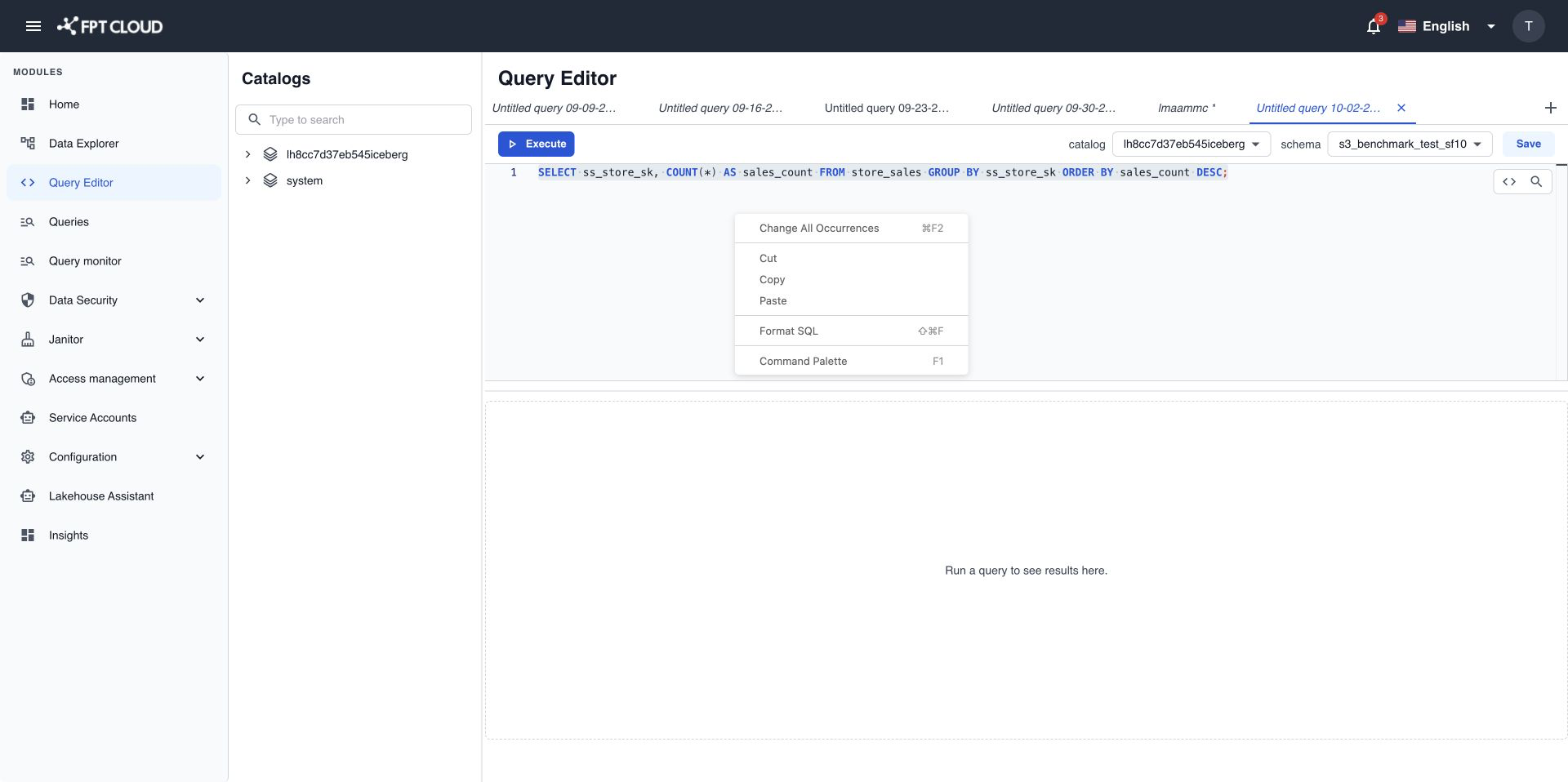
Find and replace text
- Press
Ctrl+Fto open the search box in the editor. - Type the text to find. Every match is highlighted.
- To replace, type the new text in the replace field and confirm.
Replacing text only changes the editor. It does not run the query.
Keyboard shortcuts
| Shortcut | Action |
|---|---|
Ctrl+Enter | Run the statement at the cursor or the selection. |
Ctrl+Shift+F | Format SQL. |
Ctrl+F | Find and replace. |
Tab or Enter | Accept a suggestion. |
Esc | Close the suggestion list. |