Work with query tabs
Query tabs let you work on several queries at once without losing your SQL. Save a tab as a saved query when you want to keep it beyond this browser.
Prerequisites
- You have Query Editor open. See Query Editor overview.
- To save queries, your role must allow it. Your Admin assigns roles in Access management.
Open a new tab
- Select + at the end of the tab bar.
- Select Query.
A new tab named Untitled query <date and time> opens, for example Untitled query 10-01-2026 09:15:02.
You can keep up to 10 tabs open. When you reach 10, close a tab before you open a new one. Otherwise you see Maximum 10 tabs allowed.
Open a saved query
- Select + at the end of the tab bar.
- Select From saved queries.
- In Saved queries, type part of the name in Search query to filter the list.
- Select the query, then select Open.
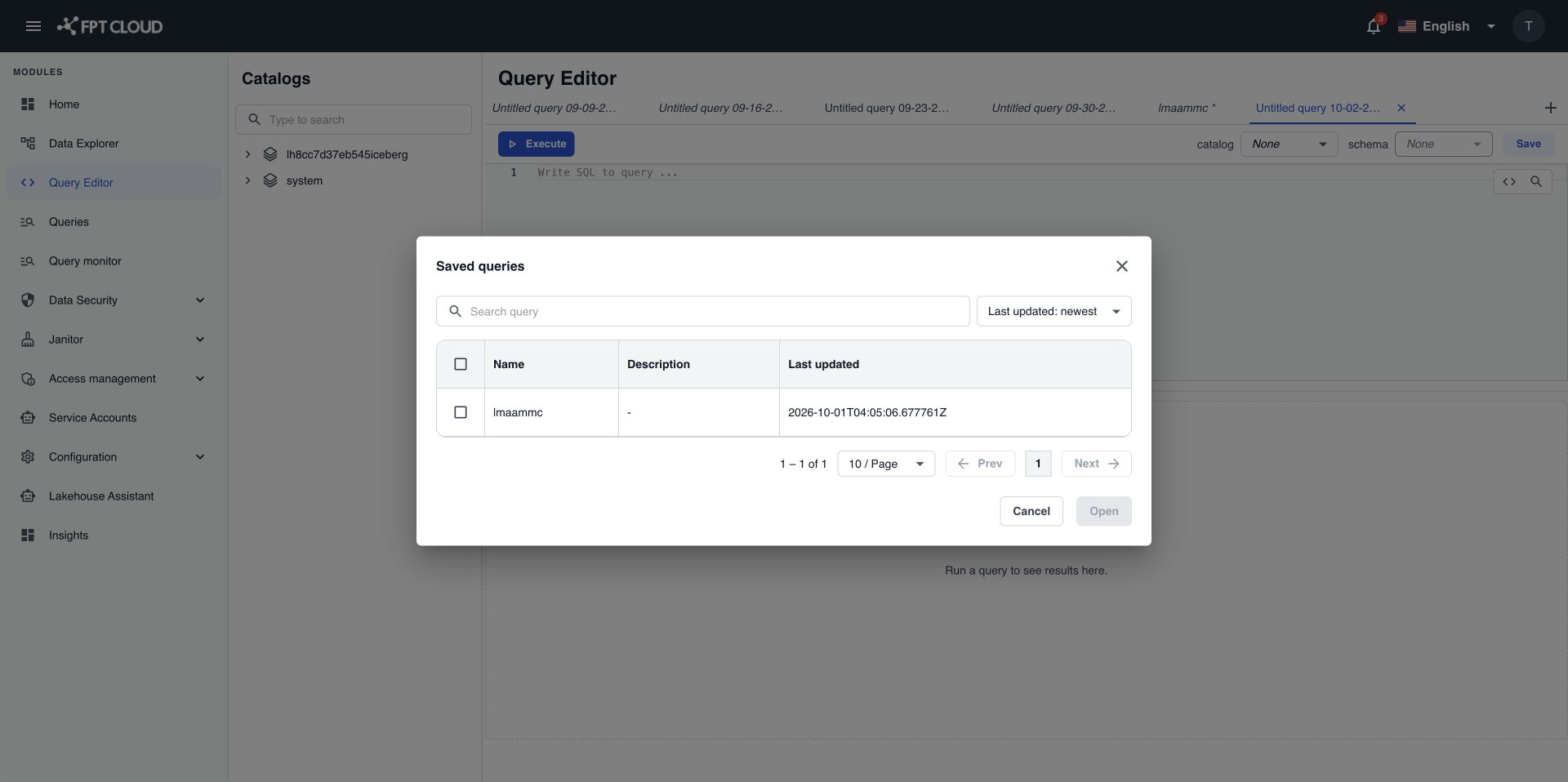
The query opens in a tab that carries its name. If the current tab is empty, the query opens there. The list only shows queries you saved yourself.
Save a tab
- Open the tab you want to save.
- Select Save on the toolbar.
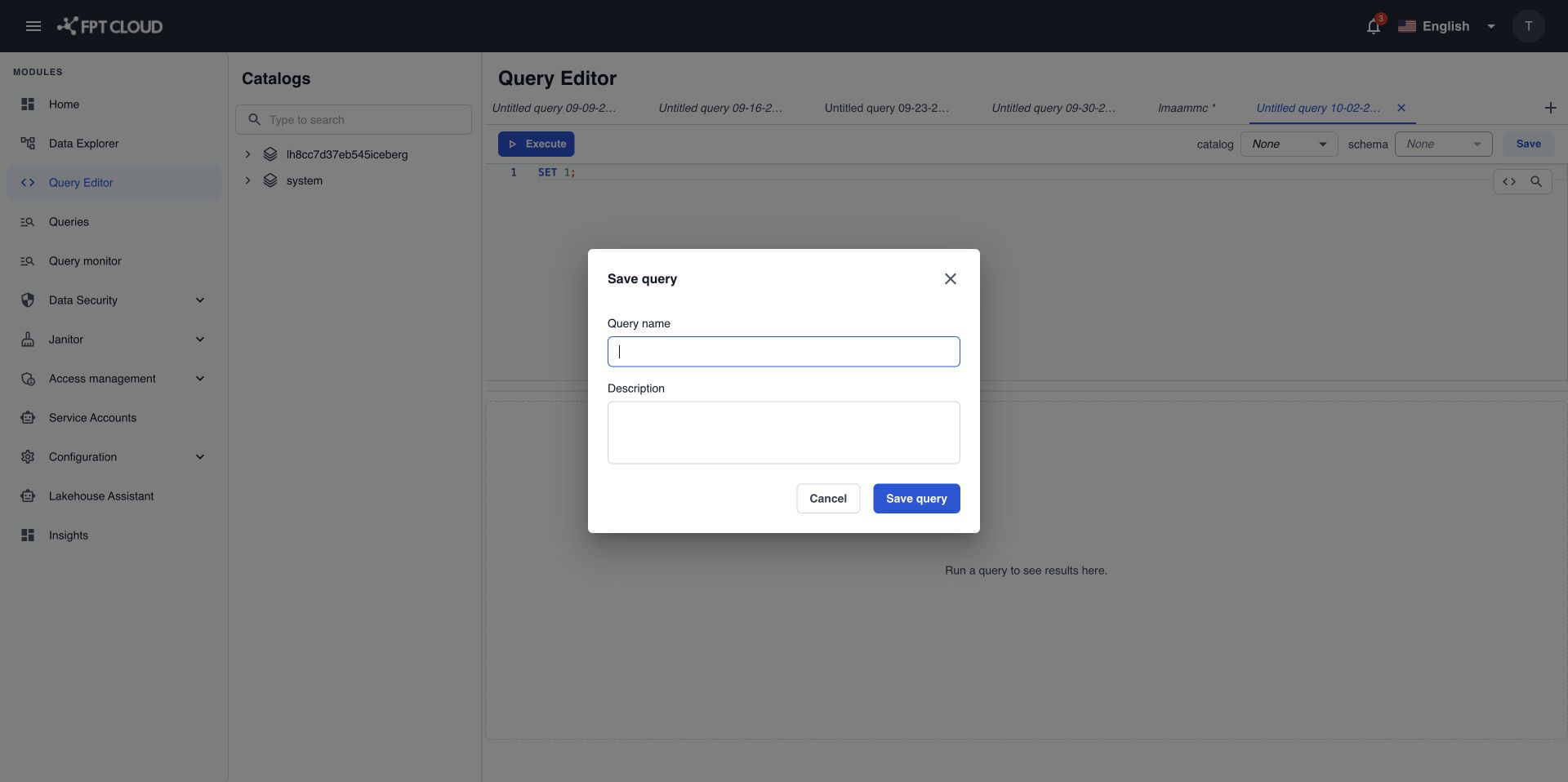
- In Save query, type a Query name. It must be unique among your saved queries.
- Type a Description, up to 1,000 characters (optional).
- Select Save query.
The tab takes the name of the saved query. The catalog and schema selected on the toolbar are saved with it.
Update a saved query
- Open the saved query in a tab and change the SQL.
- Select Save.
- In Save query, select Overwrite existing, then select Save query.
To rename the query, type a new Query name in step 3 before you select Overwrite existing. To keep the original and save your changes as a new query, select Save as new instead.
If someone deleted the saved query while you had it open, you see Query not found or already deleted. Your SQL stays in the tab. Select Save again to store it as a new query.
Close a tab
- Select × on the tab.
If the tab has changes you have not saved, Query Editor shows Discard unsaved changes?. Confirm to close the tab and lose the changes, or cancel to keep the tab open and select Save first.
Where your tabs are kept
Query Editor keeps your open tabs and their SQL in this browser. When you reload the page, the tabs come back. Another browser or device does not see them.
Tabs stay in the browser until you close them. On a shared computer, close tabs that hold sensitive SQL when you finish. Use Save for any query you want to keep.