Write and run a SQL query
Query Editor runs exactly the SQL you point at, so you can keep several queries in one tab and run them one by one. This page shows how to choose what runs and how to read the result.
Prerequisites
- Your role lets you run queries. If Execute is disabled, ask your Admin to check your role in Access management.
- You have access to the tables you query, set in Data Security.
Choose the default catalog and schema
- Select a catalog in the catalog list on the toolbar.
- Select a schema in the schema list.
Your queries can now use only the table name, for example orders. Use full names, for example analytics.sales.orders, when a query reads from another catalog or schema.
Run the statement at the cursor
- Click anywhere inside the statement you want to run.
- Select Execute, or press
Ctrl+Enter.
Only the statement that holds the cursor runs. Other statements in the tab stay untouched.
Run a selection
- Select the SQL you want to run with your mouse or keyboard.
- Select Execute, or press
Ctrl+Enter.
Query Editor runs only the selected text. If the selection holds several statements, each one gets its own tab: Result 1, Result 2, and so on. Close a result tab with its × button.
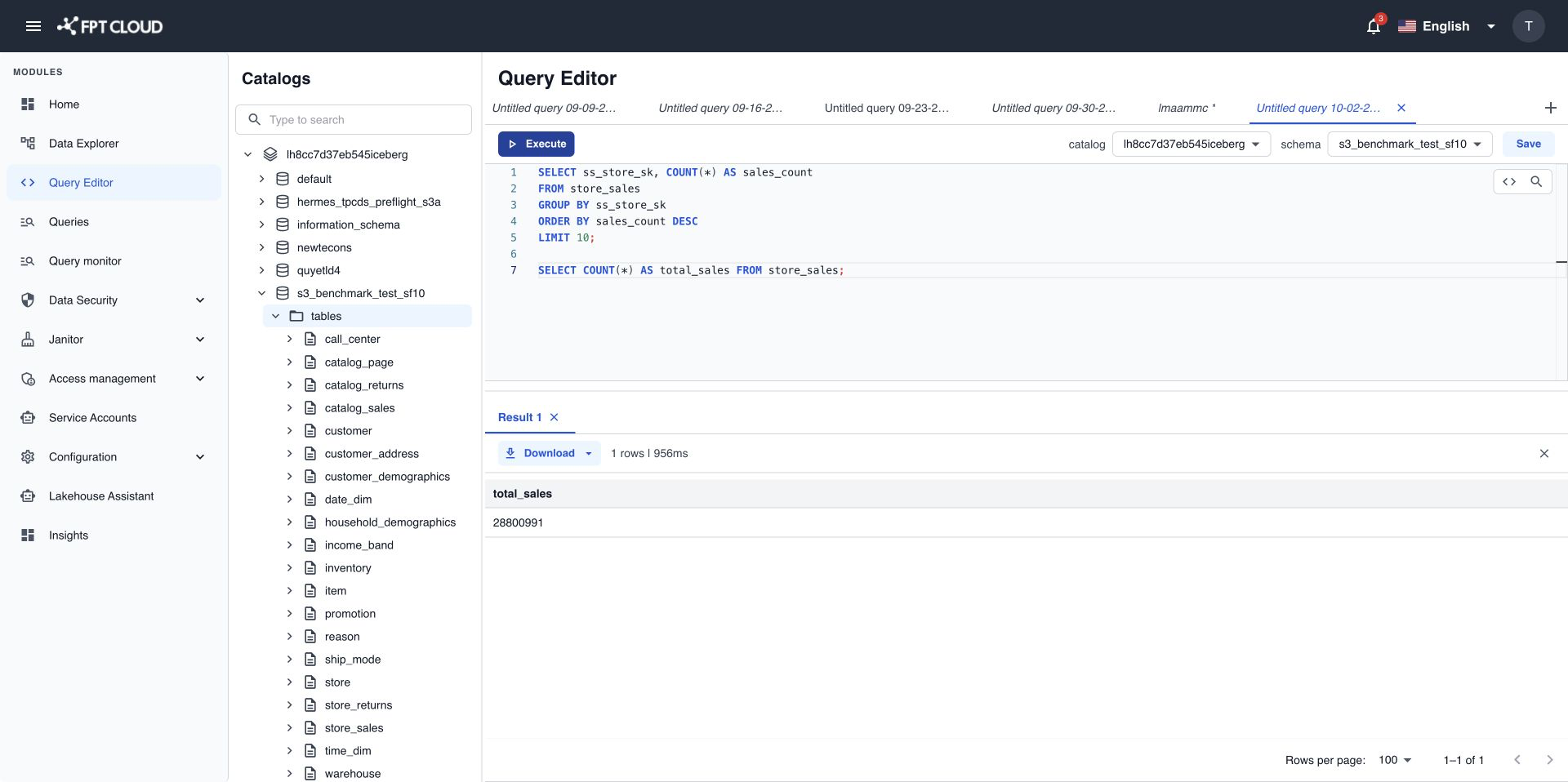
Read the result
Each result tab shows the row count and run time, for example 100 rows | 2.35s.
- Scroll down to see more rows. The column headers stay at the top.
- Scroll right when the result has many columns.
- When a query returns more than 10,000 rows, the grid shows the first 10,000 and the banner
Showing first 10,000 rows. Download to get full results.See Download query results.
Statements that change data or tables, such as CREATE TABLE or INSERT, return no rows. The result panel shows a success message instead of an empty grid.
Fix an error
When a query fails, a red icon appears on the line number of the failing line, and an error banner appears above the result panel.
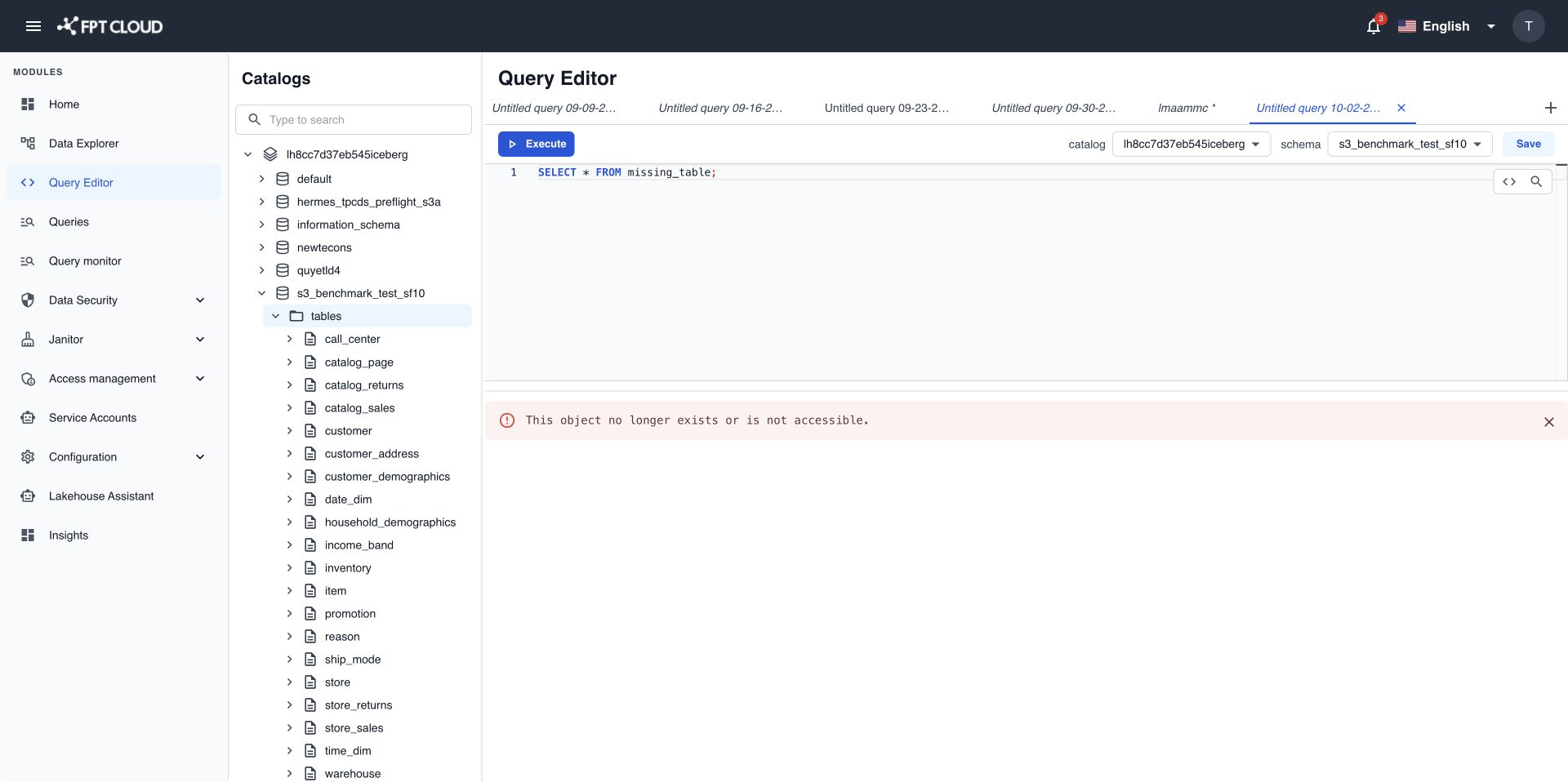
- Read the message in the banner, for example
Table 'analytics.sales.order' does not exist. - Fix the SQL on the marked line.
- Run the statement again.
Earlier result tabs stay open, so you can still compare with the last good result. For common messages, see Query Editor limits and error messages.
If you select Execute on an empty tab, or on SQL that holds only comments, nothing runs and you see Enter a SQL query to run.