Delete a saved query
Delete queries you no longer use to keep your list short and easy to search. Deleting cannot be undone.
Prerequisites
- Your role lets you save queries. Your Admin assigns roles in Access management.
- The query is yours. You can only see and delete queries you saved yourself.
Delete a query
- Select Queries in the sidebar.
- Find the query by name.
- Select ⋮ at the end of the row.
- Select Delete.
- In Delete saved query, check the query name, then select Delete.
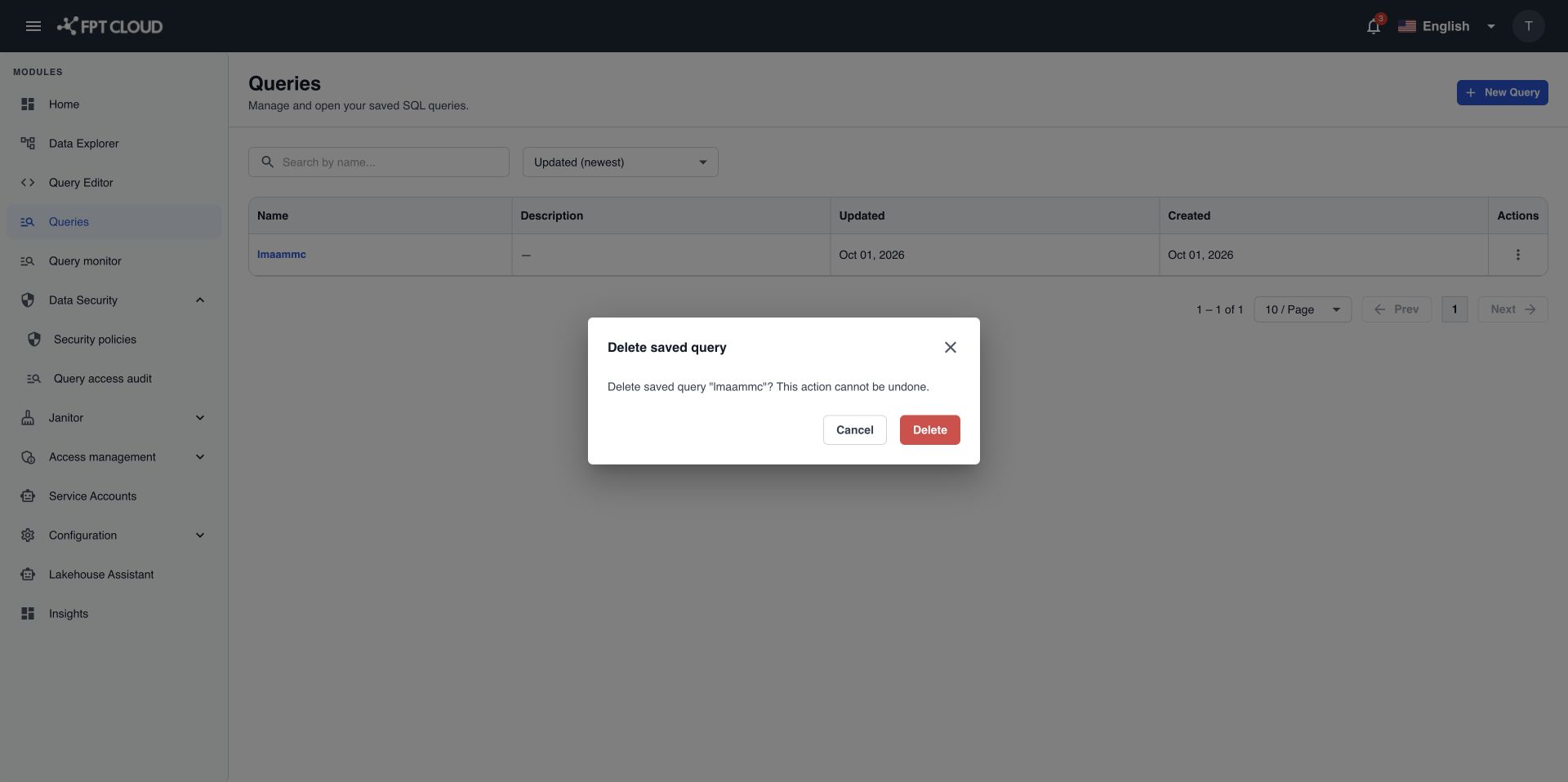
The query disappears from the list and you see Query deleted. You can reuse its name for a new query right away.
To keep the query, select Cancel or ×, press Esc, or click outside the dialog.
warning
You cannot restore a deleted query. If you might need the SQL later, open the query in Query Editor and copy the SQL first.
What happens to an open tab
If the query is open in a Query Editor tab, the tab stays open with its SQL. The next time you select Save in that tab, you see Query not found or already deleted. Your SQL stays in the tab. Select Save again to store it as a new query.
If the delete fails
| Message | What it means | What to do |
|---|---|---|
Query not found or already deleted. | The query was already deleted, for example in another browser. | Nothing. The list refreshes. |
Unable to delete the query. Please try again. | The delete did not go through. | Wait a moment, then delete the query again. |