Find saved queries
The Queries page lists every query you have saved, so you can find one without opening Query Editor first. From this page you open, create, and delete saved queries.
Prerequisites
- Your role lets you save queries. Your Admin assigns roles in Access management. Without it, the Queries menu is hidden and the page shows
You don't have permission to access Saved Queries.
Open the Queries page
- Select Queries in the sidebar.
The list shows your saved queries, most recently updated first, 10 per page.
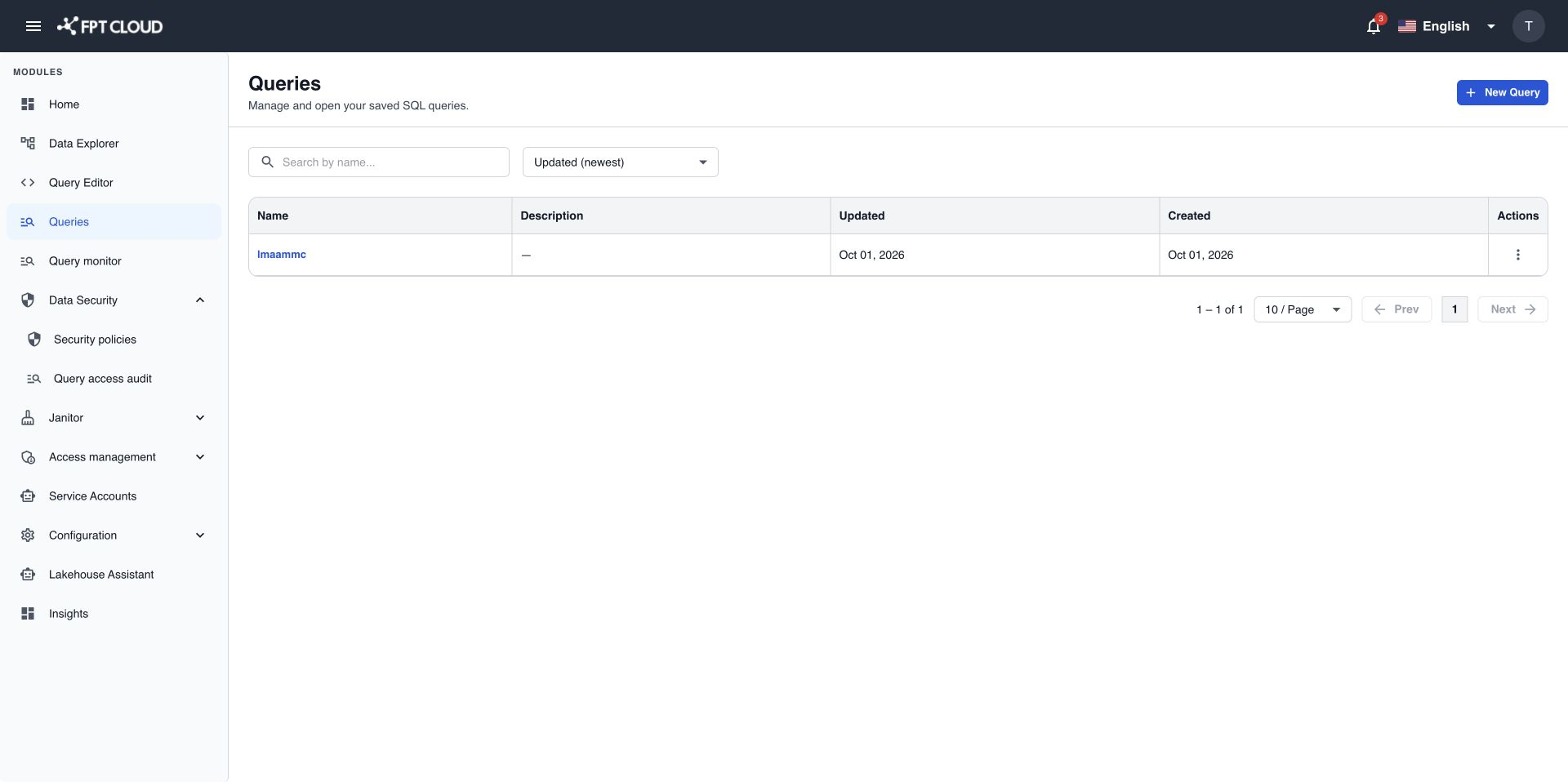
| Column | What it shows |
|---|---|
| Name | The query name. Select it to open the query in Query Editor. |
| Description | The description typed when the query was saved, or — if there is none. |
| Updated | When the query was last saved. |
| Created | When the query was first saved. |
Times use your browser's time zone. Changes in the last 24 hours show as relative time, for example 2 hours ago. Hover over a time to see the full date, time, and UTC offset.
The list does not show the SQL. Open the query to see it. Only queries you saved yourself appear, and other users cannot see yours.
If you have no saved queries yet, the page shows No saved queries yet. Select + New Query to write your first one.
Search by name
- Type part of the query name in Search by name....
The list filters as you type and goes back to page 1. Search ignores upper and lower case. It matches the name only, not the SQL or the description.
To show all queries again, select × in the search box. If nothing matches, you see No saved queries match your search. Select Clear search to reset.
Sort the list
- Select the sort list next to the search box. It shows Updated (newest) by default.
- Select Updated (newest), Updated (oldest), Name (A–Z), Name (Z–A), Created (newest), or Created (oldest).
The list goes back to page 1.
Move between pages
Below the list, a line such as Showing 1–10 of 47 queries tells you where you are.
- Select Next → or ← Prev to move one page.