Rotate a service account credential
Rotating a credential replaces the password of a service account with a new one and keeps its username, status, and data access. Do it when the password may have leaked, when you lost it, or on your team's regular schedule.
Prerequisites
- Your role includes
service-accounts:manage. Theportal_adminrole has it. - The service account is Active. To rotate a disabled account, enable it first.
Before you rotate
The old password stops working within about 1 minute. There is no period when both passwords work. Know which applications use the account, so you can update them right after the rotation.
Rotate the credential
- Select Service Accounts.
- Find the account. Type part of the username in the search box if the list is long.
- In the row of the account, open the ⋮ menu and select Rotate Secret.
- In Rotate Credential, select Confirm.
- In the Credential Generated window, select Copy and store the new password.
- Select I have copied the password, then select Close.
- Update every application that uses the account with the new password.
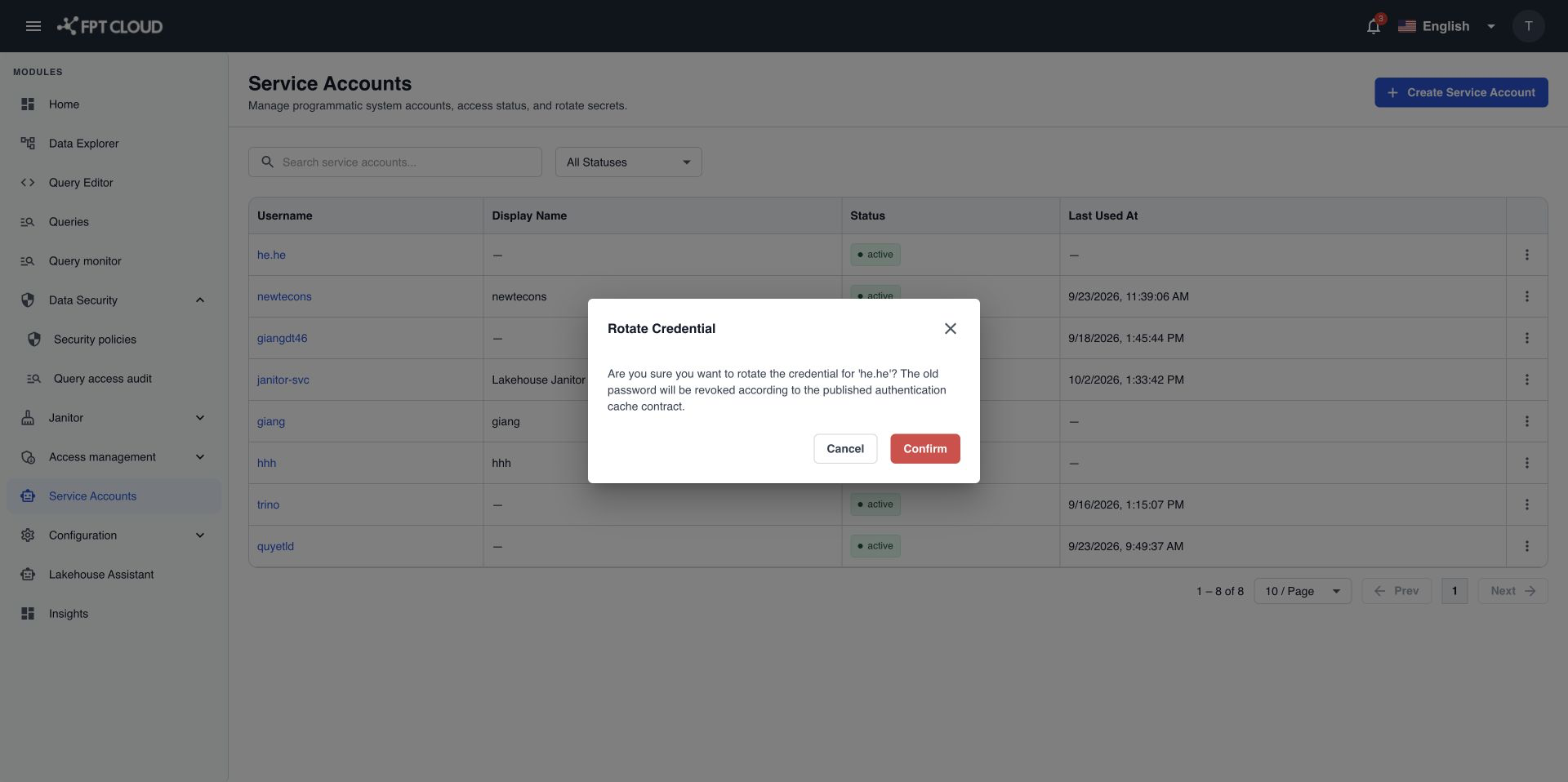
You see Credential rotated successfully.
note
For a system-managed service account, the portal does not show the new password. You only see Credential rotated successfully. The system updates the services that use it.
If an action fails
| Message | What it means | What to do |
|---|---|---|
Failed to rotate credential. Your current credential remains valid. Please try again. | The password was not changed. Applications keep working with the old one. | Select Rotate Secret again. |