Ingest and test Query Engine metadata
In this tutorial, you connect Open Metadata to your Query Engine and bring in its metadata with an ingestion pipeline. At the end, you can browse the Query Engine tables in Open Metadata and check their data quality with tests that run on demand or on a schedule.
Before you begin
- An Open Metadata service whose Status is Healthy. See Create an Open Metadata service.
- The URL, Username, and Password that open Open Metadata, on the Essential Information tab of the service. See View Open Metadata details.
- A Query Engine service, and an account that can sign in to it. The host and port are in the Public query URL of the Query Engine, in the form
<host>:443. See View Query Engine details. - If your Query Engine uses Ranger, the basic resource policies of the Query Engine in Ranger. Without them, the connection test in Open Metadata fails. See Sync tags from Open Metadata to Ranger.
Add a Trino database service
In Open Metadata, your Query Engine is a database service of type Trino.
-
Go to the URL of your Open Metadata service and sign in with the Username and Password.
-
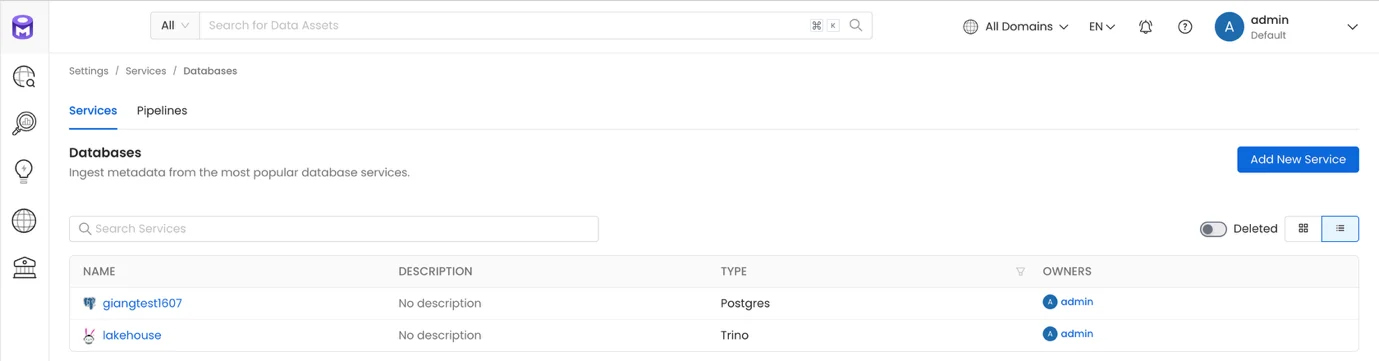
In the left menu, select Settings → Services → Databases.
-
Select Add New Service.
-
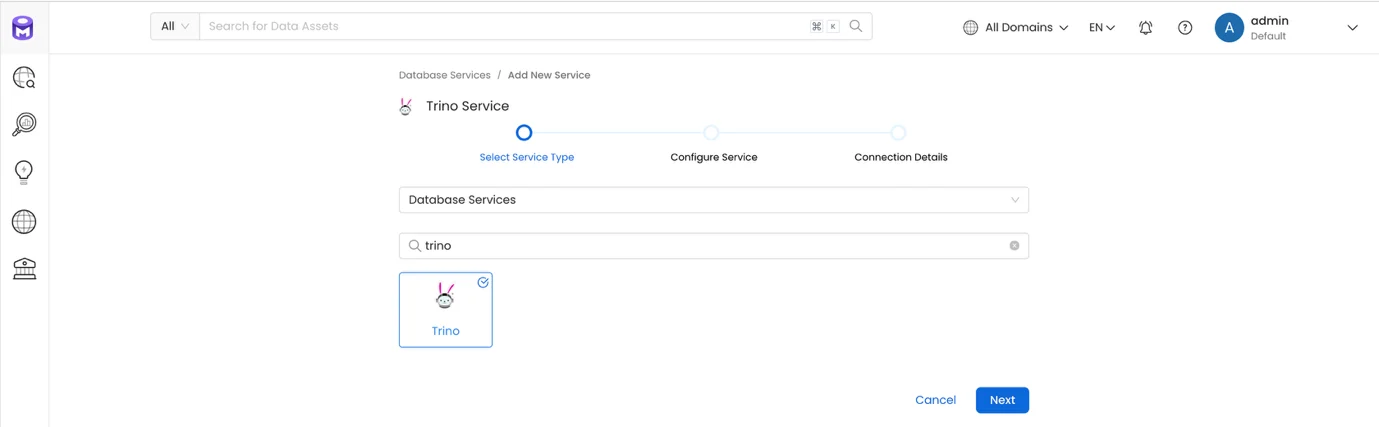
On the Select Service Type step, select Trino, then select Next.
-
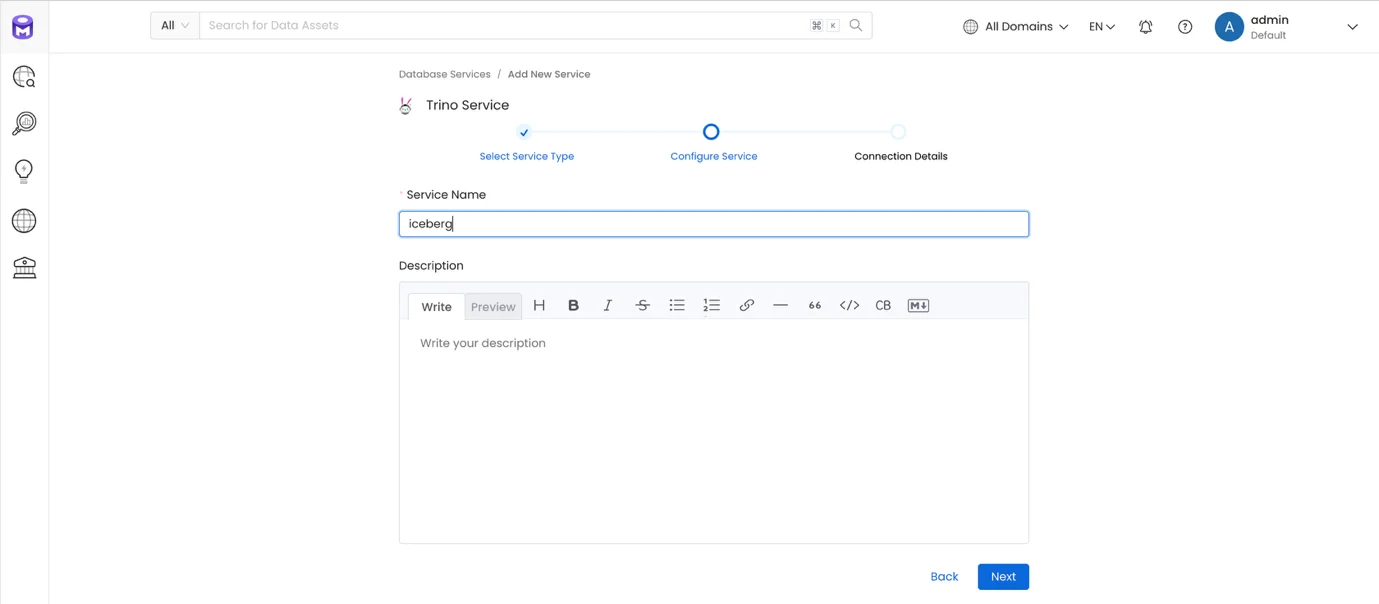
On the Configure Service step, enter a Service Name and a Description, then select Next.
-
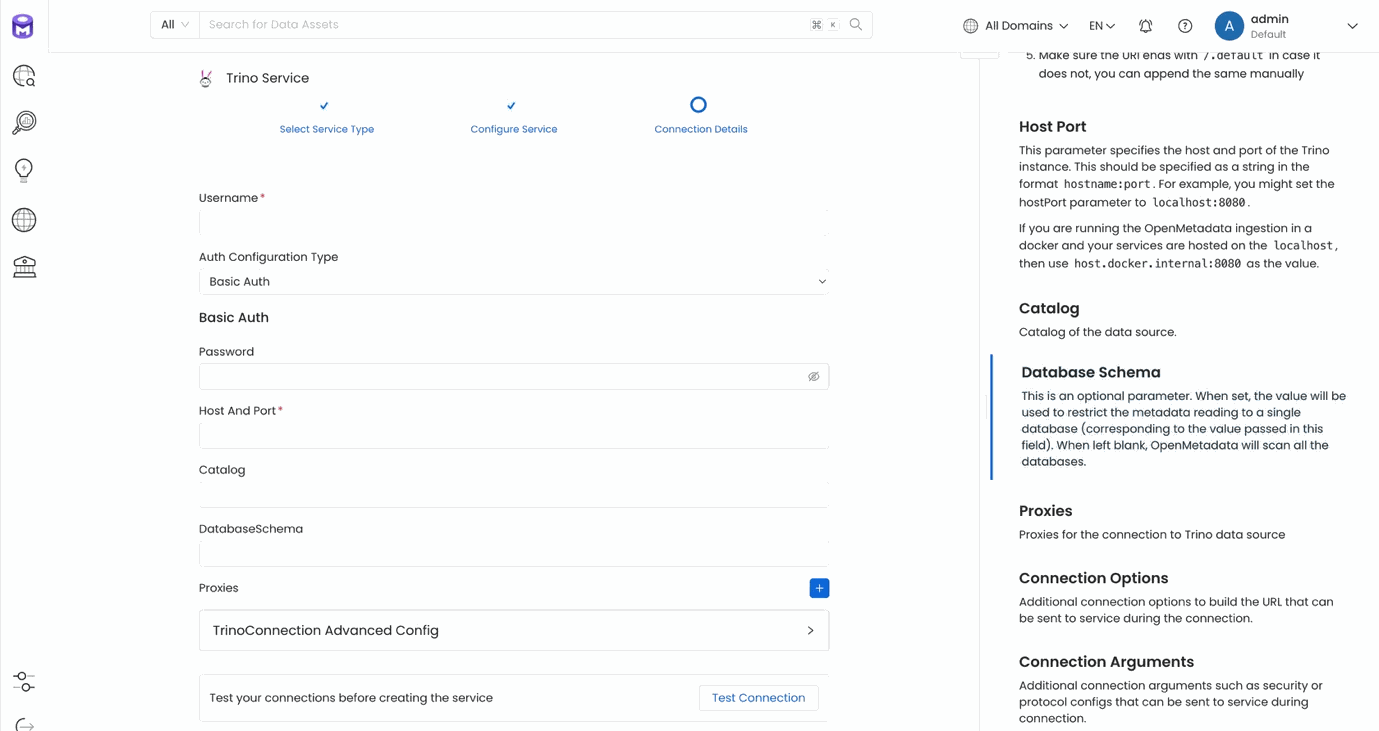
On the Connection Details step, fill in the connection fields, as described in the table below.
-
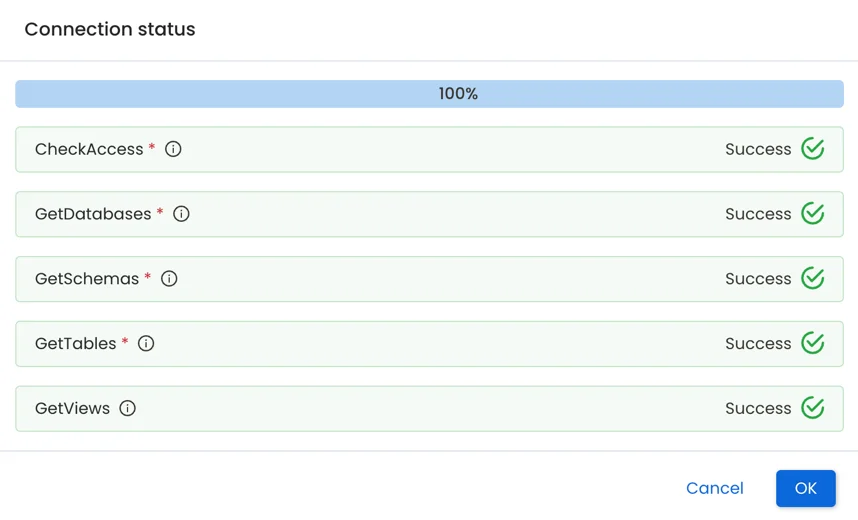
Select Test Connection. When every check in the Connection status dialog shows Success, select OK.
-
Select Save.
| Field | Description |
|---|---|
| Username | Required. The user that connects to the Query Engine. |
| Auth Configuration Type | Select Basic Auth. |
| Password | The password of that user. |
| Host And Port | Required. The host and port of the Query Engine, in the format hostname:port. Use the Public query URL of the Query Engine. |
| Catalog | Optional. The exact name of the catalog to read metadata from. When it is empty, Open Metadata reads every catalog available through the Query Engine. |
| DatabaseSchema | Optional. The exact name of the schema to read metadata from. When it is empty, Open Metadata reads every schema available through the Query Engine. |
Configure the metadata ingestion pipeline
A metadata ingestion pipeline pulls the metadata of the service into Open Metadata.
-
On the Databases page, select the service you created.
-
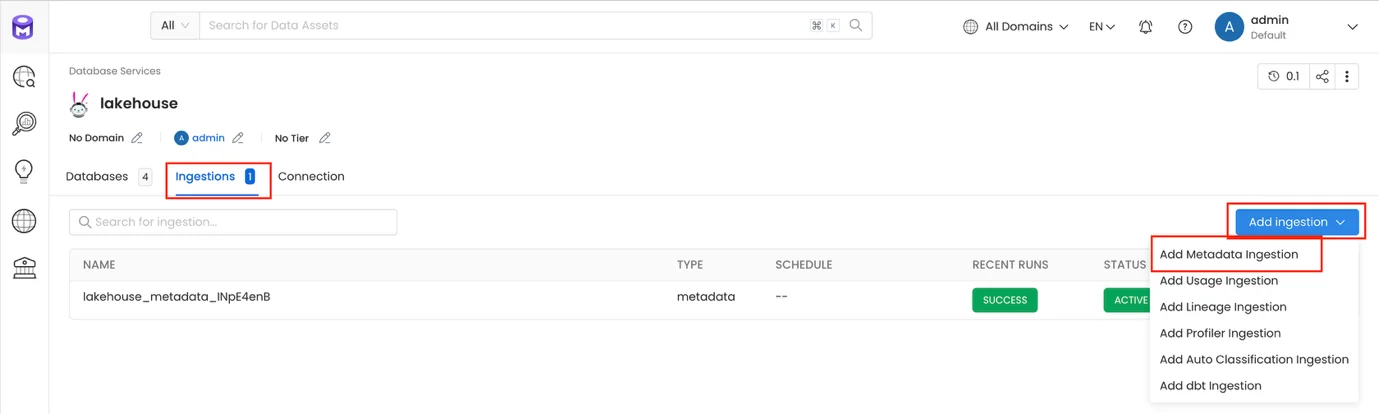
Select the Ingestions tab.
-
Select Add ingestion → Add Metadata Ingestion.
-
Enter a Name for the pipeline.
-
Under Database Filter Pattern, Schema Filter Pattern, and Table Filter Pattern, enter what to include and exclude.
-
Select Next.
-
Set the Schedule of the ingestion, or select On demand to run it manually.
-
Enter the Number of retries.
-
Select Add & Deploy.
| Field | Description |
|---|---|
| Name | The name of the pipeline. |
| Includes | Under each filter pattern. The databases, schemas, or tables to read metadata from. |
| Exclude | Optional. Under each filter pattern. The databases, schemas, or tables to leave out. |
| Schedule | How often the ingestion runs. On demand runs it only when you start it. |
| Number of retries | The number of times the ingestion retries when it fails. |
Run the pipeline
-
On the Databases page, select your service.
-
Select the Ingestions tab.
-
In the row of your pipeline, open the ⋮ menu in the Actions column, then select Run.
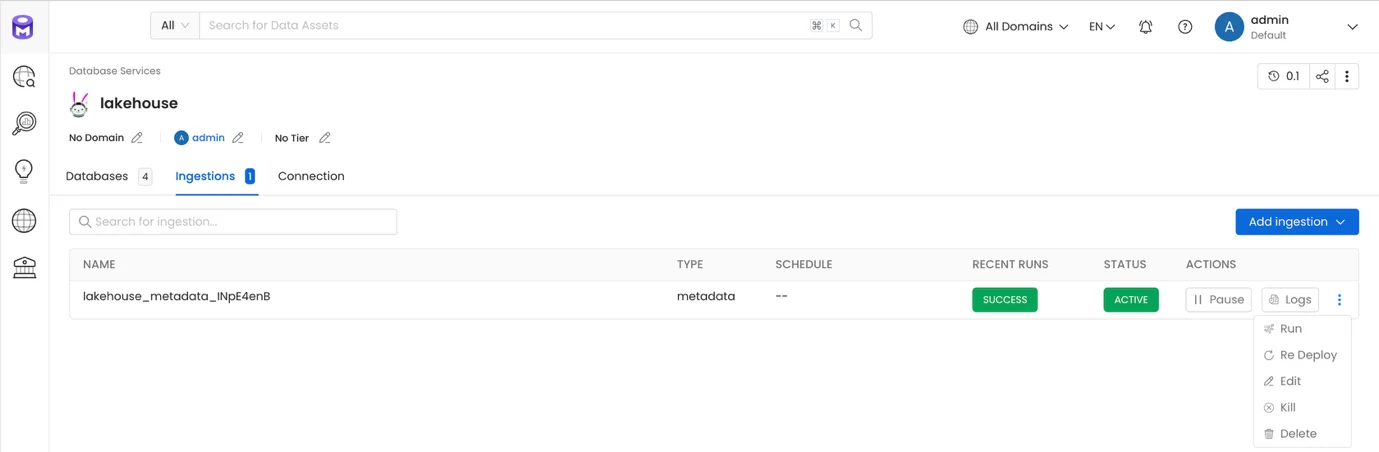
The pipeline runs the ingestion job and pulls the metadata into Open Metadata. A pipeline with a schedule also runs on its own at the times you set.
Explore the tables
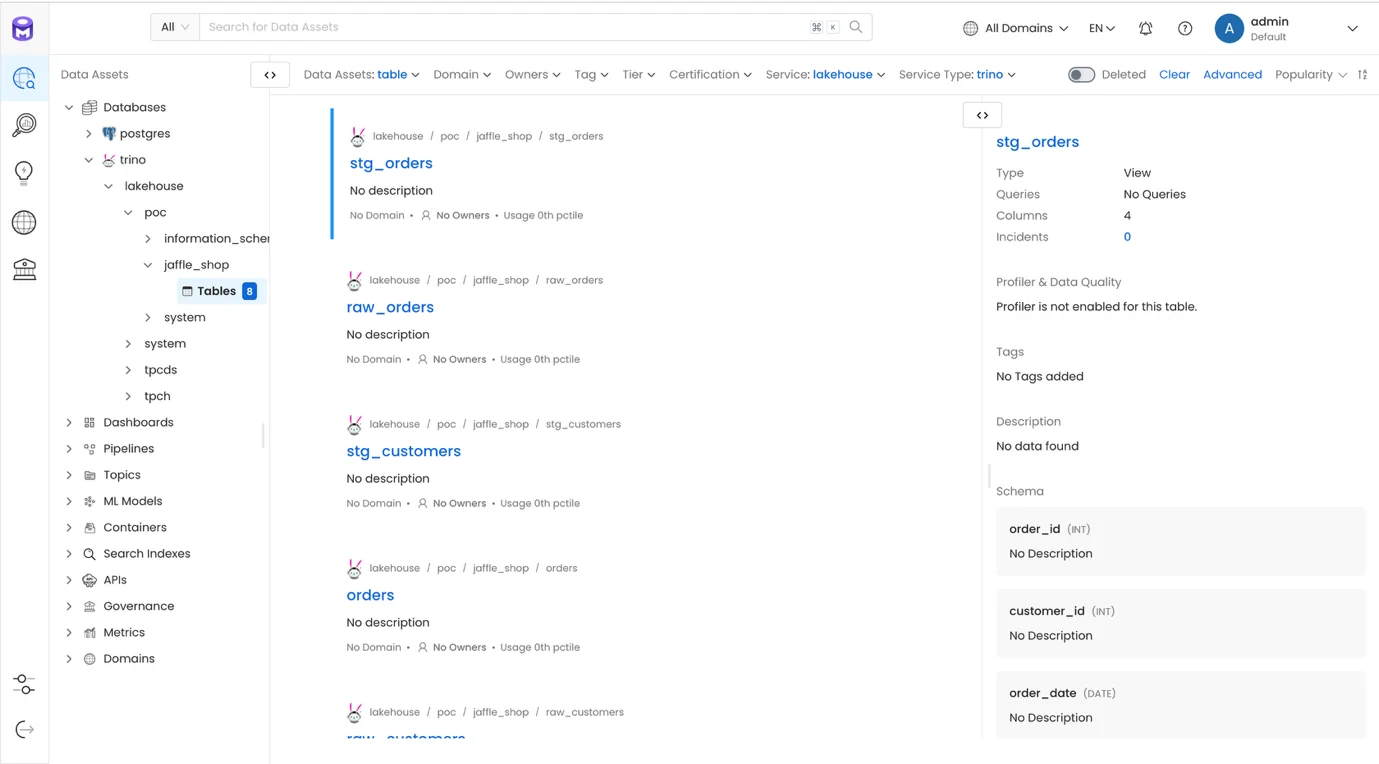
When the ingestion has run, the Query Engine tables appear in Explore.
-
In the left menu, select Explore.
-
Under Databases → trino, expand your service, a database, and a schema to list its tables.
-
Select a table to open it.
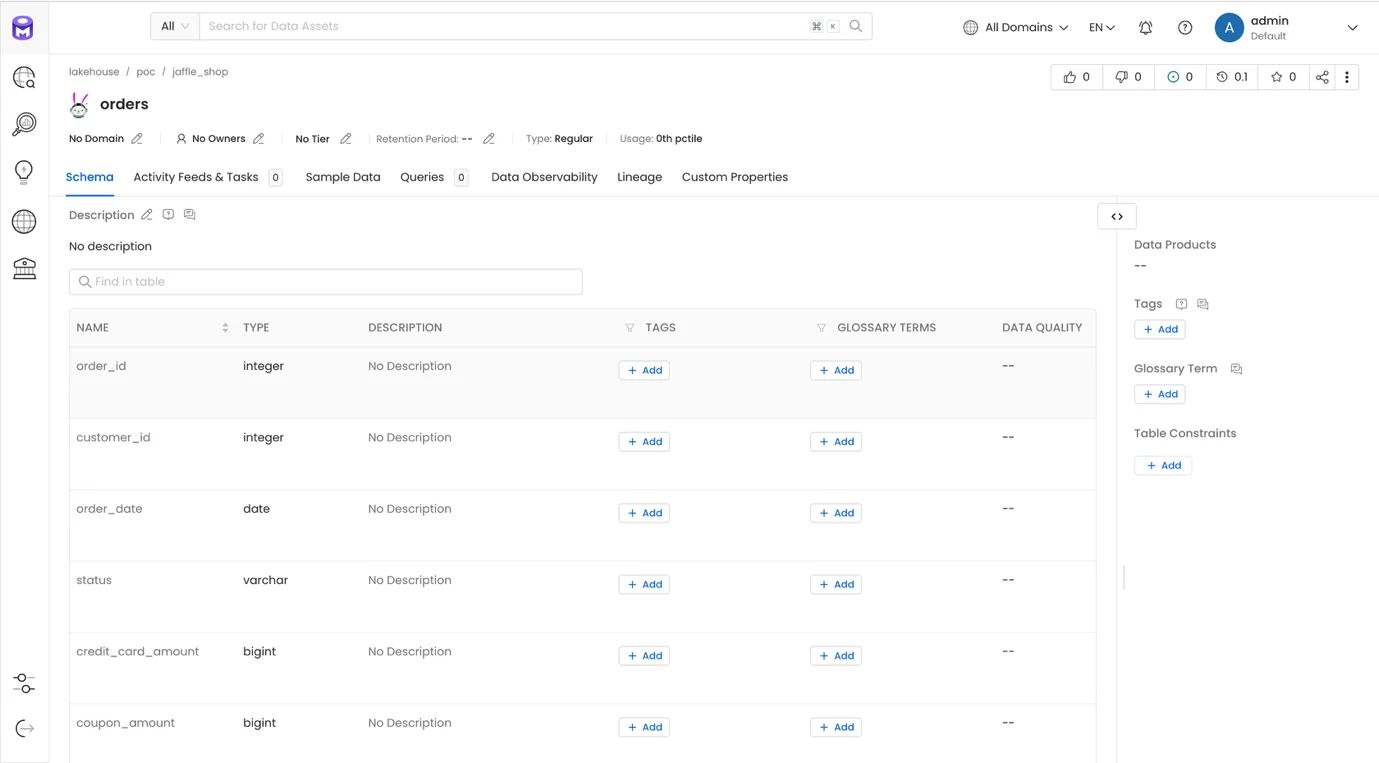
The Schema tab lists the columns of the table. Other tabs show, for example, its Sample Data and Lineage.
Add a test case
A test case checks the data quality of a table or of one of its columns.
-
In Explore, open the table you want to test.
-
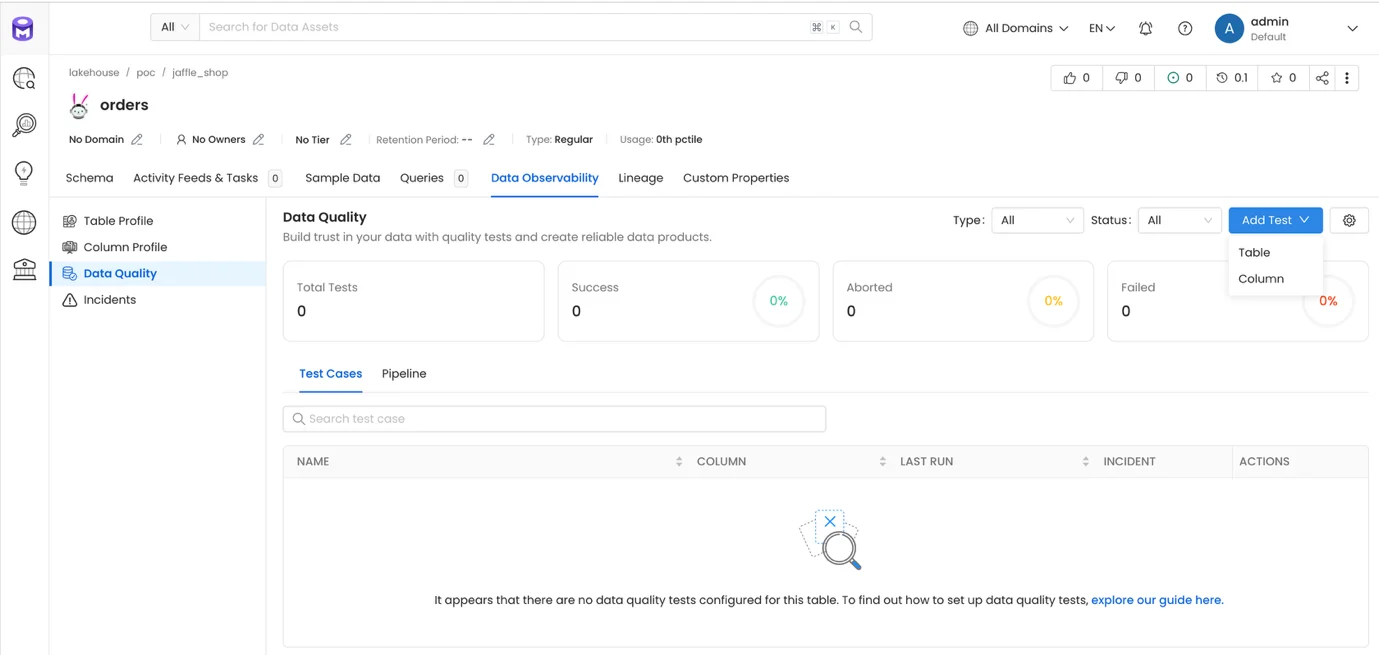
Select the Data Observability tab, then select Data Quality.
-
Select Add Test, then select Table to test the table or Column to test a column.
-
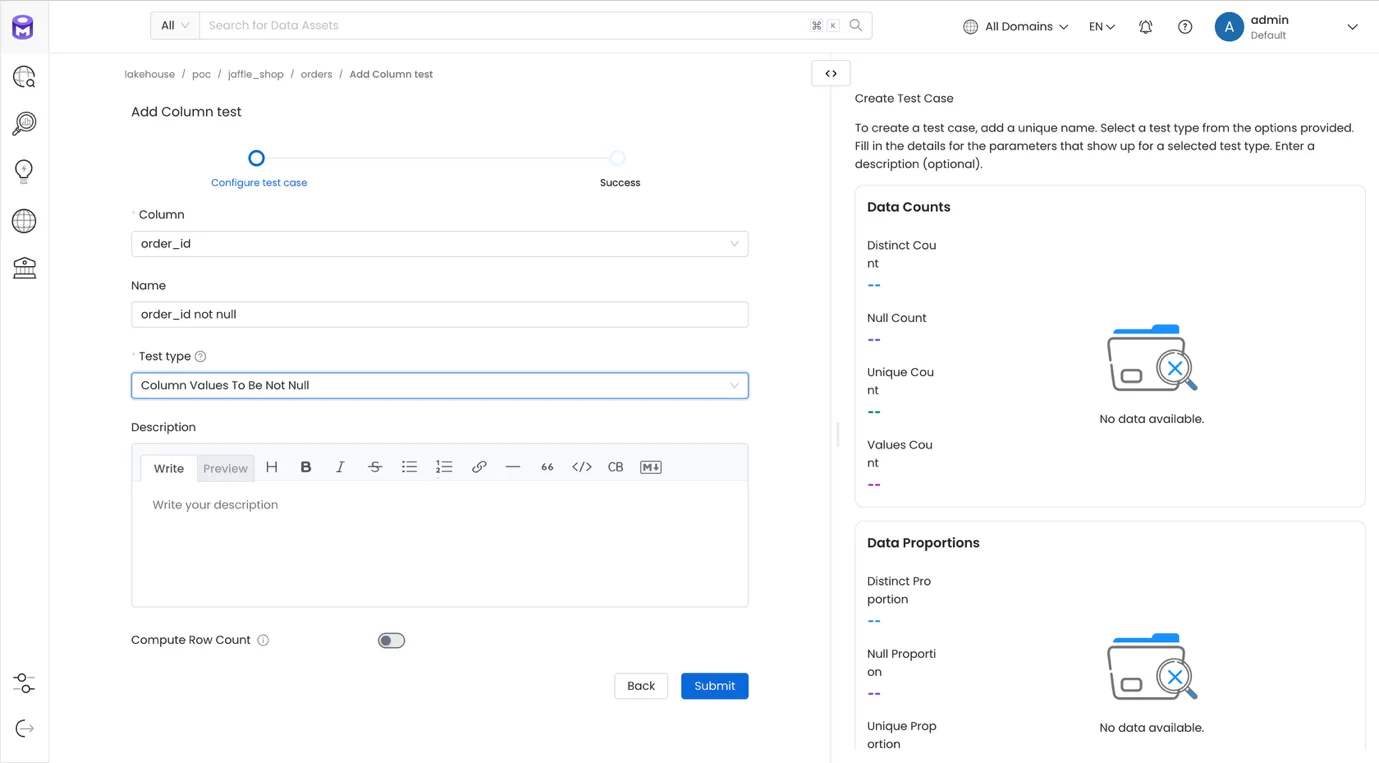
Fill in the test case, as described in the table below.
-
Select Submit.
The fields of a column test:
| Field | Description |
|---|---|
| Column | Required. The column to test. |
| Name | The name of the test case, for example order_id not null. |
| Test type | Required. The check to run, for example Column Values To Be Not Null. |
| Description | A description of the test case. |
Add a test pipeline
A test pipeline runs the test cases of a table on demand or on a schedule.
-
In Explore, open the table that has your test cases.
-
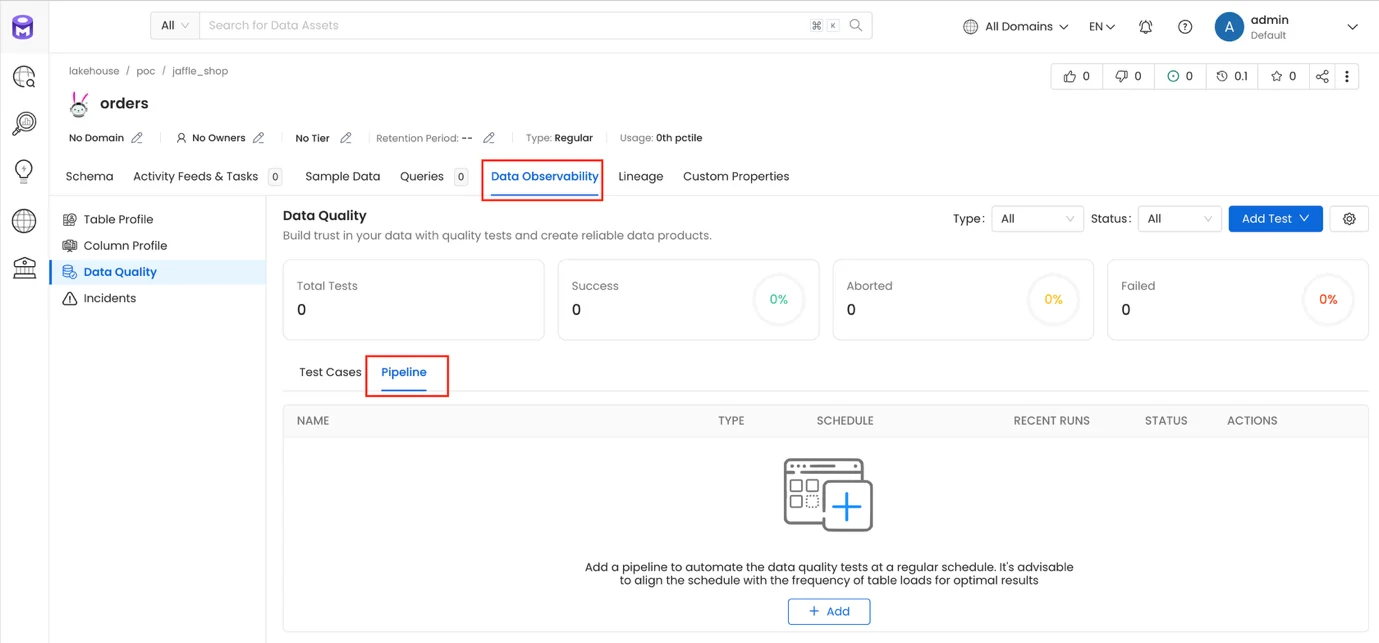
Select the Data Observability tab, then select Data Quality.
-
Select the Pipeline tab, then select Add.
-
In Scheduler for Test Cases, enter a Name for the test run schedule.
-
Select Schedule to run the tests on a recurring schedule, or On Demand to run them manually.
-
Select the test cases that the pipeline runs.
-
Select Submit.
When the test pipeline runs, Open Metadata checks the data against your test cases. The Data Quality section of the table shows the results of its tests.
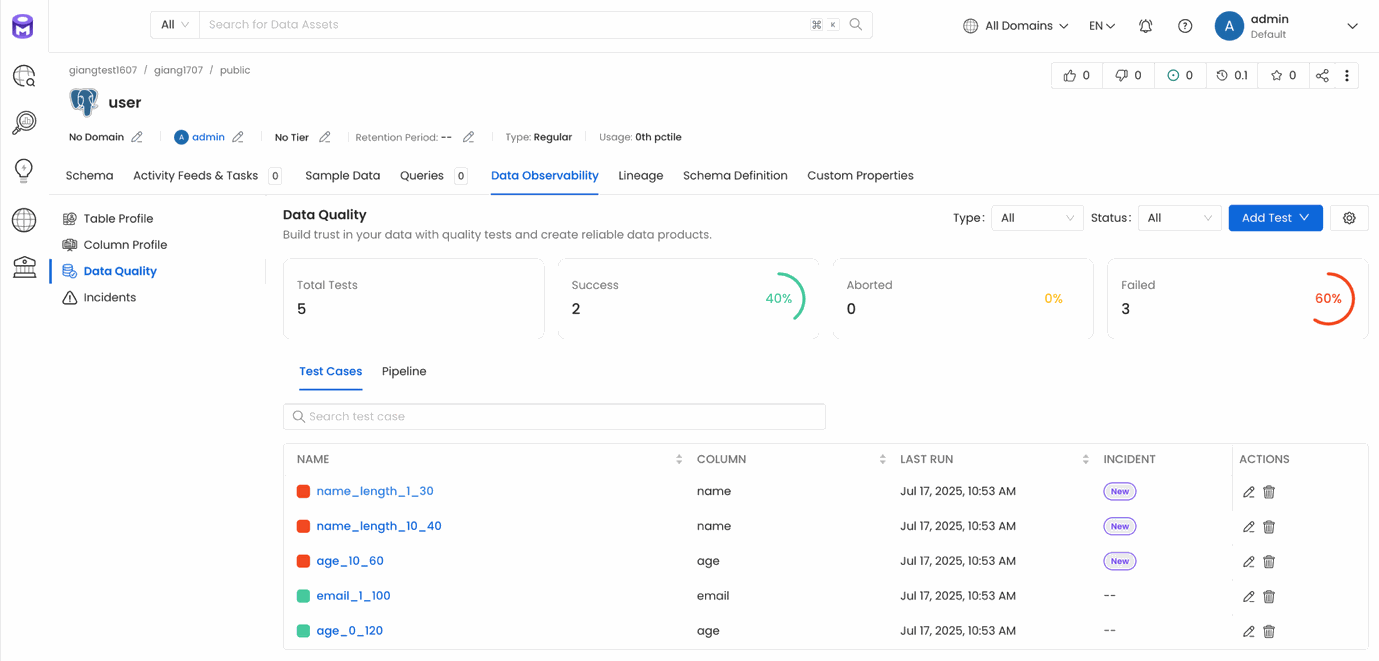
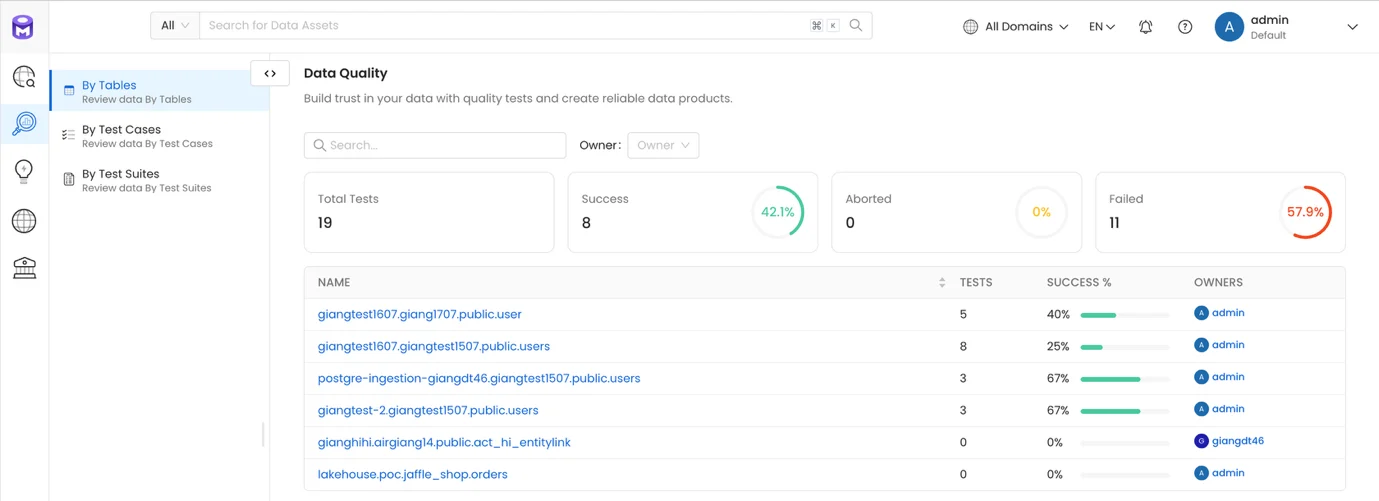
To see the results for all your tables, select Data Observability → Data Quality in the left menu.