Create Open Metadata service
To create an Open Metadata service, follow these steps:
Step 1: In the menu bar, select Data Platform > Workspace Management > Workspace name
Step 2: In the My services section, click Create > the New service popup appears, select Open Metadata > Create
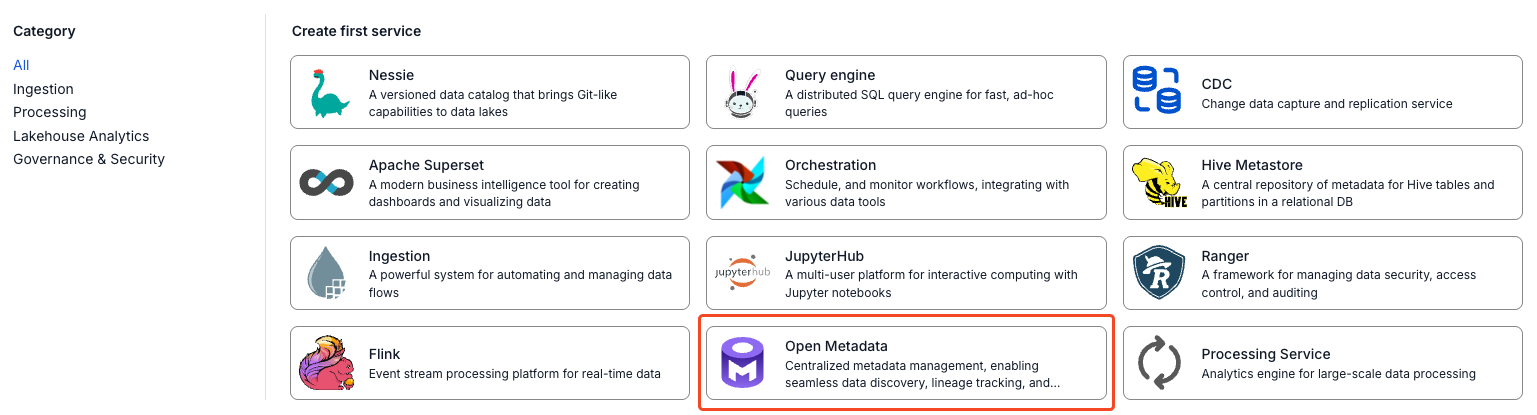
Step 3: In the Open Metadata creation form, enter the Basic Information:
- Orchestration service name (required): Select the Orchestration service that will orchestrate the Spark Jobs
- Name (required): Service name
Note: The service name may contain lowercase letters a-z, uppercase letters A-Z, or digits 0-9. Spaces are not allowed; use "-" or "_" instead.
- Description (optional): Service description
- Version (required): Service version
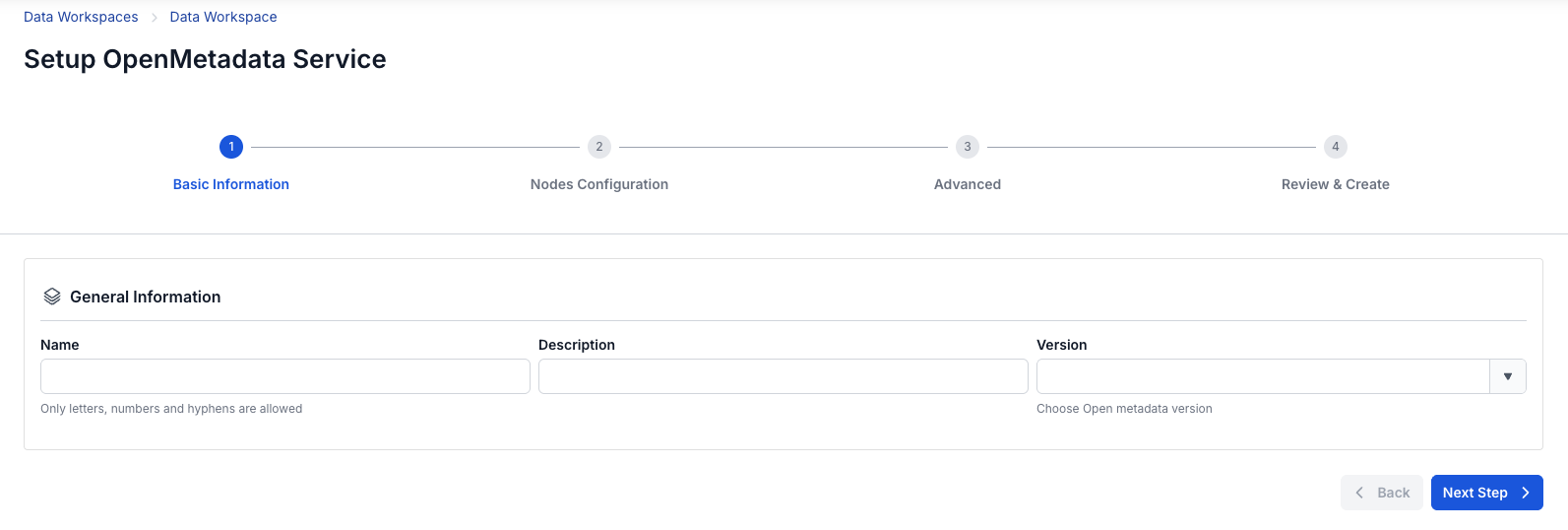
Step 4: Click Next Step to proceed to the Nodes Configuration screen
Enter the following information:
- Storage policy: Select a Storage policy
- Disk size: Select the disk configuration size
- Type: Select the flavor
- Number of nodes: Enter the number of nodes
The number of nodes must be greater than or equal to 1
If you need to auto-scale the service, check Enable auto scaling and enter the desired number of nodes
The scaled number of nodes must be greater than Number of node
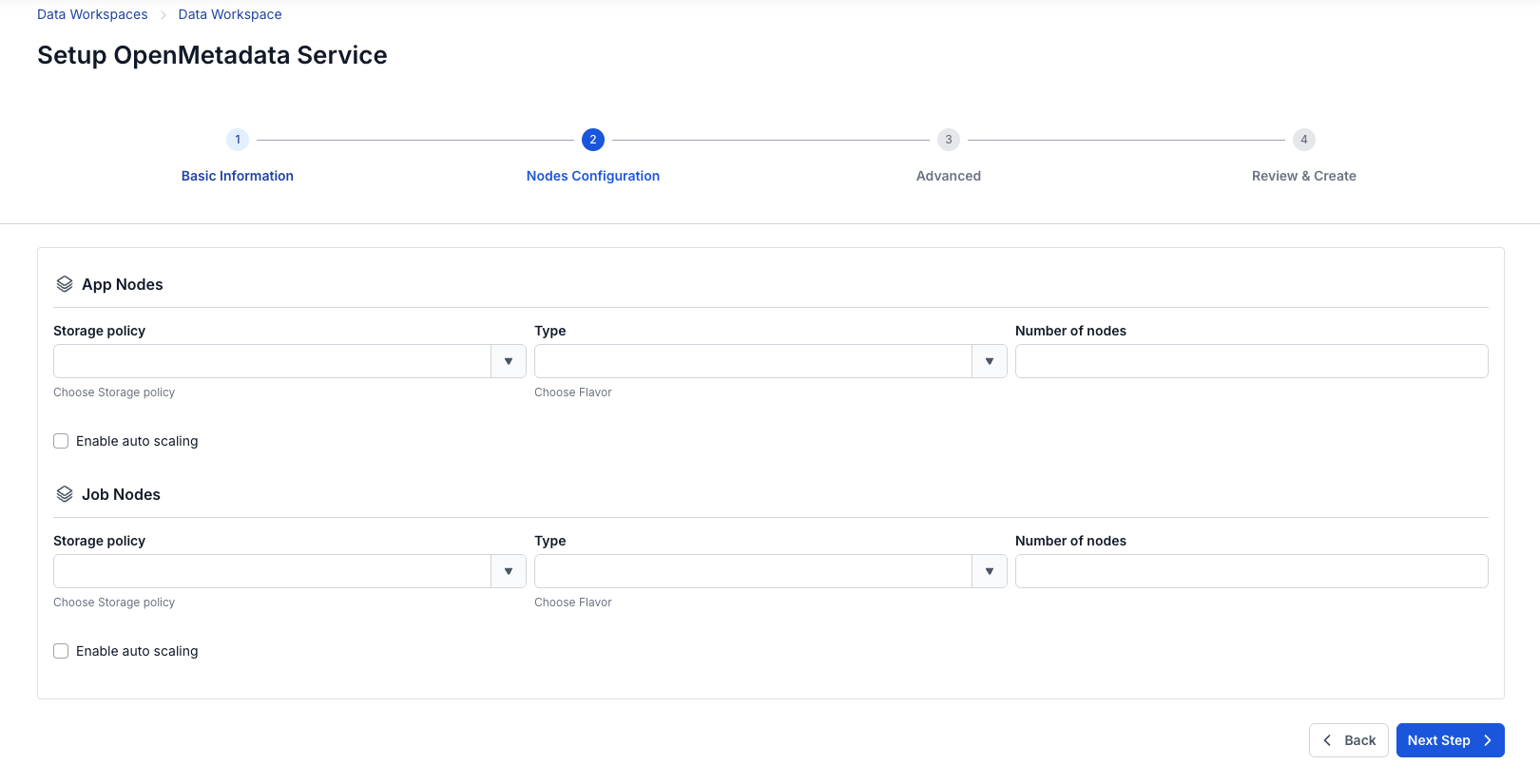
Step 5: Click Next to proceed to the Advanced screen
- Database (Database information used to store data for Data governance; you can use a Database already created in the FPT Database Engine service, or any other Database of your own)
- If you select type as PostgreSQL:
- Select Database (required): Select the Database
- Host name (required): Hostname or IP of the Postgres server
- Port (required): Postgres server port, default is 5432
- Database (required): Database name
- Username (required): Account name for accessing the Database
- Password (required): Password for accessing the Database
- If you select Manual configuration:
- Host name (required): Hostname or IP of the Postgres server
- Port (required): Postgres server port, default is 5432
- Database (required): Database name
- Username (required): User for accessing the Database
- Password (required): Password for accessing the Database
- If you select type as PostgreSQL:
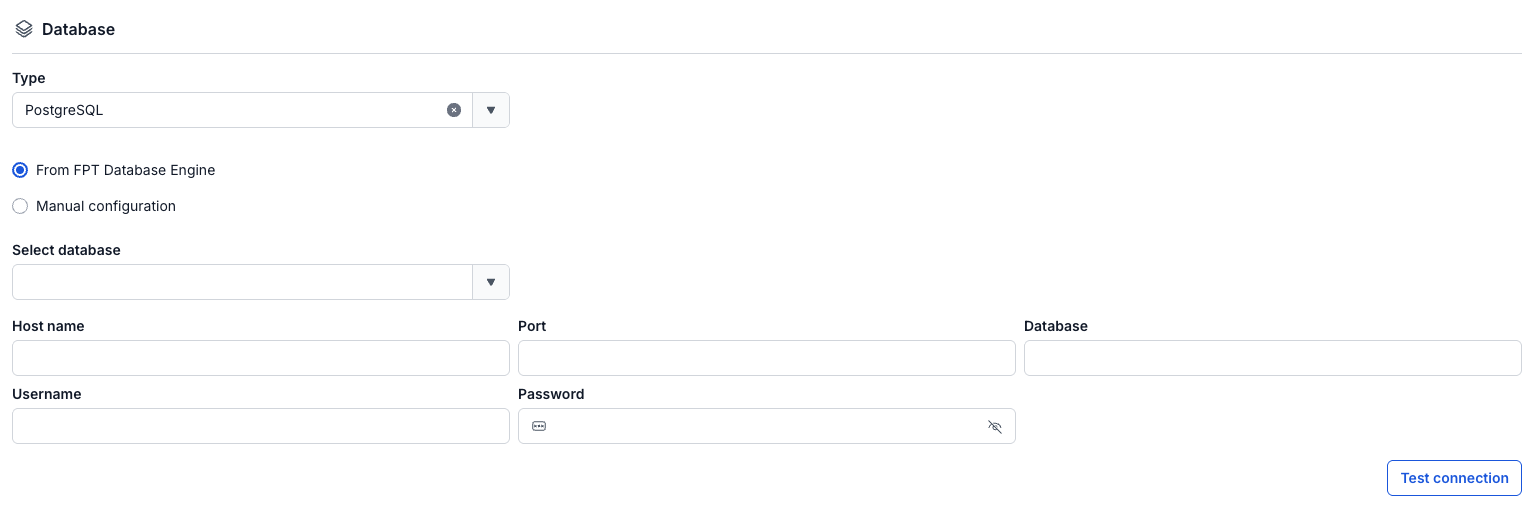
After entering all the Database information, click Test connection to verify the connection from the Workspace to the configured Database
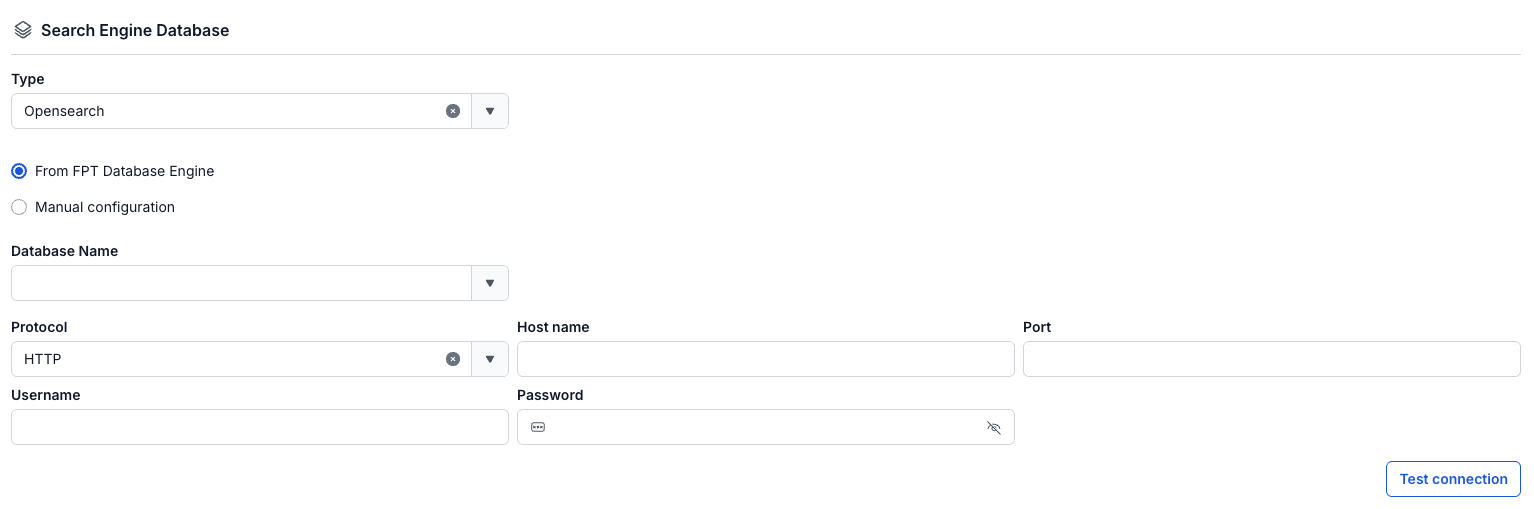
- Search Engine Database
- Type (required): Opensearch or Elasticsearch
- Database (required): Database name
- Protocol (required): Select http or https
- Host name (required): Access address
- Port (required): Connection port
- Username (required): Account name
- Password (required): Password
- Index (required): Index
Click Test connection to verify the connection from the Workspace to the Search Engine Database
-
Single Sign On
- If Single Sign On is not checked, Open Metadata is initialized with Basic authentication
- If Single Sign On is checked:
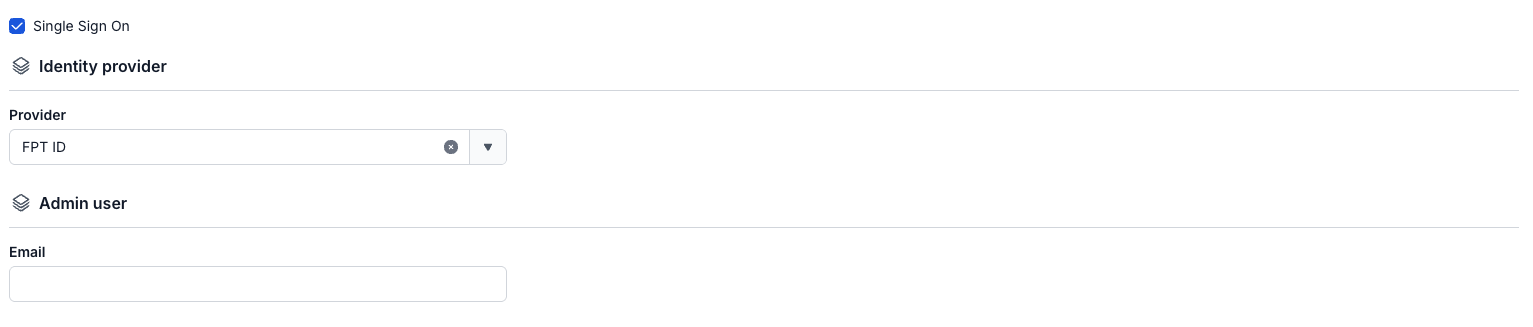
- Provider: FPT ID - Enter the following information:
- Email: FPT email address
- Provider: FPT ID - Enter the following information:
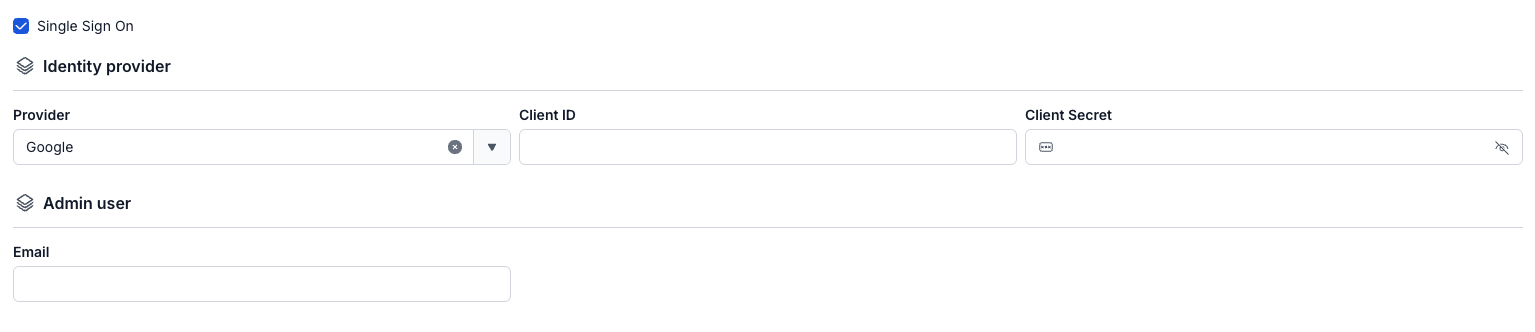
- Provider: Google - Enter the following information:
- Client ID: An ID code used to authenticate the client with Google
- Client Secret: A secret used to authenticate the client with Google
- Email: Email address
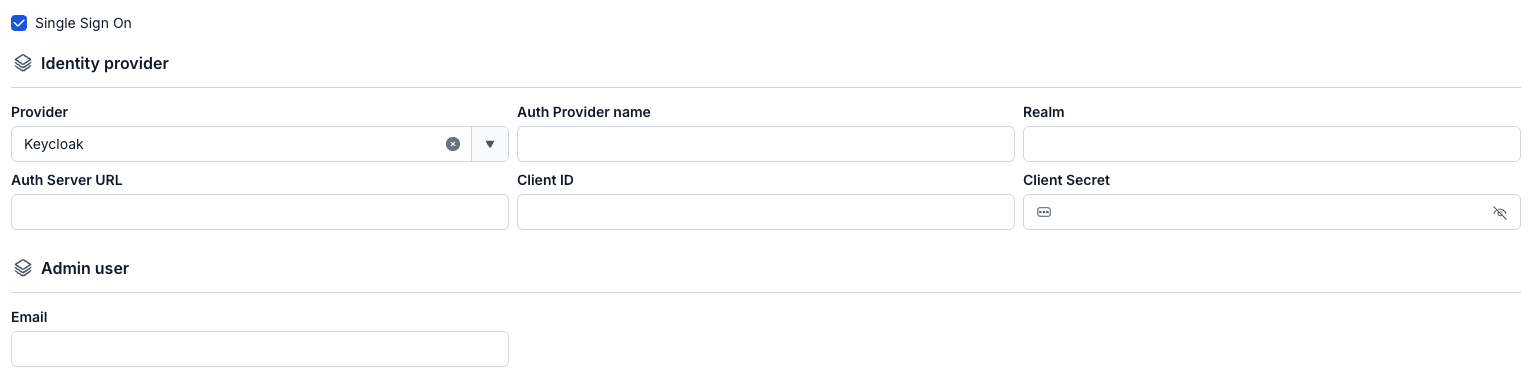
- Provider: Keycloak - Enter the following information:
- Auth Provider name: Provider name
- Realm: A management space in which all users, groups, roles, clients, and other objects are managed and secured independently
- Auth server url: The base URL of the Keycloak server, used by clients to perform authentication
- Client ID: An ID code used to authenticate the client with Keycloak
- Client Secret: A secret used to authenticate the client with Keycloak
- Username: The username in Keycloak
- Email: The email address in Keycloak
-
Custom Domain
- Purpose: Allows configuring a custom domain for accessing services.
- For a Public Workspace: Used to assign a domain and certificate without needing to enable/disable TLS (HTTPS is always available).
- For a Private Workspace: In addition to the domain and certificate, you can choose to enable or disable TLS/SSL to decide whether to use HTTPS or HTTP.
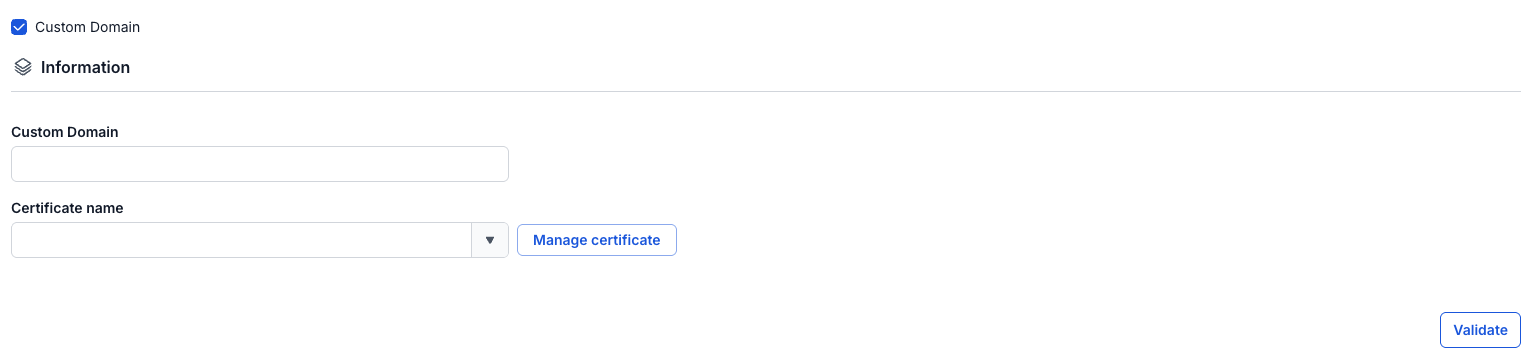
- Public Workspace
- Custom domain: Check to enable a custom domain.
- Domain: Enter the domain name (e.g., abc.local, jupyter.example.com).
- Certificate name: Select from the list of certificates already imported in Certificate Manager.
- Buttons:
- Manage certificate: Opens the certificate management screen.
- Validate: Checks that the certificate is valid for the domain.
- Purpose: Allows configuring a custom domain for accessing services.
In a Public Workspace, the TLS/SSL certificate option is not displayed - the system supports HTTPS by default.
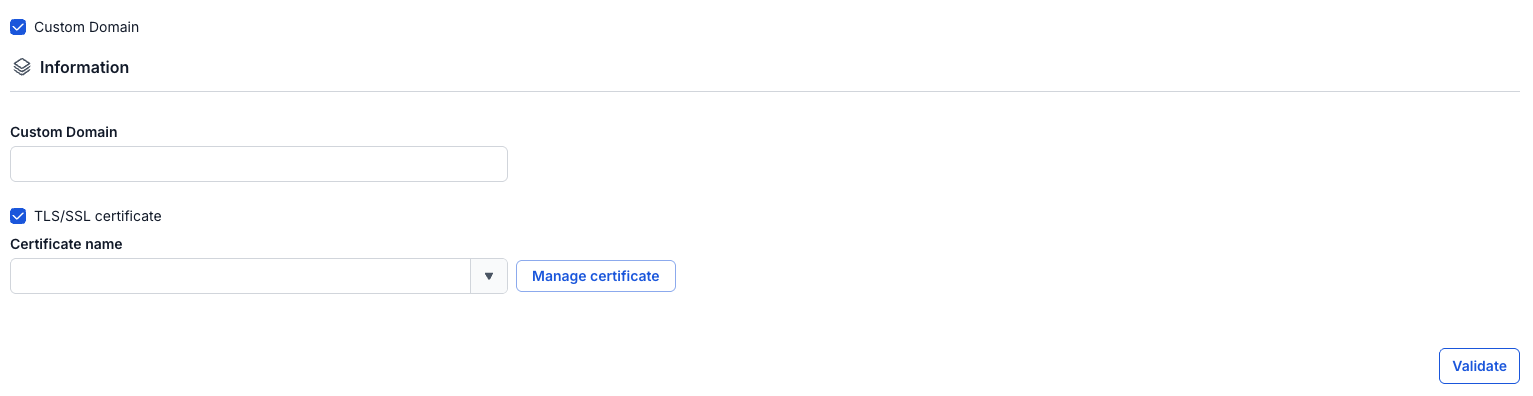
- Private Workspace
- Custom domain: Check to enable a custom domain.
- Domain: Enter the domain name.
- TLS/SSL certificate: Check to enable HTTPS for the service.
- Certificate name: Select from the certificate list.
- Buttons:
- Manage certificate: Opens certificate management.
- Validate: Checks the certificate.
If TLS/SSL certificate is unchecked, the service will run over HTTP and no certificate is required.
Step 6: Click Next to proceed to the Review & create screen
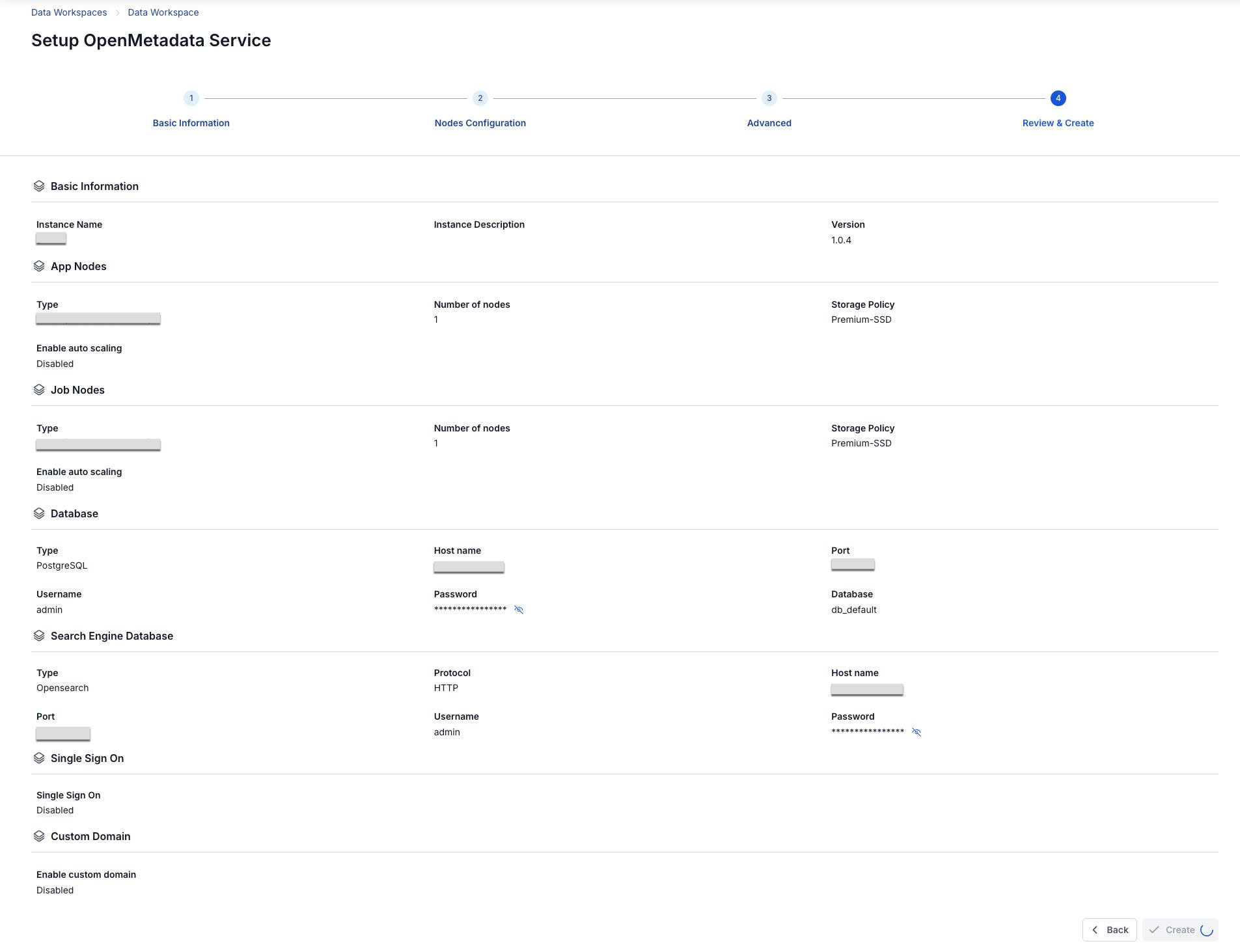
Step 7. Review the entered information, then click Create to complete the Open Metadata initialization
Orchestration completes initialization when the Worker Status is Succeeded and the Status of Open Metadata is Healthy (~10 minutes)