Configure workflow tasks
Add tasks to a workflow to choose what it runs and in what order. Workflow Engine has 7 task types, each suited to a specific kind of processing.
Prerequisites
- A workflow. See Create a workflow.
- The file or the folder that the task runs, for example a Python file, a Python project folder, a JAR file, or a dbt project folder. An SQL Execute Job task needs a connection instead.
Add a task
-
Open the workflow. See Open a workflow.
-
In the graph, select Add task. The task form opens under the graph, with Type set to Python.
-
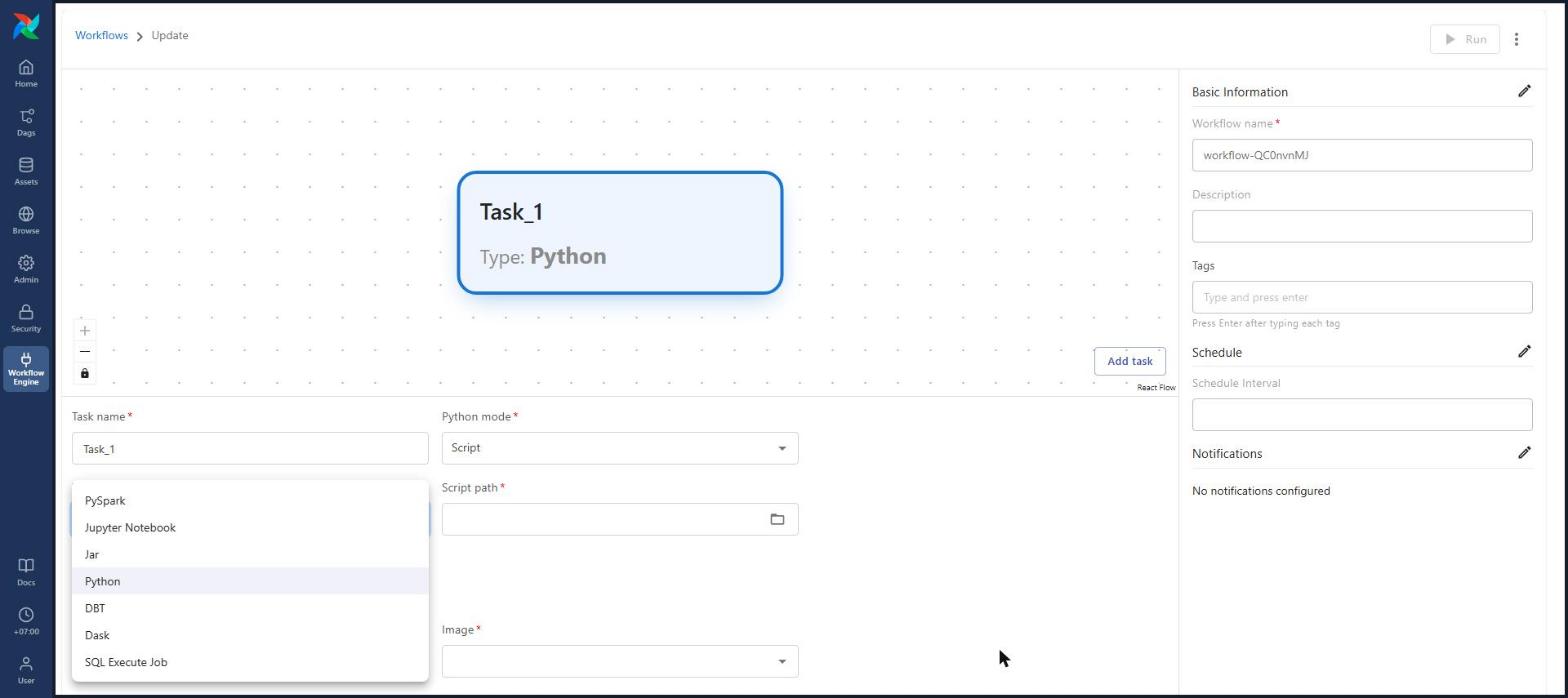
In Type, select the task type. The form changes to match the type.
-
Fill in the fields of the type. See Fill in the fields of each task type.
-
Select Save Task.
The new task appears in the graph. You can add as many tasks as you need. A workflow has no limit on the number of tasks.
A new workflow already has one task, Task_1, of type Python. To set it up, select it in the graph, then follow steps 3 to 5.
The Type list has these types.
| Type | Use it for |
|---|---|
| PySpark | A Spark job written in Python. |
| Jupyter Notebook | A Jupyter notebook. |
| Jar | A packaged Java or Scala application. |
| Python | A Python script or a Python project. |
| DBT | A dbt (data build tool) project. |
| Dask | A Dask distributed computing job. |
| SQL Execute Job | An SQL query that runs through a connection. |
Fill in the fields of each task type
Each type has its own required fields. In the path field (Path, or Script path / Project directory for Python), select the folder icon to choose the file or the folder. Compute lists the computes that you can use, for example airflow-worker.
The fields that all types share are described in Fields common to all task types.
Python
Python is the default type.
- In Python mode, select Script to run one Python file, or Project to run a project folder.
- With Script, select the Script path. With Project, select the Project directory, then enter the Entrypoint.
- Fill in Task name, Compute, Image, CPU, and RAM (GB).
- Optionally, set Depends on, Init script, Environment variables, the libraries, Arguments, Notifications, and Retries.
For each field, see Python.
PySpark
- Fill in the required fields, including the Path, the resources of the Spark driver and executors, and Instances.
- Optionally, set Spark configuration, Environment variables, and the Jar libraries.
For each field, see PySpark.
Jupyter Notebook
Fill in the same fields as for a PySpark task.
For each field, see Jupyter Notebook.
Jar
- Fill in Task name, the Path of the JAR file, Main class, Compute, Image, the resources of the Spark driver and executors, and Instances. An example of Main class is
com.example.MainApp. - Optionally, add the JAR files or the Maven packages that the application depends on.
For each field, see Jar.
DBT
- Fill in Task name, the Path of the dbt project folder, Compute, Image, CPU, and RAM (GB).
- In Commands, enter the dbt commands to run, for example
dbt run. - Optionally, set Environment variables and the libraries.
For each field, see DBT.
Dask
- Fill in the Path and the resources of the job, the scheduler, and the workers, including Worker instances.
- Fill in Task name, Compute, and Image.
- Optionally, set the other fields as for a Python task.
For each field, see Dask.
SQL Execute Job
- Select the Connection to the database that the SQL runs on.
- In SQL Query, enter the SQL to run.
- Change Auto commit and Split statements if their defaults do not fit your query.
- Fill in Task name, Compute, CPU, and RAM (GB).
For each field, see SQL Execute Job.
Set the run order
A new task has no dependencies. To run it after other tasks, select those tasks in Depends on, then select Save Task.
Delete a task
Deleting a task removes it from the workflow, together with all its dependencies. It changes the run order of the workflow, so check the effect first. Note down the settings of the task or take a screenshot of them, in case you need them again.
- Open the workflow. See Open a workflow.
- In the graph, select the task. Its form opens under the graph.
- At the end of the form, select Delete, then confirm.
Workflow Engine removes the task and all the dependencies on it, and the task disappears from the graph.
If other tasks depended on the deleted task (downstream tasks), update their Depends on.