Create Processing service
To create a Processing service, follow these steps:
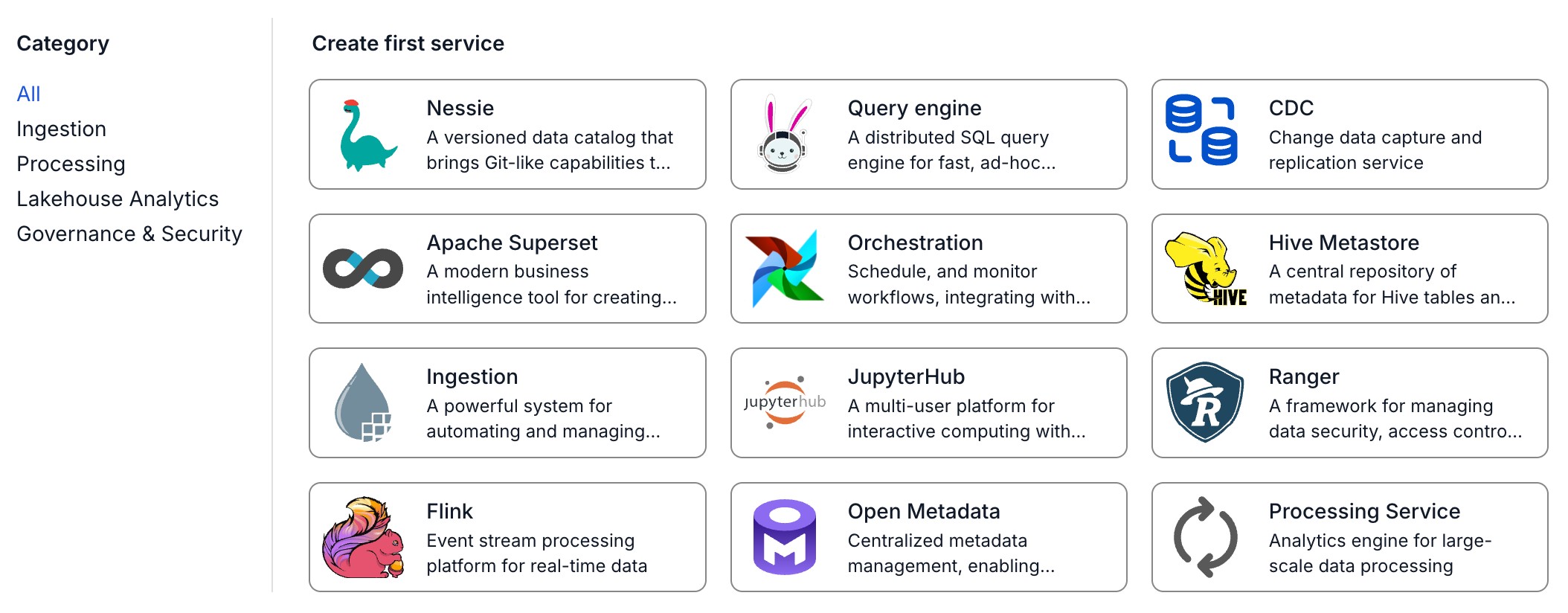
Pre-condition: An Orchestration service must already be successfully created
Step 1: In the menu bar, select Data Platform > select Workspace Management > select Workspace name
Step 2: In the Workspace Details section, click Create > the Services popup appears, select Processing service > Create Service
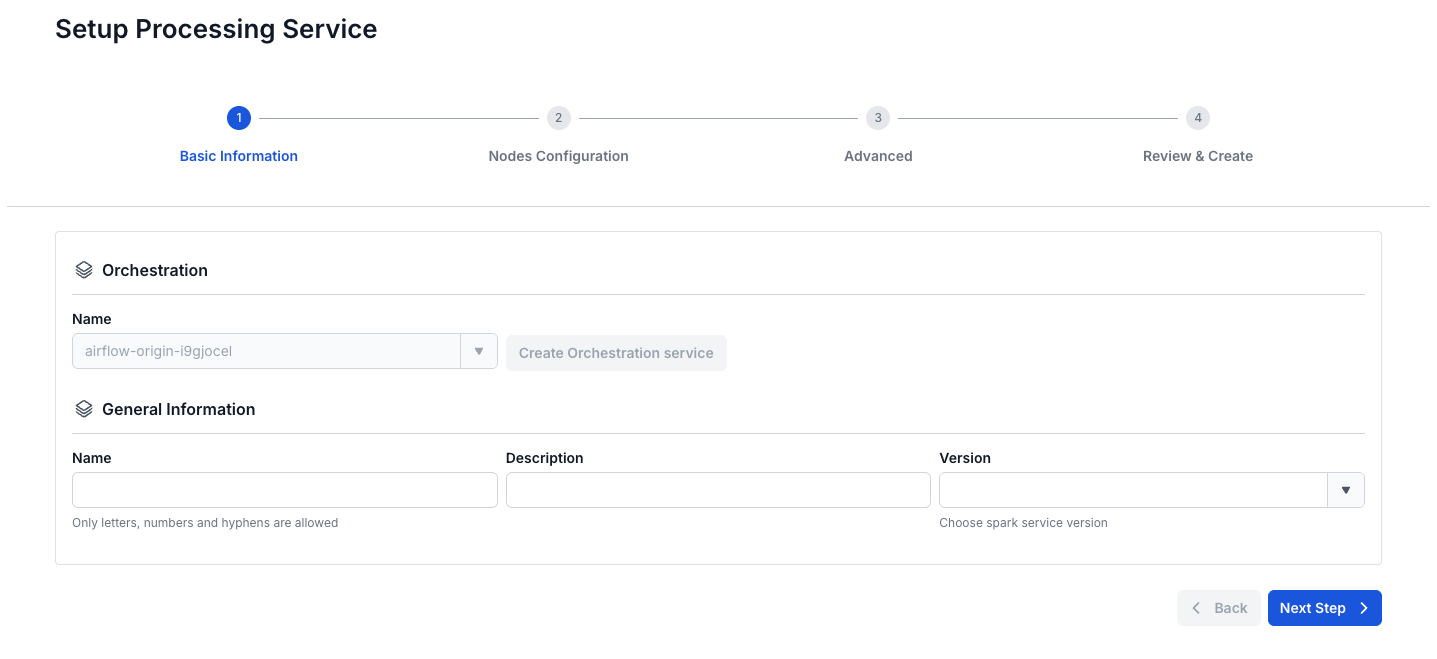
Step 3: In the Processing service creation form, enter the information on the Basics Information screen
- Orchestration service name (required): Select the Orchestration service that orchestrates the Spark Job operations
- Name (required): Service name
Note: The service name can contain lowercase letters a-z, uppercase letters A-Z, or digits 0-9. Spaces are not allowed; you can use "-" or "_" instead.
- Description (optional): Service description
- Version (required): Service version
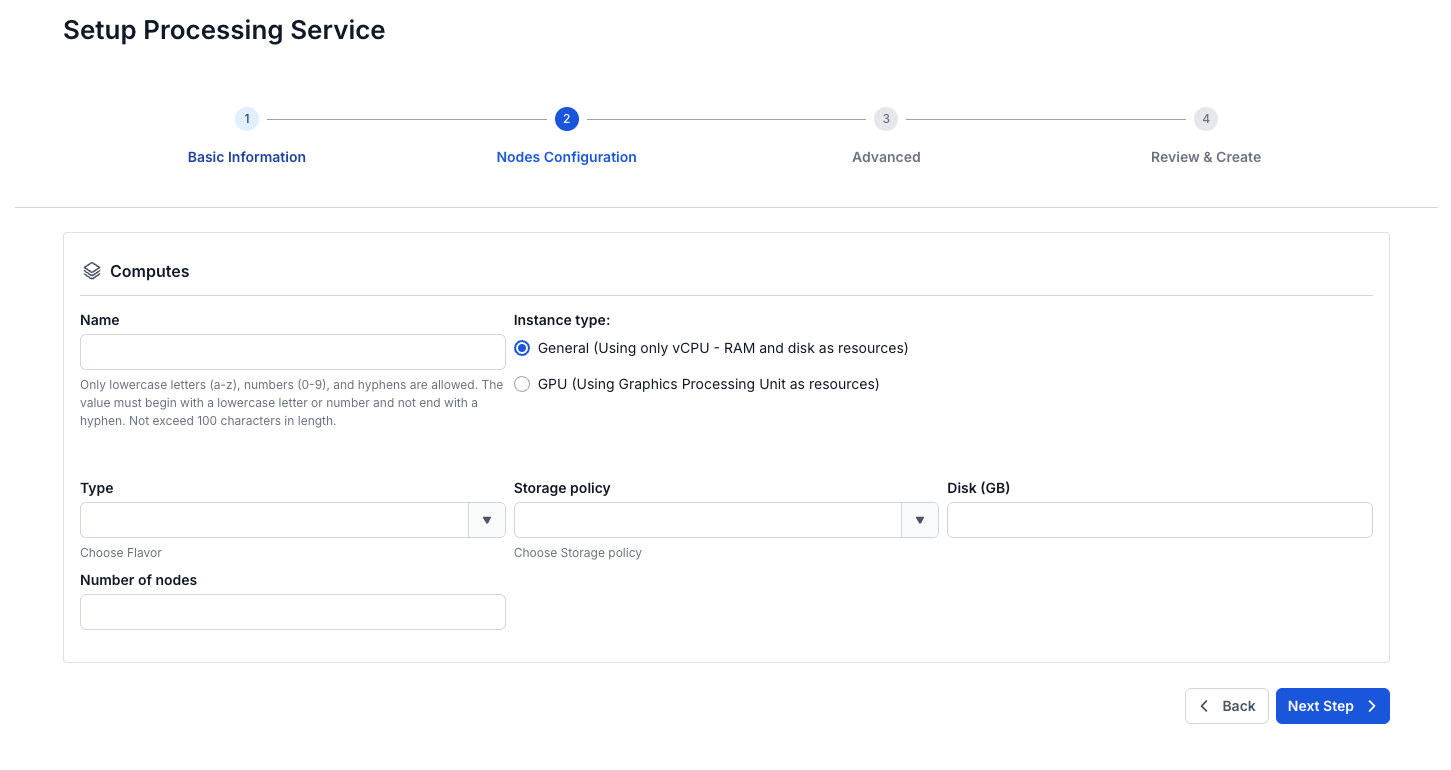
Step 4. Click Next Step to move to the Nodes Configuration screen
- Instance type = General
Enter the following information:
- Name: (required): compute name
Note: The compute name can contain lowercase letters a-z, uppercase letters A-Z, or digits 0-9. Spaces are not allowed; you can use "-" or "_" instead.
- Storage policy: select the Storage policy
- Disk size: select the Disk configuration size (Disk >=40)
- Type: select the flavor
- Number of nodes: enter the number of nodes
The number of nodes must be greater than or equal to 1 and less than or equal to 10
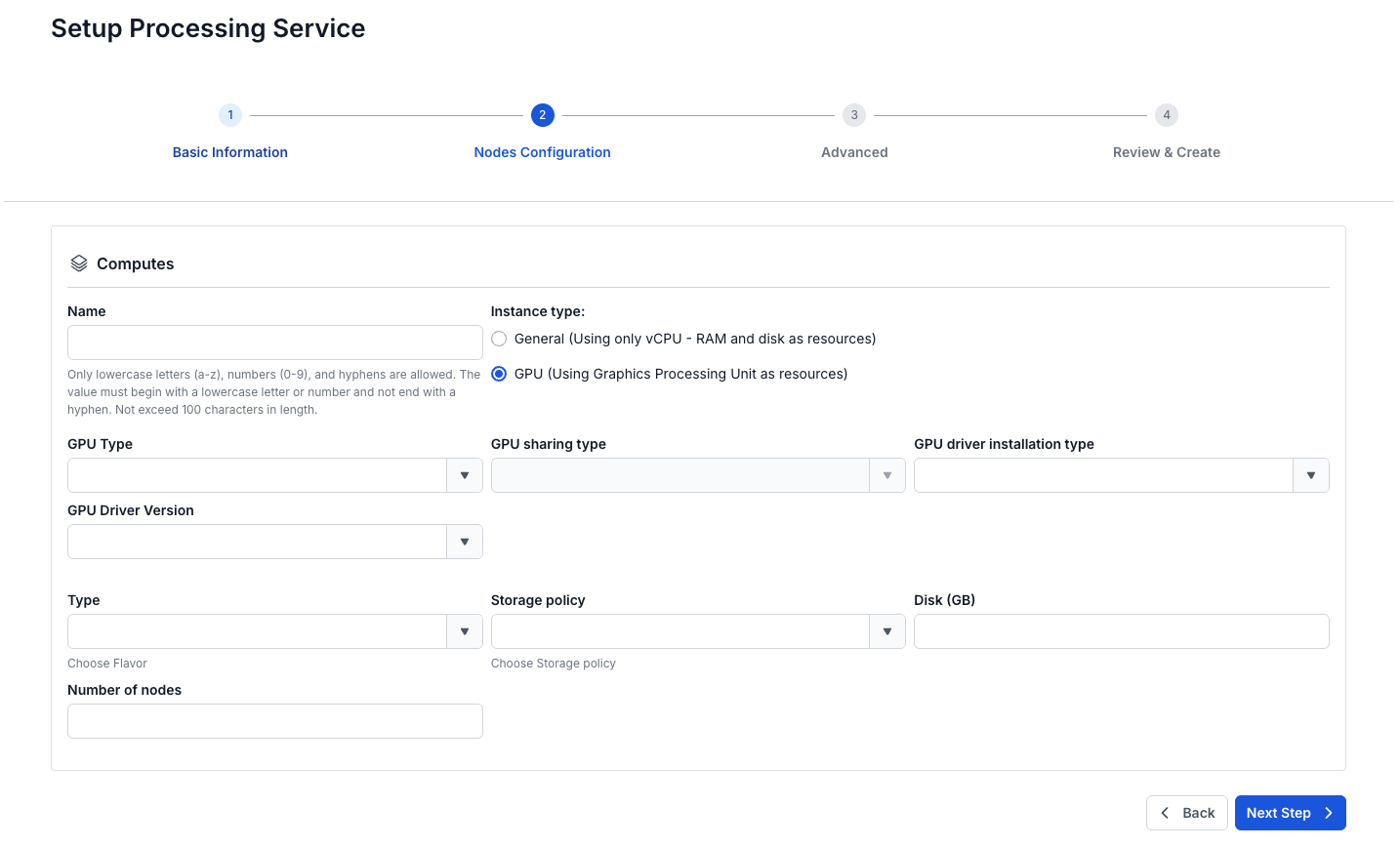
- Instance type = GPU
Enter the following information:
- Name: (required): compute name
Note: The compute name can contain lowercase letters a-z, uppercase letters A-Z, or digits 0-9. Spaces are not allowed; you can use "-" or "_" instead.
- GPU type (required if GPU is selected)
- GPU driver installation type (required): select the driver installation type
- Select a driver version (required): select the driver version
- GPU sharing type (required): select the GPU sharing type
- If None is selected, the input GPU sharing client is not displayed
- If a value other than None is selected, the input GPU sharing client is displayed
- Policy (required): select the policy
- Storage policy: select the Storage policy
- Disk size: select the Disk configuration size (Disk >=40)
- Type: select the flavor
- Number of nodes: enter the number of nodes
The number of nodes must be greater than or equal to 1 and less than or equal to 10
Step 5. Click Next Step to move to the Advanced screen
Enter the following information:
Enable Spark history
- Checkbox = true = enable history
- Checkbox = false = disable history
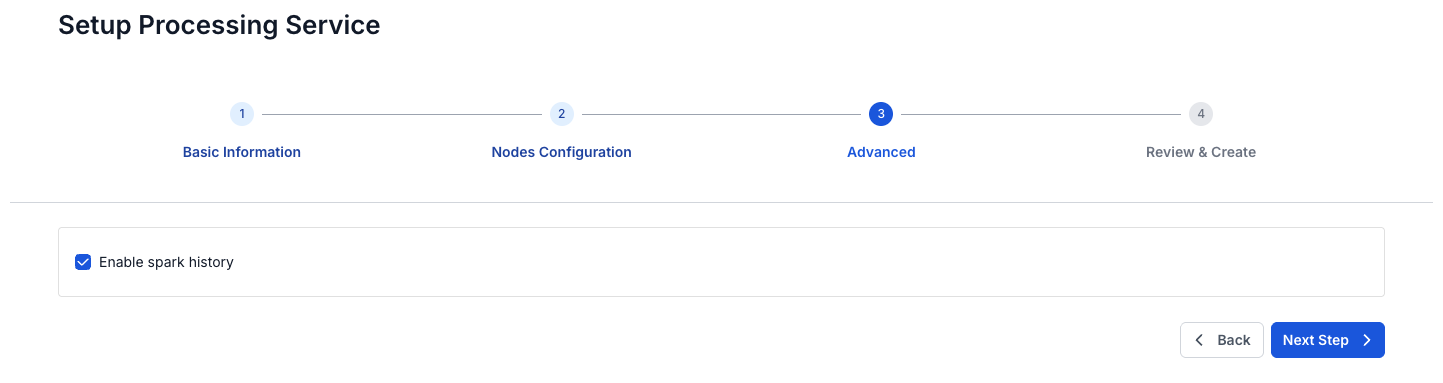
Step 6: Click Next Step to move to the Review & Create screen.
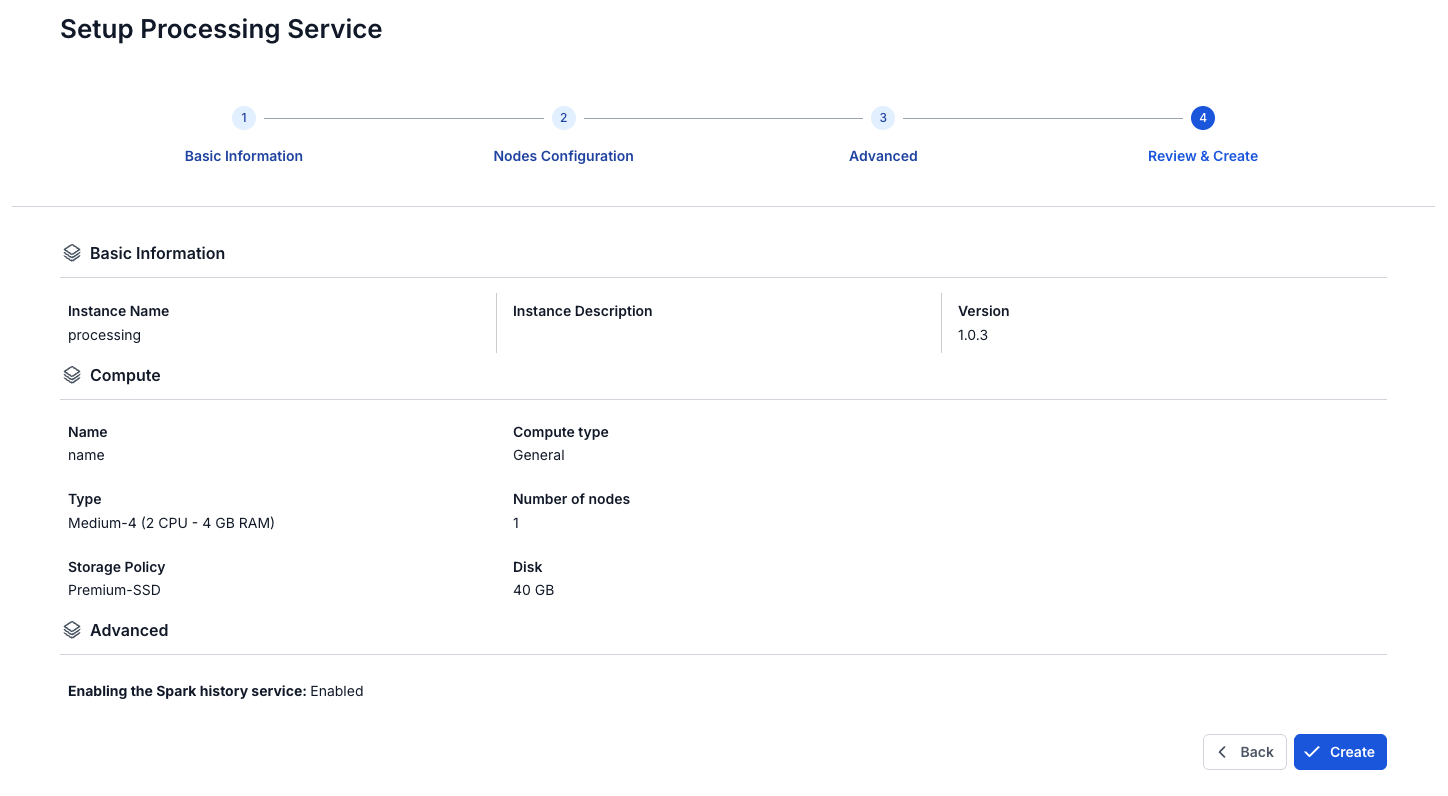
Step 7. Review the entered information, then click Create to complete initializing the Processing service.
The Processing service initialization is complete when the Worker Status is Succeeded and the Status of the Processing service is Healthy (~15 minutes)