View Processing Service details
Use the service details page to check the settings of your Processing Service, its computes, and its Spark history server.
Open the service details
- Select Data platform → Workspace management, then select your workspace.
- On the Overview tab, under Services, select Processing Service.
The details page opens with the service name as its title, for example Processing Service: processing, then the description of the service, its Status, and Created at. The Actions menu holds Delete. See Delete a Processing Service.
The page has three tabs: Essential Information, Computes, and Advanced.
Essential Information tab
The Essential Information tab shows the Instance Information section, with the Name, Version, and Description of the service.
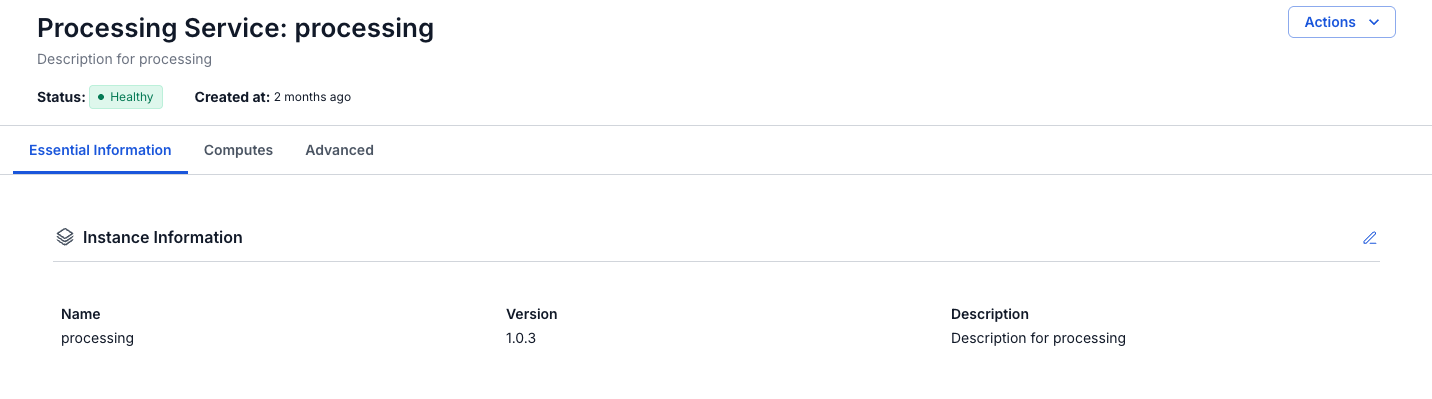
To change the name or description of the service, select the edit icon of Instance Information. In the Update Basic Info panel, change the Name or Description, then select Save. To close the panel without saving changes, select Cancel.
| Field | Description |
|---|---|
| Name | Required. The service name. 1 to 30 characters. Letters, numbers, and hyphens (-). |
| Description | Optional. A description of the service. |
Computes tab
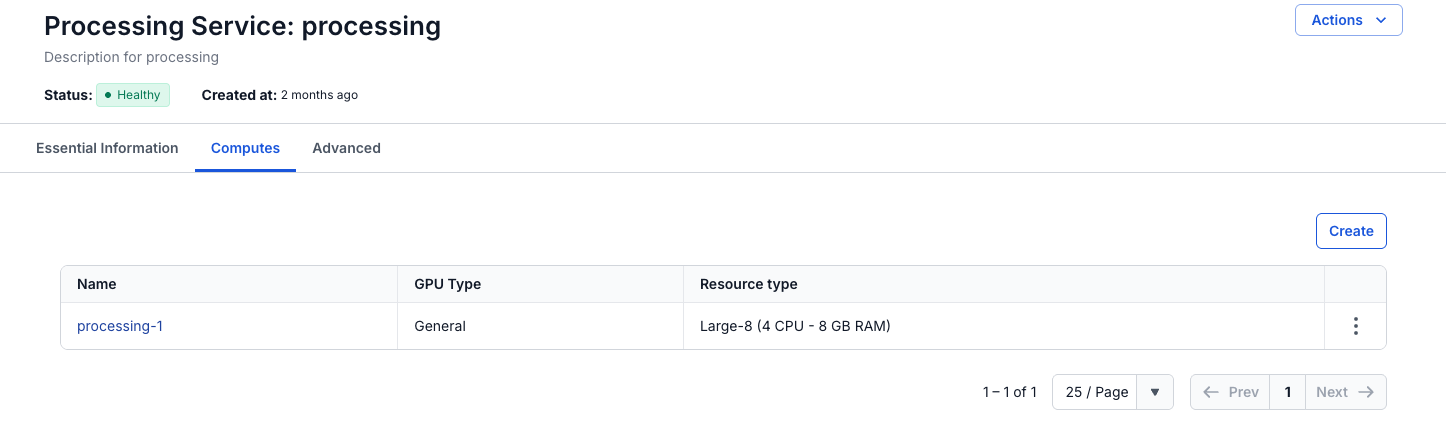
The Computes tab lists the computes of the service, up to 5, with their Name, GPU Type, and Resource type. For a General compute, GPU Type shows General. Here you create and delete computes, and open a compute to manage its images. See Manage Processing Service compute.
Advanced tab
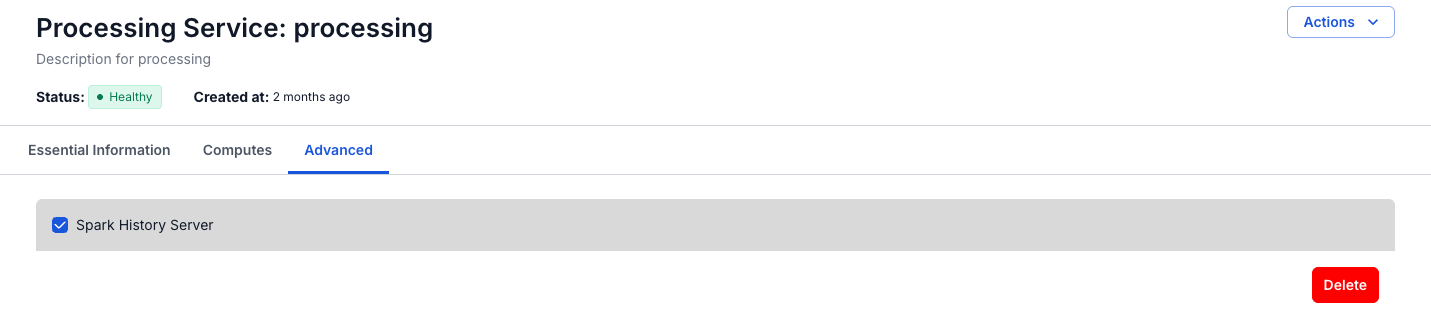
The Advanced tab shows whether Spark History Server is turned on for the service.