Manage Connectors
Displays the Connectors of the Query Engine. All Connector Types fully support four operations: Add, View, Update, Delete.
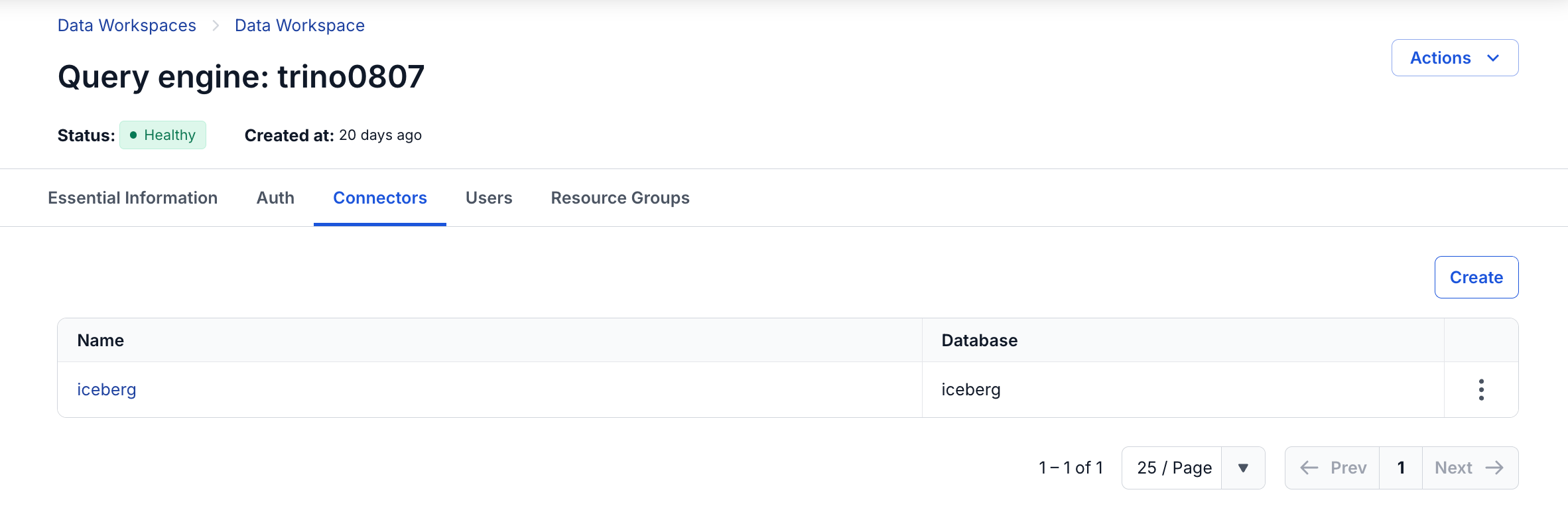
Add a Connector
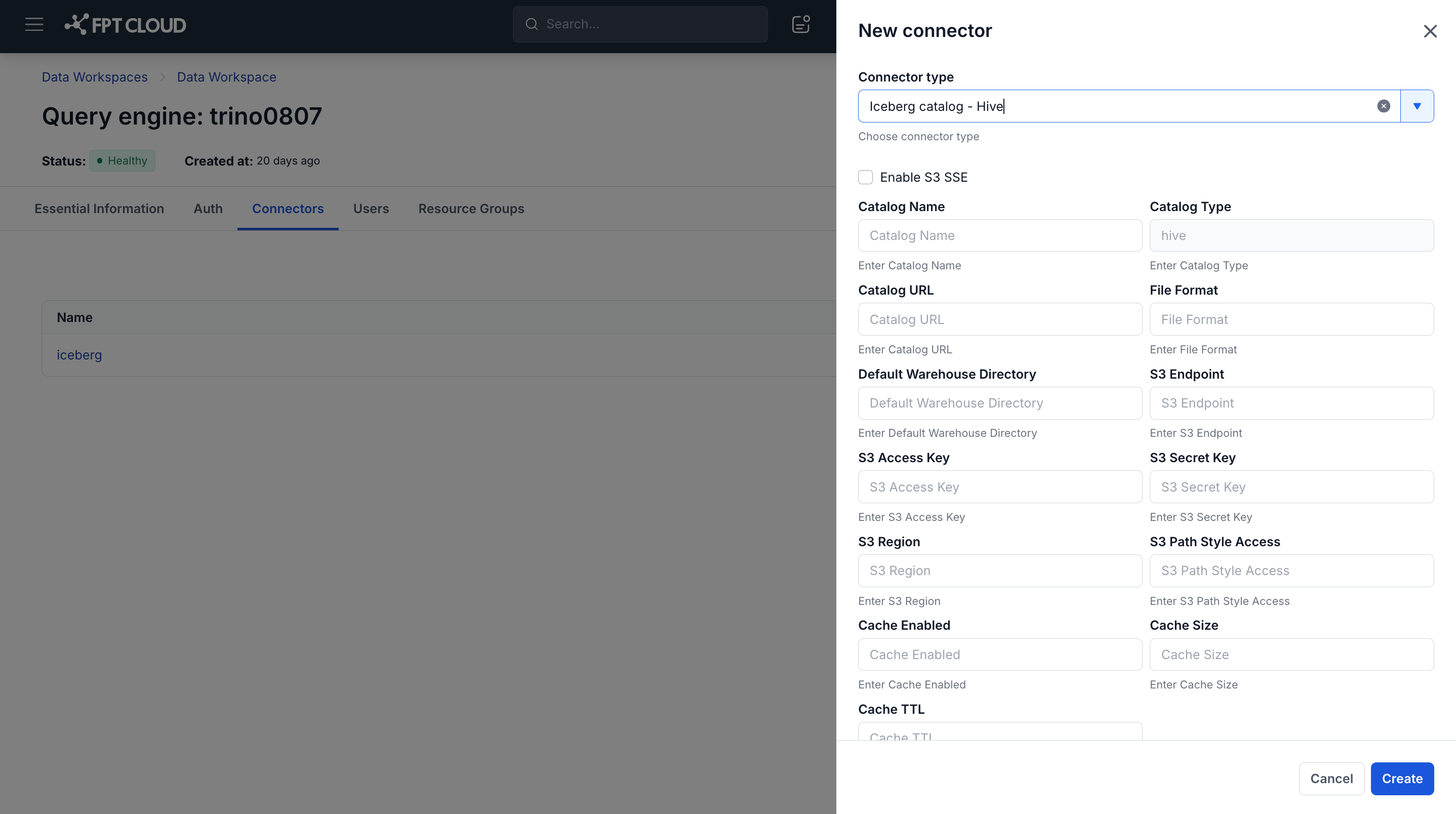
- Step 1: On the Connectors screen, click Create a connector, then select the Connector Type you want to create.
- Step 2: Enter the information for the Connector (see the detailed field descriptions below).
- Step 3: Click Create to create the Connector, or click Cancel to abort.
Note: After successful creation, the Query Engine switches to the Processing state and completes the configuration (~3 minutes).
Update a Connector
- Step 1: On the Connectors screen, select the Action of the connector you want to update, then select Update.
- Step 2: Enter the information to update for the Connector (the Connector Type cannot be changed).
- Step 3: Click Update to save, or click Cancel to abort.
View a Connector
- Step 1: On the Connectors screen, click the Connector name you want to view.
Note: Sensitive fields (Password, S3 Secret Key, SASL Password, Credentials Key) will not display their values for security reasons.
Delete a Connector
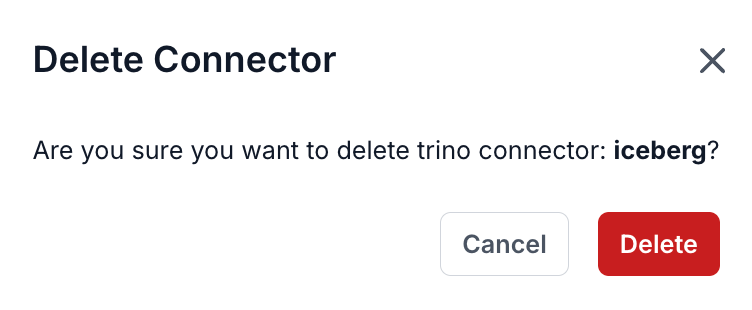
- Step 1: On the Connectors screen, select the Action of the connector you want to delete, then select Delete.
- Step 2: Click Confirm to confirm the deletion, or click Cancel to abort.
Field Information by Connector Type
The table below describes the fields corresponding to each Connector Type in detail.
Iceberg catalog - Hive
| Field | Description |
|---|---|
| Catalog Name | Name of the catalog |
| Catalog Type | Catalog type (enter: hive) |
| Enable S3 SSE | Every file written to S3 is automatically encrypted. When you view or download a file, the Workspace automatically decrypts it, increasing data security. Keyvault: select the keystore you have created (Keystore Management). If S3 SSE is not enabled, files are stored in their original, unencrypted form. |
| Catalog URL | Hive Metastore connection address |
| File Format | Storage file format (parquet / orc / avro) |
| Default Warehouse Directory | Default directory path (s3a://<bucket>/path) |
| S3 Endpoint | S3 access address |
| S3 Access Key | S3 access key |
| S3 Secret Key | S3 secret access key (not displayed in detail view - View) |
| S3 Region | Region of the S3 bucket (e.g., us-east-1, ap-southeast-1) |
| S3 Path Style Access | Enable if the S3 endpoint uses path-style access; enter true/false |
| Cache Enabled | Enable/disable the data caching mechanism for the catalog: True/False |
| Cache Size | Maximum cache size to use (e.g., 10GB, 100GB). Only applies when cache is enabled. |
| Cache TTL | Cache validity period before expiring/refreshing (e.g., 1h, 24h, 7d). Only applies when cache is enabled. |
Iceberg catalog - Nessie
| Field | Description |
|---|---|
| Catalog Name | Name of the catalog |
| Catalog Type | Catalog type (enter: nessie) |
| Enable S3 SSE | Every file written to S3 is automatically encrypted. When you view or download a file, the Workspace automatically decrypts it, increasing data security. Keyvault: select the keystore you have created (Keystore Management). If S3 SSE is not enabled, files are stored in their original, unencrypted form. |
| Catalog URL | Nessie server connection address |
| Nessie Branch | The Nessie branch to connect to |
| File Format | Storage file format (parquet / orc / avro) |
| Default Warehouse Directory | Default directory path (s3a://<bucket>/path) |
| S3 Endpoint | S3 access address |
| S3 Access Key | S3 access key |
| S3 Secret Key | S3 secret access key (not displayed in detail view - View) |
PostgreSQL
| Field | Description |
|---|---|
| Catalog Name | Name of the catalog |
| Host | Host address of the database server |
| Port | Connection port to the database server |
| DB Name | Name of the database to connect to |
| User Name | Login username for authentication |
| Password | Authentication password (not displayed in detail view - View) |
SQL Server
| Field | Description |
|---|---|
| Catalog Name | Name of the catalog |
| Host | Host address of the database server |
| Port | Connection port to the database server |
| DB Name | Name of the database to connect to |
| User Name | Login username for authentication |
| Password | Authentication password (not displayed in detail view - View) |
| Encrypt | Enable/disable SSL/TLS encryption for the connection between the client and SQL Server |
| Trust Server Certificate | Skip validating the server's SSL certificate (typically used for dev/test environments) |
MySQL
| Field | Description |
|---|---|
| Catalog Name | Name of the catalog |
| Host | Host address of the database server |
| Port | Connection port to the database server |
| DB Name | Name of the database to connect to |
| User Name | Login username for authentication |
| Password | Authentication password (not displayed in detail view - View) |
MariaDB
| Field | Description |
|---|---|
| Catalog Name | Name of the catalog |
| Host | Host address of the database server |
| Port | Connection port to the database server |
| DB Name | Name of the database to connect to |
| User Name | Login username for authentication |
| Password | Authentication password (not displayed in detail view - View) |
MongoDB
| Field | Description |
|---|---|
| Catalog Name | Name of the catalog |
| Connection URL | MongoDB connection string (mongodb://<user>:<pass>@<host>:<port>/<db>) |
| User Name | Login username for authentication |
| Password | Authentication password (not displayed in detail view - View) |
OpenSearch
| Field | Description |
|---|---|
| Catalog Name | Name of the catalog |
| Host | Host address of the OpenSearch server |
| Port | Connection port |
| User Name | Login username for authentication |
| Password | Authentication password (not displayed in detail view - View) |
ClickHouse
| Field | Description |
|---|---|
| Catalog Name | Name of the catalog |
| Host | Host address of the ClickHouse server |
| Port | Connection port |
| DB Name | Name of the database to connect to |
| User Name | Login username for authentication |
| Password | Authentication password (not displayed in detail view - View) |
Elasticsearch
| Field | Description |
|---|---|
| Catalog Name | Name of the catalog |
| Host | Host address of the Elasticsearch server |
| Port | Connection port |
| Default Schema Name | Default schema used for queries |
| User Name | Login username for authentication |
| Password | Authentication password (not displayed in detail view - View) |
Kafka
| Field | Description |
|---|---|
| Catalog Name | Name of the catalog |
| Kafka Nodes | List of Kafka broker nodes (host:port, multiple nodes separated by commas) |
| Default Schema | Default schema used for queries |
| Table Names | List of Kafka topics to connect to |
| Security Protocol | Security protocol (PLAINTEXT / SSL / SASL_PLAINTEXT / SASL_SSL) |
| SASL Mechanism | SASL authentication mechanism (PLAIN / SCRAM-SHA-256 / GSSAPI) |
| SASL Username | SASL username |
| SASL Password | SASL password (not displayed in detail view - View) |
BigQuery
| Field | Description |
|---|---|
| Catalog Name | Name of the catalog |
| GCP Project ID | Google Cloud Platform project ID |
| Credentials Key | GCP authentication credentials (Credentials Key), Base64-encoded from the service account JSON file (not displayed in detail view - View) |
| Views Enabled | Allow querying views in BigQuery |
| Skip View Materialization | Skip view materialization during a query, helping optimize performance |
| Max Parallelism | Maximum number of parallel tasks when reading data from BigQuery |