View Ranger details
Use the service details page to find the URL and sign-in details of Ranger Admin and to check the settings of the service.
Open the service details
- Select Data platform → Workspace management, then select your workspace.
- On the Overview tab, under Services, select Ranger.
The details page opens with Data Governance: and the service name as its title, for example Data Governance: ranger-0807, the Status and Created at of the service, and two tabs: Essential Information and Advanced. The Actions menu holds only Delete. See Delete a Ranger service.
Essential Information tab
The Essential Information tab shows how to open Ranger Admin and the settings you chose when you created the service.
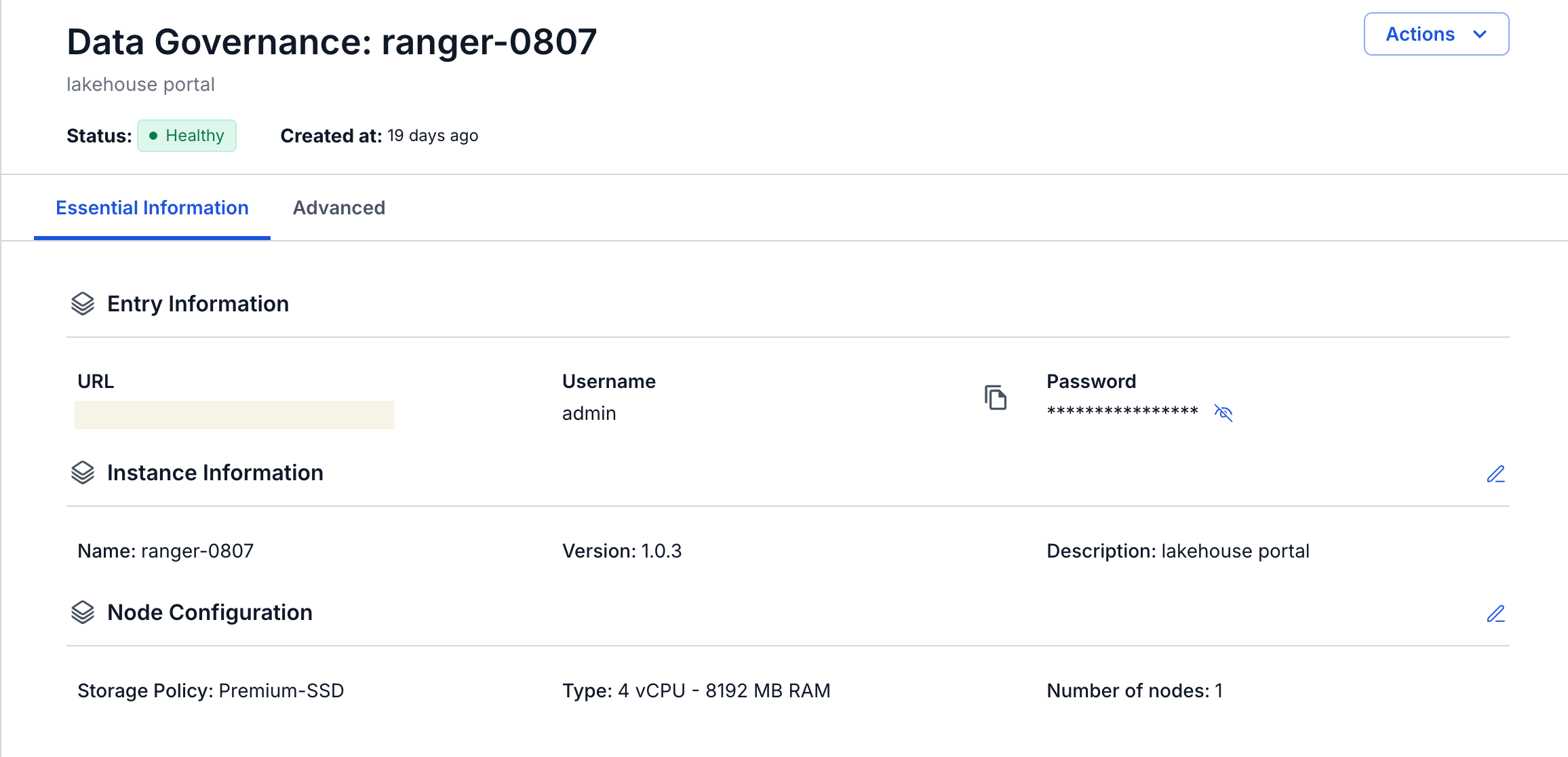
| Section | Fields |
|---|---|
| Entry Information | The URL, Username, and Password that open Ranger Admin. Select the copy icon to copy the username. The password is masked. Select the eye icon to show it. |
| Instance Information | Name, Version, and Description of the service. |
| Node Configuration | Storage Policy, Type, and Number of nodes of the nodes, for example 4 vCPU - 8192 MB RAM. |
To open Ranger Admin, go to the URL. When the service does not use single sign-on (SSO), sign in with the Username and Password.
Advanced tab
The Advanced tab shows the database, audit logs database, user sync, SSO, tag sync, and custom domain settings of the service.
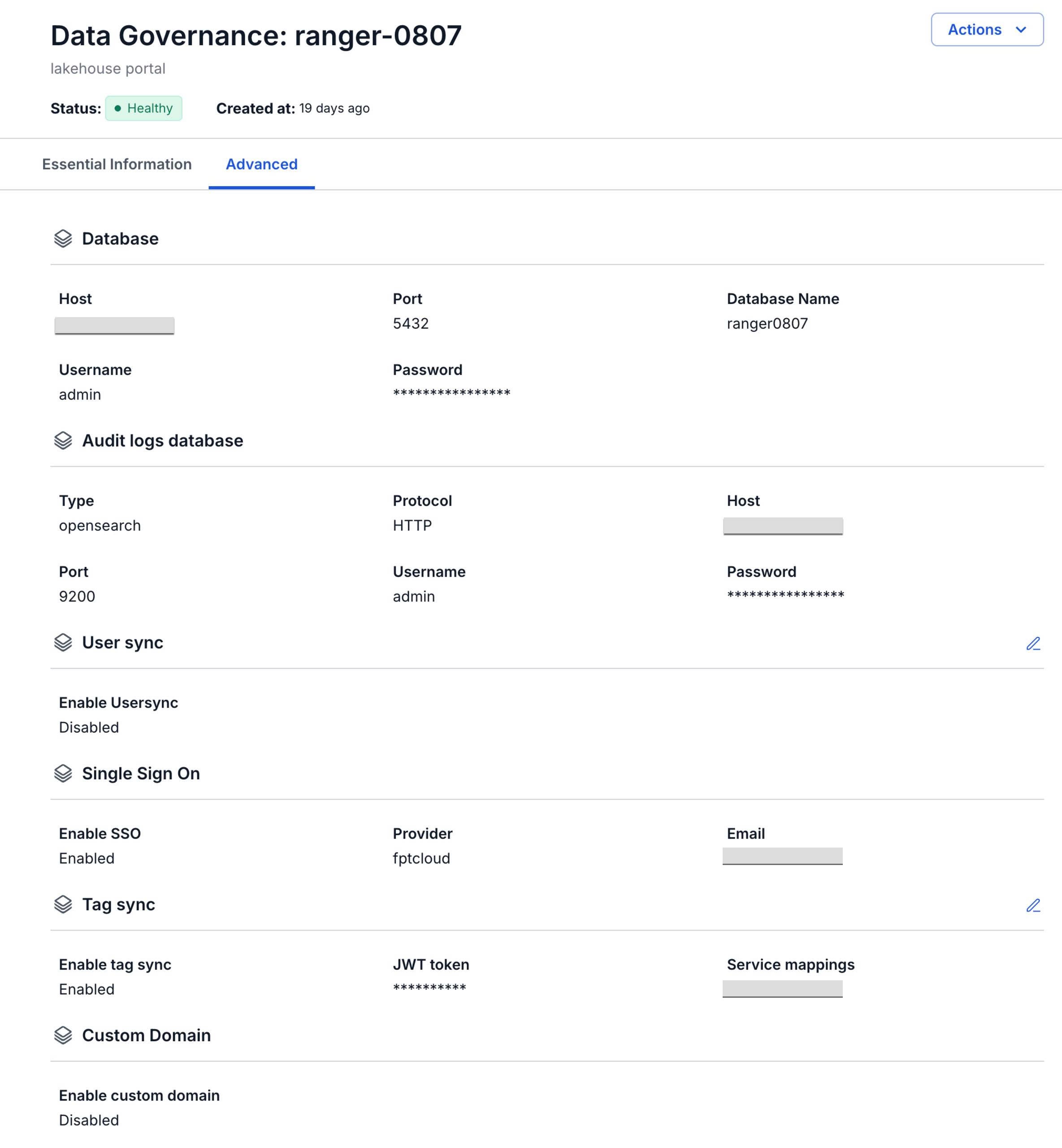
| Section | Fields |
|---|---|
| Database | Host, Port, Database Name, Username, and Password of the PostgreSQL database. |
| Audit logs database | Type, Protocol, Host, Port, Username, and Password of the database that keeps the audit logs. |
| User sync | Enable Usersync, which shows whether Ranger syncs users from LDAP/AD. |
| Single Sign On | The SSO settings, when the service uses single sign-on (SSO). |
| Tag sync | Enable tag sync, JWT token (masked), and Service mappings, which pairs each service in Open Metadata with a service in Ranger. See Sync tags from Open Metadata to Ranger. |
| Custom Domain | Enable custom domain, which shows whether the service uses a custom domain. |
Edit the service
You can change the name, description, and node type of the service after you create it, and turn on user sync and tag sync.
- Open the service details. See Open the service details.
- Select the edit icon of the section you want to change:
- On the Essential Information tab, Instance Information opens the Update Basic Info panel, with Name and Description.
- On the Essential Information tab, Node Configuration opens the Update Node Configuration panel, where you can change only the Type. Storage Policy is greyed out, and the panel has no Number of nodes field.
- On the Advanced tab, User sync opens the User sync panel, titled Create JWT auth, with Enable Usersync.
- On the Advanced tab, Tag sync opens the Tagsync Configuration panel. See Sync tags from Open Metadata to Ranger.
- Change the fields, then select Save.
Audit logs database, Database, Single Sign On, and Custom Domain have no edit icon.