Certificate Manager
Certificate Manager is a module within Workspace used to manage the lifecycle of digital certificates (SSL/TLS), helping ensure security, continuity, and ease of use.
Key features:
- Manage certificates.
- Replace (renew) or delete certificates.
- Apply certificates to services within the Workspace.
1. Certificate List
Purpose: Displays the list of certificates created in the system.
Access: Data Platform > Select Workspace > Certificate Tab
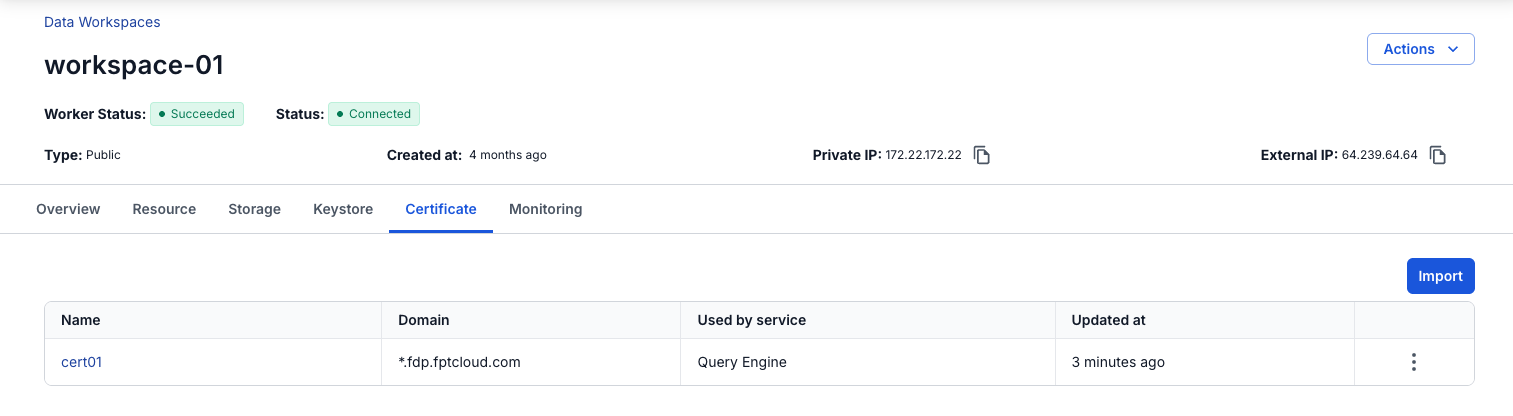
Certificate list, including the following columns:
- Name: Certificate name (click to view details).
- Domain: Applied domain name.
- Used by service: Service currently using the certificate.
- Updated at: Time of the most recent update.
- Action: Action menu (edit, delete).
- Import to renew: Import a certificate to renew it (only available if it is currently in use).
- Delete: Remove the certificate from the system.
- Button Import: Import a new certificate.
2. Import Certificate
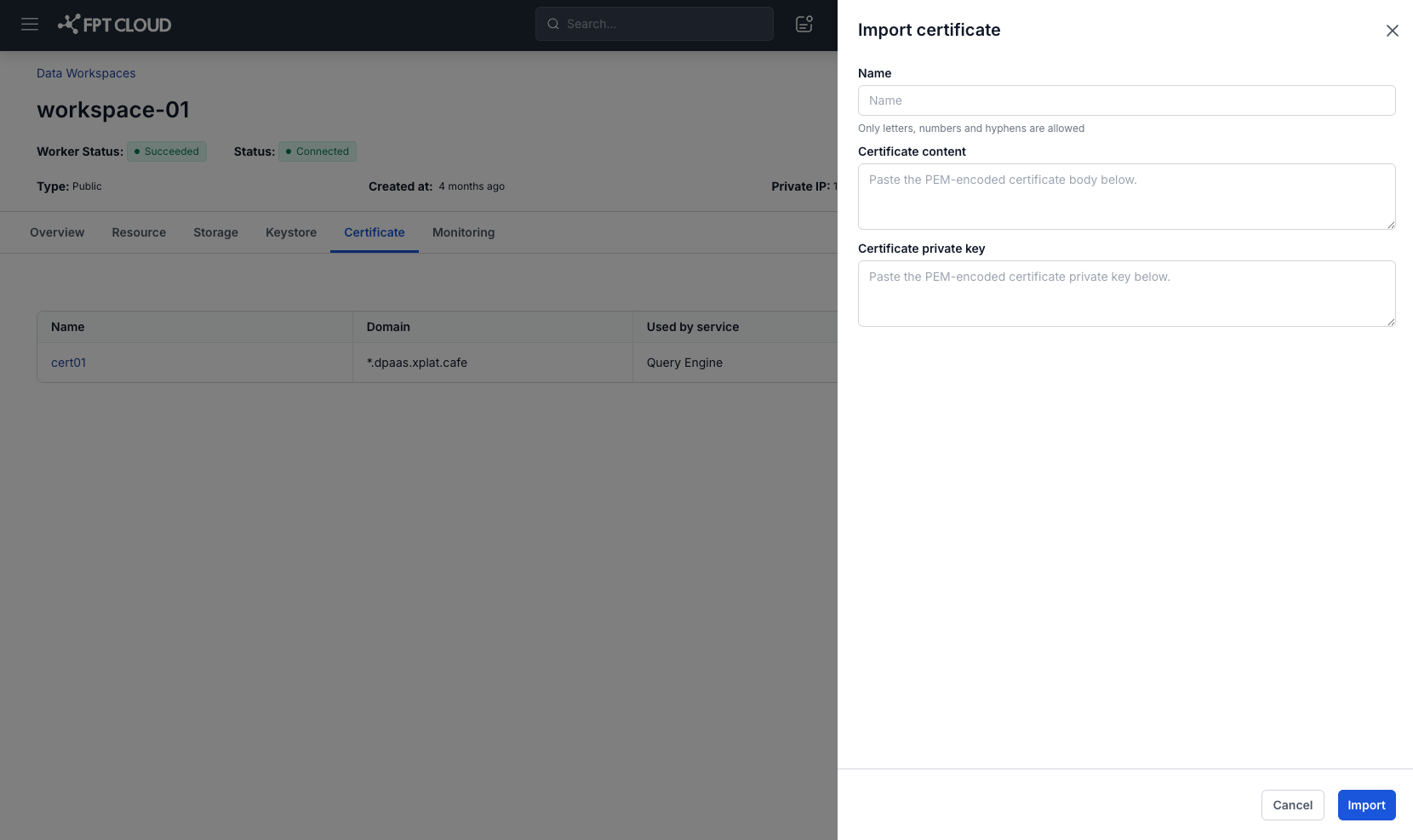
Purpose: Upload a new SSL/TLS certificate and private key for use.
Access: Data Platform > Workspace > Certificate > Import
Steps:
-
Enter the Name (letters, numbers, and hyphens only; must not duplicate an existing name).
-
Paste the Certificate content (PEM format).
-
Paste the Certificate private key (PEM format).
-
Click Import.
System validation checks:
- Valid PEM format.
- Certificate is not expired, has not been revoked, and has reached its validity date.
- Private key matches the certificate.
3. Import Certificate to Renew
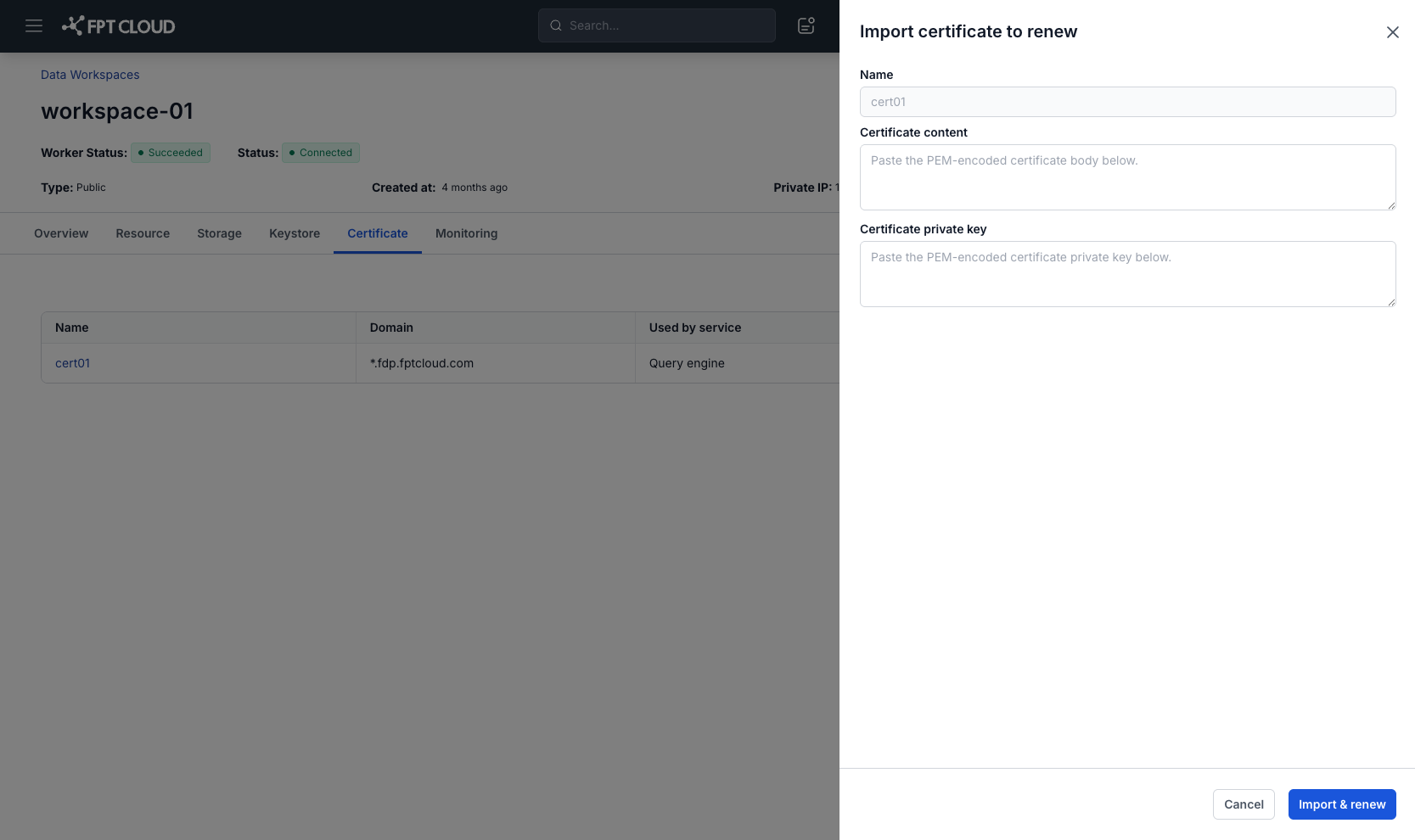
Purpose: Replace the current certificate with a new one.
Access: Data Platform > Workspace > Certificate > Import Certificate to Renew
Steps:
-
Enter the Certificate content and Certificate private key (PEM format).
-
Click Import & renew.
-
The system updates and immediately applies the certificate to the service currently in use.
Conditions:
- Valid PEM format.
- Not expired, not revoked, and has reached its validity date.
- Private key matches the certificate.
- The certificate has not been renewed before.
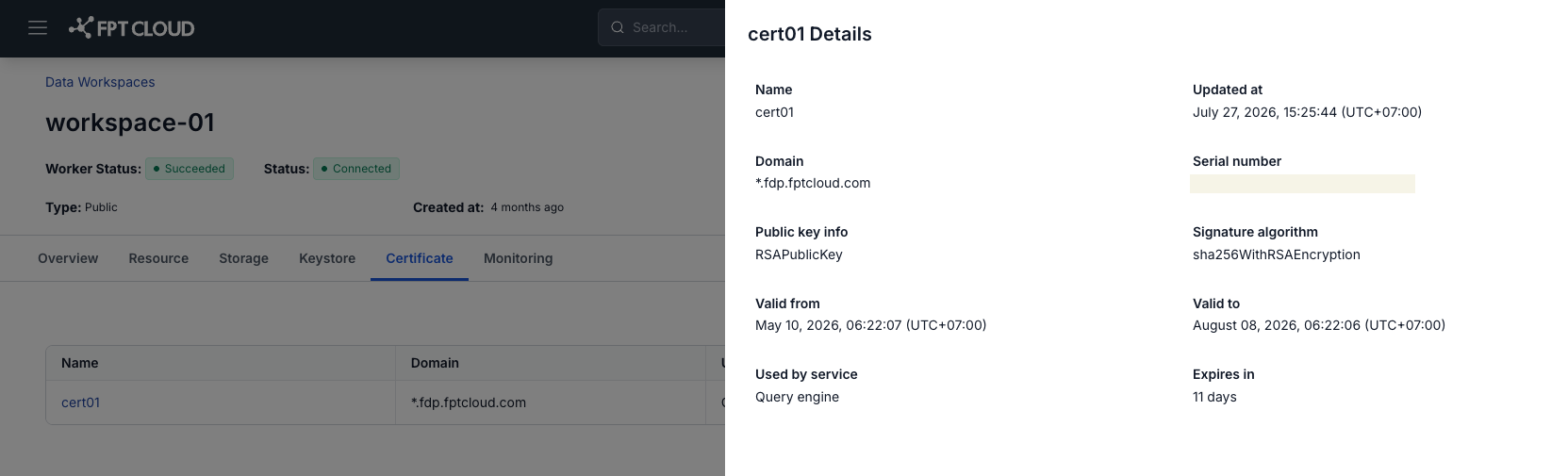
4. Certificate Details
Purpose: View detailed information about a certificate.
Access: Data Platform > Workspace > Certificate > Click on the certificate name
When you click on a certificate name in the Certificate List, the system opens a detail popup displaying the following fields:
| Field | Detailed description |
|---|---|
| Name | The identifier name of the certificate in the system. Set when the certificate is imported. Used to distinguish between different certificates. |
| Domain name | The domain name or wildcard domain (e.g., example.com or *.example.com) that the certificate protects. This is important information for determining whether the certificate is suitable for the service that needs it. |
| Public key info | Information about the type and length of the public key, e.g., RSA 2048, RSA 4096, ECDSA P-256. A longer key length provides higher security but requires more processing. |
| Valid From | The date and time the certificate becomes valid. Displayed with the timezone to avoid confusion when deploying across multiple regions. |
| Valid To | The date and time the certificate expires. After this point, the certificate is no longer valid and may cause secure connection (HTTPS) errors for the service. |
| Expires in | The number of days remaining until the certificate expires. Automatically calculated by the system based on the current time and Valid To. This is a useful indicator for tracking and planning a timely renewal. |
| Used by service | The list of services currently using this certificate, e.g., JupyterHub, Ingestion API, Query Engine, etc. This field is only shown if the certificate is assigned to at least one service. |
| Serial number | The unique serial number of the certificate, typically issued by the CA (Certificate Authority). Used for lookup, verification, or management of the certificate in the system. |
| Signature algorithm | The digital signature algorithm used by the certificate, e.g., SHA-256 with RSA or ECDSA with SHA-384. This affects security level and processing speed. |
| Updated at | The time the certificate was most recently updated in the system (typically when newly imported or renewed). Helps track the certificate's change history. |
5. Delete Certificate
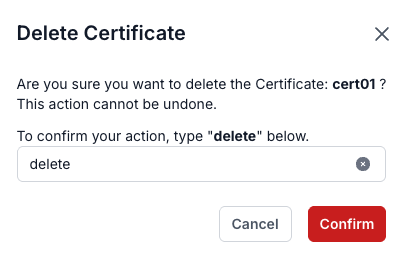
Purpose: Remove a certificate from the system.
Access: Data Platform > Workspace > Certificate > Action > Delete
Steps:
-
Enter the keyword delete in the confirmation field.
-
Click Confirm to delete.
Conditions:
- If the certificate is currently in use, it cannot be deleted.
- If the wrong keyword is entered or the field is left empty, the system will display an error.