Manage certificates
Keep the SSL/TLS certificates of your workspace in one place, see when each one expires, and renew it before it does. Services in the workspace use the certificates you import here: when you create a service that needs a certificate, you pick one from this list in the service's create form.
Prerequisites
- The certificate and its private key, both in PEM format.
- A certificate that has reached its start date, has not expired, and has not been revoked.
View certificates
- Select Data platform → Workspace management, then select your workspace.
- Select the Certificate tab.
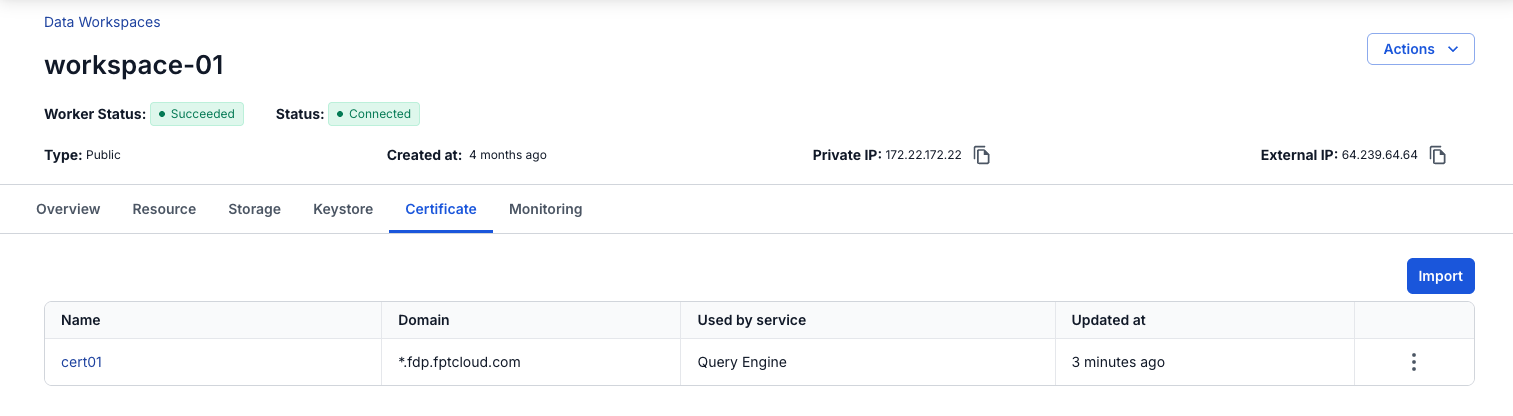
| Column | Description |
|---|---|
| Name | The certificate name. Select it to open the certificate details. |
| Domain | The domain the certificate applies to. |
| Used by service | The service that uses the certificate. |
| Updated at | When the certificate was last updated. |
The more icon (⋮) at the end of each row opens Import to renew and Delete. Import to renew is available only when a service uses the certificate.
Import a certificate
- Select Data platform → Workspace management, then select your workspace.
- Select the Certificate tab.
- Select Import, or Let's get started if the workspace has no certificate yet.
- In the Import certificate panel, enter a Name.
- Paste the certificate into Certificate content.
- Paste the private key into Certificate private key.
- Select Import.
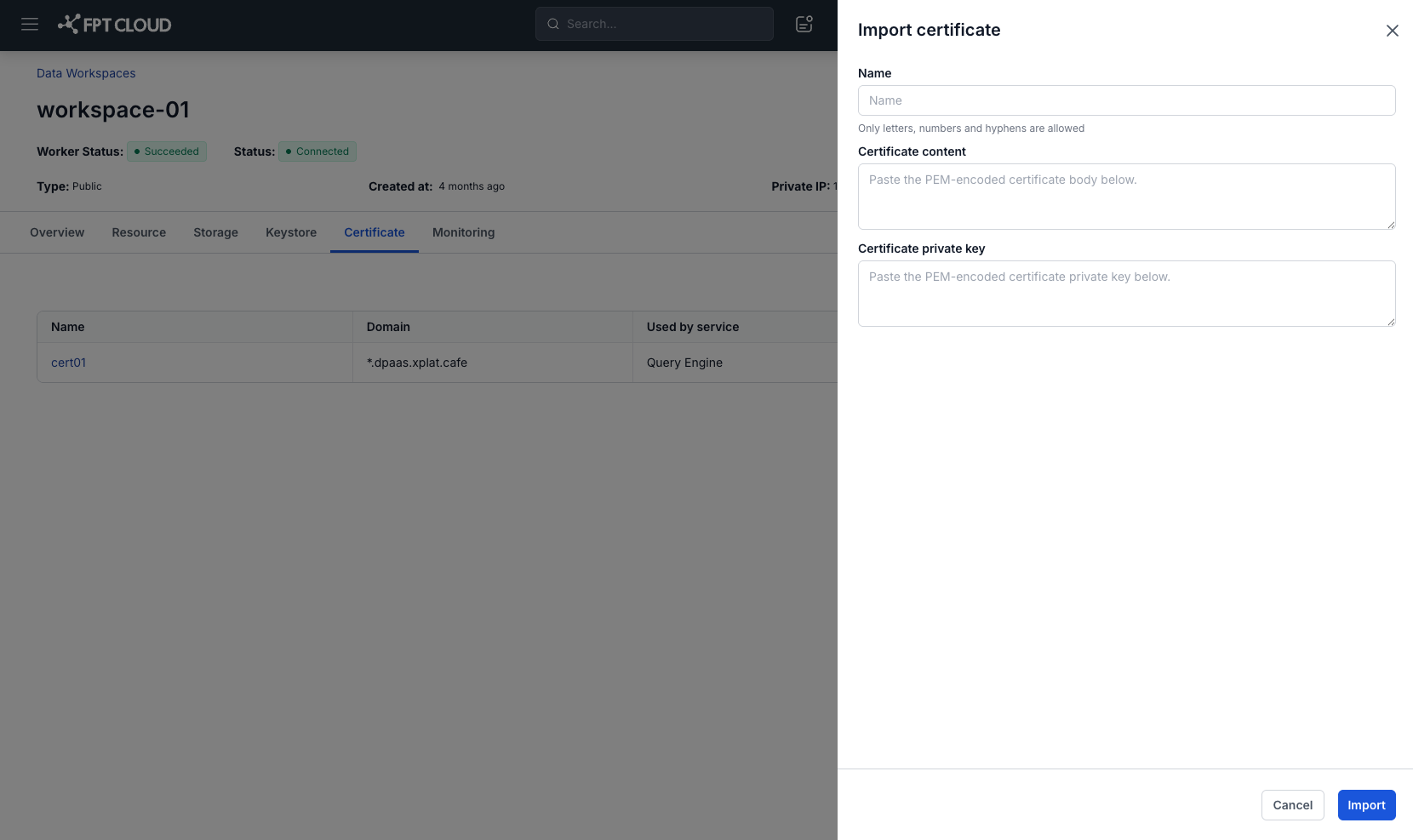
| Field | Description |
|---|---|
| Name | Required. Letters, numbers, and hyphens only. Must not match the name of an existing certificate. |
| Certificate content | Required. The certificate body in PEM format. |
| Certificate private key | Required. The certificate's private key in PEM format. |
Before it imports the certificate, the portal checks that:
- Both fields are in valid PEM format.
- The certificate has reached its start date, has not expired, and has not been revoked.
- The private key matches the certificate.
Renew a certificate
Renew a certificate to replace it with a new one. You can renew a certificate only while a service uses it, and the portal applies the new certificate to that service right away.
- Select Data platform → Workspace management, then select your workspace.
- Select the Certificate tab.
- In the certificate's row, select the more icon (⋮), then select Import to renew.
- In the Import certificate to renew panel, paste the new certificate into Certificate content.
- Paste its private key into Certificate private key.
- Select Import & renew.
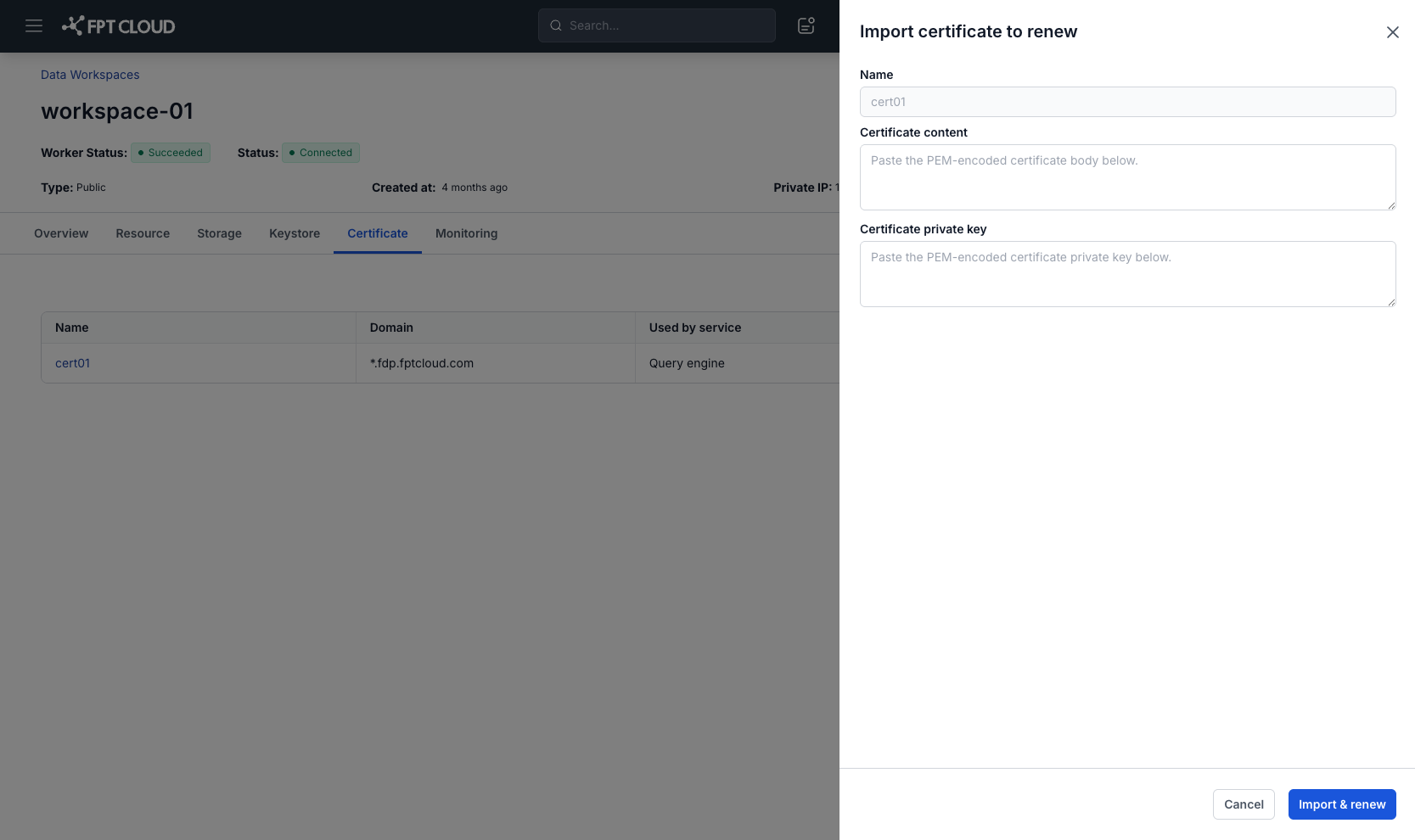
Name shows the current certificate and cannot be changed. The portal renews the certificate only when:
- Both fields are in valid PEM format.
- The new certificate has reached its start date, has not expired, and has not been revoked.
- The private key matches the certificate.
- The certificate has not been renewed before.
View certificate details
- Select Data platform → Workspace management, then select your workspace.
- Select the Certificate tab.
- Select the certificate's Name.
A panel with the certificate's details opens.
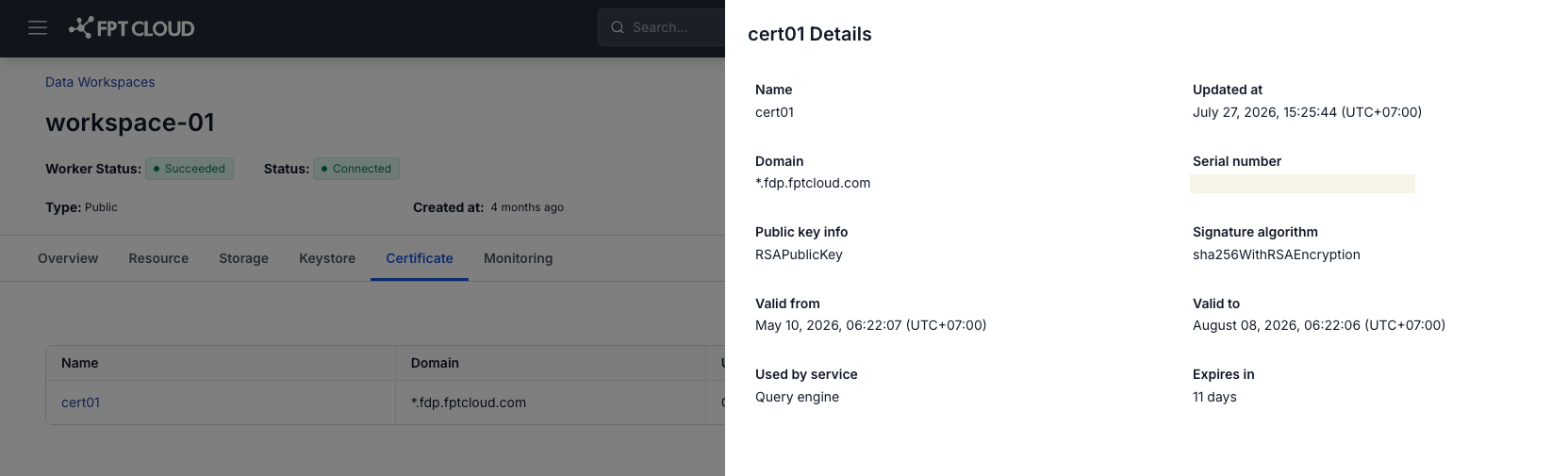
| Field | Description |
|---|---|
| Name | The name you gave the certificate when you imported it. |
| Domain | The domain or wildcard domain the certificate protects, for example example.com or *.example.com. Check it to make sure the certificate fits the service. |
| Public key info | The public key type, for example RSAPublicKey. The key length is not shown. |
| Valid from | When the certificate becomes valid, with the time zone, for example (UTC+07:00). |
| Valid to | When the certificate expires. After this time, services that use it can get HTTPS connection errors. |
| Expires in | Days left until Valid to, calculated from the current time. Use it to plan the renewal. |
| Used by service | The services that use the certificate, for example Query Engine. Shown only when at least one service uses the certificate. |
| Serial number | The unique serial number, usually issued by the certificate authority (CA). Use it to look up or verify the certificate. |
| Signature algorithm | The algorithm the certificate is signed with, for example sha256WithRSAEncryption. It affects security and processing speed. |
| Updated at | When the certificate was last updated in the portal, usually when it was imported or renewed. |
Delete a certificate
You cannot delete a certificate while a service uses it.
- Select Data platform → Workspace management, then select your workspace.
- Select the Certificate tab.
- In the certificate's row, select the more icon (⋮), then select Delete.
- In the Delete Certificate dialog, enter
delete, then select Confirm.
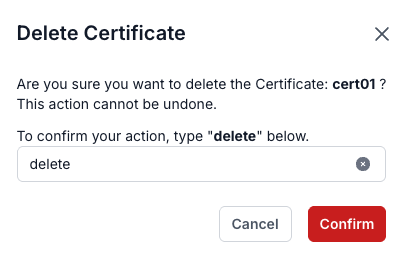
If the confirmation field is empty or holds another word, the portal shows an error.
Deleting a certificate cannot be undone.