Manage keystores
Keystores let you store and manage the keys, tokens, and credentials that services in your workspace use. Keep a secret in the workspace itself, or connect to a secret in an external vault such as HashiCorp Vault.
Prerequisites
- To connect an external vault, you need the vault's
https://endpoint, an access token that has not expired and has access to the secret, and the path and key of the secret.
View keystores
- Select Data platform → Workspace management, then select your workspace.
- Select the Keystore tab.
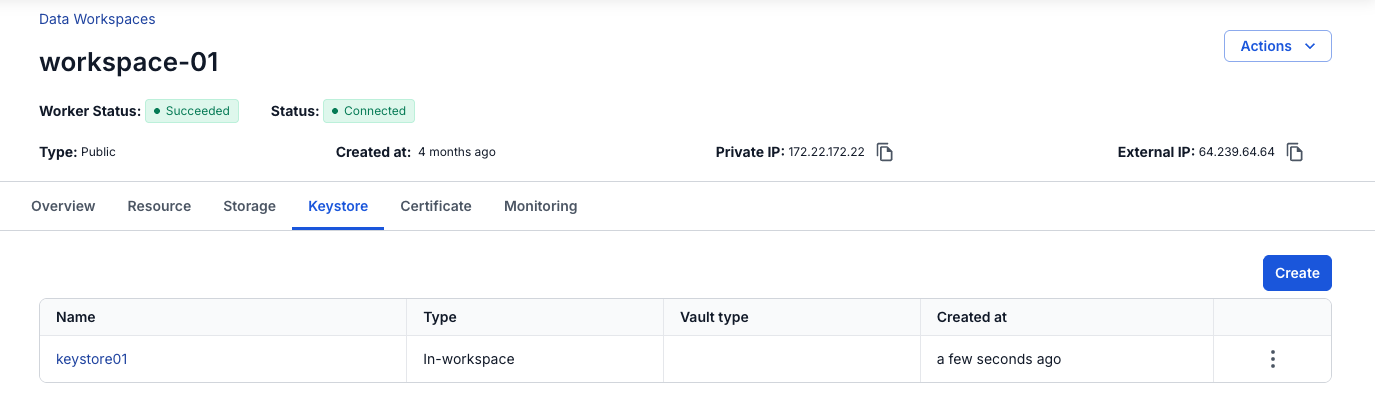
The list shows every keystore in the workspace.
| Column | Description |
|---|---|
| Name | The keystore name. |
| Type | In-workspace for a secret stored in the workspace. Integration for a secret in an external vault. |
| Vault type | The external vault, for example Hashicorp. Empty for an In-workspace keystore. |
| Created at | When the keystore was created. |
The more icon (⋮) at the end of each row opens Update and Delete.
Create a keystore in the workspace
Use the In workspace type when you want the workspace itself to store the secret value.
- Select Data platform → Workspace management, then select your workspace.
- Select the Keystore tab.
- Select Create, or Let's get started if the workspace has no keystore yet.
- In the New Keystore panel, select In workspace in Type.
- Enter a Name and a Value.
- Select Create.
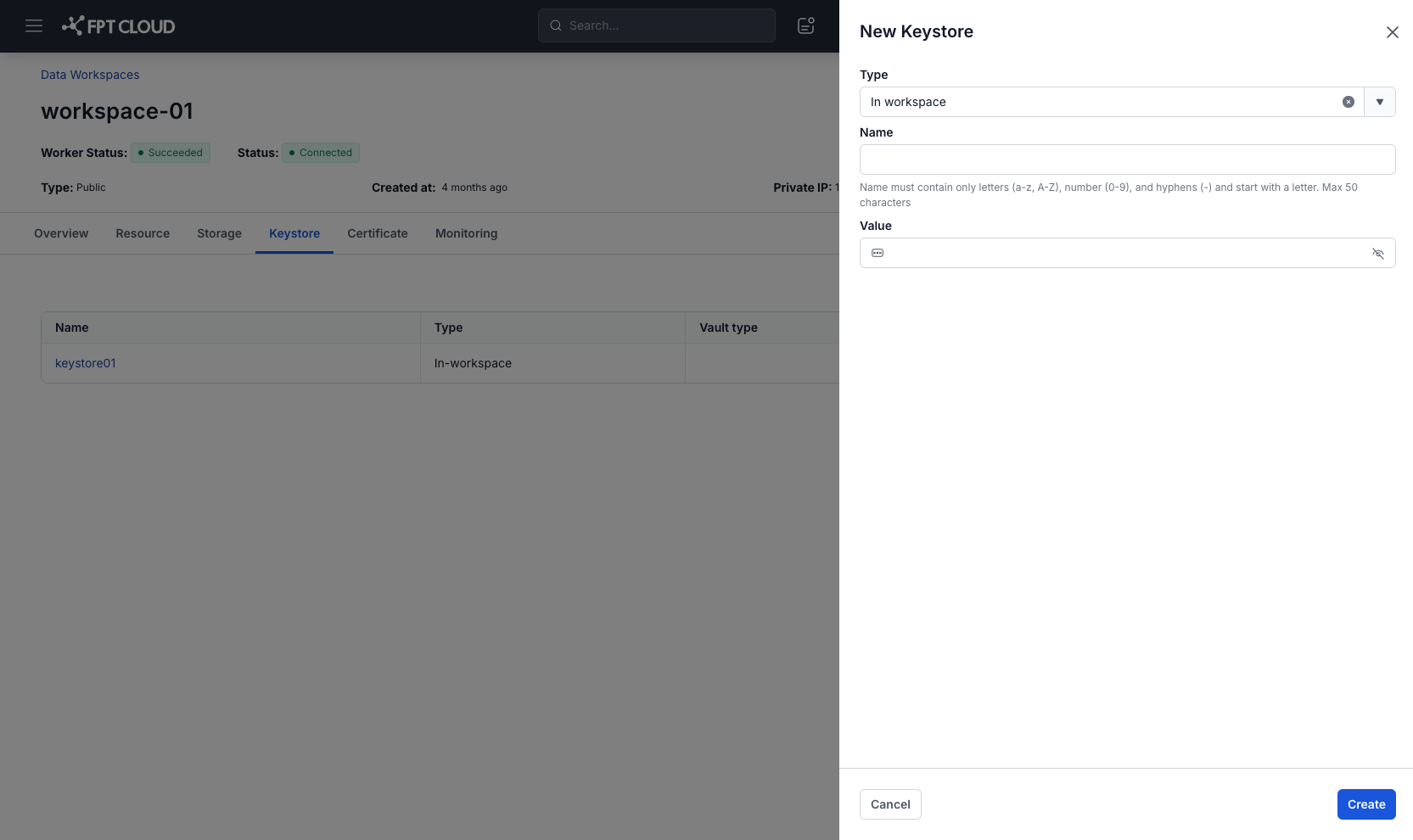
| Field | Description |
|---|---|
| Type | Required. In workspace stores the secret in the workspace. |
| Name | Required. Letters (a-z, A-Z), numbers (0-9), and hyphens (-) only. Starts with a letter. Max 50 characters. Name it by purpose and environment, for example s3-prod. |
| Value | Required. The secret, for example a password, a token, or a connection string. Max 255 characters. Special characters are allowed. The field hides the value. Select the eye icon to show or hide it. |
Connect an external vault
Use the Integration type when the secret lives in an external vault. The portal tests the connection before it lets you create the keystore.
- Select Data platform → Workspace management, then select your workspace.
- Select the Keystore tab.
- Select Create, or Let's get started if the workspace has no keystore yet.
- In the New Keystore panel, select Integration in Type.
- Select the Vault type, for example Hashicorp.
- Enter the Name, Endpoint, and Token.
- Enter the Path and Key of the secret in the vault.
- Select Test connection.
- When the test succeeds, select Create.
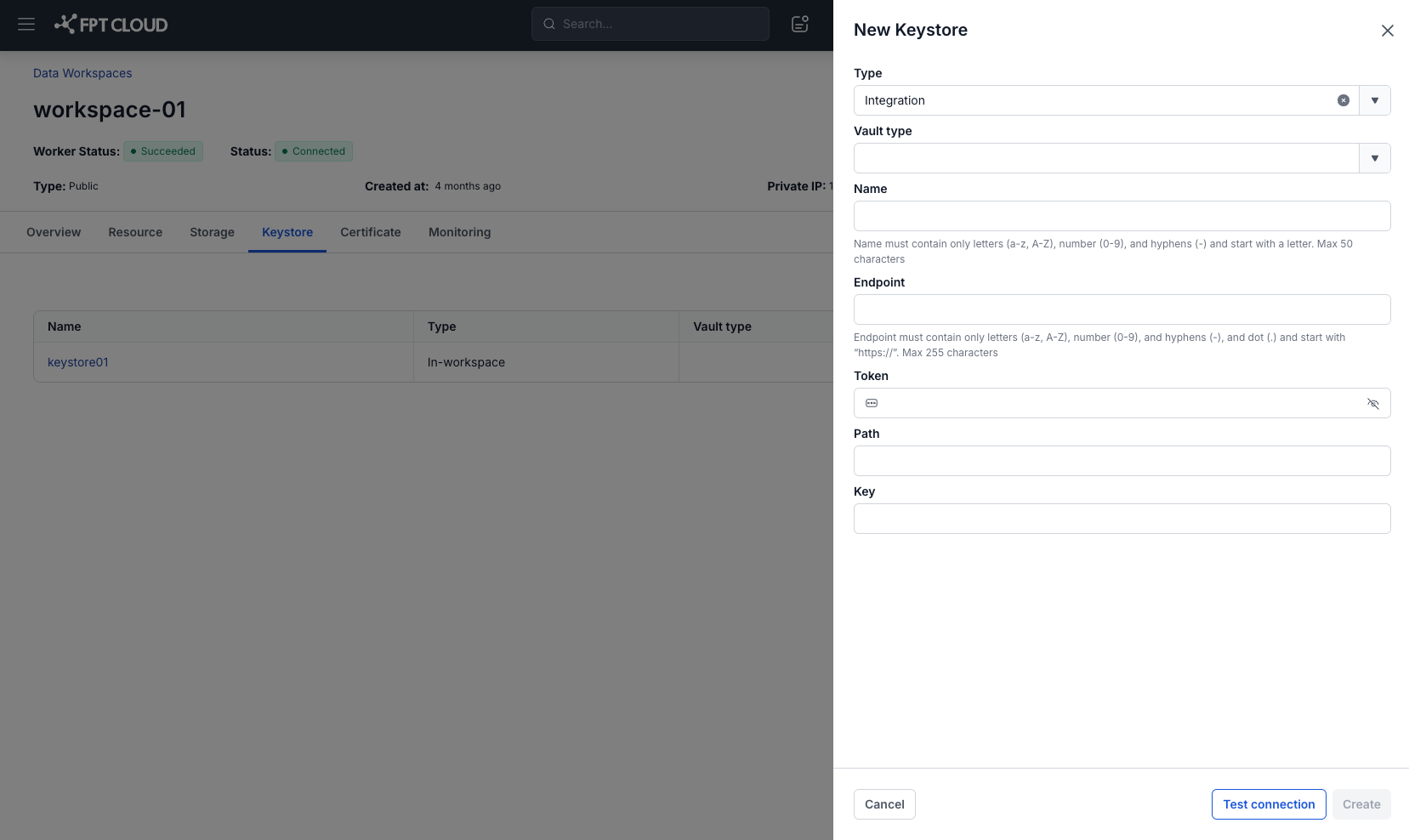
Create stays unavailable until Test connection succeeds.
| Field | Description |
|---|---|
| Type | Required. Integration connects the keystore to an external vault. |
| Vault type | Required. The vault system, for example Hashicorp. |
| Name | Required. Letters (a-z, A-Z), numbers (0-9), and hyphens (-) only. Starts with a letter. Max 50 characters. Name it by purpose and environment, for example s3-prod. |
| Endpoint | Required. The vault URL, for example https://vault.example.com. Starts with https://, followed by letters, numbers, hyphens (-), and dots (.) only. Max 255 characters. A port or a path is not accepted: https://vault.example.com:8200 shows "Endpoint has invalid characters". |
| Token | Required. The vault access token. Use a token that has not expired. The field hides the token. Select the eye icon to show or hide it. |
| Path | Required. The path to the secret in the vault, for example data/lakehouse/s3-key. 1 to 255 characters. |
| Key | Required. The name of the secret in that path, for example sse-c-key. 1 to 255 characters. |
If the test fails, check the Endpoint, Token, Path, and Key. Common causes:
- The token does not have access to the secret.
- The token has expired.
- The path or the key does not exist in the vault.
- The endpoint does not use HTTPS.
Update a keystore
Update a keystore when its secret value changes, or when the vault endpoint, token, path, or key changes. You cannot change the Type, the Vault type, or the Name.
Update an In-workspace keystore
- Select Data platform → Workspace management, then select your workspace.
- Select the Keystore tab.
- In the keystore's row, select the more icon (⋮), then select Update.
- In the Update Keystore panel, enter the new Value. Select the eye icon to check what you entered.
- Select Save.
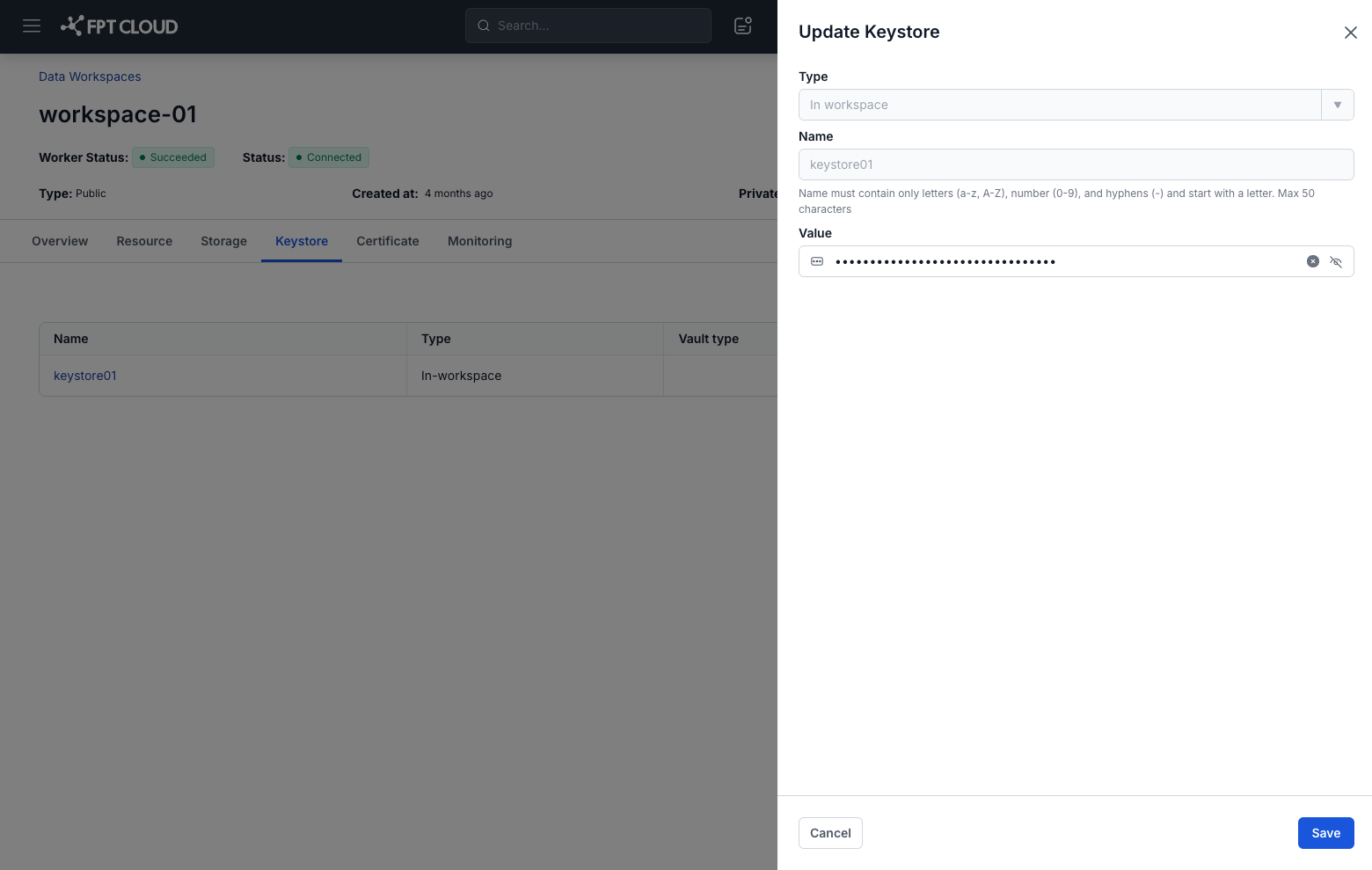
The Value follows the same rules as when you create the keystore: max 255 characters, special characters allowed.
Update an Integration keystore
- Select Data platform → Workspace management, then select your workspace.
- Select the Keystore tab.
- In the keystore's row, select the more icon (⋮), then select Update.
- In the Update Keystore panel, change the Endpoint, Token, Path, or Key.
- Select Test connection.
- When the test succeeds, select Save.
The Endpoint must still start with https:// and stay within 255 characters. If the test fails, check the values you entered.
Delete a keystore
You cannot delete a keystore that a service still uses.
- Select Data platform → Workspace management, then select your workspace.
- Select the Keystore tab.
- In the keystore's row, select the more icon (⋮), then select Delete.
- In the Delete Keystore dialog, enter
delete, then select Confirm.
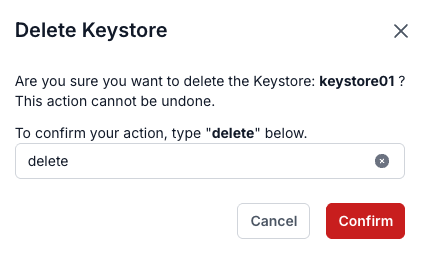
If a service uses the keystore, the portal shows The keystore is in use by: {service_name}, with the name of that service, and keeps the keystore.
Deleting a keystore cannot be undone.