Manage workspace storage
Add storage to a workspace to mount an S3 bucket for the services that run in it. Each storage serves one category of services.
Prerequisites
- A workspace whose Status is Connected. See Create a workspace.
- The bucket name, endpoint, access key, and secret key of the S3 storage.
Open the New Storage panel
- Select Data platform → Workspace management, then select your workspace.
- Select the Storage tab.
- Select Create. If the workspace has no storage yet, select Let's get started.
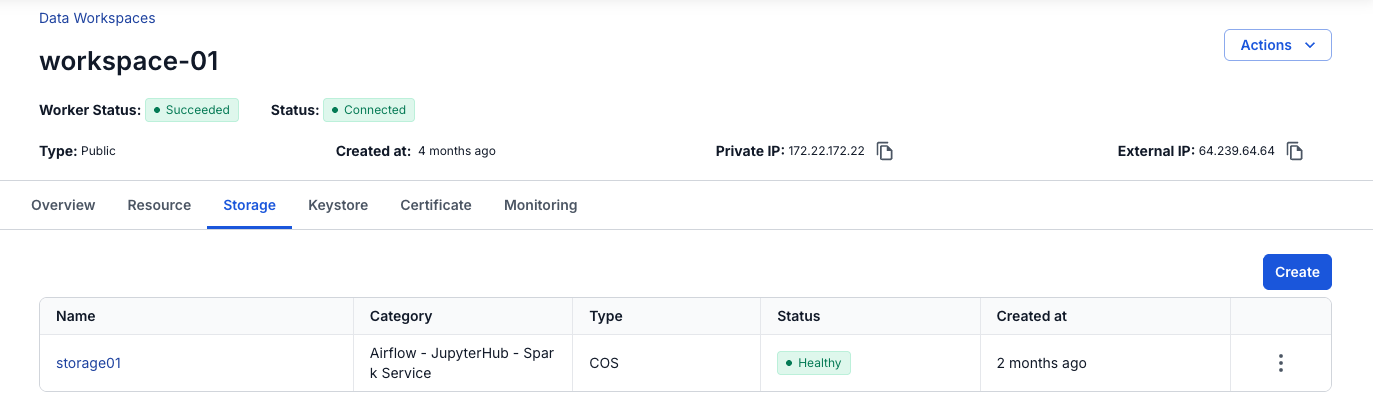
The New Storage panel opens.
Choose the category and type
- Select a Category.
- In Type, select S3 Storage. The panel shows the S3 fields.
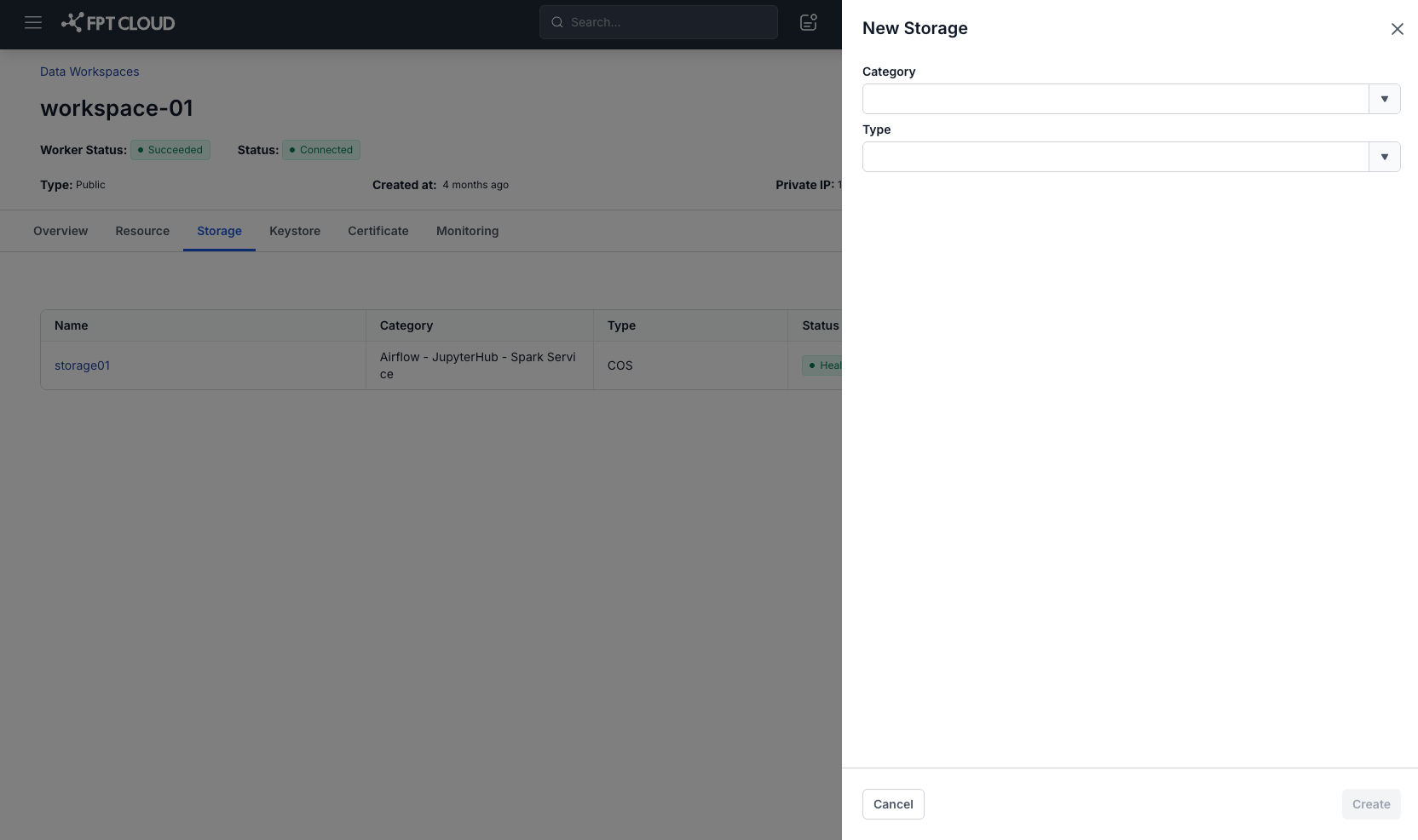
| Field | Description |
|---|---|
| Category | Required. The services that use the storage. See the table below. |
| Type | Required. S3 Storage. |
| Category | Services |
|---|---|
| Airflow - JupyterHub - Spark Service | Airflow, JupyterHub, and Spark Service. |
| Ingestion Service | Ingestion Service. |
| Flink | Flink. |
Connect S3 storage
- Enter a Name.
- Enter the Bucket Name and Endpoint.
- Enter the Access Key and Secret.
- Select Test connection to check the connection from the workspace to the S3 storage.
- Select Create.
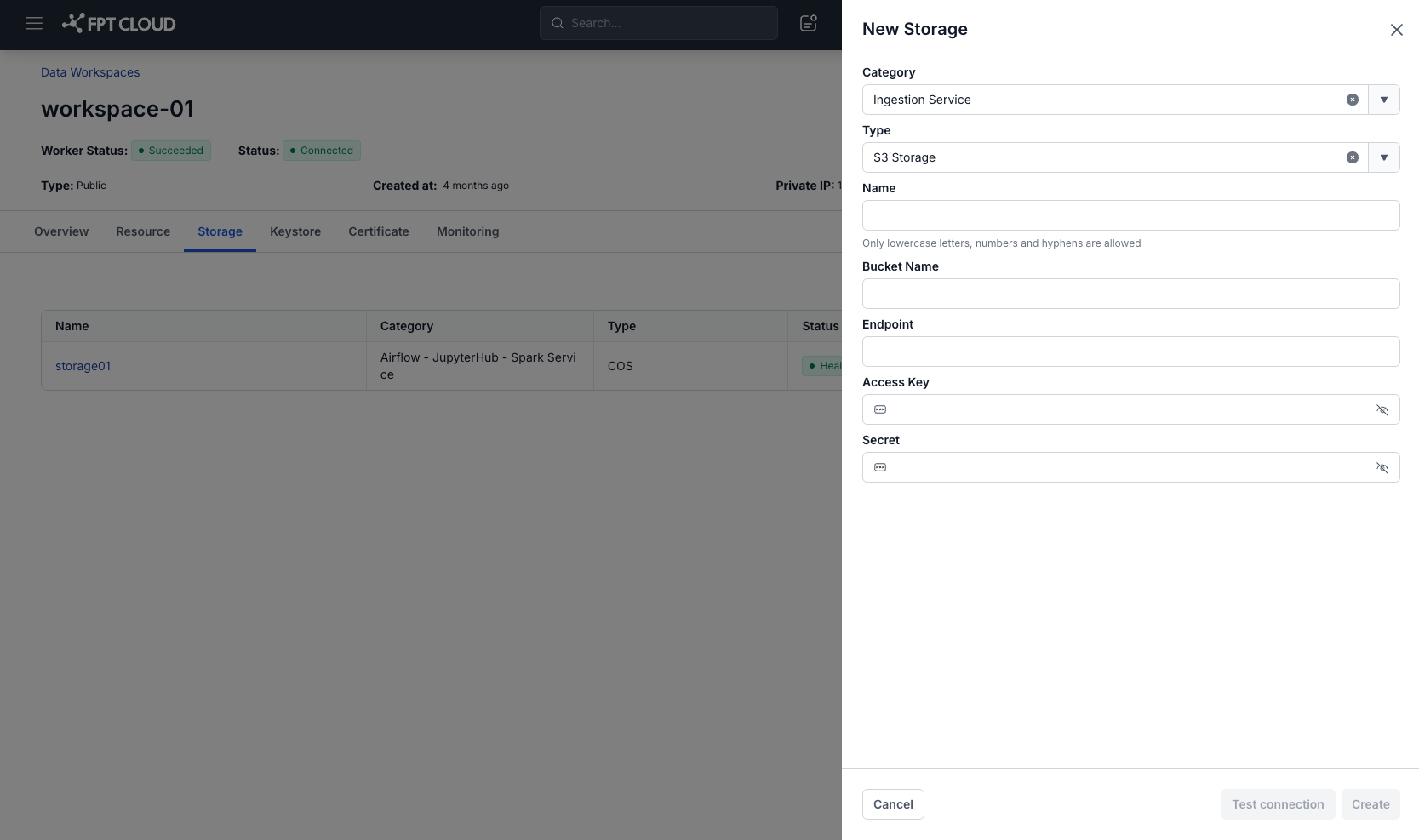
| Field | Description |
|---|---|
| Name | Required. The storage name. Lowercase letters, numbers, and hyphens only. |
| Bucket Name | Required. The name of the bucket. |
| Endpoint | Required. The address of the S3 storage. |
| Access Key | Required. The access key. |
| Secret | Required. The secret key. |
After you select Create, the storage appears in the list on the Storage tab, with S3 Storage as its type.
note
Delete the storage before you delete the services that use it. A workspace with storage left cannot be deleted.